Fine-tune light and color
Ten sliders cover brightness, contrast, saturation, vibrance, highlights, shadows, whites, blacks, temperature and tint, with an invert switch beside them. Every change shows on the photo as the slider moves.
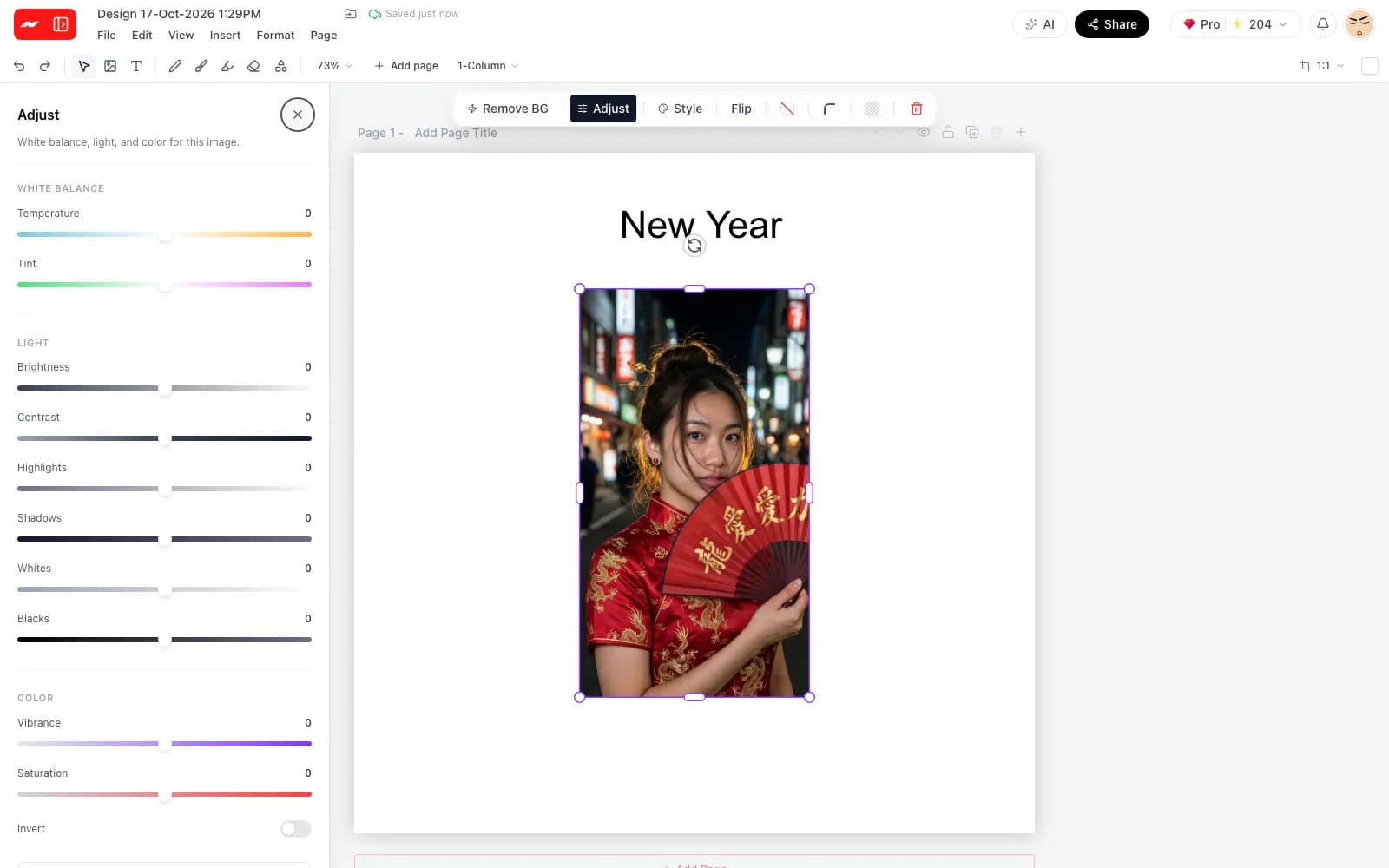
Adjust light and color, remove backgrounds in one click and add text on separate layers in a web browser.
The free plan needs no card, and edited photos carry no watermark.
Ten sliders cover brightness, contrast, saturation, vibrance, highlights, shadows, whites, blacks, temperature and tint, with an invert switch beside them. Every change shows on the photo as the slider moves.
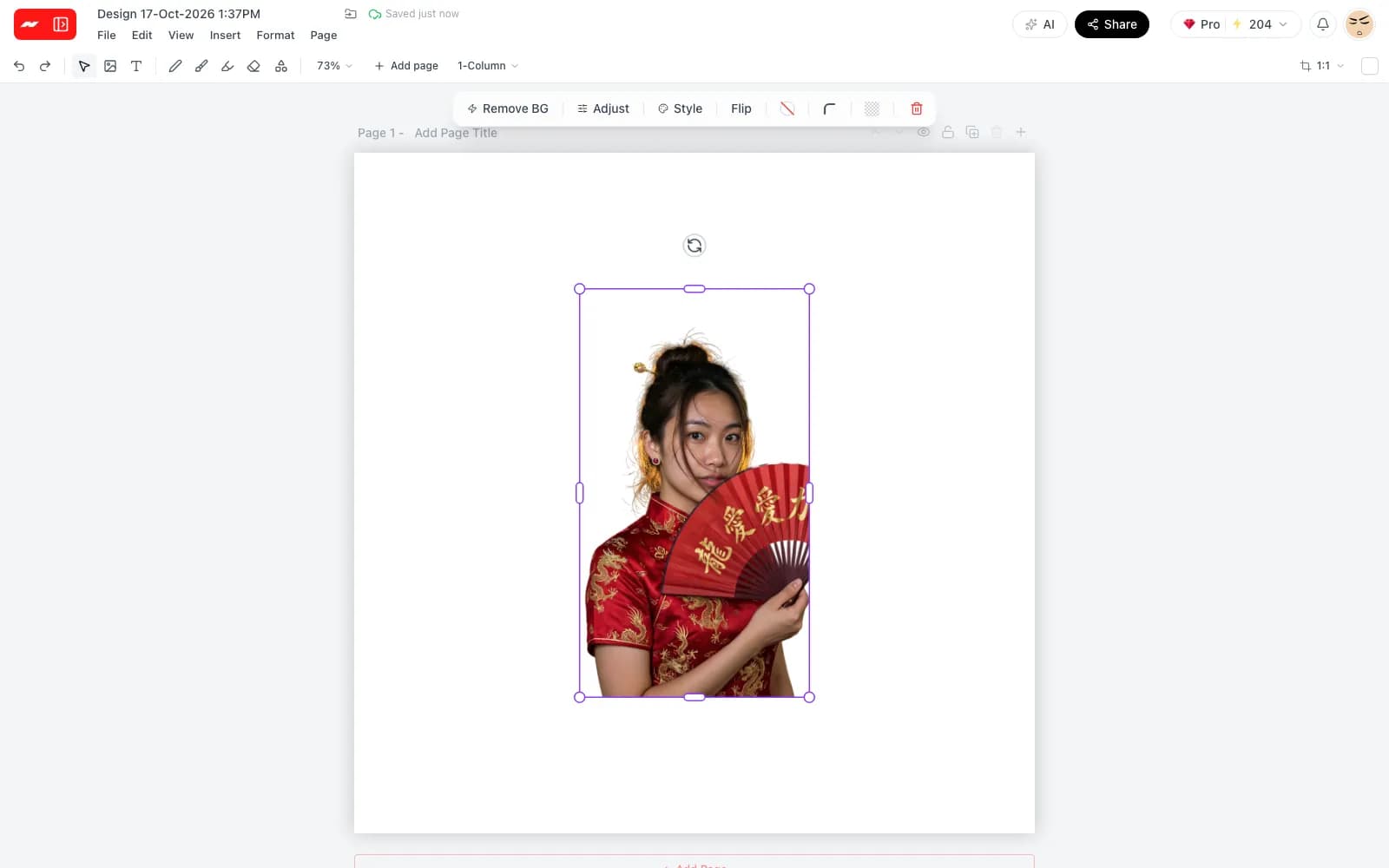
Select a photo and press Remove BG to cut the subject out of it. The cutout keeps a transparent background and can be placed on any color, or exported as a PNG with the transparency intact.
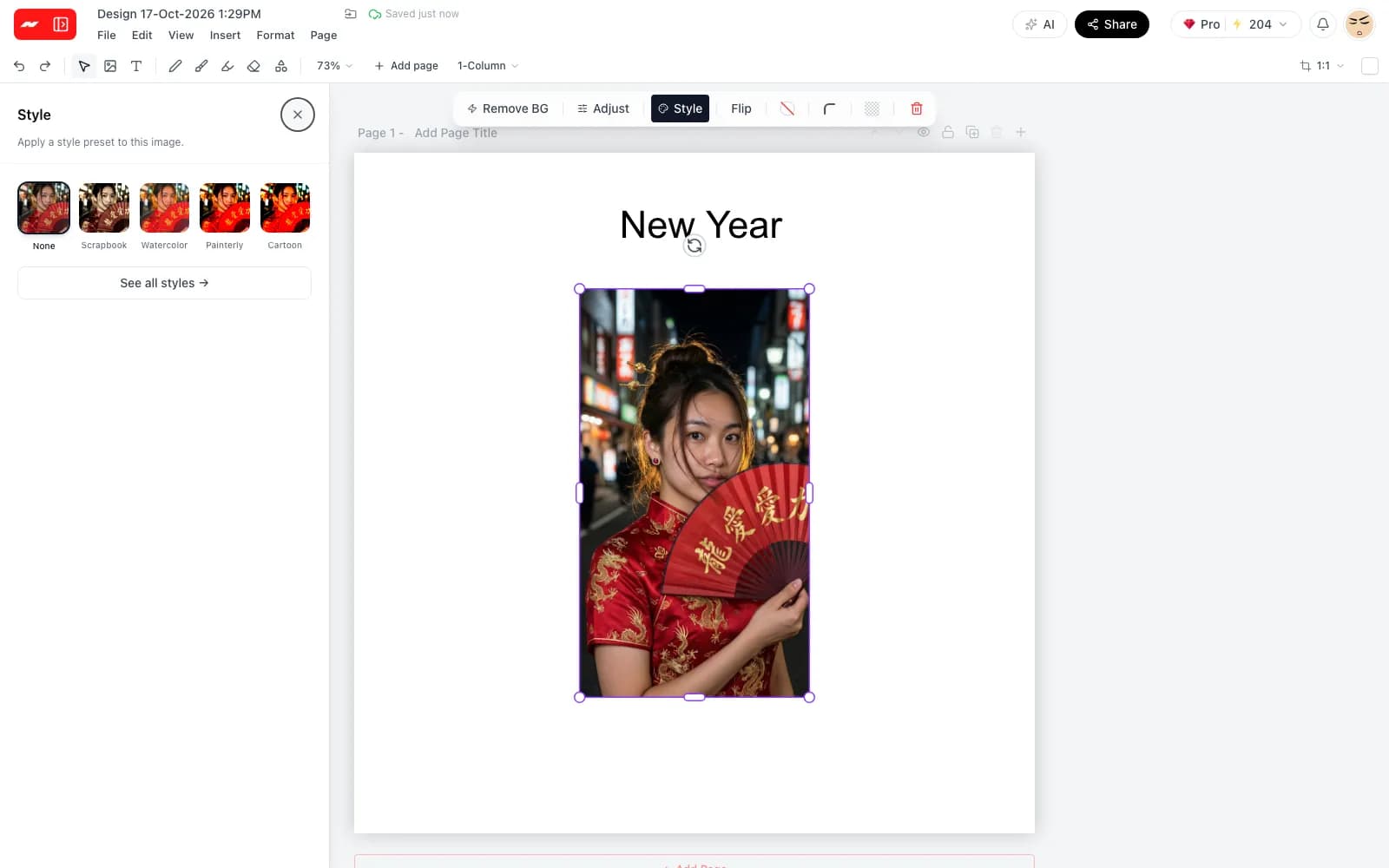
A gallery of style presets changes the look of a photo in one step. Apply a preset first, then adjust the light and color sliders to finish the result by hand.
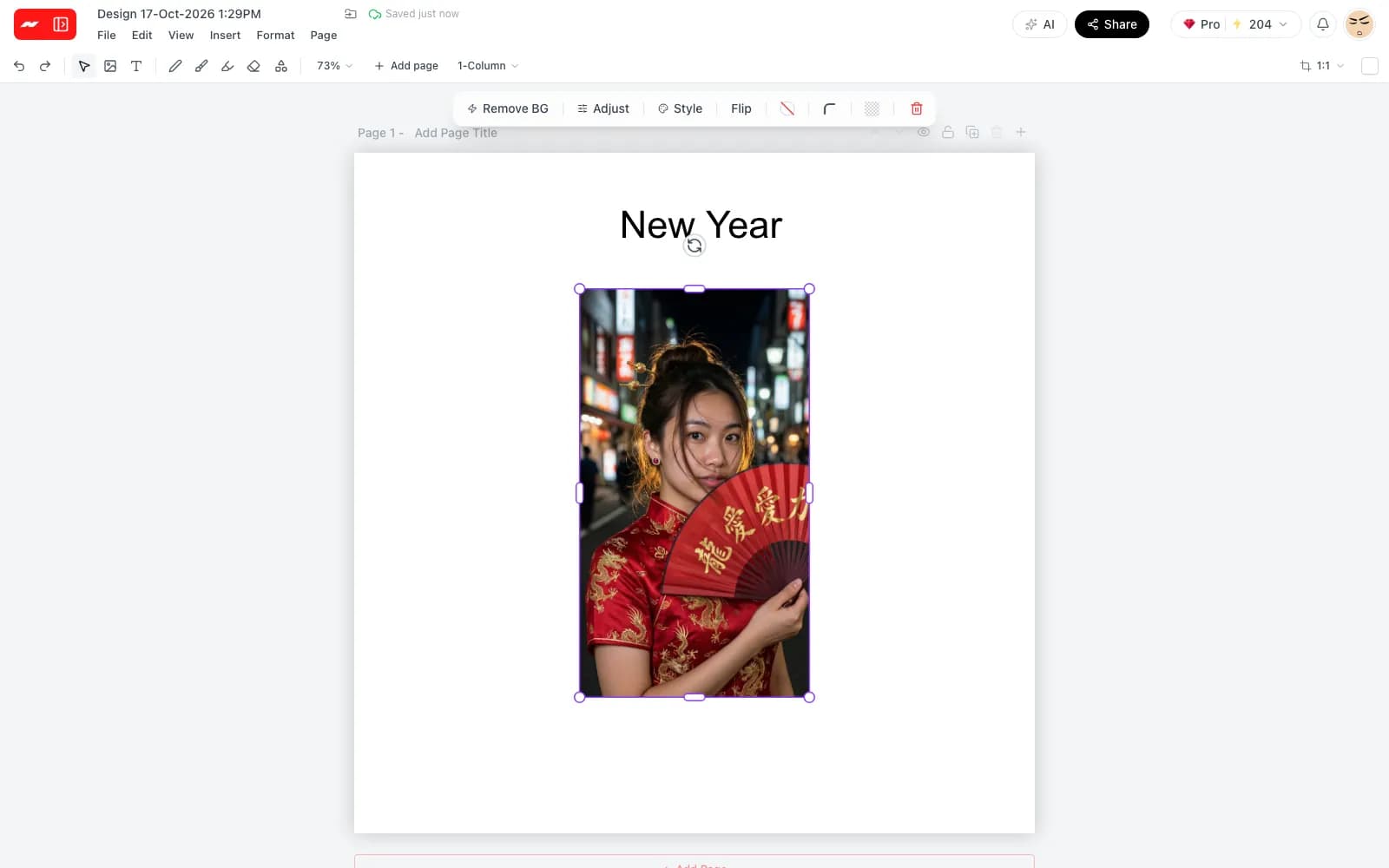
Every photo, text box and shape sits on its own layer in the layers panel. Add text in a choice of fonts, place shapes, and draw on top with a pen, brush or highlighter.
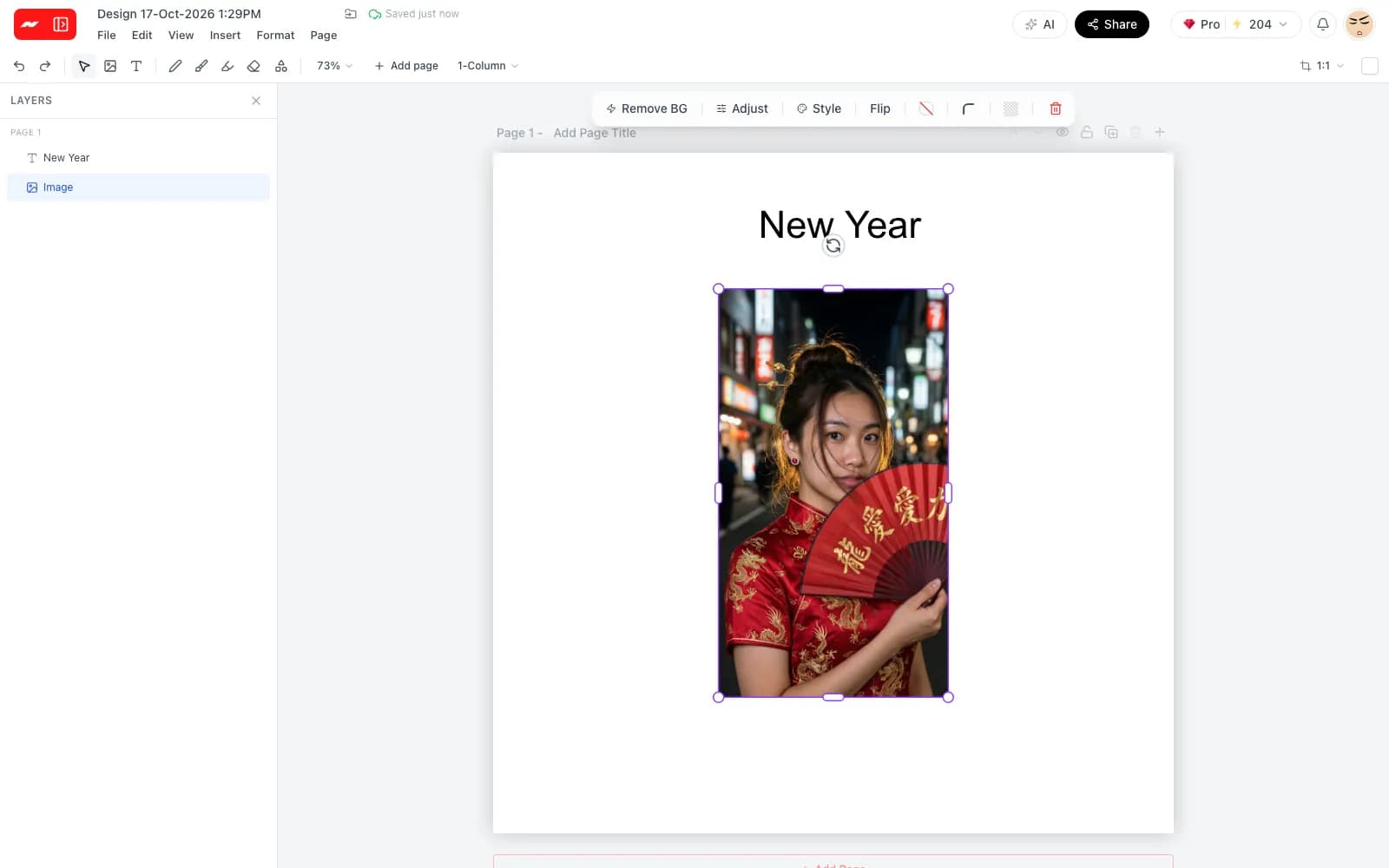
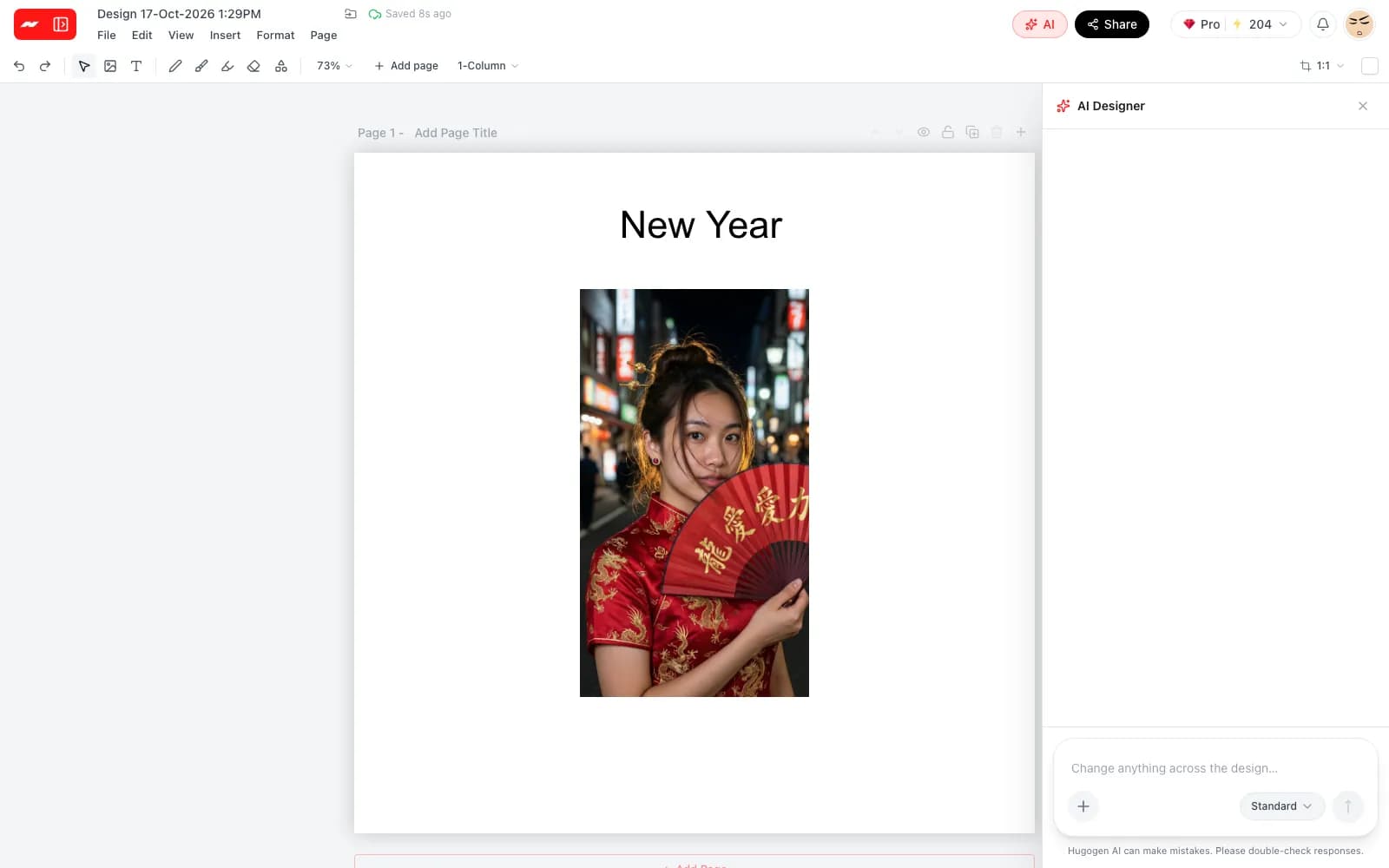
Open the AI panel and describe the edit, such as a new headline or a different layout. The AI designer makes the change on the page, and every element stays editable afterwards.
Step 1
Open the photo editor and add a photo from a computer. JPG, PNG and WebP files all work.
Step 2
Adjust the light and color, remove the background, and add text, shapes or drawing on separate layers.
Step 3
Export the photo as a PNG with transparency, a JPG or a PDF. Compression and a file-size limit help with upload rules on some sites.
Start from a preset size, or set any custom size from 64 to 4096 pixels on each side.
Adjust it, remove the background and download a PNG, JPG or PDF with no watermark.
Open the photo editor