Free online video editor

Cut, caption and resize videos in a web browser, then export an MP4 with no watermark on any plan.

The free plan needs no card, and exported videos carry no watermark.

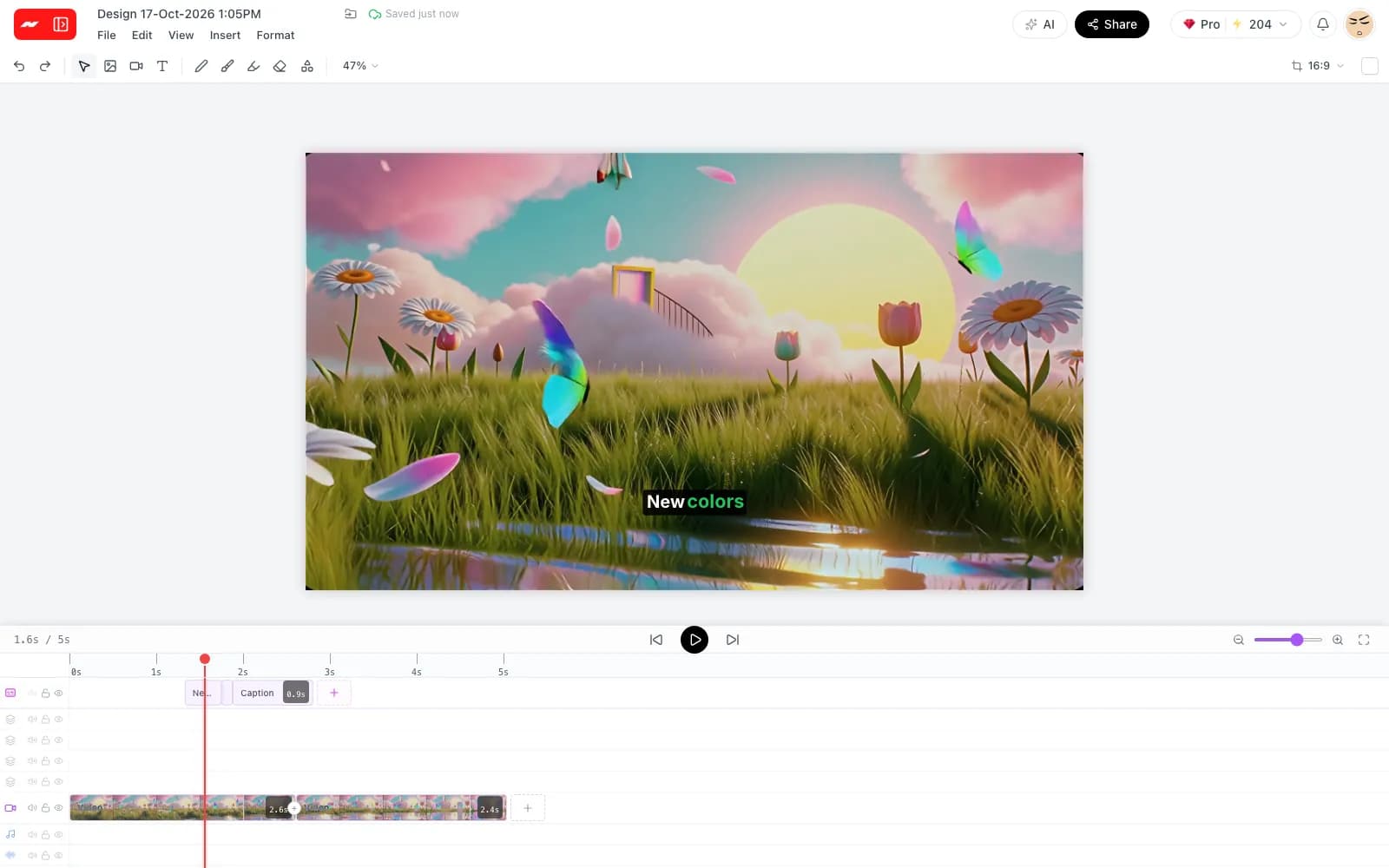
The Hugogen video editor with a caption track above two clips on a multi-track timeline

Editing tools in one browser tab

Edit on a real multi-track timeline

Clips, overlays, music and voice each sit on their own track. Split a clip at the playhead, drag its edges to trim it, and set its speed anywhere from half speed to four times faster.
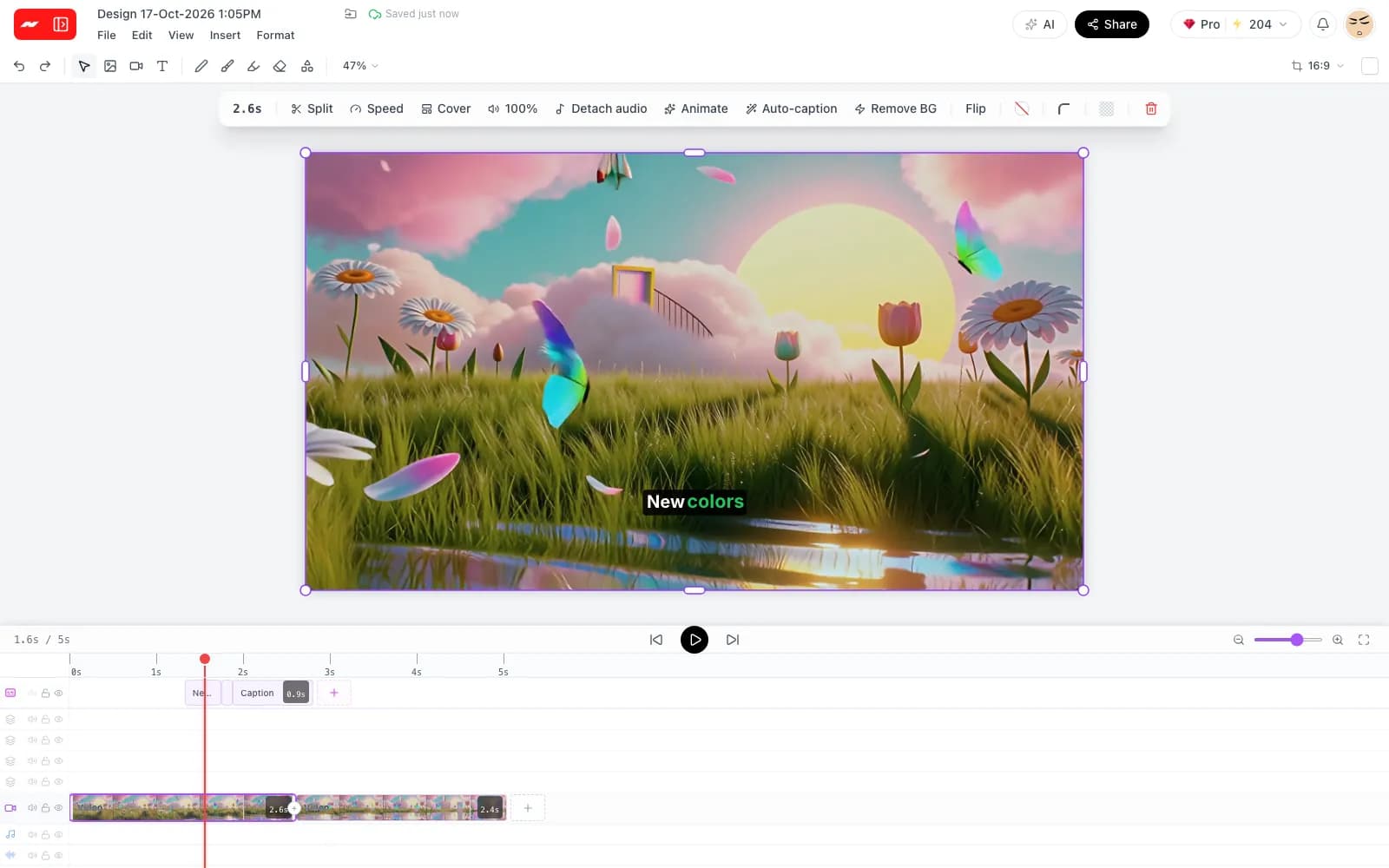
A clip selected on the timeline with the split, speed and caption buttons above it

Add captions in one click

Auto captions turn the speech in a clip into on-screen words, timed word by word. Pick one of six caption styles, from clean and minimal to karaoke and bold pop, and apply it across the whole project.
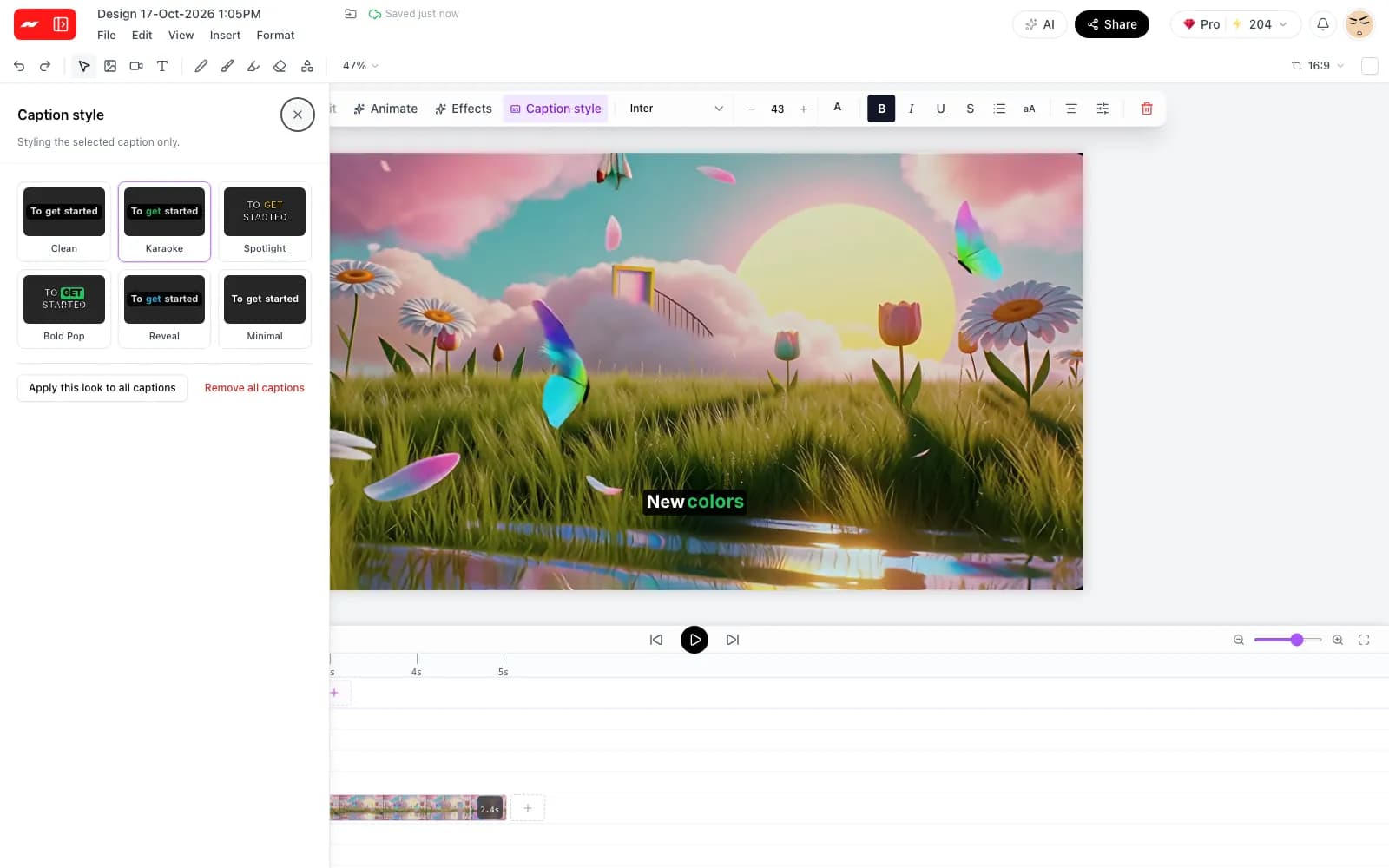
Word-by-word captions over a video, with the caption style picker open

Resize one video for every platform

Switch one project between 9:16, 4:5, 1:1 and 16:9 without rendering the video again. Each clip is reframed around its subject, and a clip can keep its own layout, such as a blurred backdrop behind a vertical shot.
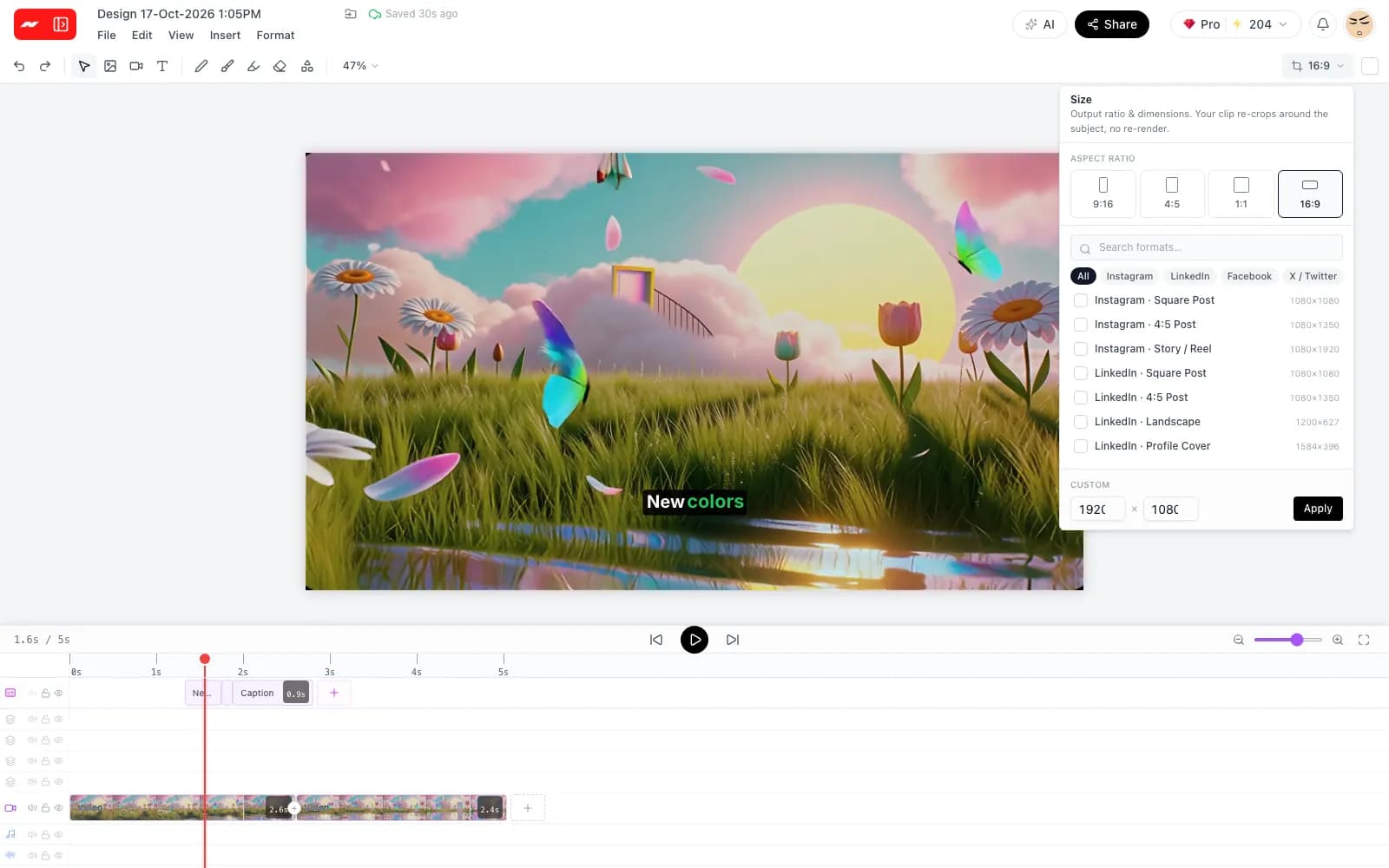
The size menu in the video editor listing vertical, portrait, square and landscape shapes

Sound effects, audio files and transitions

Add sound effects from the built-in library, or upload audio files such as music or a voiceover, and detach the sound of a clip onto its own track. Join clips with a cut, fade, dissolve, slide, wipe or zoom.
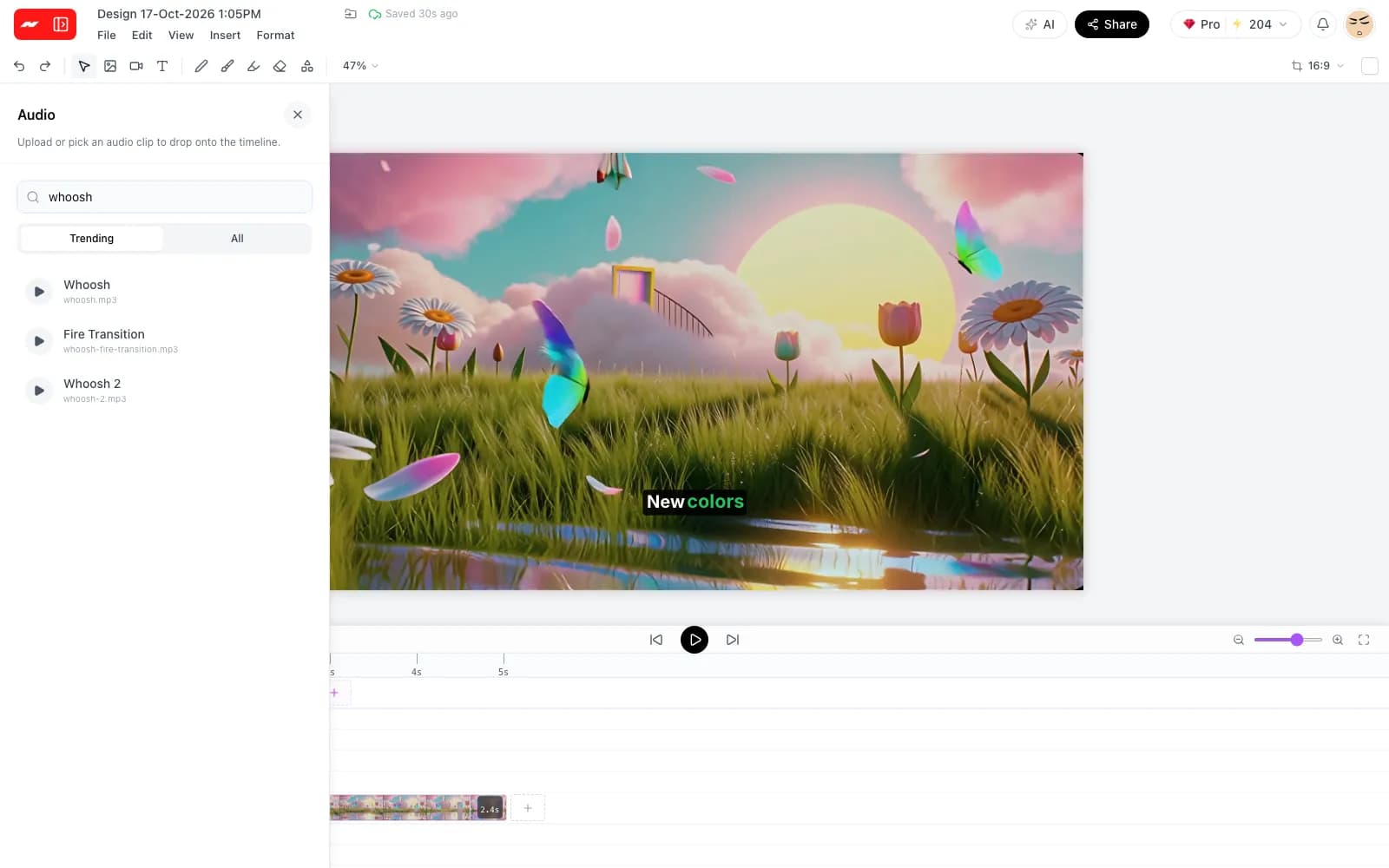
The sound library panel searched for whoosh, next to the video in the editor

Animate clips and text

Give a clip or a text layer an entry, exit or looping effect from a gallery of presets, such as fade, slide, pop and blur. Each element keeps its own animation settings.
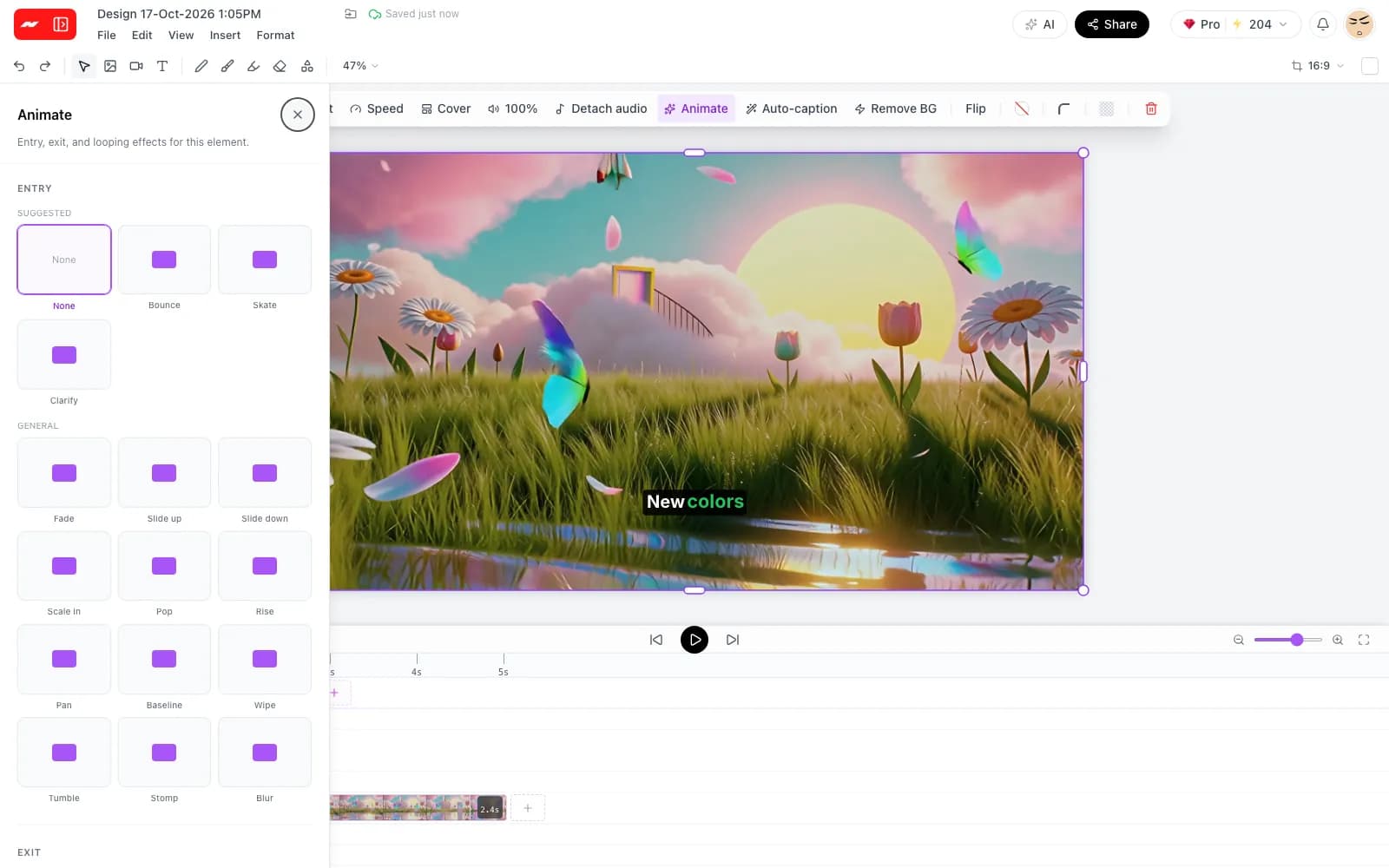
The animation gallery with entry presets for a selected video clip

How to edit a video online

  1. Step 1

    Add the footage

    Open the video editor and add video clips, photos and audio files from a computer.

  2. Step 2

    Edit on the timeline

    Trim and split the clips, add captions, text and music, then pick the size for the platform where the video will be posted.

  3. Step 3

    Export an MP4

    Export the finished video as an MP4 file and download it. No watermark is added on any plan.

Sized for every major platform

Each project can switch between these shapes at any time, and the editor keeps the subject of each clip in frame.

TikTok and Instagram Reels
9:16, 1080 x 1920
YouTube Shorts
9:16, 1080 x 1920
YouTube videos
16:9, 1920 x 1080
Instagram and Facebook feed
4:5, 1080 x 1350
Square posts for any feed
1:1, 1080 x 1080

More free tools from Hugogen

Questions and answers

The free plan includes the video editor and needs no card to start. AI features such as background removal use credits, and the pricing page lists how many each plan includes.

Hugogen adds no watermark to exported videos on any plan, including the free one.

The editor runs in a web browser on a computer, with nothing to download or install.

Finished videos export as MP4 files, a format every major social platform accepts for upload.

Auto captions transcribe the speech in a clip into captions timed word by word. There are six caption styles, and one style can be applied across the whole project.

One project can switch between 9:16, 4:5, 1:1 and 16:9. Each clip is reframed around its subject, with no new render needed after the switch.

The Remove BG button on a selected clip cuts the person or product out of the footage. The cutout can sit over any backdrop or a second clip, and each removal uses credits.

Short AI clips of 5 or 10 seconds can be generated and opened on the same timeline, next to uploaded footage. Generating a clip uses credits.

A free account is needed to save projects and export videos. Signing up takes a Google account and no card.

Put the first clip on the timeline

Open the editor in a browser tab, add a clip and export an MP4 with no watermark.

Open the video editor