Press Remove BG on a selected clip
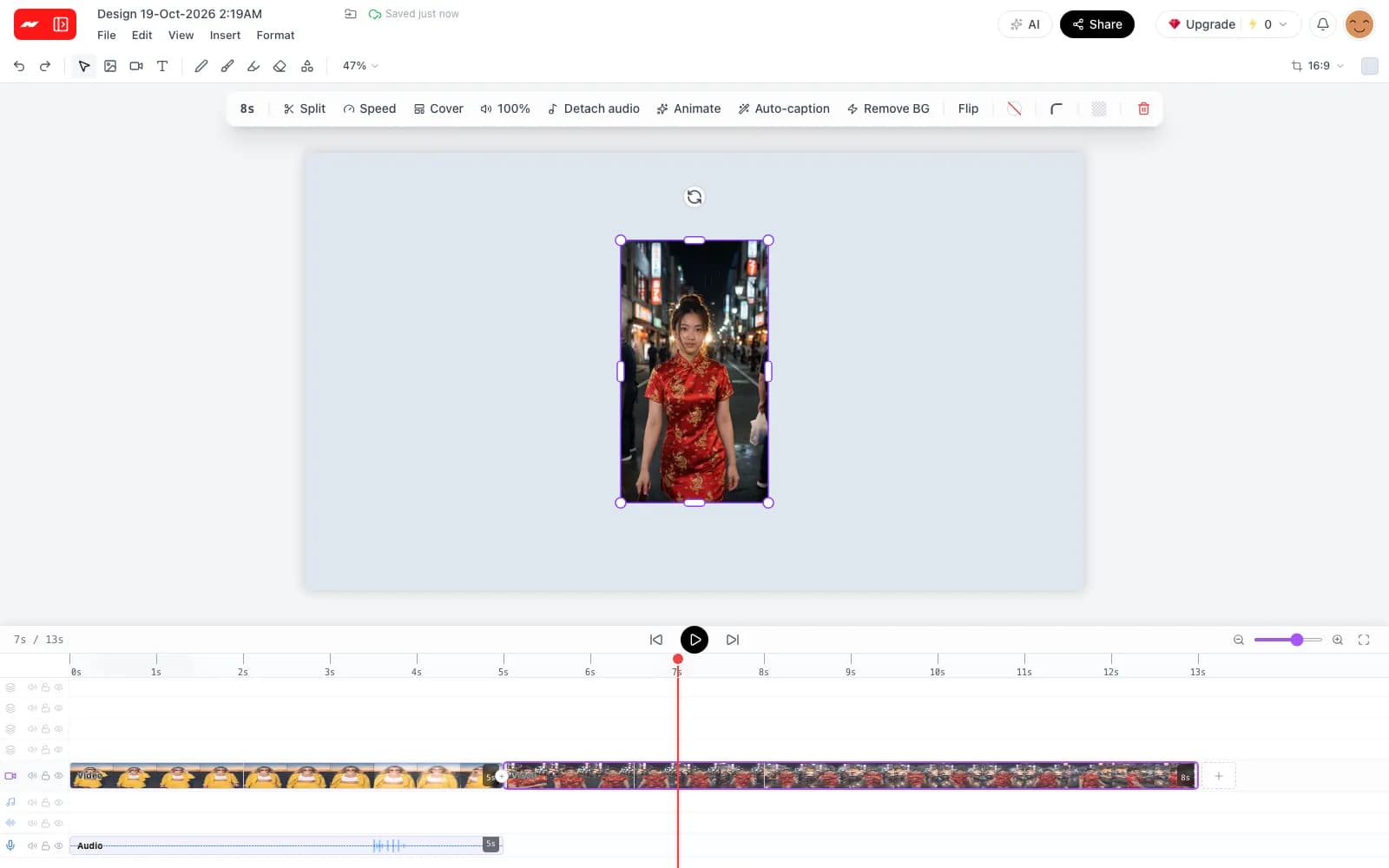
Select a clip on the timeline and press Remove BG in its toolbar. No green screen or special lighting is needed, and the tooltip shows the current cost for the clip before the job starts.
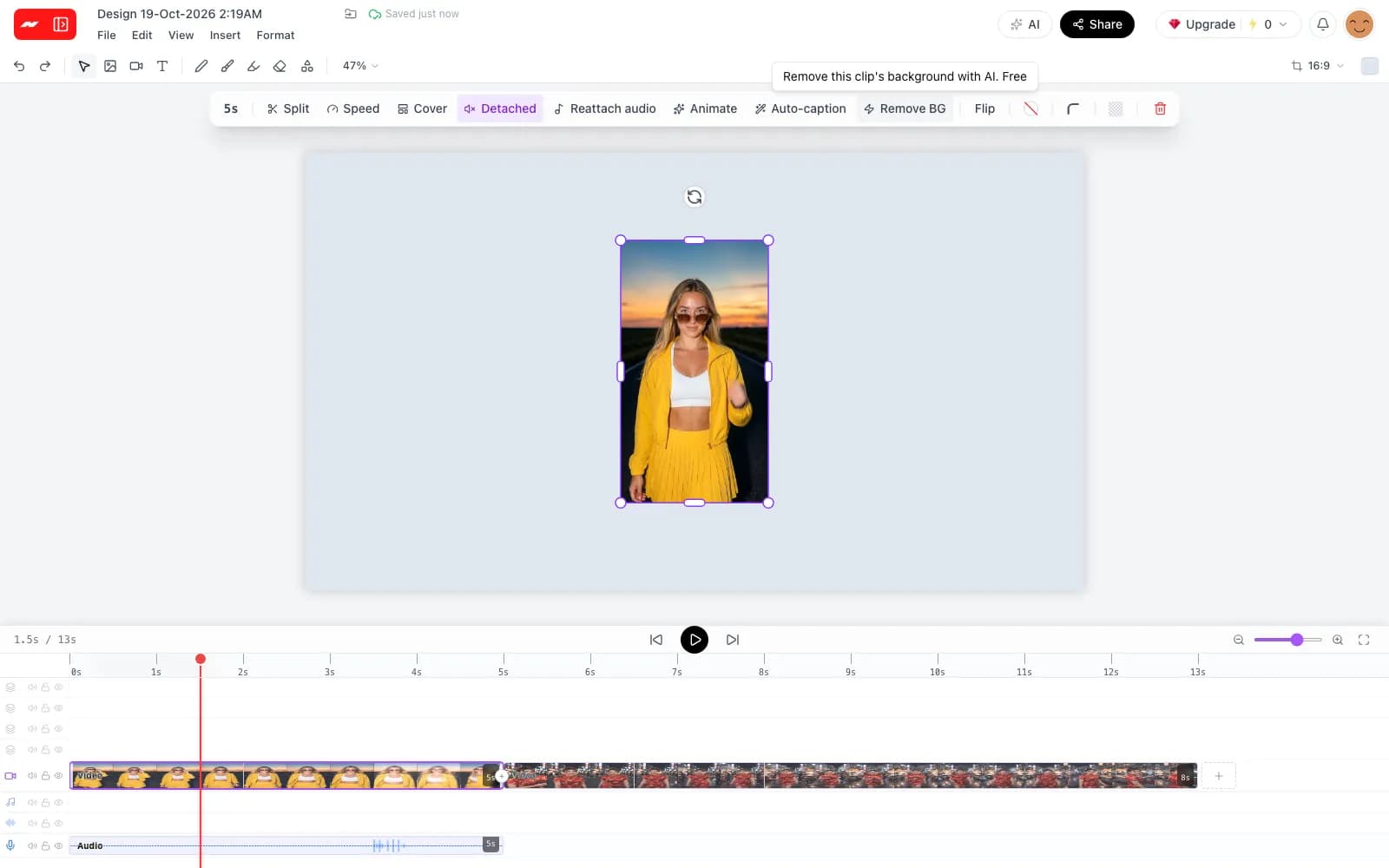
Select a clip, press Remove BG and the subject is lifted off its background frame by frame, with no green screen and the sound kept on its own track.
Included on the free plan, for clips up to two minutes long, with no watermark on exports.
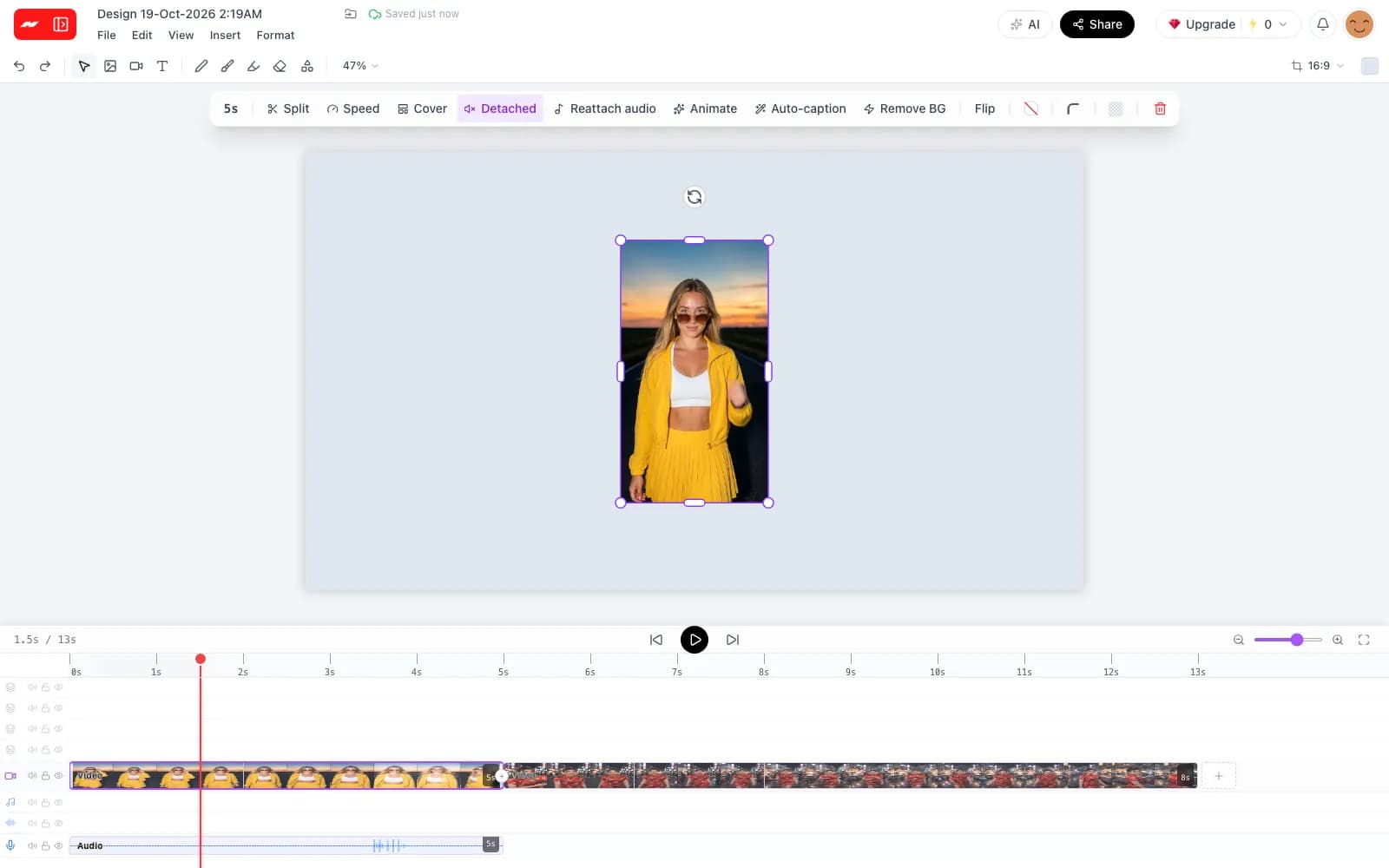
Select a clip on the timeline and press Remove BG in its toolbar. No green screen or special lighting is needed, and the tooltip shows the current cost for the clip before the job starts.
The clip dims under a progress overlay and the toolbar counts up the share of frames done. Short clips usually take a few minutes, and the rest of the editor stays usable while the job runs.
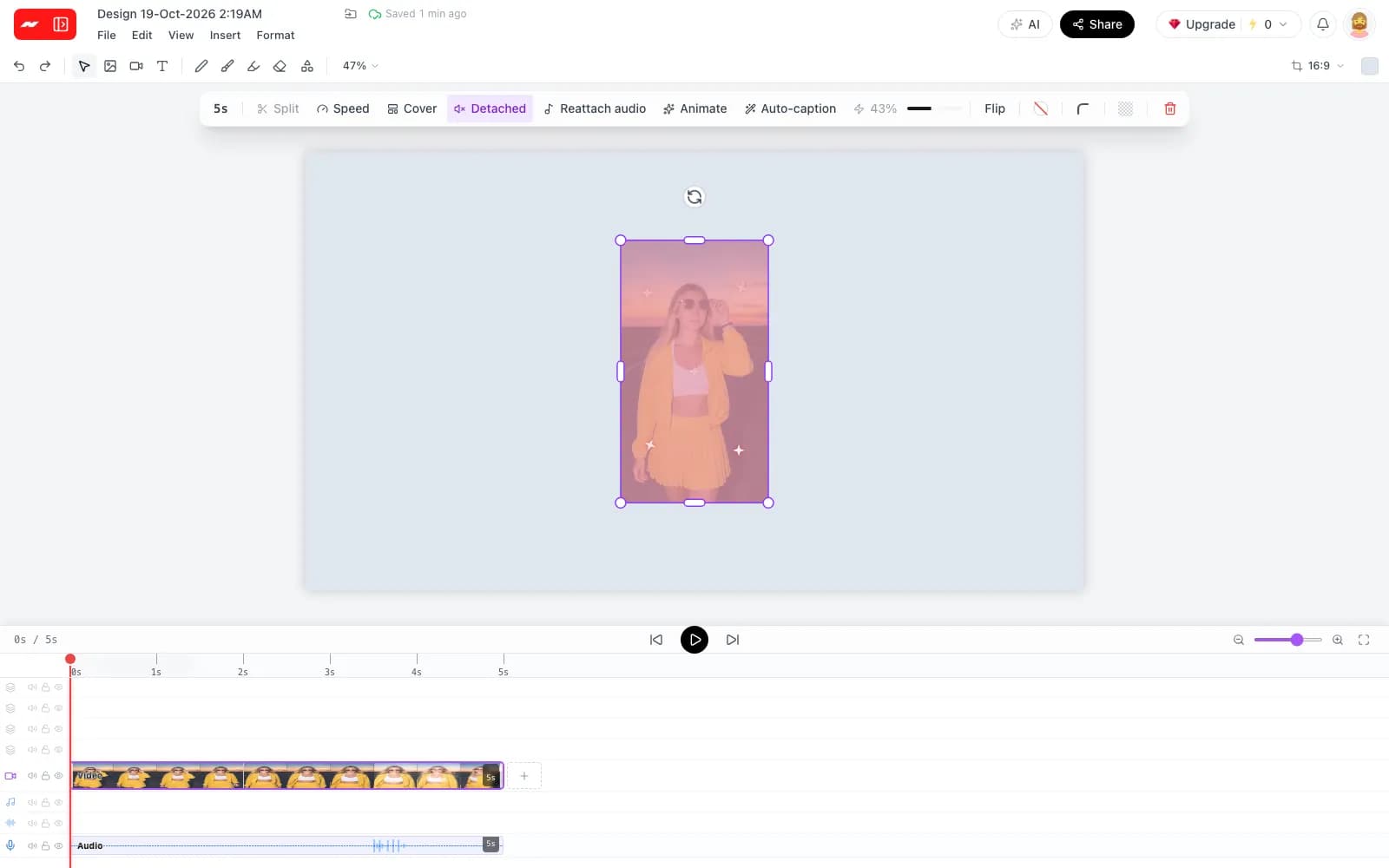
The finished cutout carries the picture and no audio. Just before the swap, the clip's sound moves to its own audio track, where it can be trimmed, muted or replaced like any other audio clip.
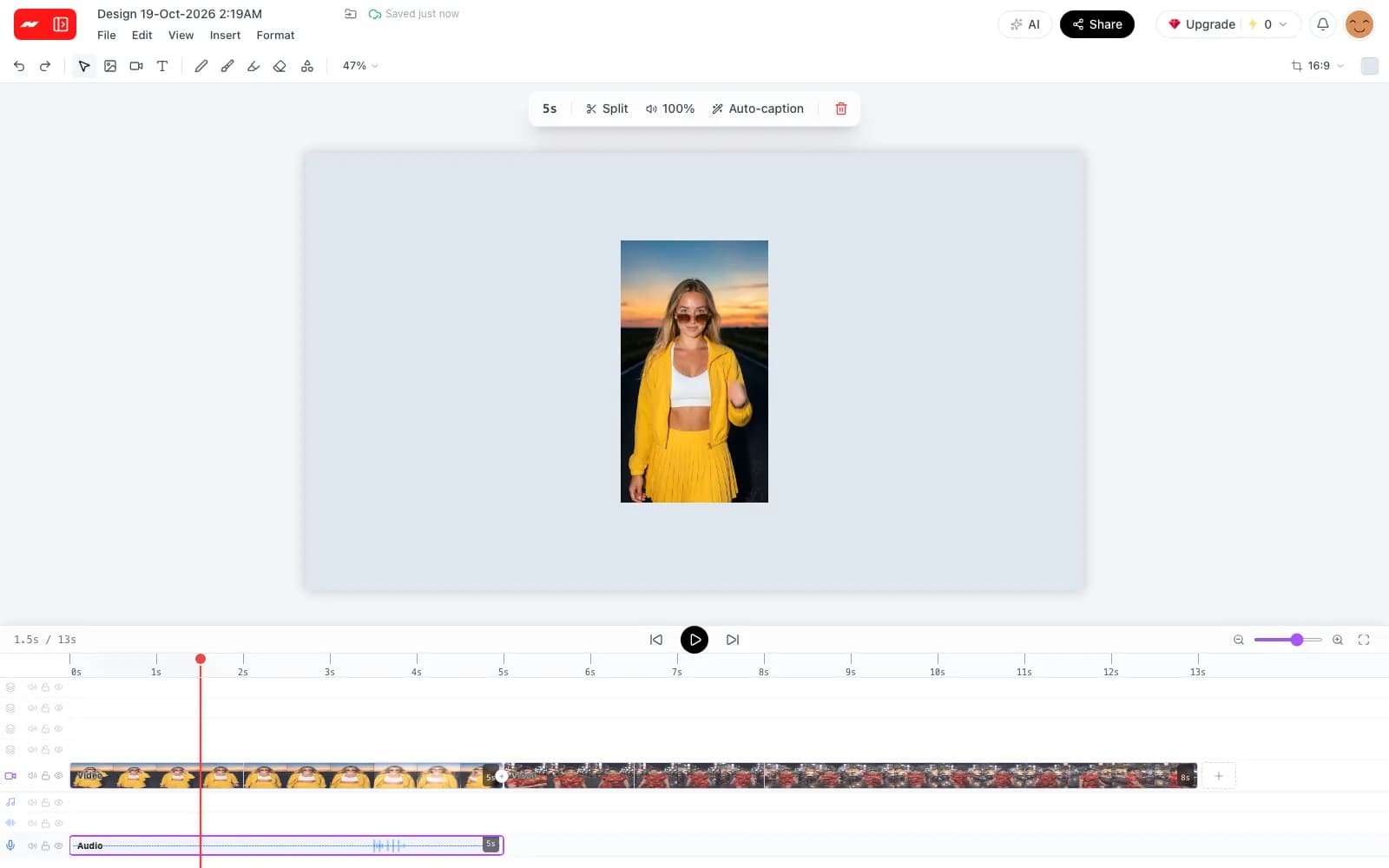
Join the cutout with other clips, add text and captions, trim, change speed or reframe for each platform. The finished video exports as an MP4 with no watermark on any plan.
Step 1
Open the video editor and upload an MP4, MOV or WebM clip, or pick one from the library. Clips up to two minutes long are processed in one go.
Step 2
Select the clip on the timeline and press Remove BG. The percentage climbs as frames are processed, and the cutout replaces the clip when it finishes.
Step 3
Put a color, a picture or a second clip behind the cutout, then export the finished video as an MP4.
Background removal works best on footage with one clear person or product in it, and it opens up a handful of common edits.
Upload a clip, press Remove BG and put the subject over a new color, picture or clip, with no green screen.
Remove a video background