5 Best Video Editing Tools for YouTube Under $10/Month in 2026 (Ranked & Tested)
admin
November 14, 2026 · 5 min read
- ai-editor-alternative
- affordable-ai-video-generator
- ai-assisted-video-editing
Starting or growing a YouTube channel in 2026 shouldn't require a $100 monthly software overhead.
Between Adobe Premiere Pro ($23.99–$34.99/mo), stock footage subscriptions ($20/mo), and AI subtitle tools ($15/mo), the cost of producing video content adds up quickly. For part-time creators, educators, and solo channels publishing 2 to 4 videos a month, paying premium monthly retainers for software you only open a few times is a financial drain.
If your budget is capped at under $10 a month, you do not have to settle for watermarked exports or primitive timeline tools.
We tested and ranked the 5 best video editing options for YouTube creators in the sub-$10 tier, evaluating them on pricing transparency, AI capabilities, learning curve, and overall value.
Quick Comparison: Top YouTube Editors Under $10/Mo
| Tool | Pricing Model | Best For | AI Features | Learning Curve | Watermark? |
|---|---|---|---|---|---|
| Hugogen | $9/mo (or $11 On-Demand) | All-in-one AI editing & visuals | Prompt Editor, B-Roll, Subtitles | Beginner–Intermediate | None |
| DaVinci Resolve | Free ($0 forever) | Hollywood-grade color & manual editing | Limited in free tier | Steep (Requires powerful PC) | None |
| CapCut Desktop | Free / $9.99/mo | Short-form & quick trend edits | Auto-captions, basic transitions | Beginner | None (on basic tier) |
| Clipchamp | Free / $9.99/mo | Quick browser-based trimming | Basic text-to-speech | Beginner | None (up to 1080p) |
| Shotcut | Free (Open-source) | Offline privacy & low-spec PCs | None (manual only) | Moderate | None |
1. Hugogen (Best Overall for AI-Assisted Editing & Integrated Visuals)
- Pricing: $9/month Basic Subscription (sits comfortably under the $10 cap) or $11 Pay-As-You-Go credit packs for creators who prefer zero recurring commitments. Free starter credits on signup.
- Platform: Web-based (runs on any modern browser; no high-end GPU required).
- Best Suited For: Solo creators, faceless channels, and video podcasters who want automated editing without jumping between 4 different tools.
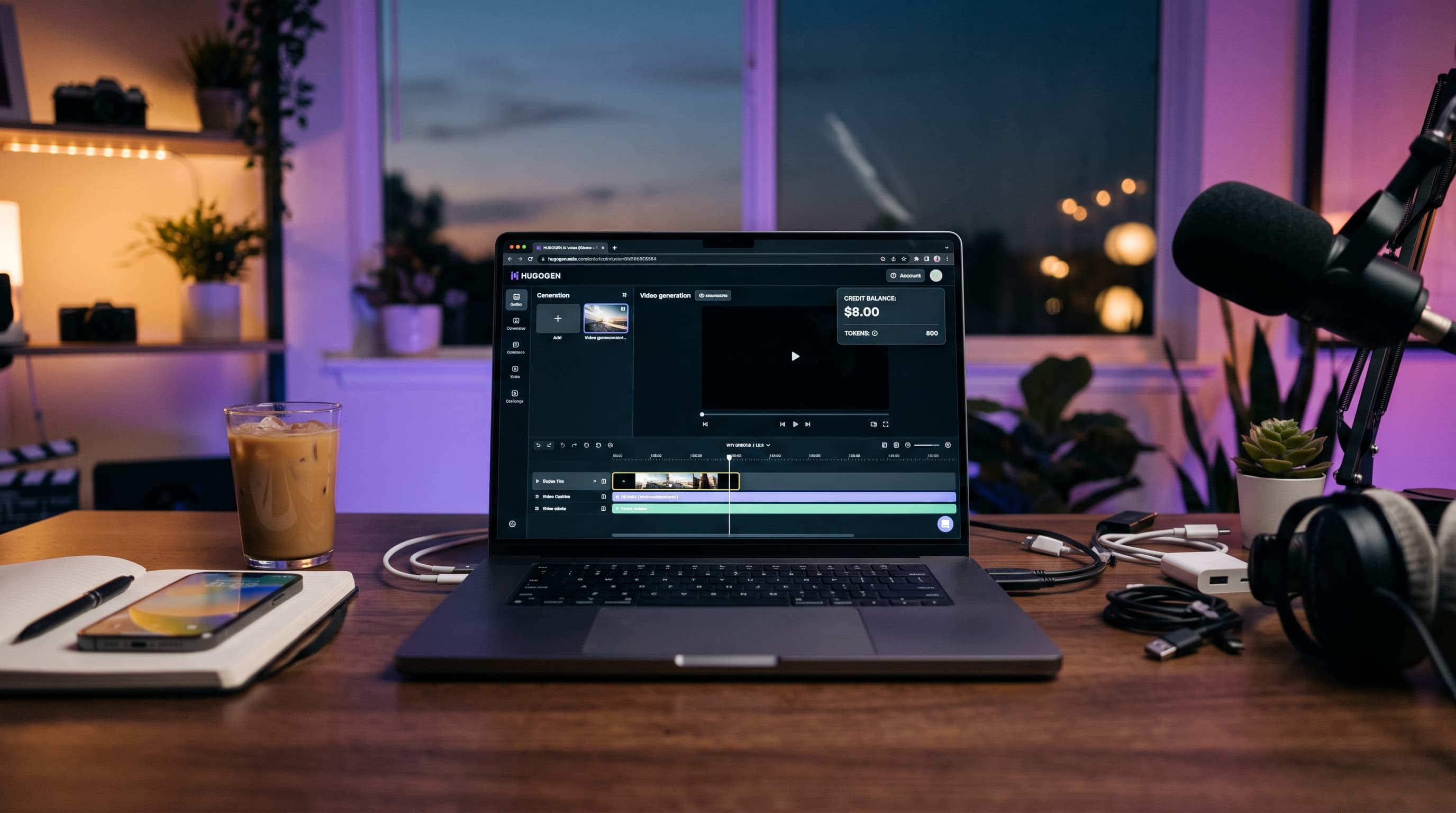
Most budget software cuts costs by stripping away modern AI features. Hugogen takes a different approach: at $9/month, it bundles visual generation, automated clip assembly, and dynamic captioning directly inside one browser workspace.
What makes Hugogen distinct for YouTube workflows:
- AI Assistant Video Editor: Instead of manually slicing dead air or aligning clips for hours, you can instruct the built-in AI Assistant via natural text prompts to tighten pacing, cut pauses, and structure your timeline.
- Dynamic Animated Captions: Generate accurate, high-retention subtitles with one click, styled automatically for viewer engagement.
- Built-in Generative B-Roll: If your script calls for a visual cutaway (e.g., "a modern workspace in Tokyo" or "an abstract visualization of cloud computing"), you do not need an external stock library. Use the integrated AI Designer and Generative Video engine to render custom footage straight into your project.
- Auto-Reframe for Shorts: Instantly adapt your landscape 16:9 YouTube master into a vertical 9:16 cut for YouTube Shorts and TikTok.
The Verdict: At $9/month, Hugogen delivers the most comprehensive AI toolset in the sub-$10 category. And if you have an erratic upload schedule and dislike auto-renewing subscriptions, the $11 on-demand pack ensures you only pay when you actually publish.
2. DaVinci Resolve (Best for Advanced Manual Control & Color Grading)
- Pricing: $0 (Completely free base version; Studio version is a $295 one-time fee).
- Platform: Windows, macOS, Linux.
- Best Suited For: Filmmakers and creators with strong desktop hardware willing to invest time in learning.
Blackmagic Design’s free version of DaVinci Resolve is an industry anomaly: it gives you professional multi-track timeline editing, node-based color grading, Fairlight audio mastering, and motion graphics without spending a penny.
Where it excels:
- No watermarks and full commercial export rights up to 4K 60fps.
- Industry-standard audio cleanup and manual color correction.
- No monthly subscription fees whatsoever.
Where it falls short for budget creators:
- Hardware Demands: It requires a dedicated GPU and at least 16GB–32GB of RAM to run smoothly.
- Steep Learning Curve: It is a professional suite; beginners often find the node interface and multi-page workflow overwhelming.
- Gated AI Tools: Most automated neural engine features (transcription, magic mask) are reserved for the $295 Studio license.
3. CapCut Desktop (Best for Fast Social Edits & Pre-Made Templates)
- Pricing: Free tier available; Pro subscription sits right on the edge at $9.99/month.
- Platform: Windows, macOS, Mobile, Web.
- Best Suited For: Creators repurposing content between YouTube, TikTok, and Instagram Reels.
CapCut has transitioned from a mobile app into a formidable desktop editor. For creators producing fast-paced YouTube videos packed with sound effects, zooms, and stickers, the interface is exceptionally quick to navigate.
Pros:
- Massive pre-cleared audio and sound effect library.
- Quick automated caption generation.
- Low system resource requirements.
Cons:
- Subscription Creep: More core features (such as specific transitions, noise reduction, and advanced exports) are steadily migrating behind the Pro paywall.
- Privacy Concerns: Enterprise and business creators often face corporate restrictions regarding parent company data policies.
4. Microsoft Clipchamp (Best for Simple Browser-Based Trimming)
- Pricing: Free basic tier; Premium tier at $9.99/month.
- Platform: Web browser / Windows pre-installed.
- Best Suited For: Corporate explainers, simple webcam vlogs, and classroom presentations.
Acquired by Microsoft, Clipchamp is built directly into Windows 11 and runs smoothly inside Chrome or Edge. It is designed for creators who want to assemble talking-head videos without dealing with complex timelines.
Pros:
- Direct screen and webcam recording inside the editor.
- Cloud saving integrated with OneDrive and Google Drive.
- Clean 1080p exports on the free tier without watermarks.
Cons:
- Lacks depth: limited color correction, basic multi-layer tracking, and no generative AI tools.
- Performance can degrade on complex timelines with 10+ asset layers.
5. Shotcut / Kdenlive (Best for Offline Open-Source Purists)
- Pricing: $0 (Free and Open-Source Software).
- Platform: Windows, macOS, Linux.
- Best Suited For: Privacy-focused creators running older laptops or low-spec computers.
Shotcut and Kdenlive represent the open-source community's answer to video editing. They operate entirely offline, collect zero tracking data, and support nearly every codec in existence via FFmpeg.
Pros:
- 100% free with no upsells, accounts, or internet connection required.
- Wide format support: natively handles 4K, ProRes, and obscure legacy formats.
- Lightweight installation footprint.
Cons:
- Utilitarian user interface that feels dated.
- Zero native AI tooling: you must manually cut, transcribe, and source every sound and image asset yourself.
Subscription vs. On-Demand: Which Fits Your Cadence?
When choosing a video editor under $10, evaluate how your upload schedule affects your actual cost-per-video:
-
Consistent Uploaders (Weekly Content):
At $9/month, Hugogen's Basic Plan beats the standard $9.99/mo cap charged by CapCut and Clipchamp, giving you full access to AI transcription and the prompt-driven editor for around $2.25 per weekly video. -
Sporadic / Occasional Uploaders:
If you take breaks between uploads, monthly subscriptions run in the background whether you edit or not. Choosing Hugogen’s $11 Pay-As-You-Go pack lets you purchase tokens strictly when you need them. Unused tokens carry over, so you never pay for dormant months.
Final Recommendation
- If you have a high-spec PC and want to learn professional manual editing: Download DaVinci Resolve (Free).
- If you want pre-made stickers and quick mobile-style vertical edits: Try CapCut Free.
- If you want an intelligent browser editor that handles AI subtitles, script-based cutting, and custom visual generation under $10: Start with Hugogen's $9/month plan (or test the $11 pack).
You can test Hugogen's workflow with 100 free starting credits on signup, or unlock an additional 500 bonus credits by completing the quick onboarding setup in your dashboard.
Try it on your own footage
The Free plan needs no credit card. Bring a long video and see what comes back.