AI video editor for real footage

Add a long video and the AI picks the best moments, cuts them into short clips, reframes each one and adds captions, ready to finish on a timeline.

Included on the free plan, for videos from 1 to 60 minutes, with no watermark on exports.

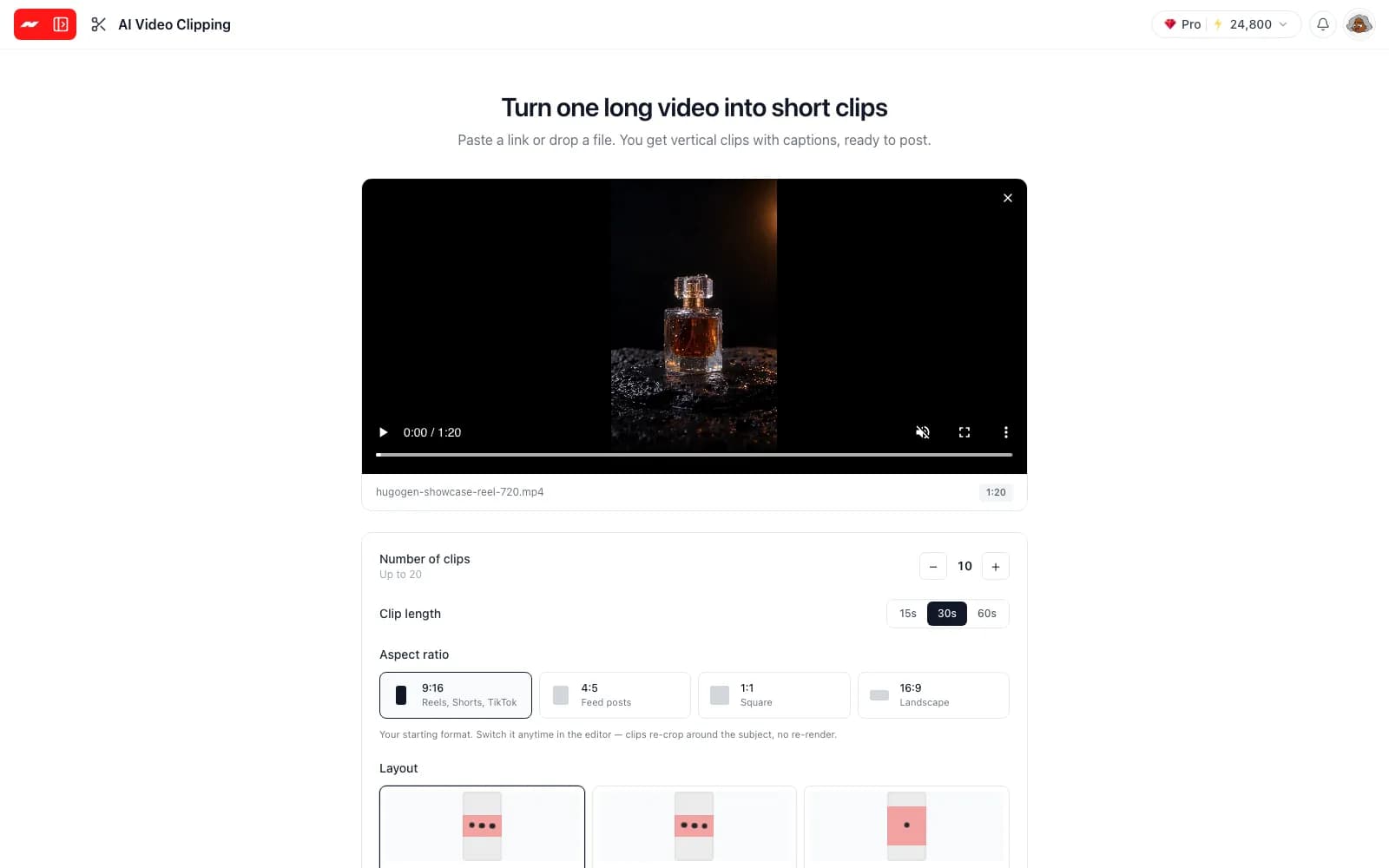
The Hugogen AI clipping screen with a video added and the number of clips, clip length and shape chosen

Editing work the AI takes on

AI finds the best moments

Upload a video or paste a link, and the AI reads the whole transcript to choose the strongest moments. Each clip comes back with a title, the reason it was picked, keywords and a virality score.
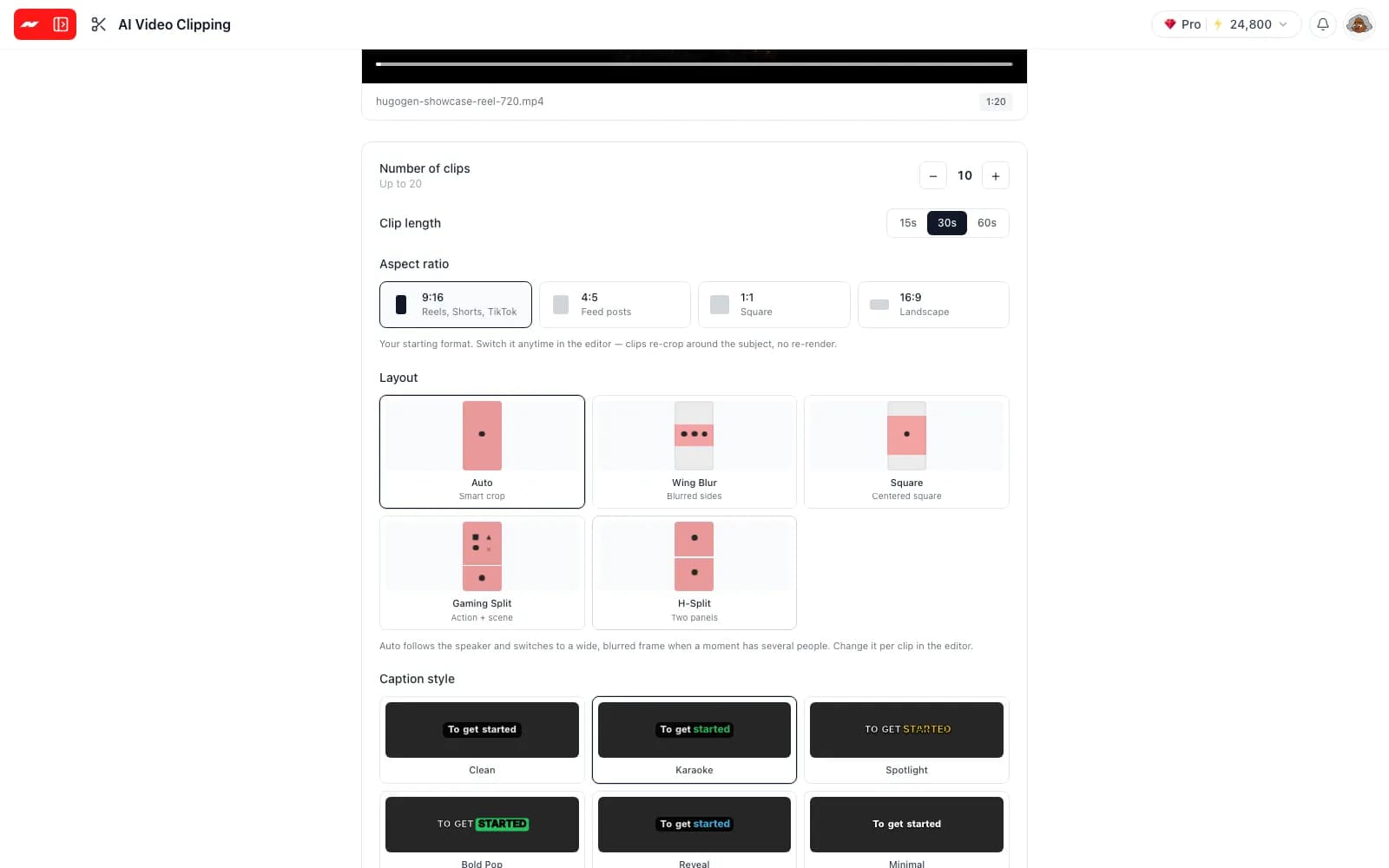
The clip count, clip length, shape and layout settings on the AI clipping screen, with a video added

Every clip reframed for the platform

Pick 9:16 for Reels, Shorts and TikTok, 4:5 for feed posts, a square or a landscape frame. The Auto layout follows the speaker and switches to a wide, blurred frame when several people share the shot.
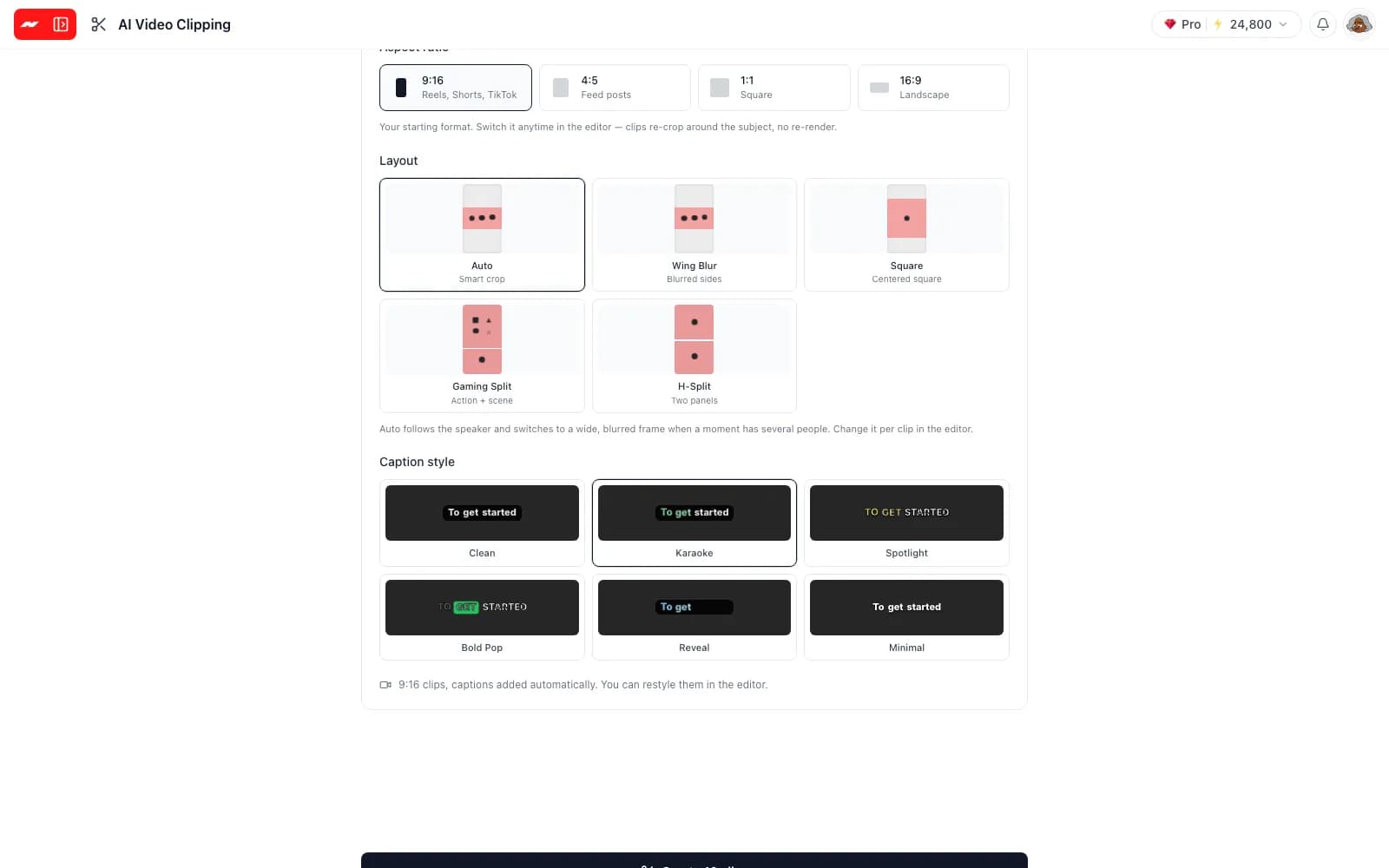
The layout and caption style choices on the AI clipping screen, with Auto smart crop and Karaoke selected

Captions timed word by word

Every clip gets captions timed to each spoken word, in one of six styles such as Karaoke, Bold Pop or Minimal. The spoken language is detected automatically, and every caption stays editable on the timeline.
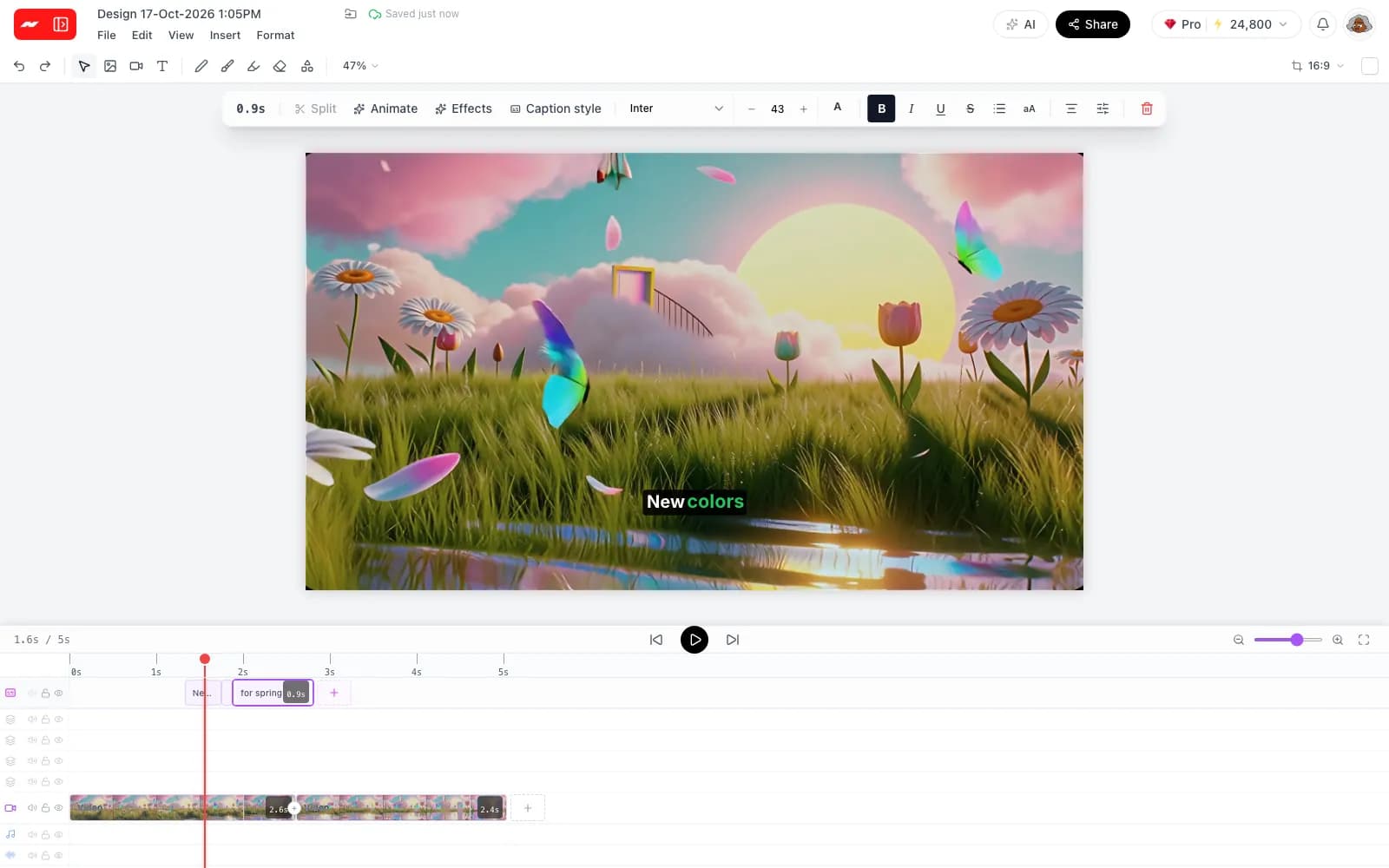
Captions on their own track in the Hugogen video editor, one caption selected

Finish every clip on a real timeline

Each clip opens as an editable project, not a finished file. Trim it, change the caption style, swap the layout, remove a background or join it with other footage, then export an MP4 with no watermark.
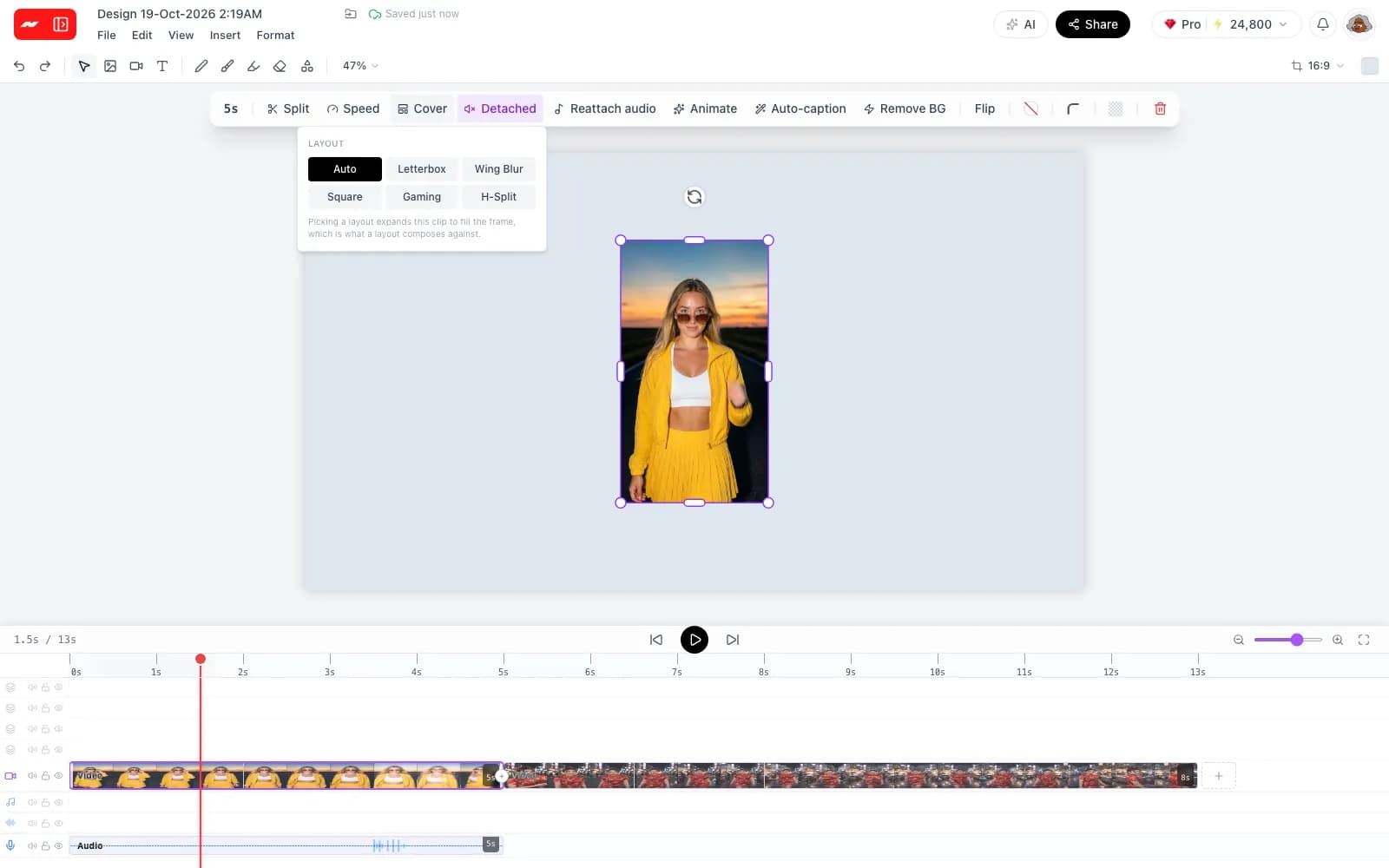
The layout menu open on a selected clip in the video editor, offering Auto, Letterbox, Wing Blur, Square, Gaming and H-Split
Coming soon

Edit a video by describing the change

The AI panel in the video editor will take a plain request, such as tightening the intro or adding captions to the second clip, and make the edit on the timeline. The panel is already in the editor and shows the feature as coming soon.

This feature is not available yet, and everything above this section works today.
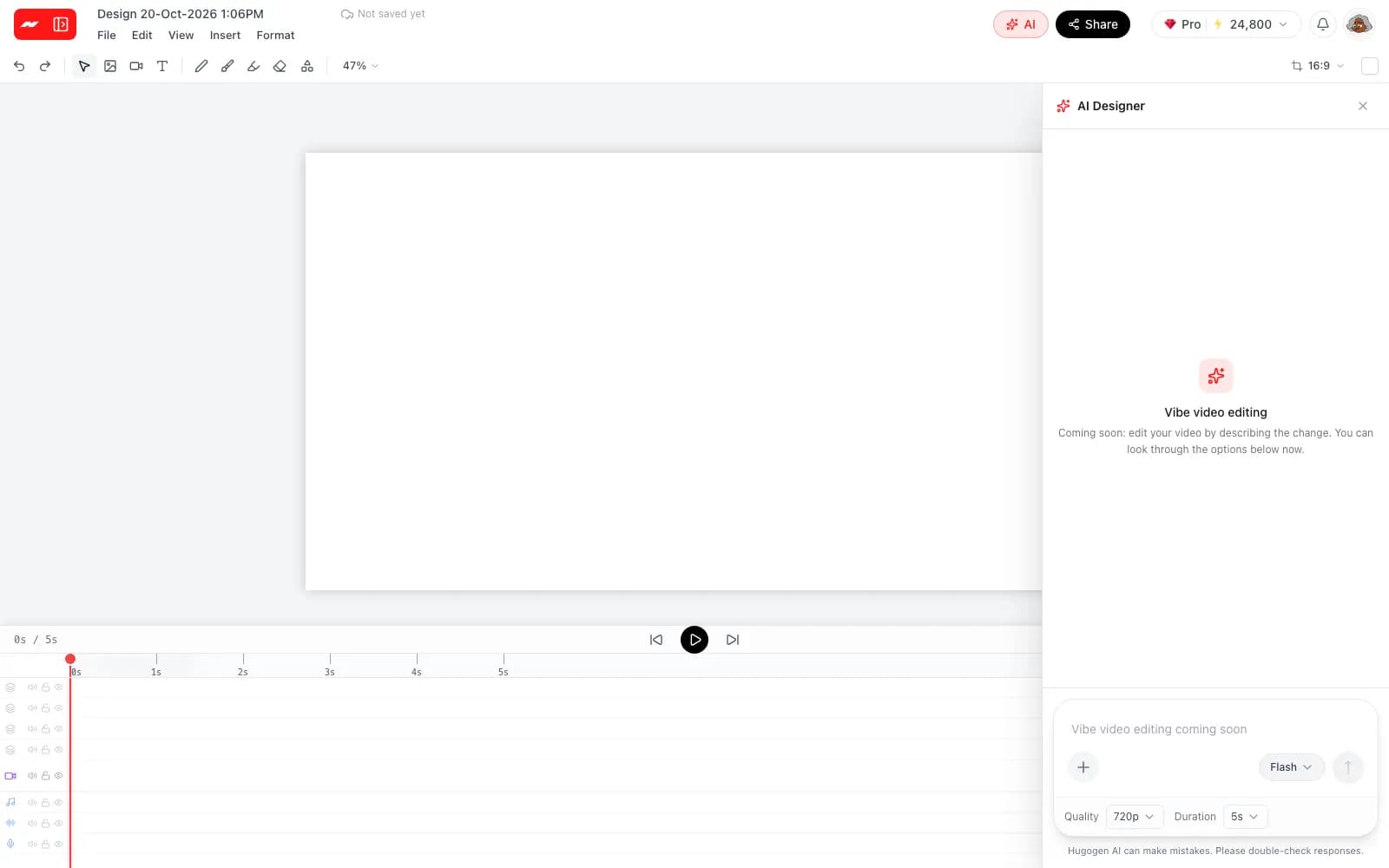
The AI panel in the Hugogen video editor showing Vibe video editing, Coming soon, with its send button off

How to edit a video with AI

  1. Step 1

    Add a long video

    Upload a video of 1 to 60 minutes and up to 2 GB, or paste a link to one.

  2. Step 2

    Choose the clips

    Pick how many clips to make, from 1 to 20, how long each one runs, the shape, the layout and the caption style.

  3. Step 3

    Finish and export

    Open any clip on the timeline to adjust it by hand, then export an MP4 with no watermark.

Made for long videos with a lot of talking

AI clipping works best on footage with clear speech, where the strongest moments are spread across a long recording.

Podcasts
one episode into a week of short clips
Webinars and talks
each key point as a separate clip
YouTube videos
long uploads cut down for Shorts
Interviews
each answer as its own clip
Product demos
a short clip for each feature
Recorded live streams
the best moments of a recorded stream

More free tools from Hugogen

Questions and answers

It turns one long video into short clips. The AI picks the moments, cuts them, reframes each clip for the chosen shape and adds captions, and every clip opens on a timeline for finishing by hand.

Not yet, because editing a video by describing the change is still coming soon inside the video editor. Today the AI edits through clipping, captions and background removal, and the timeline handles the rest by hand.

Videos from 1 to 60 minutes and up to 2 GB can be clipped, uploaded from a computer or added from a link.

Choose from 1 to 20 clips per video, each 15, 30 or 60 seconds long. Ten clips of 30 seconds each is the starting setting.

The spoken language is detected automatically, and captions are timed to each word. There is no language picker, and captions are not translated.

It works on uploaded footage and on videos added from a link. Clips made with the AI video generator can also go on the same timeline.

AI clipping is included on the free plan, and the clipping screen shows the cost before a job starts. A job refunds itself if it fails, and exported videos carry no Hugogen watermark.

A free account is needed to clip and edit videos, and signing up needs no card.

Turn one long video into many clips

Add a video, let the AI pick and caption the moments, then finish each clip on the timeline with no watermark.

Clip a video with AI