Image to video with AI

Add a photo, write how the scene should move, and get a short clip with sound that starts on your exact picture.

Video generation is on paid plans, and the composer shows the estimate before you send.

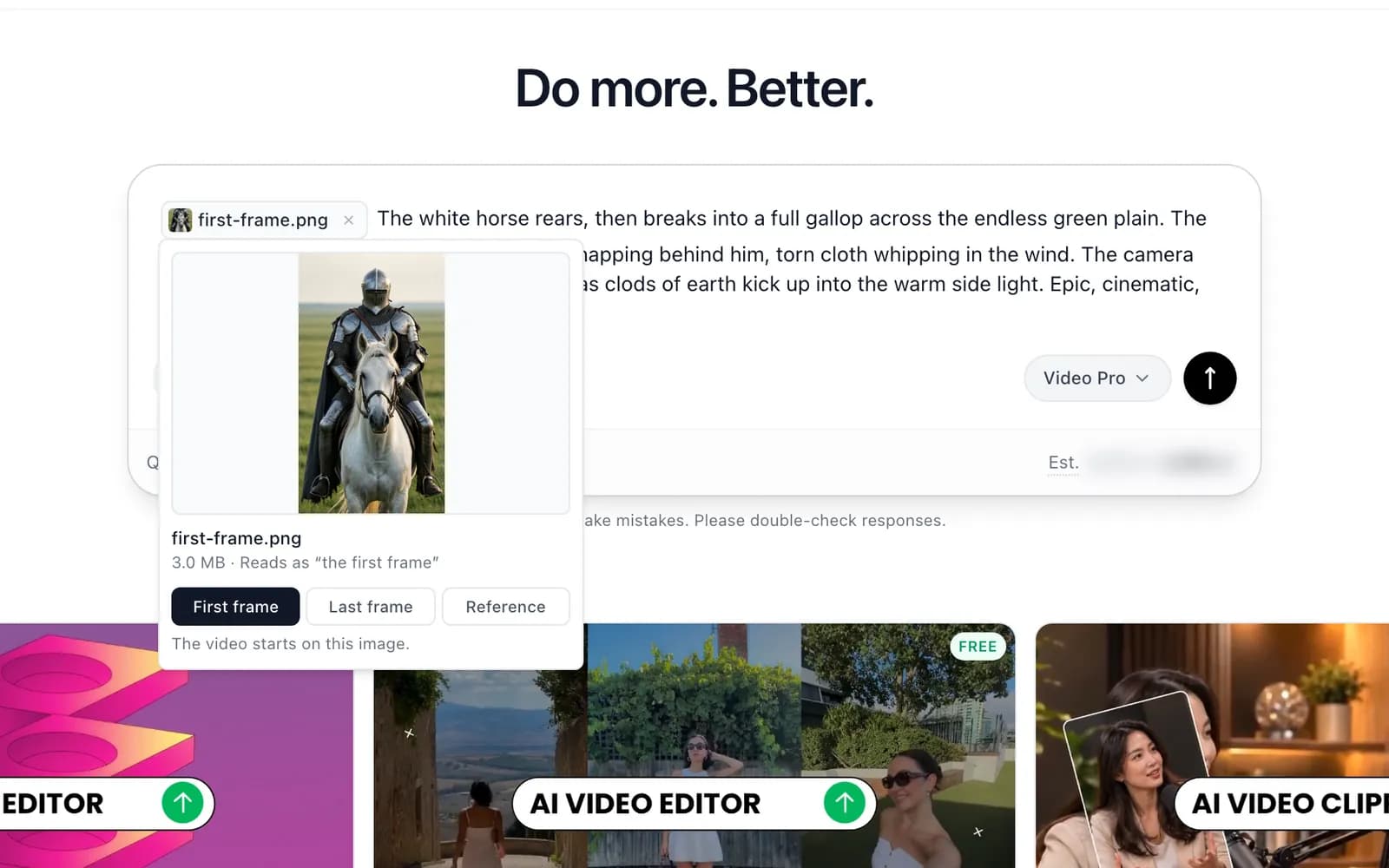
A knight photo attached to a video prompt, with the photo preview open and three roles to pick: First frame, Last frame and Reference

From one photo to a moving scene

Your photo is the first frame

Add one photo in Video mode and the photo becomes the first frame of the clip. The scene moves on from your exact picture, guided by your prompt. Knight at a gallop on the Home page started from a still photo of a knight on a white horse.

Every video option? See the AI video generator
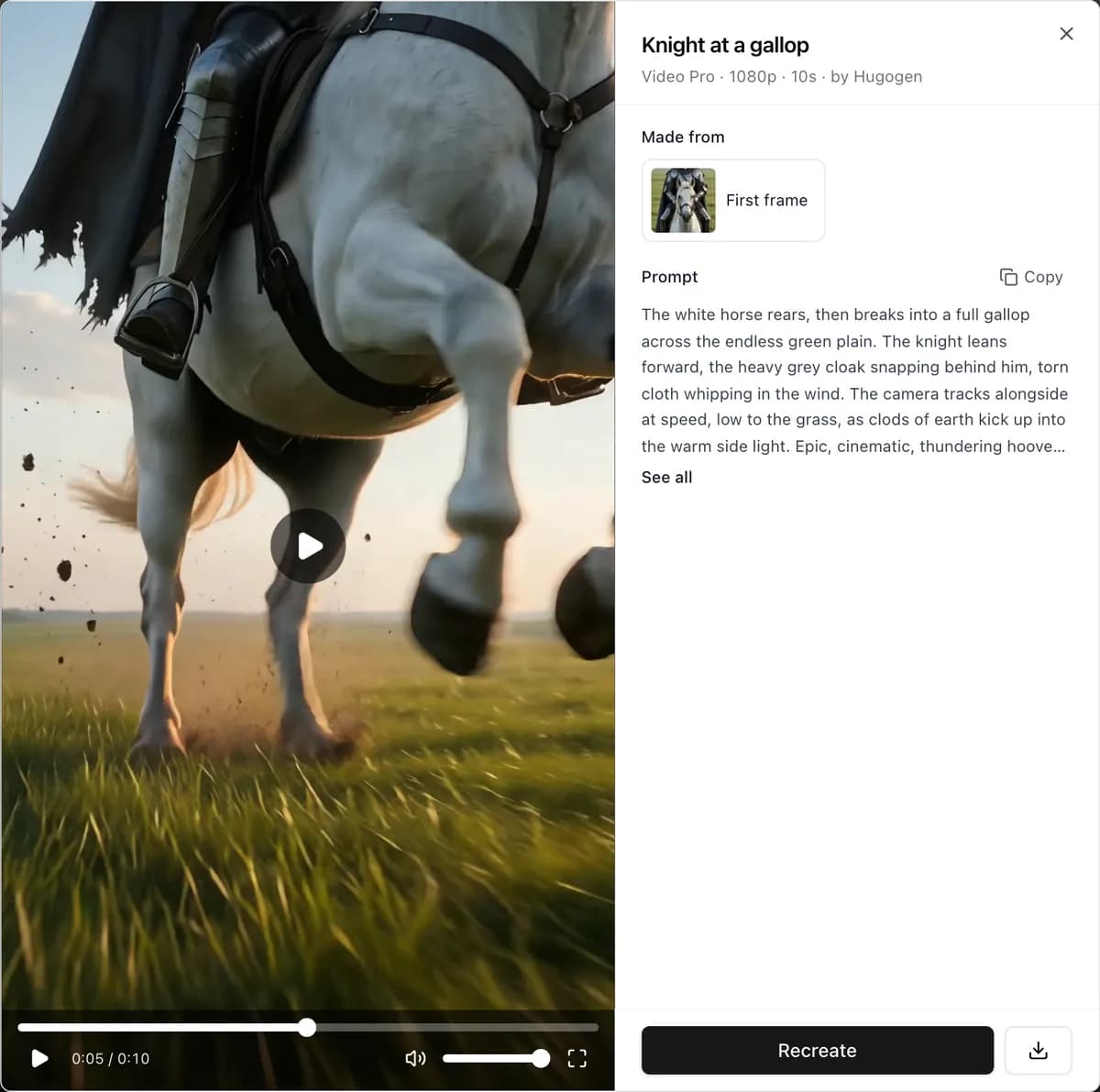
The Knight at a gallop clip at five seconds, with Made from and a First frame thumbnail of the still photo beside the video

A few clear moves bring a portrait to life

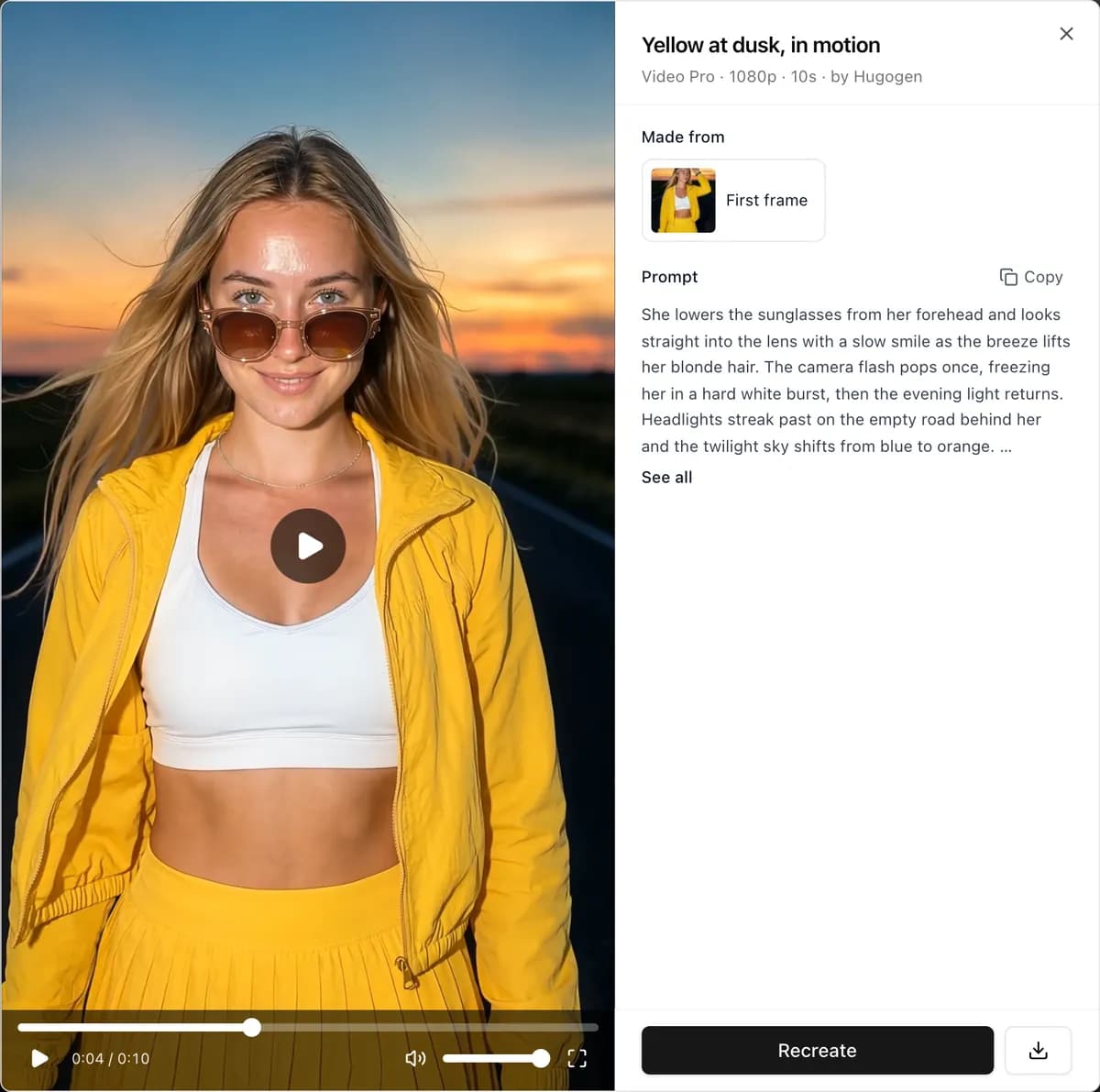
Yellow at dusk, in motion began as a still portrait on an empty road. Hugogen's prompt asked for a slow smile, sunglasses coming down, a camera flash and headlights going past. A clip runs up to 15 seconds, and a few clear moves suit that length best.

The Yellow at dusk, in motion clip at four seconds, a smiling woman in sunglasses and a yellow jacket, with the first frame thumbnail beside the video

Borrow a subject from a reference photo

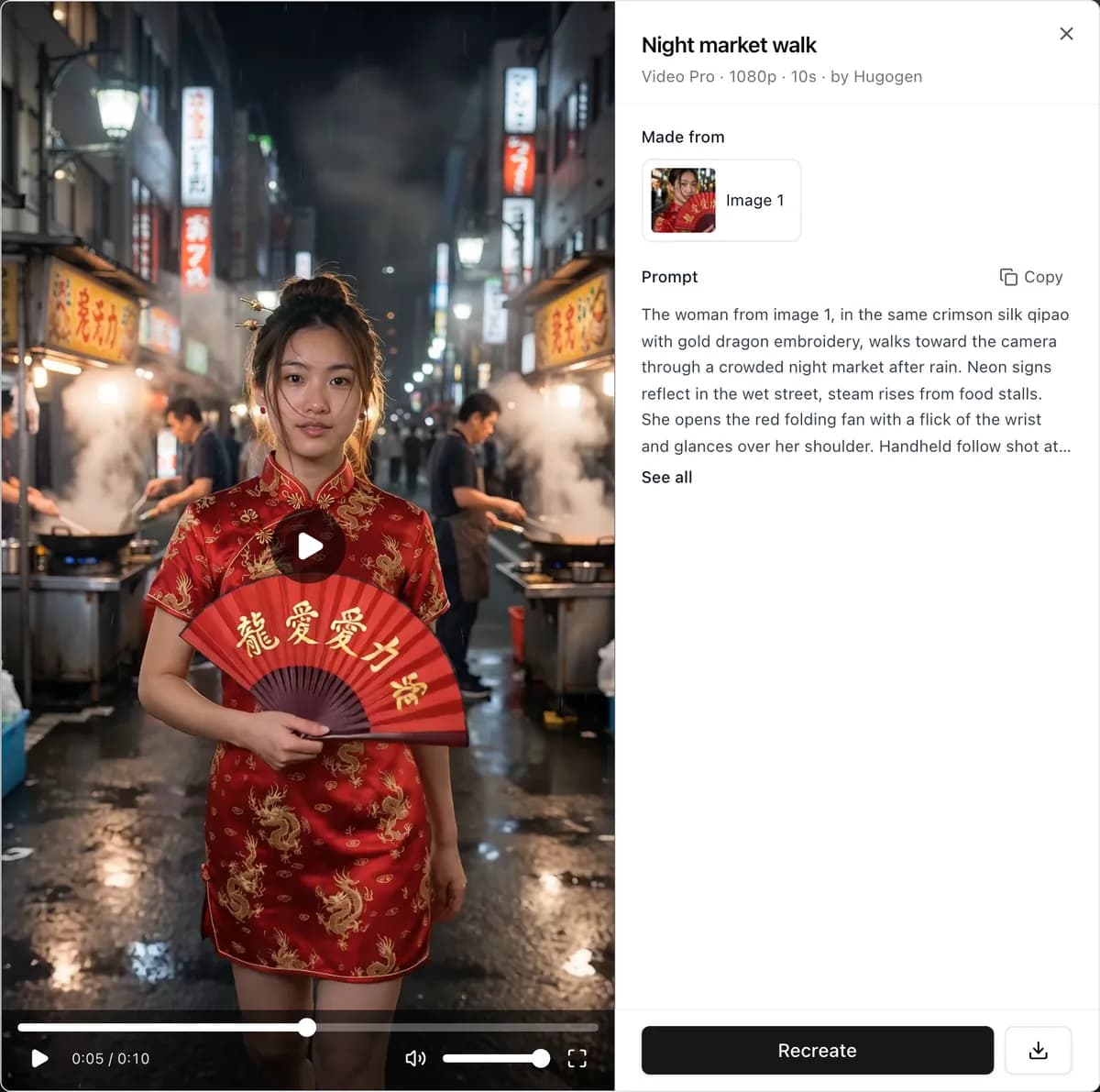
Hover the photo chip and pick Reference when the photo should lend a subject or a look rather than the opening shot. Night market walk borrowed a woman and her red qipao from a portrait and placed her in a new street scene. Every option in the video picker takes more than one reference photo.

The Night market walk clip, a woman in a red qipao with a fan on a wet neon street, with Made from showing an Image 1 reference

Length, quality and a price before you send

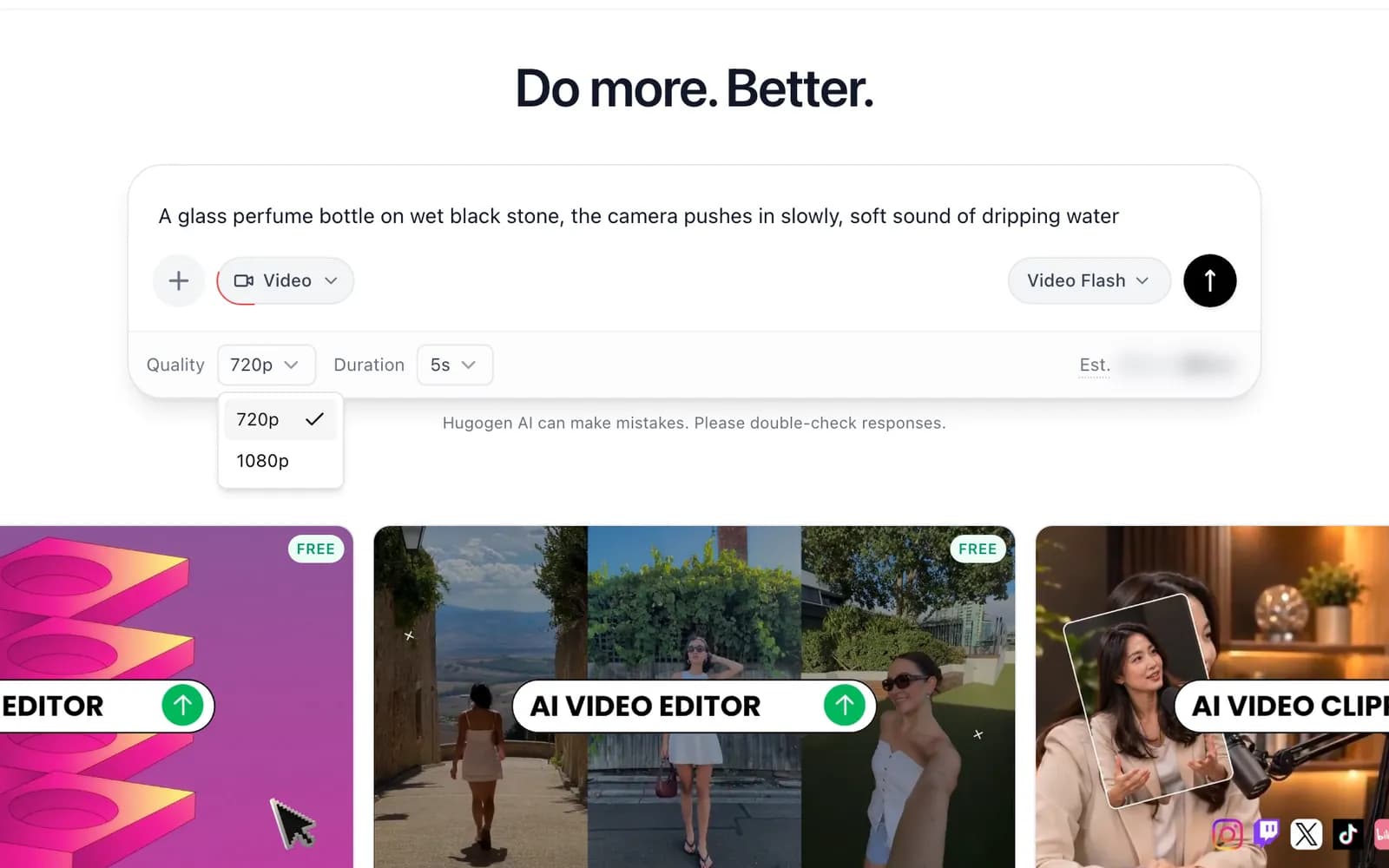
Choose a length of up to 15 seconds and 720p or 1080p under the prompt. When your photos rule out a length for the chosen option, the length shows as unavailable. The estimate changes with each setting, before anything is made.

Starting from words alone? See text to video
The Quality menu under a video prompt, open on 720p with 1080p below, and a blurred estimate on the right

How to turn a photo into a video

  1. Step 1

    Add your photo

    Press + in the composer on the Home page, add a photo and switch the mode to Video.

  2. Step 2

    Describe the motion

    Write what moves, how the camera travels and what the clip sounds like. Check the length, the quality and the estimate.

  3. Step 3

    Send and edit

    The clip arrives in a chat reply with an Open in editor button. The button puts the clip on the video timeline for trimming and captions.

Photos people bring to life

Each idea below starts with one still picture you already have and ends as a short clip with sound.

A product photo
Packshot to a short ad with a slow camera push
A portrait
A turn of the head, a smile, hair in the wind
A travel photo
Waves, clouds or traffic moving through the frame
A painting or an illustration
Light and weather moving across a still scene
A character you designed
The same character placed in a new scene

More free tools from Hugogen

Questions and answers

Open the composer on the Home page, press + and add the photo. Switch the mode to Video, describe how the scene should move and press send. A single photo becomes the first frame of the clip.

Video generation is on paid plans. A free account can still attach a photo, open the video settings and read the estimate. The video editor is free for editing clips you upload.

Yes, a photo marked First frame is the opening frame of the clip. The frames after the opening are generated, guided by your prompt. Describe the moves you want and the parts that should stay still.

Some video options also take a last frame. Add a second photo, hover the photo chip and pick Last frame. A last frame needs a first frame, and the composer says so when one is missing.

A first frame is the opening picture of the clip. A reference lends a subject or a look, and the clip does not have to open on that photo. One clip uses frames or references, never both. Several photos, or any video you attach, count as references unless you pick another role.

Each clip runs up to 15 seconds. The default video option offers 5, 10 or 15 seconds. Longer videos come from joining several clips in order on the timeline.

Yes, every clip is generated with sound, with nothing to switch on. On the timeline you can move the sound to a separate track, lower the volume or replace the sound.

Yes, press Open in editor on the reply. The clip goes on the video timeline, where you can trim the ends, add captions, change the frame size and join the clip with other footage.

No, exports from the video editor carry no Hugogen watermark on any plan. The free plan exports at 720p, and some paid plans add 1080p.

Put your photo in motion

Add a photo, describe the motion, check the estimate and finish the clip on the video timeline.

Start from a photo