Text to video with AI

Write a sentence about a scene, pick the length and the quality, and get a short clip with sound to finish on a video timeline.

0 / 500

Video generation is on paid plans, and you see the credit estimate before you send.

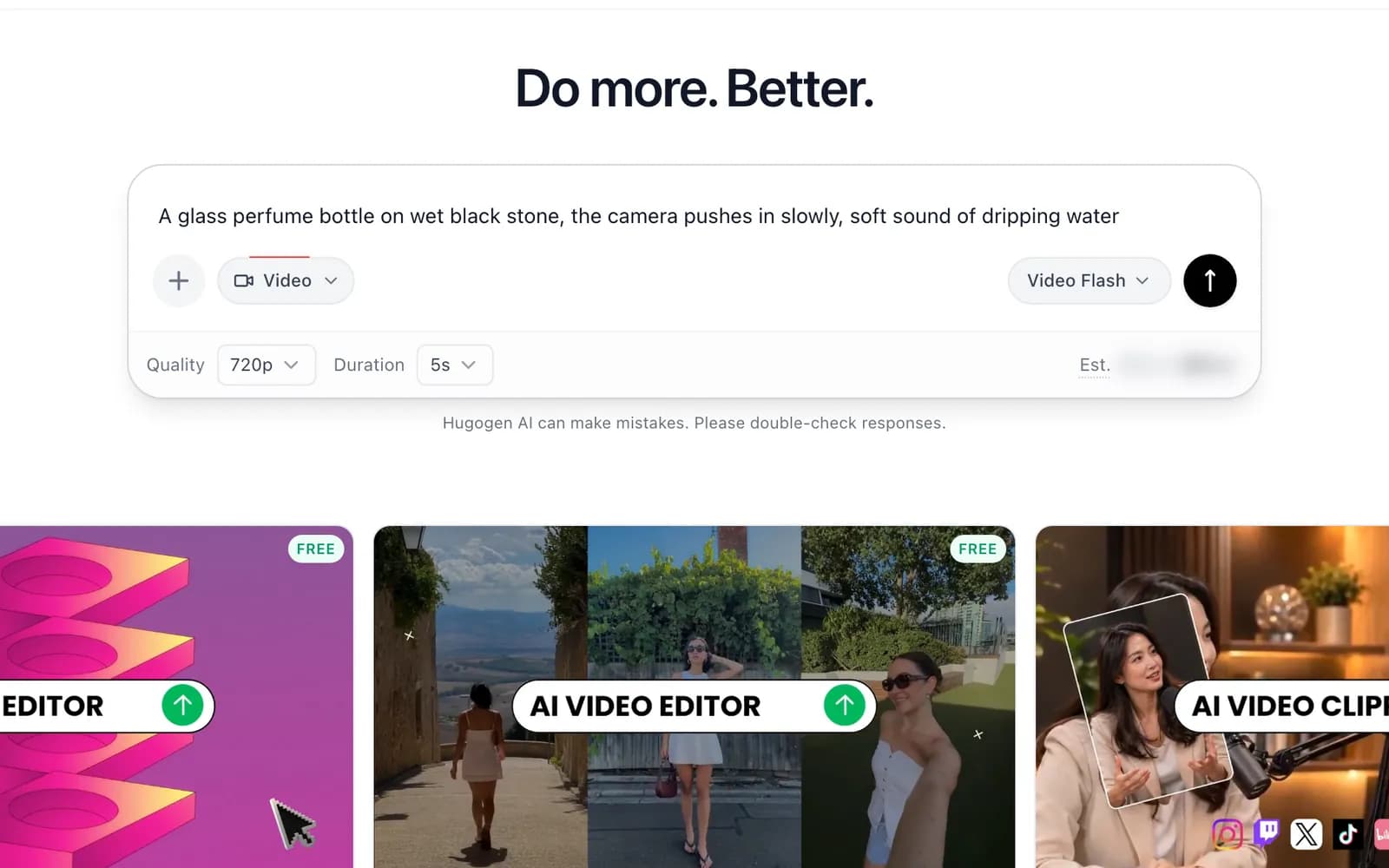
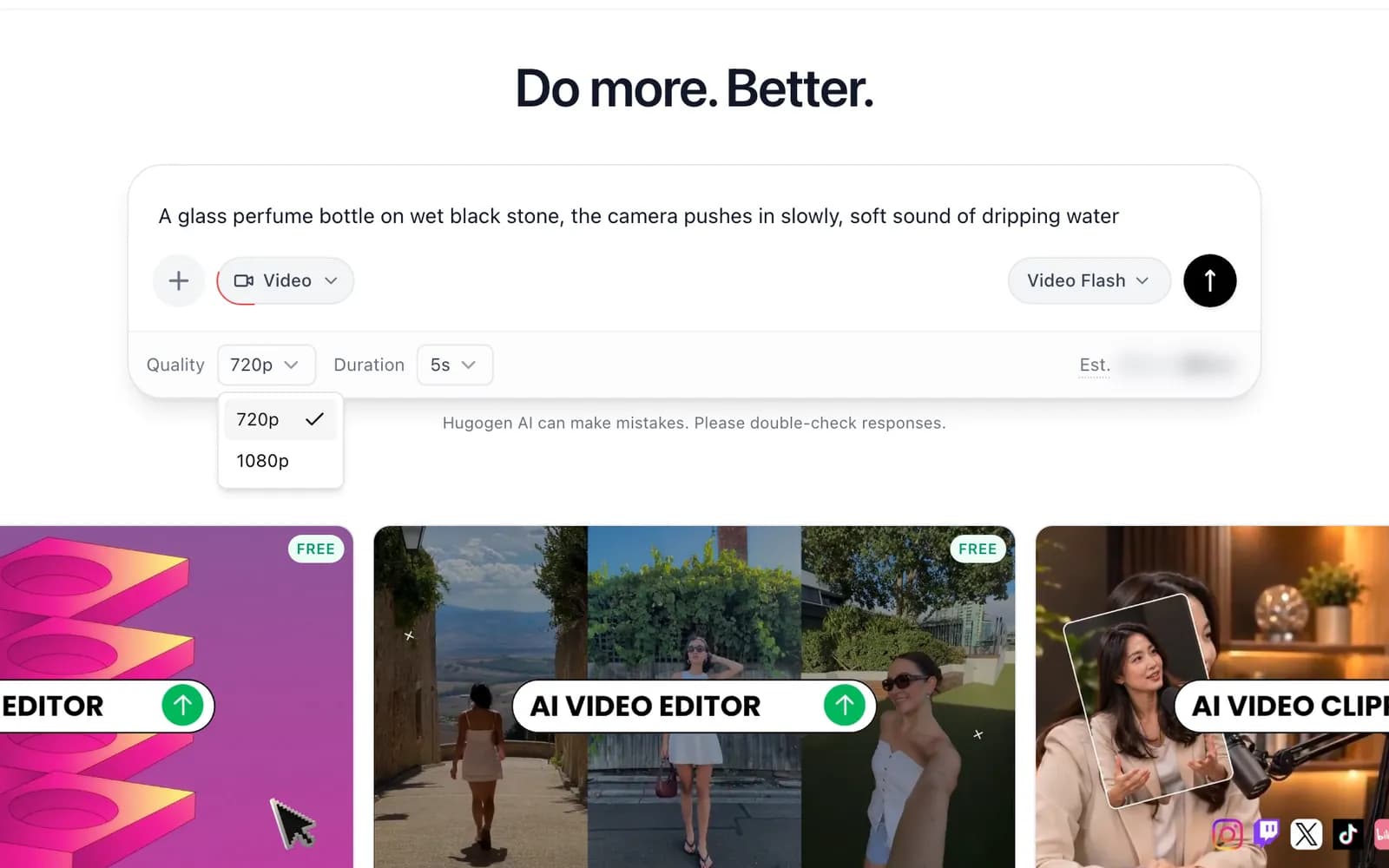
The Home page composer in Video mode with a prompt about a perfume bottle, the Quality and Duration menus and a blurred estimate

From one sentence to a short clip

Up to 15 seconds in each clip

Open Duration under your prompt to pick a length. The default video option offers 5, 10 or 15 seconds, and other options list different lengths. A length the chosen option cannot render shows as unavailable.

Every video option? See the AI video generator
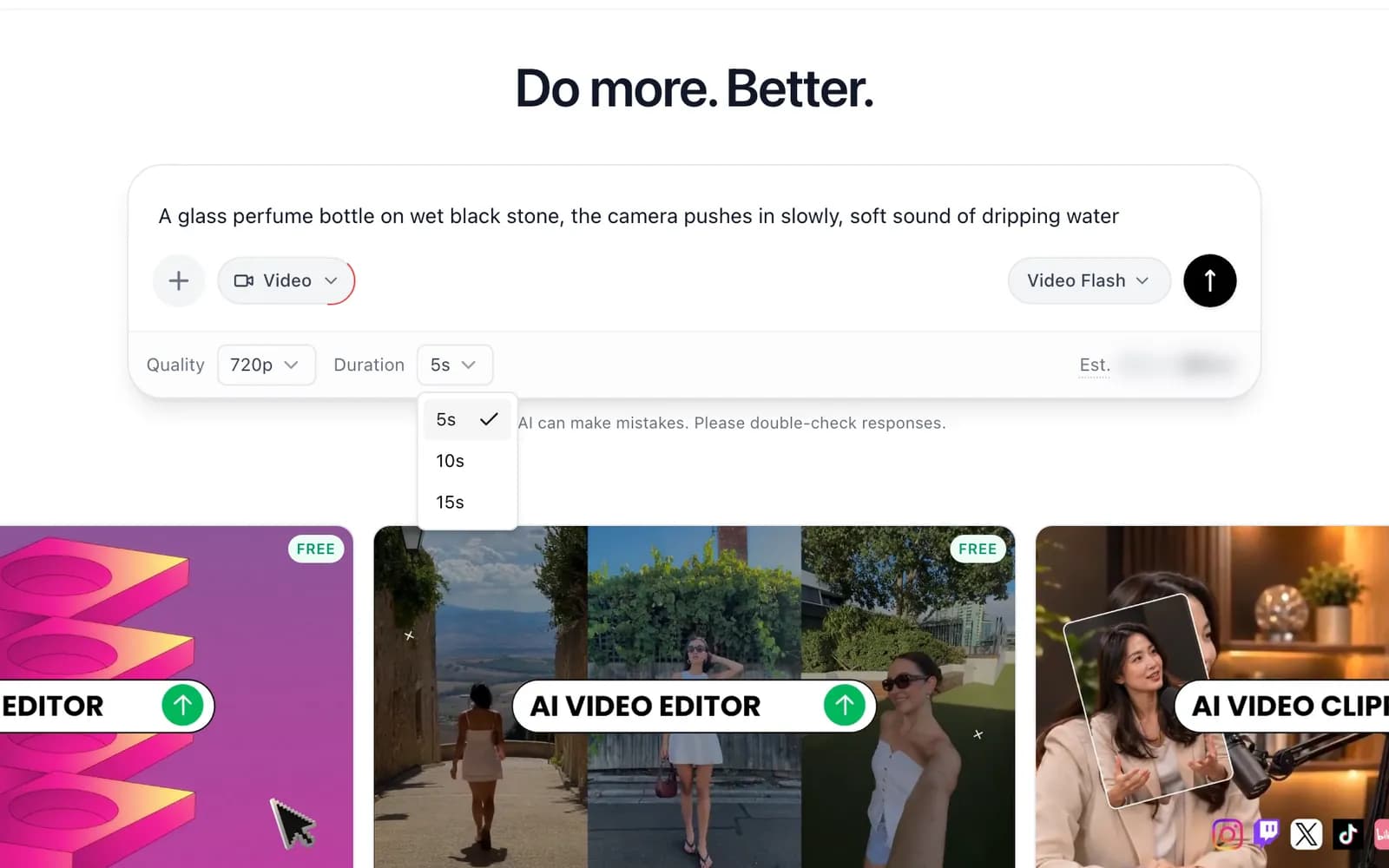
The Duration menu under a video prompt, open on 5s with 10s and 15s below

720p for a draft, 1080p for the final cut

Open Quality to choose 720p or 1080p. The estimate beside the menus follows the length and the quality, and pressing the estimate opens a breakdown. Nothing is charged while you change the settings.

The Quality menu under a video prompt, open on 720p with 1080p below, and a blurred estimate on the right

A clip made from words alone

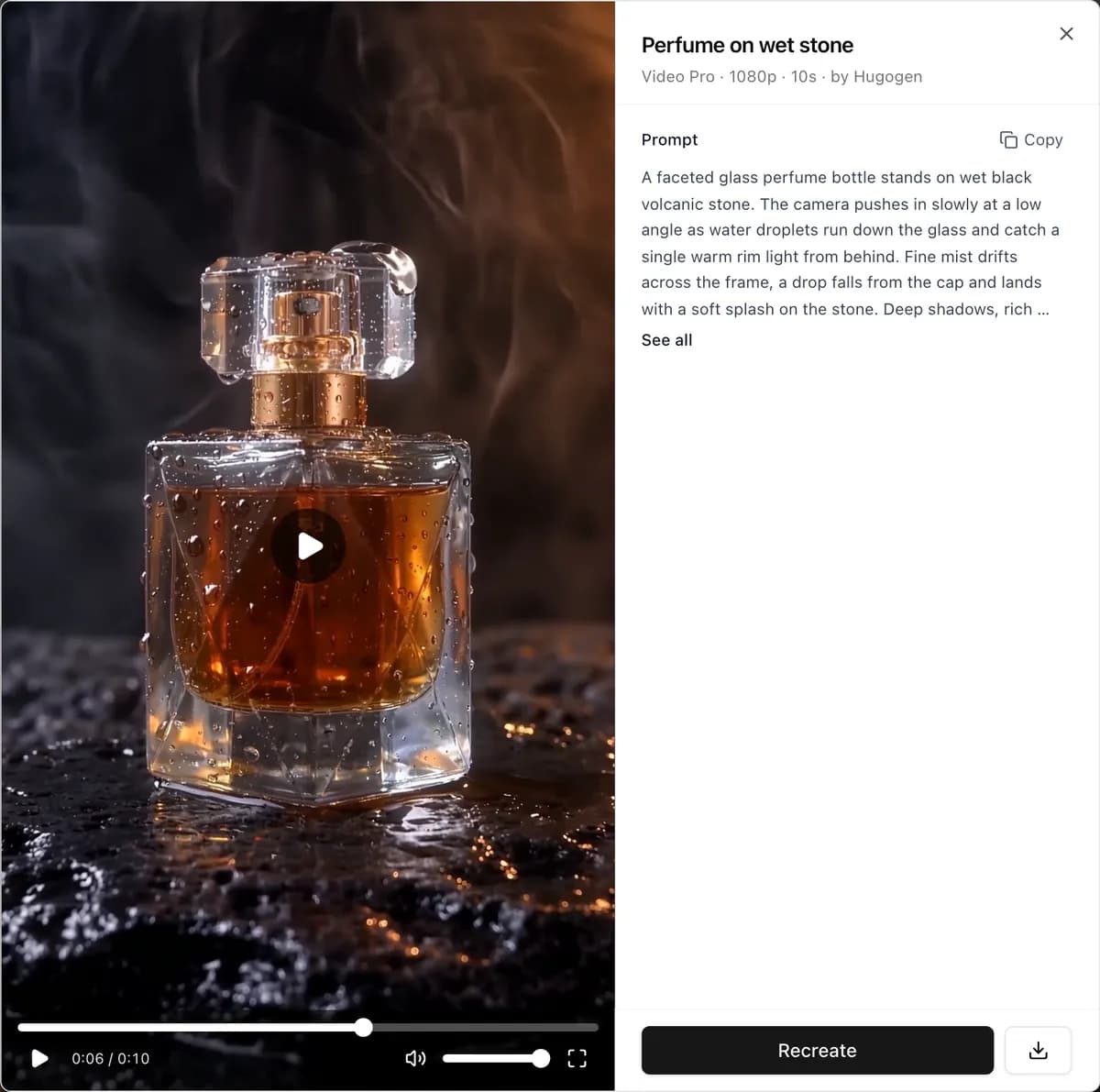
Perfume on wet stone is a ten second clip that Hugogen made from a prompt with no photo attached. The clip appears in the Made with Hugogen row on the Home page, with the full prompt beside the video. Press Recreate to load the same prompt and settings into your composer.

The Perfume on wet stone clip paused at six seconds, with the prompt, a Recreate button and a download button beside the video

Sound on every clip, edits on the timeline

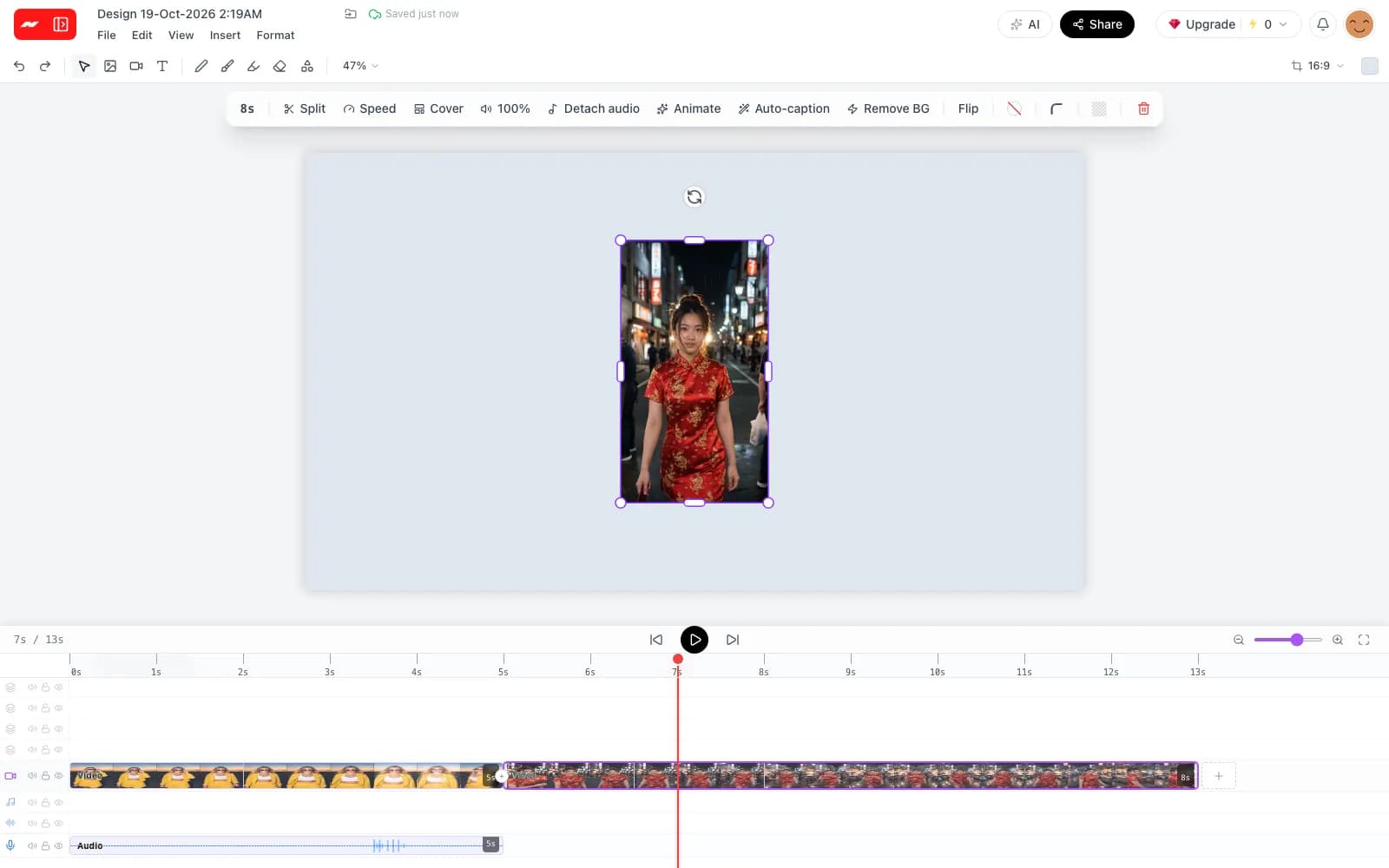
Every clip is generated with sound, with no switch to turn on. The finished clip goes on a video timeline, where you can trim the ends, add captions or join the clip with other footage. Exports carry no watermark on any plan.

Starting from a photo? See image to video
Two generated showcase clips one after another on a video timeline track, with the sound of the first clip on a separate track below

How to turn text into a video

  1. Step 1

    Write the scene

    Switch the composer on the Home page to Video. Describe the subject, the setting, the camera move and the sound you want.

  2. Step 2

    Pick length and quality

    Choose a length of up to 15 seconds and 720p or 1080p. Read the credit estimate before you press send.

  3. Step 3

    Accept the card and edit

    The video editor opens with your words in the AI panel. Accept the price card, and the clip goes on the timeline for trimming and captions.

Short clips people make from a sentence

Each idea below starts as one written line and ends as a clip on the video timeline, ready to join with other footage.

A product shot for an ad
A bottle, a shoe or a phone with a slow camera move
B-roll for a talking video
A scene to cut away to while the voice continues
An opening shot for a Reel
A few seconds that set the place before the story
A mood clip for a song
Light, weather and motion that match the music
A scene for a short story
Several clips joined in order on one timeline

More free tools from Hugogen

Questions and answers

Text to video AI turns a written description into a moving clip. In Hugogen you write the prompt in the composer on the Home page, switch the mode to Video and press send. The clip comes with sound and goes on a video timeline.

Video generation is on paid plans. A free account still opens the composer, the settings and the estimate. The video editor stays free for editing clips you upload.

Each clip runs up to 15 seconds. The default video option offers 5, 10 or 15 seconds. For a longer video, make several clips and join the clips in order on the timeline.

Pick 720p or 1080p in the Quality menu before you send. A 1080p clip uses more credits than a 720p clip of the same length, and the estimate shows the difference.

Name the subject first and say what the subject does. Add the place, the light and how the camera moves. End with the sound you want to hear, such as rain, traffic or a quiet room.

The video editor opens with your prompt in the AI panel. A card lists the clip and the price, and nothing is made until you accept the card. The finished clip goes on the main track of the timeline.

Yes, the composer shows an estimate beside the Quality and Duration menus, and pressing the estimate opens a breakdown. The price card in the video editor asks once more before anything runs.

No, a clip exported from the video editor carries no Hugogen watermark on any plan. The free plan exports at 720p, and some paid plans add 1080p.

Yes, add a photo with the + button in Video mode. A single photo becomes the first frame of the clip. The image to video page covers the photo roles in detail.

Write the first scene of your video

Describe the scene and check the length, the quality and the estimate. Finish the clip on the timeline.

Start with a prompt