Free video cropper

The crop keeps the shape of the finished video, and dragging the clip decides which part of the picture stays inside it.

A crop never rewrites the uploaded file, and the finished video is encoded once, at export.

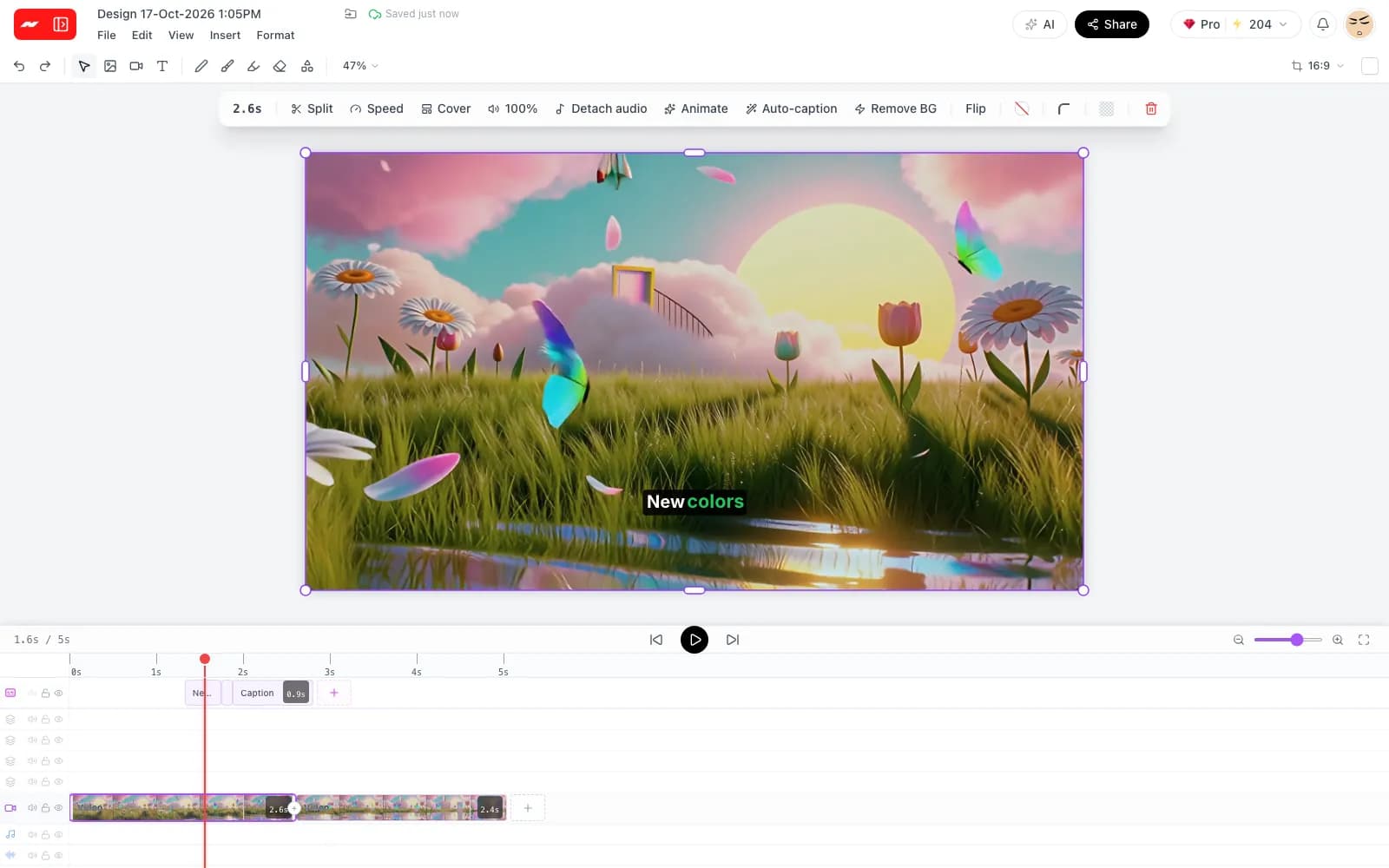
A clip selected on the video editor timeline with its own toolbar above it, the layout chip reading Cover

Choose the part of the picture to keep

The crop holds the output shape

The crop rectangle is the shape of the finished video rather than a free rectangle, which keeps the picture from being stretched or squashed. Hugogen also holds the rectangle inside the source, and a crop pushed to any edge still shows real pixels instead of a black band.
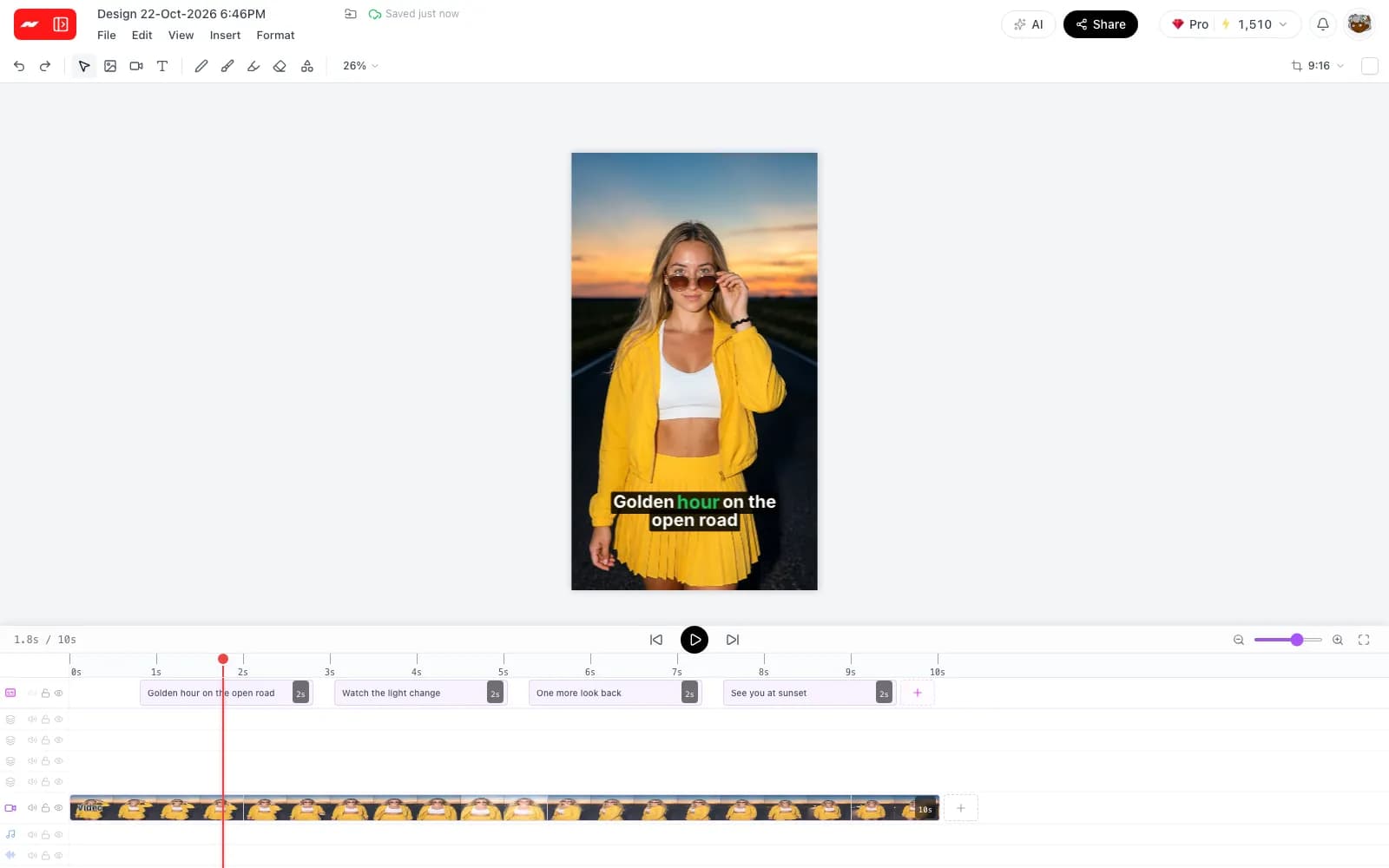
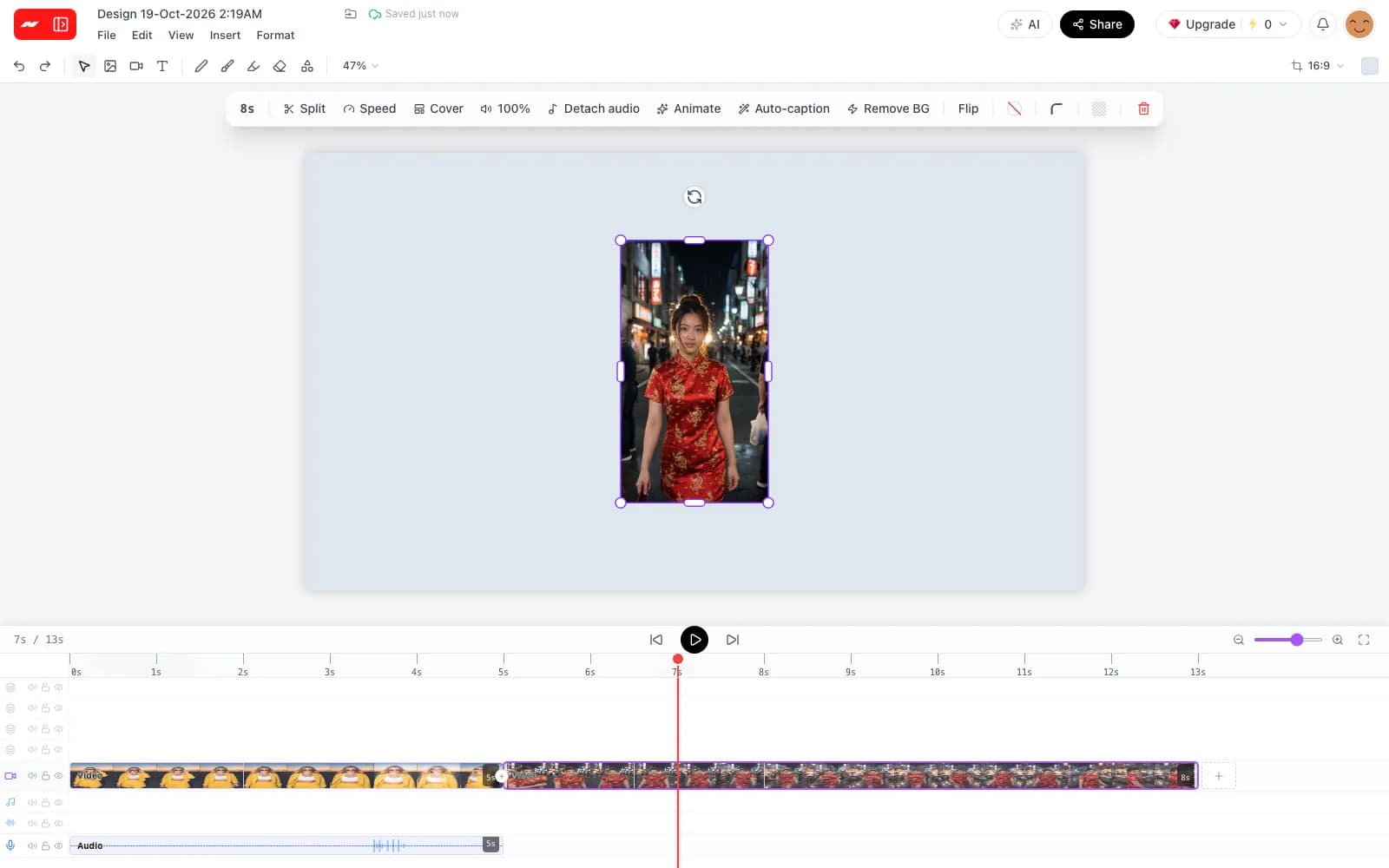
A video project in the vertical 9 by 16 shape with the subject centred in the frame

Drag the picture, zoom up to four times

Dragging the clip on the canvas moves the picture under the frame rather than moving the clip itself, and the zoom runs from one to four times in twentieths. At four times the kept area is a quarter of the width and a quarter of the height, which is close enough for one face in a wide shot.

A vertical clip placed inside a wide project frame, selected, with its corner handles visible

Cropping applies to a filled frame

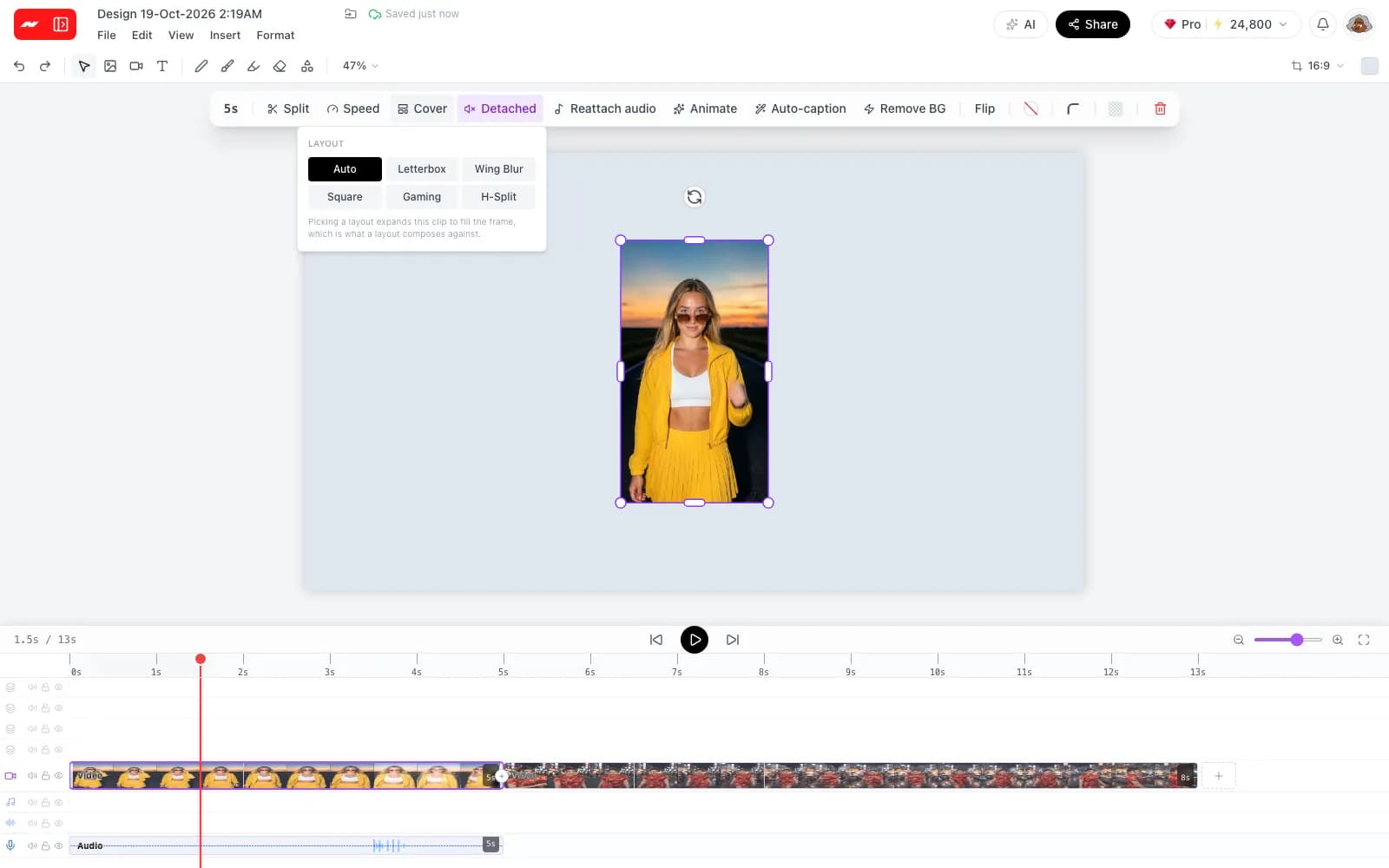
A clip filling the frame is the one case a crop belongs to, and Hugogen says as much rather than failing quietly: on Letterbox, Wing Blur, Square, Gaming and H-Split the control is greyed with the reason on it, because each of those composes the whole shot instead. Picking Cover brings the crop back.

Need a different shape? See the video resizer
The layout menu open on a selected clip in the video editor, offering Auto, Letterbox, Wing Blur, Square, Gaming and H-Split

One MP4, and the upload left alone

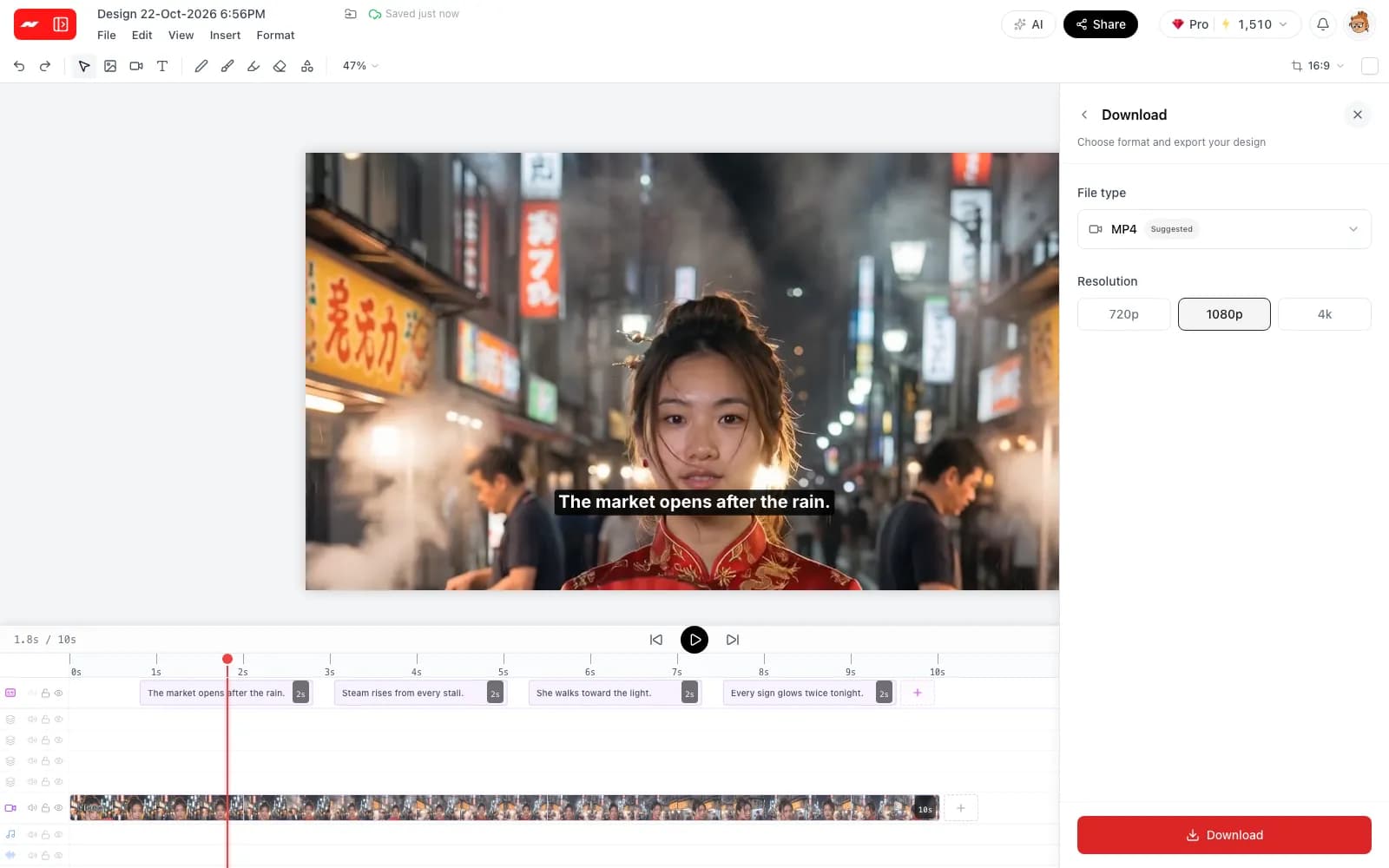
Cropping writes nothing back to the uploaded file, and reopening the project shows the crop as a setting rather than as damage. The finished video renders on Hugogen's servers and is encoded once, at 720p on the free plan and 1080p on a paid plan, with nothing drawn over the picture.

The download panel in the video editor with MP4 chosen and the resolution choices listed

How to crop a video online

  1. Step 1

    Add the clip

    Open the video editor and upload a video file of up to 2 GB, or paste a link to one instead.

  2. Step 2

    Press Crop

    Select the clip, press Crop on its toolbar, then drag the picture and set the zoom.

  3. Step 3

    Export one MP4

    Send the project to export. One MP4 comes back, with no watermark on the free plan.

Jobs one crop finishes

Each job below is one clip, one frame and a drag, and the uploaded file is left exactly as it arrived.

A wide shot cut to one speaker
Zoom in, drag the face to the middle
A landscape recording for a feed
Keep the subject as the frame narrows
A screen recording with dead space
Push the frame onto the part in use
A phone clip with a busy edge
Leave the distraction outside the frame
One clip reused in two shapes
Each copy carries its own framing

More free tools from Hugogen

Questions and answers

Upload a clip to the video editor, select it, and press Crop on the clip's own toolbar. Dragging the clip then moves the picture under the frame, and a slider zooms in. Nothing is uploaded again and nothing is sent anywhere to be processed.

The canvas is the preview, and the frame updates as the picture is dragged. The exported file matches it because the same canvas draws both: a server render opens the project in a browser of its own and reads the identical crop.

The uploaded file is never rewritten, and a crop is stored as a setting on the clip. The project is encoded once at export, at 720p on the free plan or 1080p on a paid plan, and a crop by itself costs no generation of quality.

By dragging the clip on the canvas. The picture slides under the frame while the clip stays where it sits. The kept area is held inside the source, and pushing it to an edge stops there instead of showing a black band.

From one to four times, in steps of a twentieth. At four times the frame keeps a quarter of the width and a quarter of the height of the shot, which suits one face in a recording made from across a room.

Because the clip is on a layout composing the whole shot: Letterbox, Wing Blur, Square, Gaming or H-Split. Each of those fits the entire picture into the frame, leaving nothing to crop. The chip names the reason, and picking Cover offers the crop again.

The crop is kept as a centre and a zoom rather than as a rectangle of pixels, and the rectangle is worked out again from the frame in force. Switching a project from wide to vertical therefore keeps the framing decision and fits it to the new shape.

Every clip carries its own crop, its own zoom and its own layout, because each setting sits on the clip rather than on the project. One interview can hold a tight frame on a speaker and a wide frame on the room.

One MP4 file, rendered on Hugogen's servers, at 720p on the free plan or 1080p on a paid plan. The picture carries no watermark on any plan, and a browser render stands in only when a server render fails.

Crop the first clip now

Open the editor, upload a clip, press Crop on its toolbar and drag the picture into place.

Crop a video