Free video trimmer

Drag either edge of a clip to shorten it, split at the playhead, and keep every frame of the uploaded file.

A trim moves the clip edge and changes nothing inside the uploaded file.

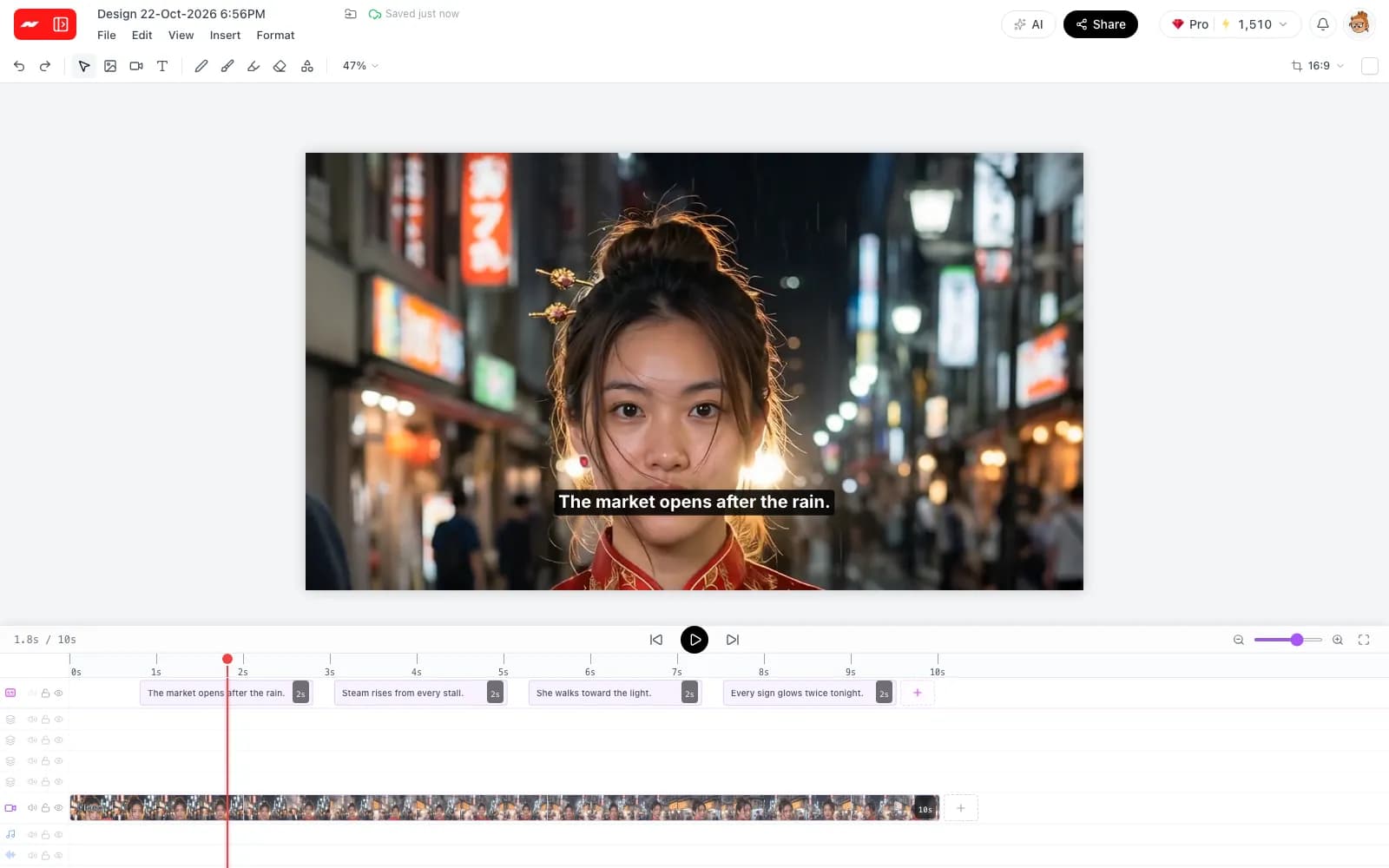
Two video clips side by side on the timeline, the first selected with its length badge and the frames of the footage along both

Precise edges without a render

Edges snap to the cut points

Both ends of a clip drag. Within 8 screen pixels an edge lands exactly on another clip's start or end, on the playhead, or on the beginning of the timeline, and otherwise on a tenth of a second. The length on the clip updates while the edge moves.
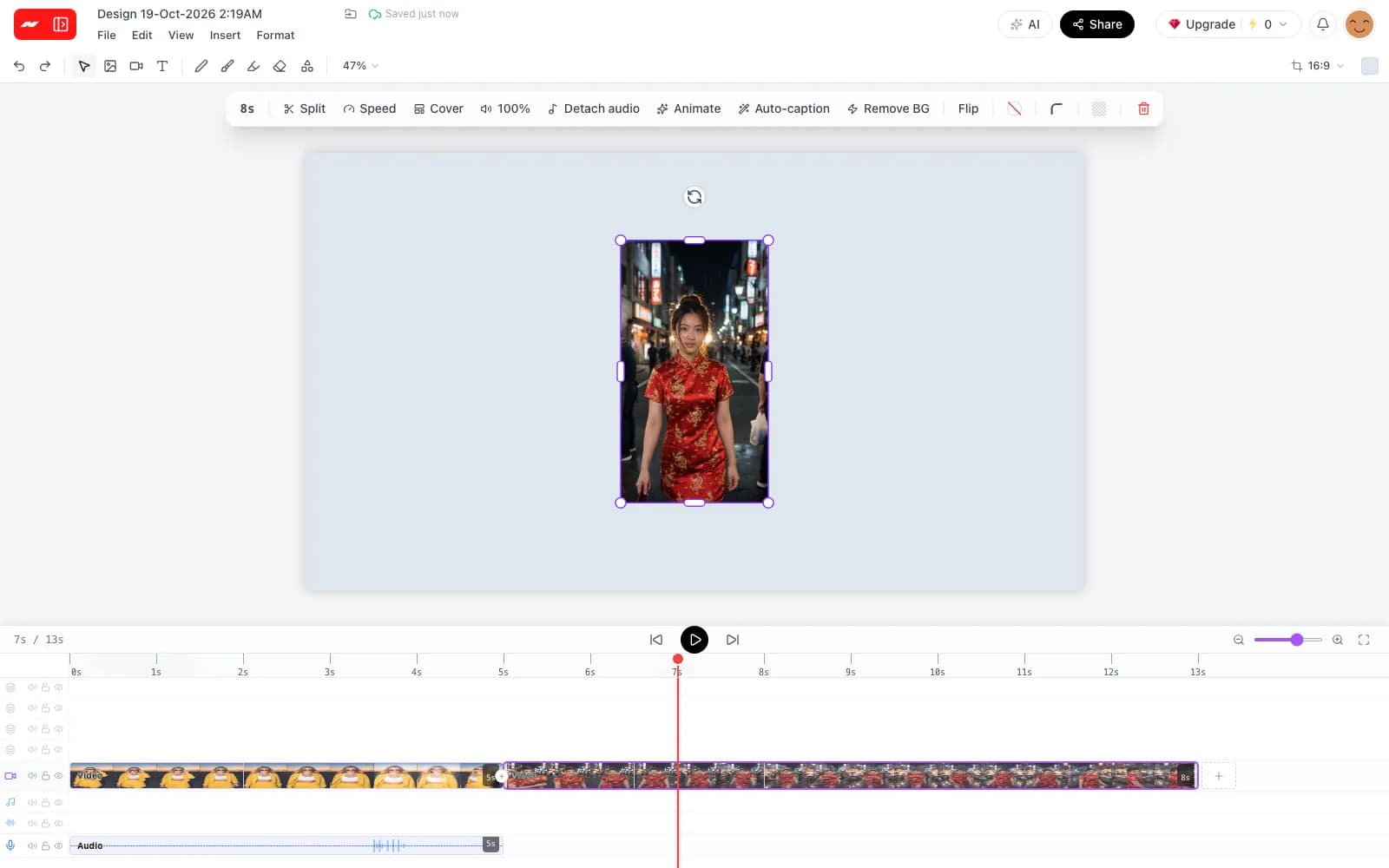
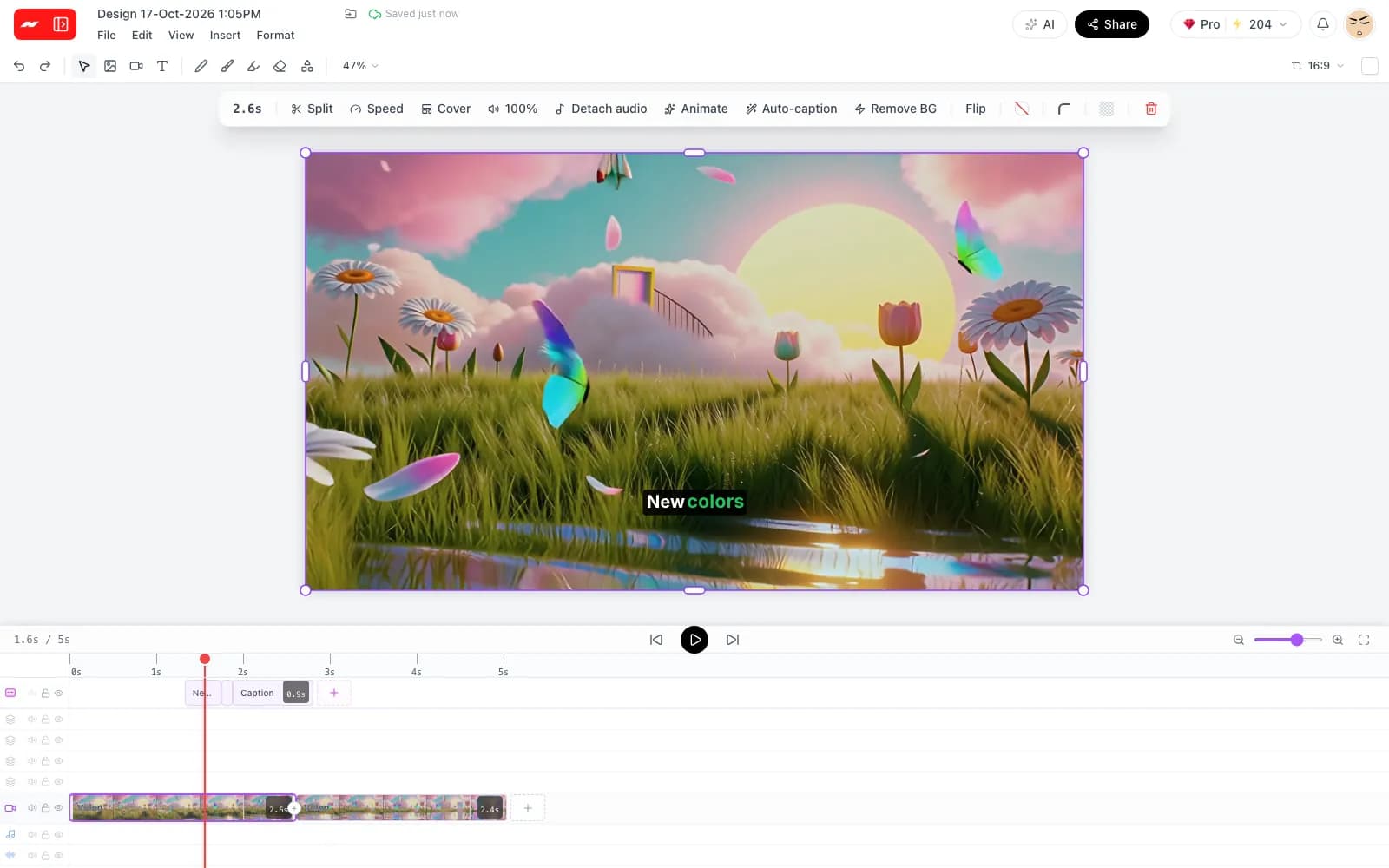
A clip selected on the timeline where two clips meet, its length and the split and speed controls above it

Split a clip, and its companions follow

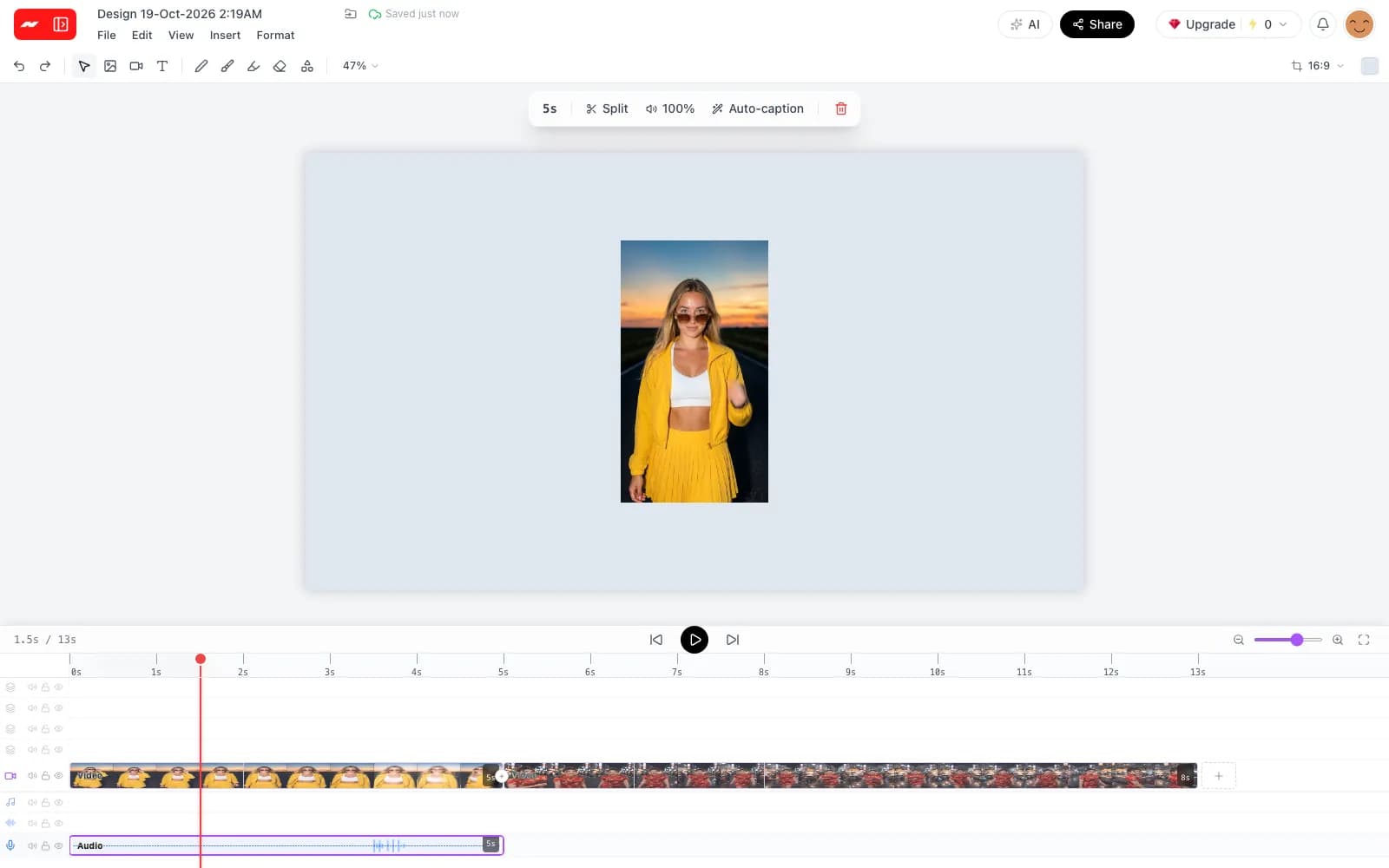
Press S, or the Split button, to cut the selected clip at the playhead. On a clip filling the frame the cut carries: a caption line across the join is divided by word timing, the clip's detached sound is cut at the same instant, and the right half keeps the framing in force at the cut.

A detached audio clip selected on its own track below the video, its waveform and split control visible

The frames on a clip are its own

A strip of the real footage runs along every clip, drawn from one prepared image rather than by opening the video again. The strip stays correct through zoom, through a trim and through a split, which puts the cut point on screen before the cut is made.

A ten second clip on the timeline with frames of the footage along its whole length and caption lines above

How to trim a video online

  1. Step 1

    Add the clip

    Open the video editor and drop in an MP4, MOV or WebM file of up to 2 GB per file.

  2. Step 2

    Drag the edges

    Pull either end of the clip inwards to shorten it, and press S to split the clip at the playhead.

  3. Step 3

    Export an MP4

    Send the finished cut to export. The file renders on Hugogen's servers and carries no watermark.

Jobs a trim finishes

Each one below is a few drags on the timeline, with the uploaded file left exactly as it arrived.

A long take with a slow start
Pull the left edge past the dead air
A screen recording with a tail
Pull the right edge back before the stop
One take holding two scenes
Press S at the moment the scene changes
A clip a few seconds too long
Trim to the length a feed allows
A recording at the wrong pace
Set the speed from half to four times

More free tools from Hugogen

Questions and answers

Select the clip on the timeline and drag its left edge to the right. The frames before the edge come off the clip and the rest stays where it is, with the new length shown on the clip as the edge moves.

A trim moves an edge and rewrites no pixels. The finished project is encoded once on export, at 720p on the free plan or 1080p on a paid plan.

A whole drag counts as one step, from the moment the edge is grabbed to the moment it is released, and one undo puts the clip back as it was.

No part of a trim touches the upload. Trimming the head moves the clip's in-point deeper into the file, and pulling the edge back out hands those frames back, as far as the beginning of the file.

A tenth of a second, which is also the shortest piece a split will leave on either side of the cut.

Put the playhead where the cut belongs and press S, or the Split button above the clip. Both halves stay on the timeline as ordinary clips, each one trimmable on its own.

Speed offers half, three quarters, one and a quarter, one and a half, two, three and four times, and the clip's length on the timeline follows the rate.

On Hugogen's servers, which keeps a long project off the visitor's own machine. The browser renders instead only when a server render fails.

Put a clip on the timeline and trim

Open the editor, drop in a clip, pull its edges to the part worth keeping and export an MP4.

Trim a video