Free video editor for Facebook

Start a Facebook Reel or a feed video at the right size. Size in the header turns the same project into a landscape video for a page post.

Cutting, typed captions and titles are free, and exports carry no watermark.

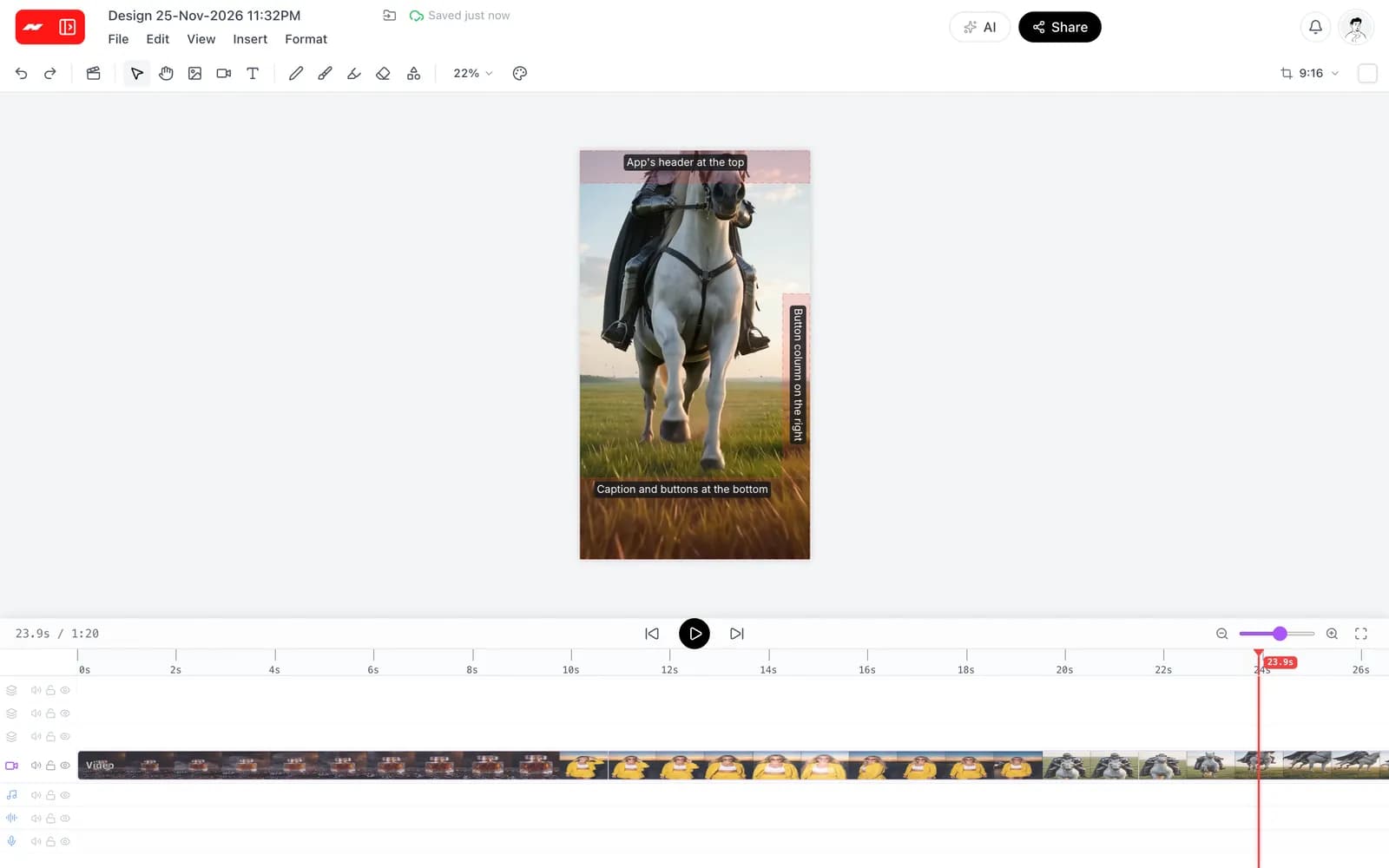
The video editor at 1080 by 1920 with a knight riding a white horse and shaded zones labelled App's header at the top, Button column on the right and Caption and buttons at the bottom

Three Facebook shapes from one editor

A 1080 x 1350 feed video with Facebook sizes in Size

A Feed video project is 4:5, which takes more of a phone screen than a landscape post. Size in the header has a Facebook filter listing Square Post, 4:5 Post, Story / Reel, Post and Feed Video. The guide shades a thin band on each edge, where a feed may crop the picture.
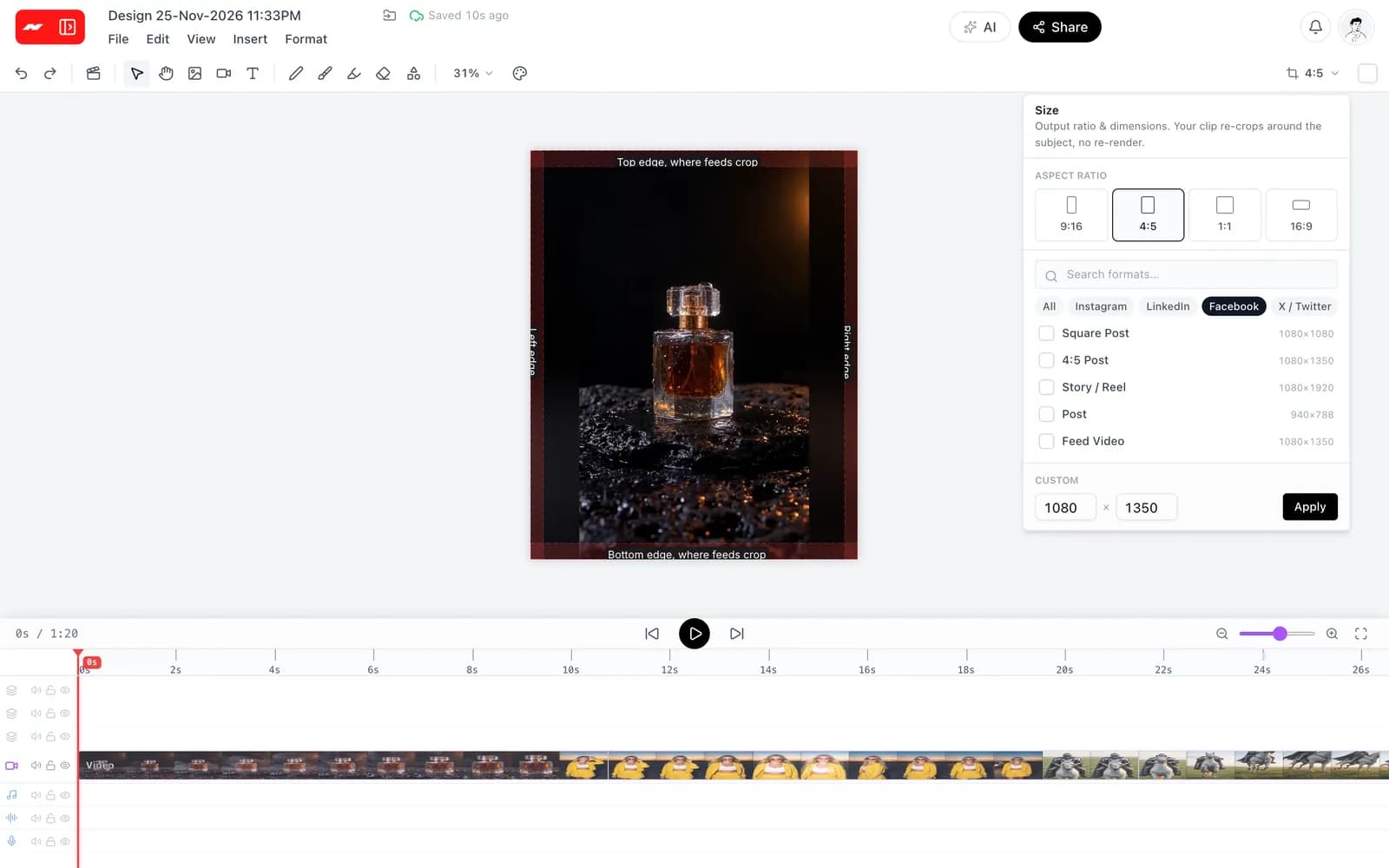
A 4:5 project with a perfume bottle in Wing Blur and the Size menu open on the Facebook filter, listing Square Post, 4:5 Post, Story / Reel, Post and Feed Video

Landscape at 1920 x 1080 through Size

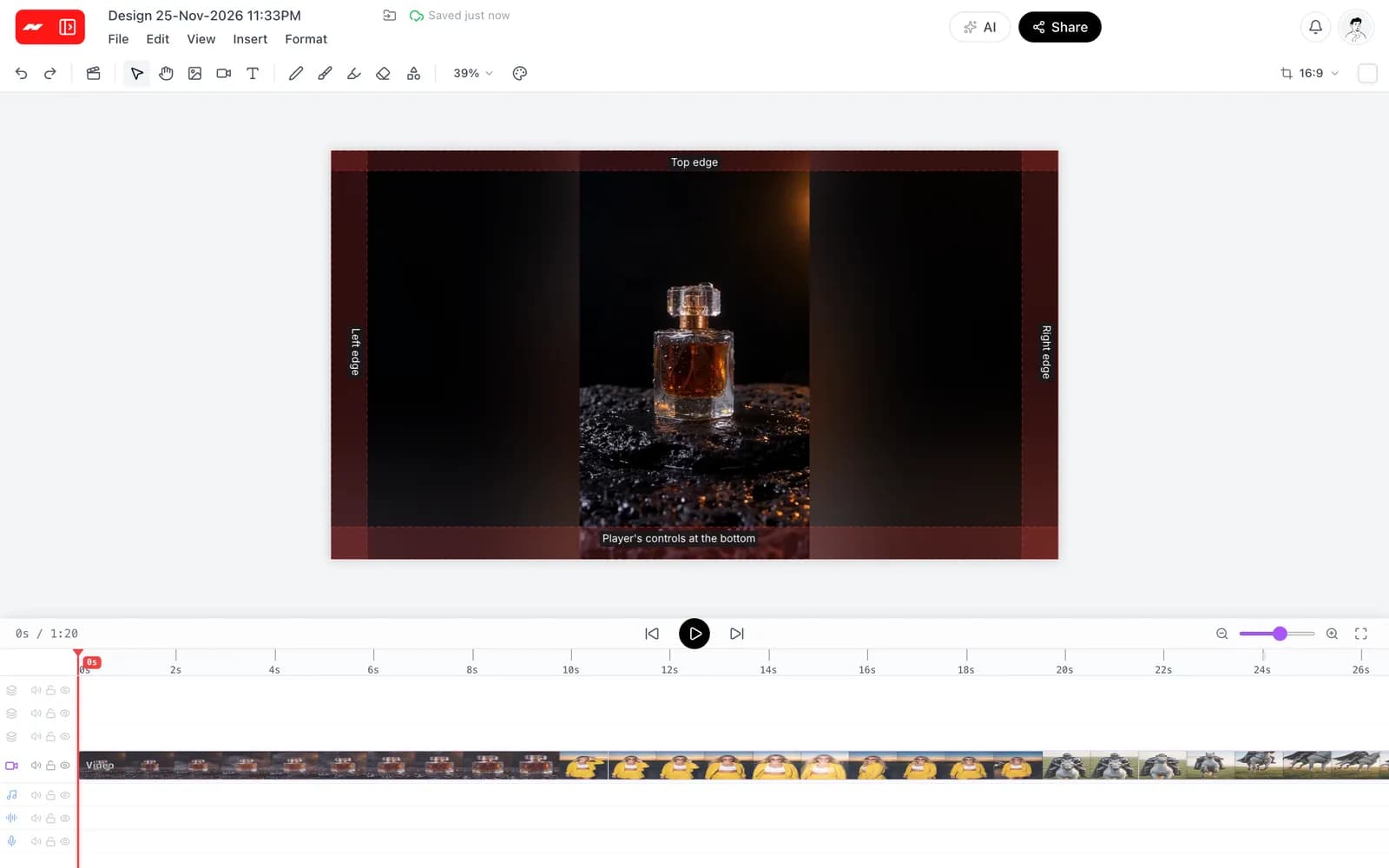
Pick 16:9 under Aspect ratio in Size and the project becomes 1920 by 1080. Each clip re-crops around the subject, and a vertical clip in Wing Blur gets a blurred fill at the sides. The guide switches to the landscape zones, with the player's controls marked at the bottom.

The same project after the switch to 16:9, with the perfume bottle in the middle, blurred fill at the sides and shaded bands for the edges and the player's controls

Facebook Reels at 1080 x 1920

The Reel size is the Facebook Story / Reel preset at 1080 by 1920. Three shaded zones show where an app's header, caption and side buttons cover a vertical video. Keep a title above the bottom band, where the caption and the account name appear.

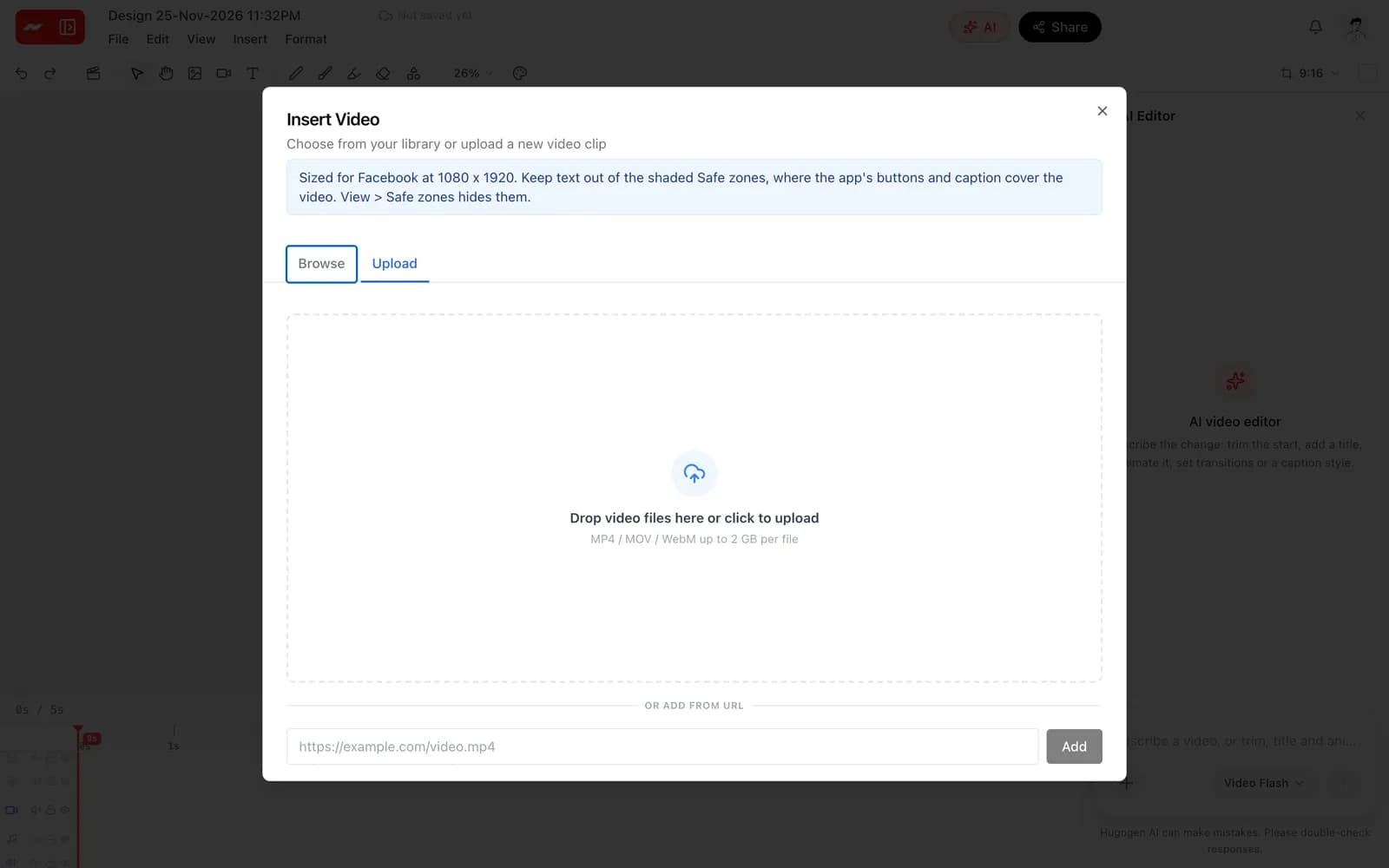
The Insert Video dialog on arrival from the Facebook page, with a note reading Sized for Facebook at 1080 x 1920 and advice to keep text out of the shaded Safe zones

The Facebook tab in the format picker

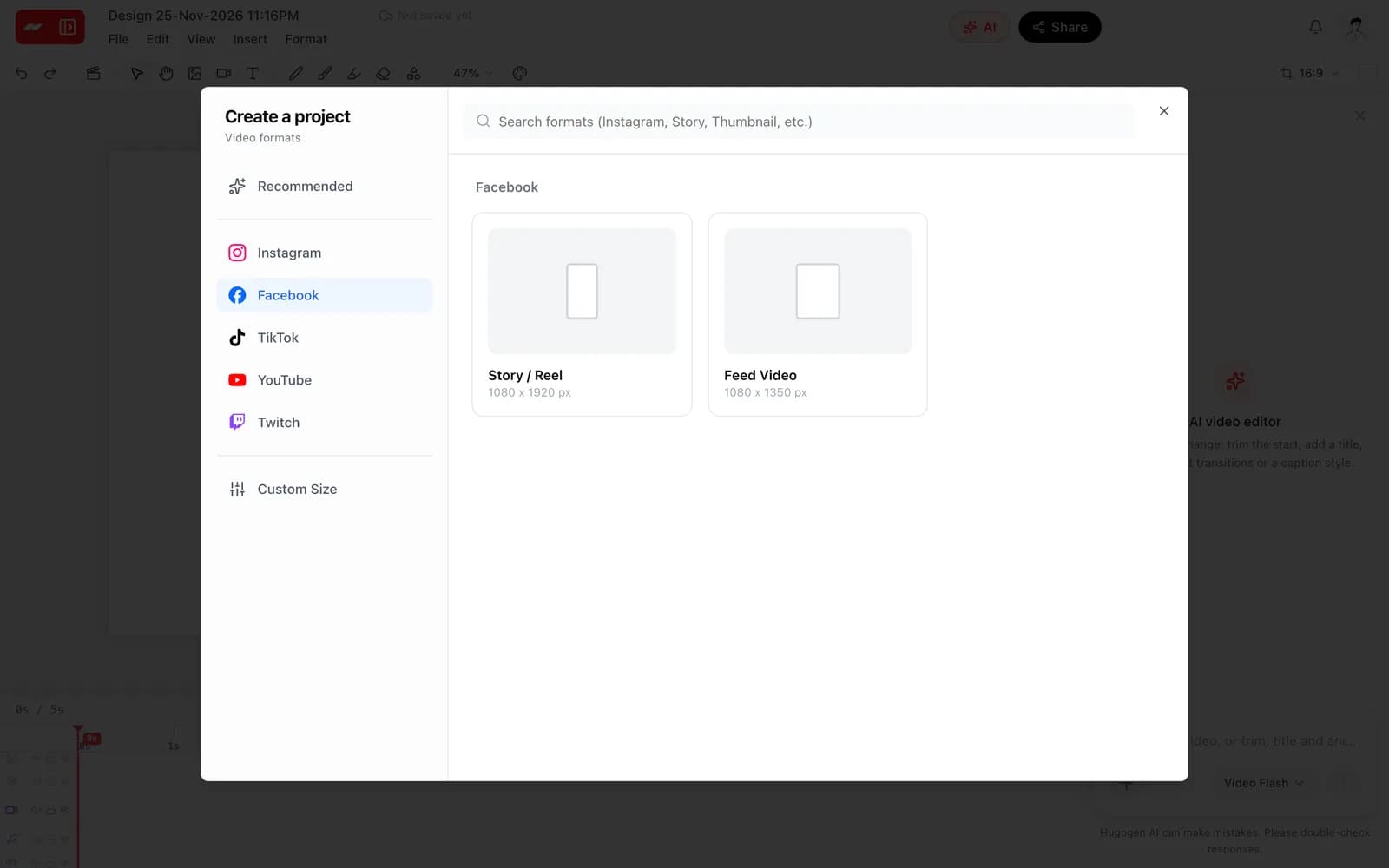
File, New project shows a Facebook tab with two video cards, Story / Reel and Feed Video. A card opens an empty project at that size, ready for clips from the library or a new upload of up to 2 GB.

Posting beyond Facebook? See the online video editor
The Create a project dialog with the Facebook tab selected, showing Story / Reel at 1080 x 1920 px and Feed Video at 1080 x 1350 px

Captions drawn into the picture

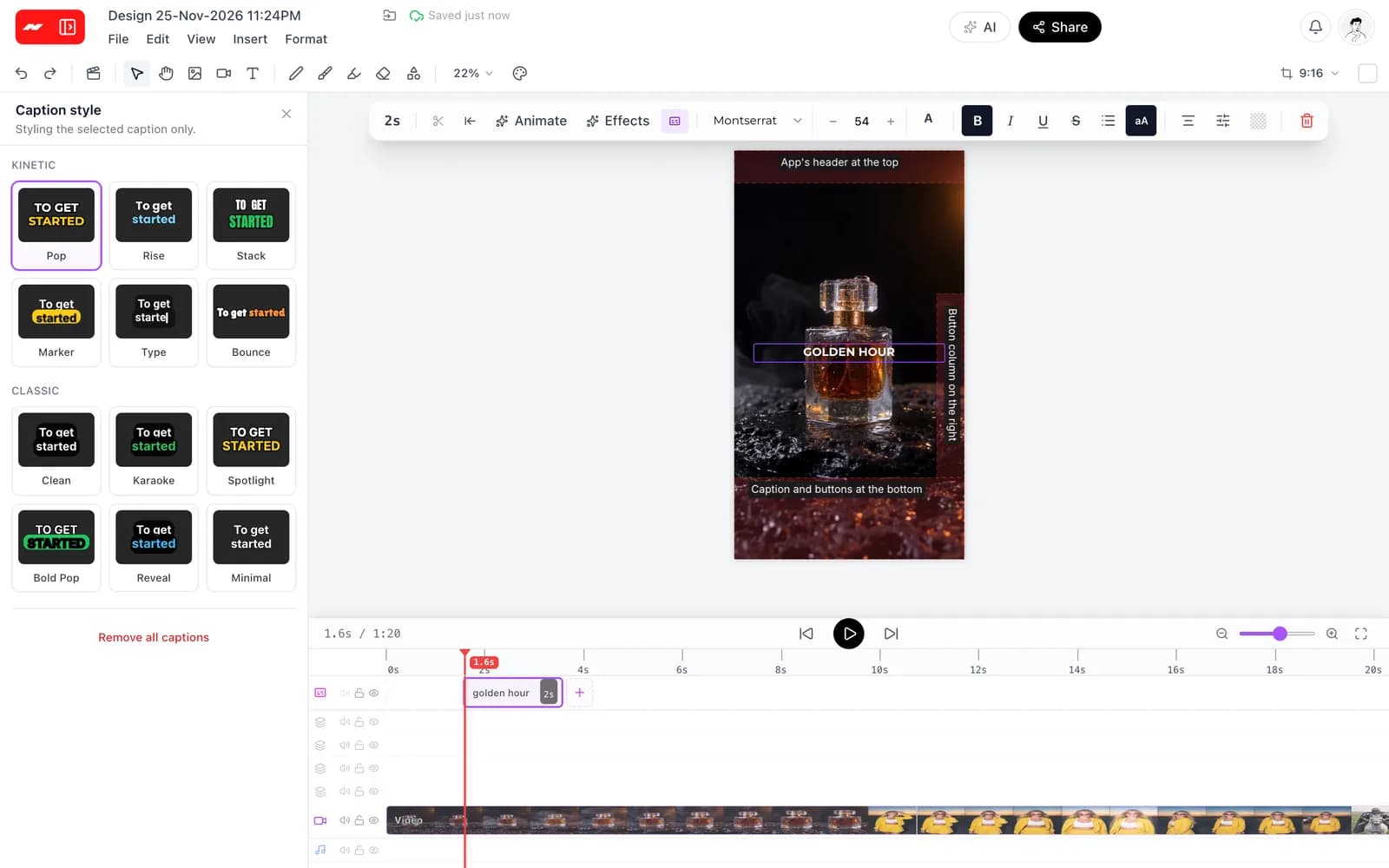
Auto-caption turns the speech into captions timed word by word, and a caption typed by hand is free. The exported MP4 carries the captions in the picture, in any of twelve styles. The words stay readable with the sound off.

Subtitles for any video: add subtitles to video
The Caption style panel with Pop chosen among six kinetic and six classic styles, and a caption reading GOLDEN HOUR above the shaded caption area

How to edit a video for Facebook

  1. Step 1

    Start with Reel or feed

    Start with the Reel size or the feed size, sign in with Google and upload the footage.

  2. Step 2

    Cut and caption

    Trim the clips, add captions and a title, and switch to 16:9 with Size for a landscape post.

  3. Step 3

    Save the MP4

    Download the finished MP4 from Share, Download and upload the file to Facebook.

Facebook videos made in the editor

Each video below fits one Facebook placement, and one project can change shape later from Size.

Reels
9:16 at 1080 x 1920
Feed videos
4:5 at 1080 x 1350
Landscape page videos
16:9 at 1920 x 1080, from Size
Event promos
A title template and a voiceover over the venue
Shop updates
A product clip with captions for silent viewing

More free tools from Hugogen

Questions and answers

A Reel project is 1080 by 1920 pixels in a 9:16 frame, from the Facebook Story / Reel preset. The shaded guide marks the header, the caption area and the button column on the frame.

The Feed Video preset is 1080 by 1350 pixels, a 4:5 frame. Size also lists a Facebook Square Post at 1080 by 1080 and a 16:9 shape at 1920 by 1080.

Open Size in the header and choose 16:9 under Aspect ratio. The project becomes 1920 by 1080 and each clip re-crops around the subject with no new render. The Safe zones guide then marks the edges and the player's controls.

One project holds one shape at a time. Download the MP4, change the shape in Size and download again for each placement. Captions move to fit the new frame after each switch.

Download the MP4 from Share, Download and upload the file in the Facebook app or on facebook.com, as with any other video.

Hugogen puts no watermark on an exported video on any plan. The free plan exports at 720p, and some paid plans add 1080p.

Editing, typed captions, titles and size changes are free on every plan. Auto-caption, the AI voiceover and background removal use credits.

Edit the next Facebook video online

Start a Reel or a feed video, change shape with Size and download an MP4 with no watermark.

Start a Facebook video

TikTok, YouTube, Instagram, Facebook and Twitch are trademarks of their owners. Hugogen is not affiliated with them.