Free YouTube video editor

Open a 16:9 project at 1920 x 1080 with the player's controls marked, edit on a timeline and keep the captions as a subtitle file.

Exports are MP4 files with no watermark, at 720p on the free plan.

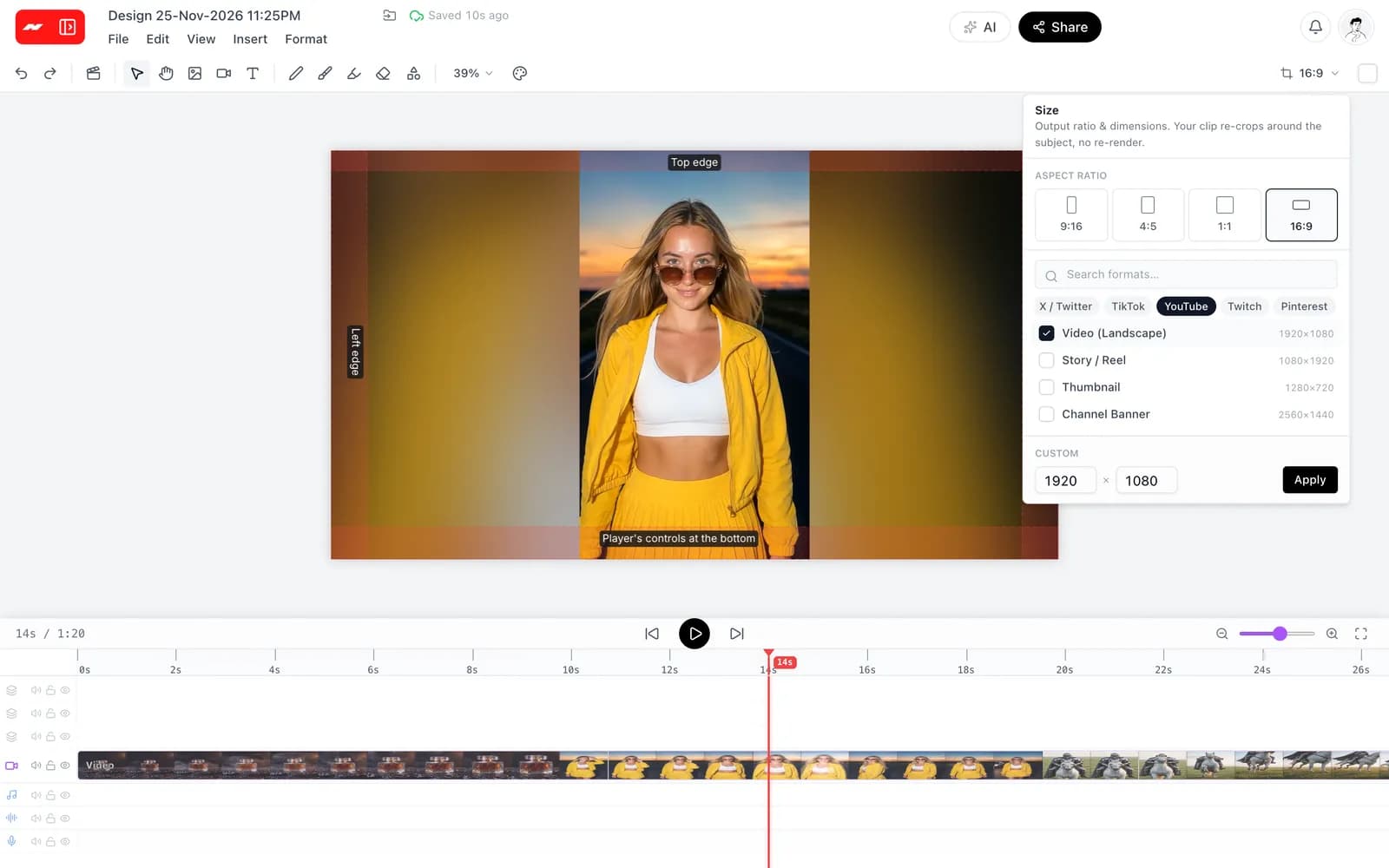
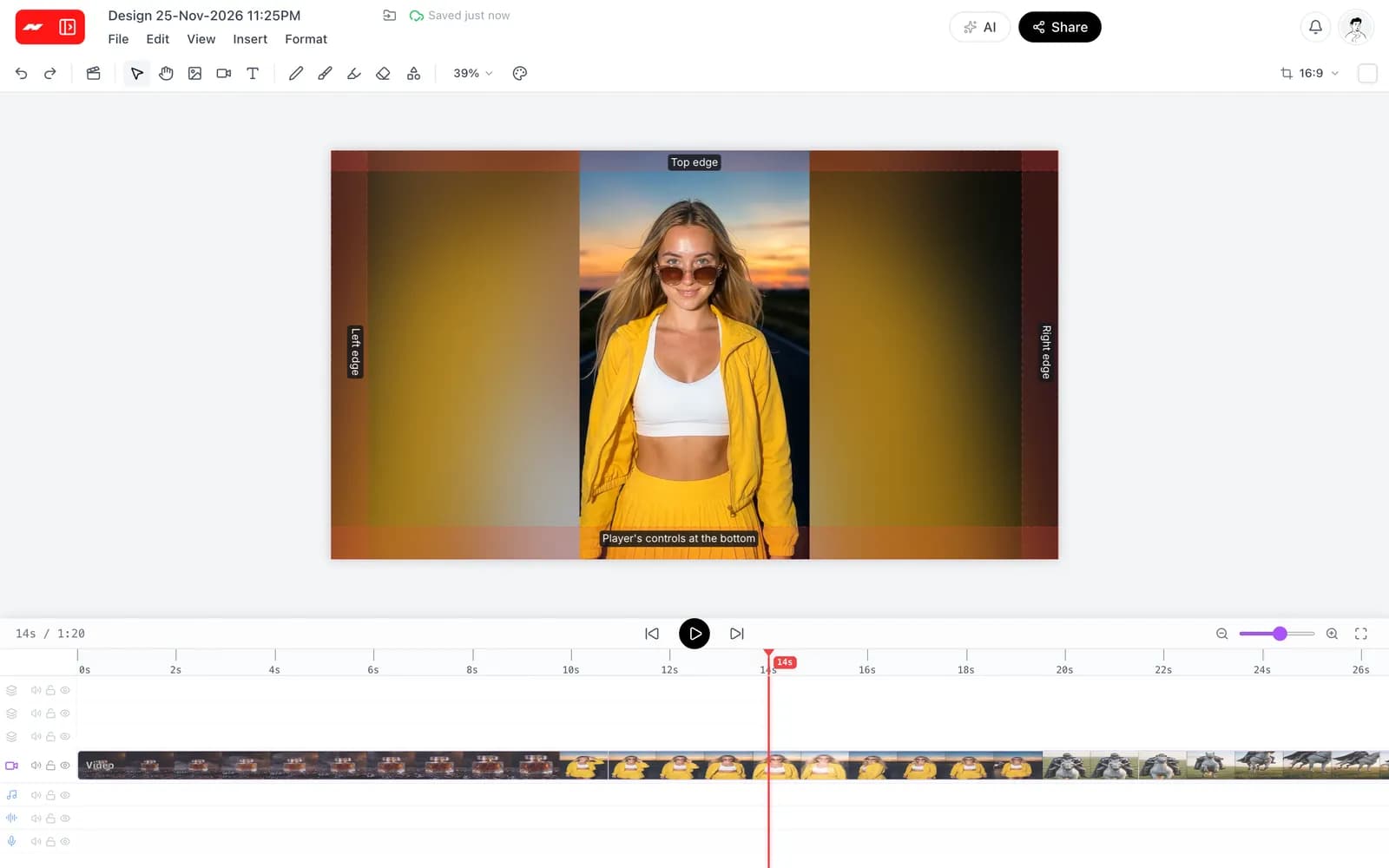
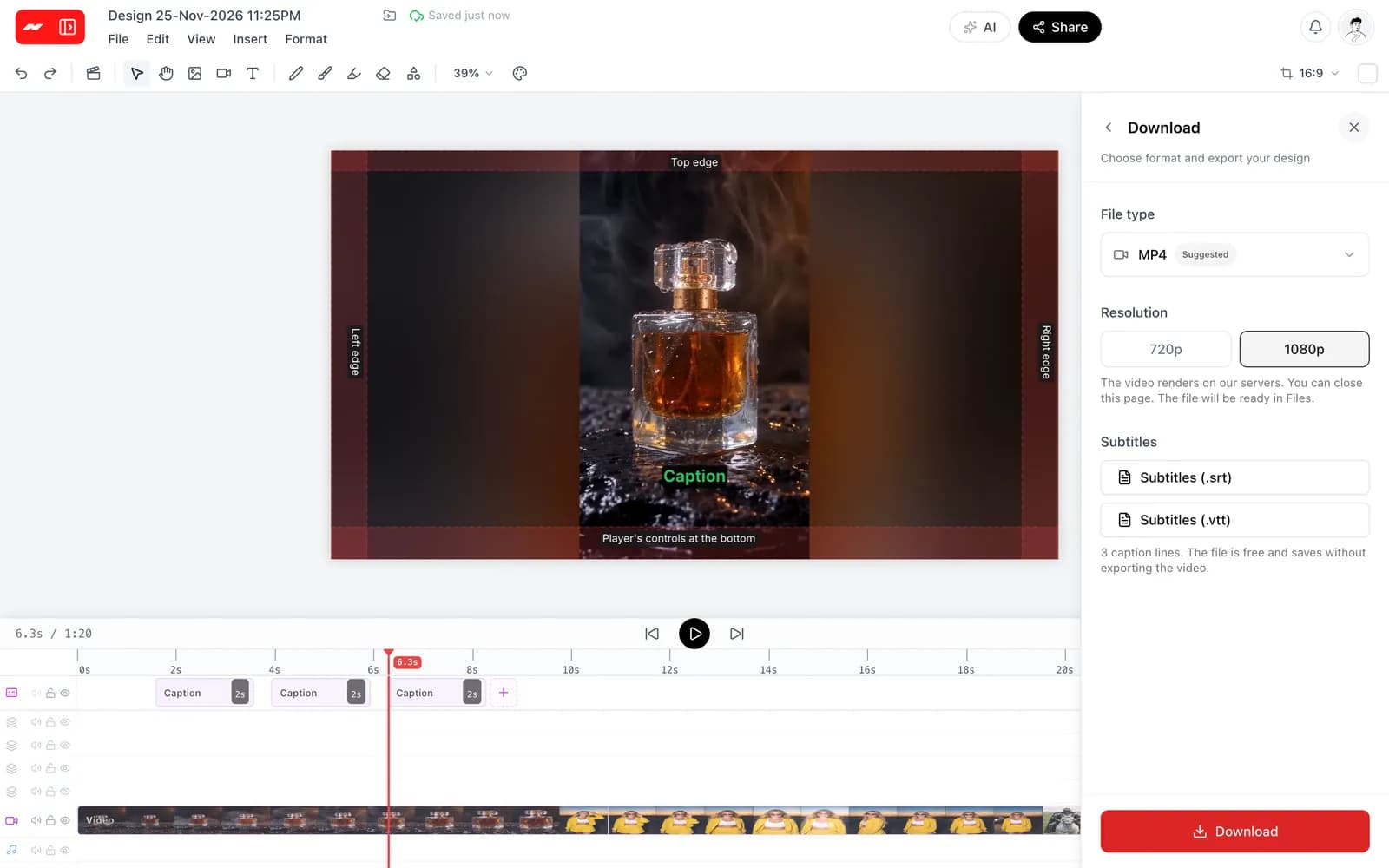
The video editor at 1920 by 1080 with a yellow jacket scene in Wing Blur and shaded zones labelled Top edge, Left edge, Right edge and Player's controls at the bottom

Built around the 16:9 YouTube frame

A 1920 x 1080 canvas from the YouTube tab

The YouTube tab of the format picker lists Video (Landscape) at 1920 by 1080 and Story / Reel at 1080 by 1920. A project from this page opens at the size you pick, with the Safe zones guide on. A vertical phone clip fills the wide frame with Layout, Wing Blur on the clip toolbar.

Every platform in one place: the online video editor
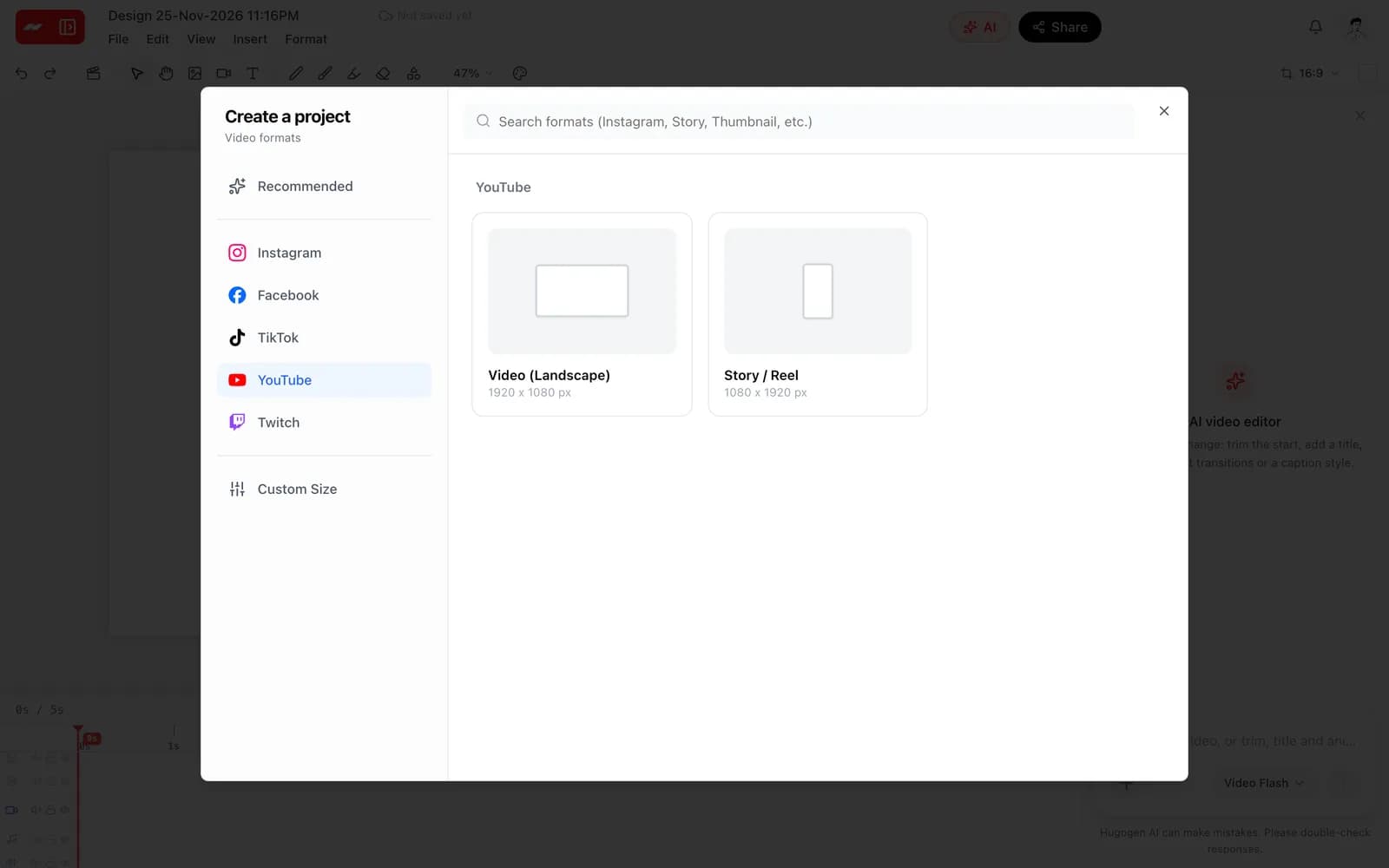
The Create a project dialog with the YouTube tab selected, showing Video (Landscape) at 1920 x 1080 px and Story / Reel at 1080 x 1920 px

Captions saved as an SRT or VTT file

Share, Download shows a Subtitles row with two buttons, Subtitles (.srt) and Subtitles (.vtt). The browser builds the file from the caption lines on the timeline, with no export and no charge. YouTube Studio accepts an SRT or VTT file as a caption track.

How the subtitle file works: the subtitle generator
The Download panel beside a 16:9 project with three placeholder caption lines, showing the Subtitles (.srt) and Subtitles (.vtt) buttons and the line 3 caption lines

Shorts from the same project through Size

Size in the header has a YouTube filter listing Video (Landscape), Story / Reel, Thumbnail and Channel Banner. Pick Story / Reel and the project becomes 1080 by 1920, with each clip re-cropped around the subject and no new render. Download the landscape MP4 first, because the switch changes the project itself.

Cutting Shorts from a long video? See the Shorts maker
The Size menu with the YouTube filter on, Video (Landscape) at 1920 x 1080 ticked above Story / Reel, Thumbnail and Channel Banner

A 1280 x 720 thumbnail in the image editor

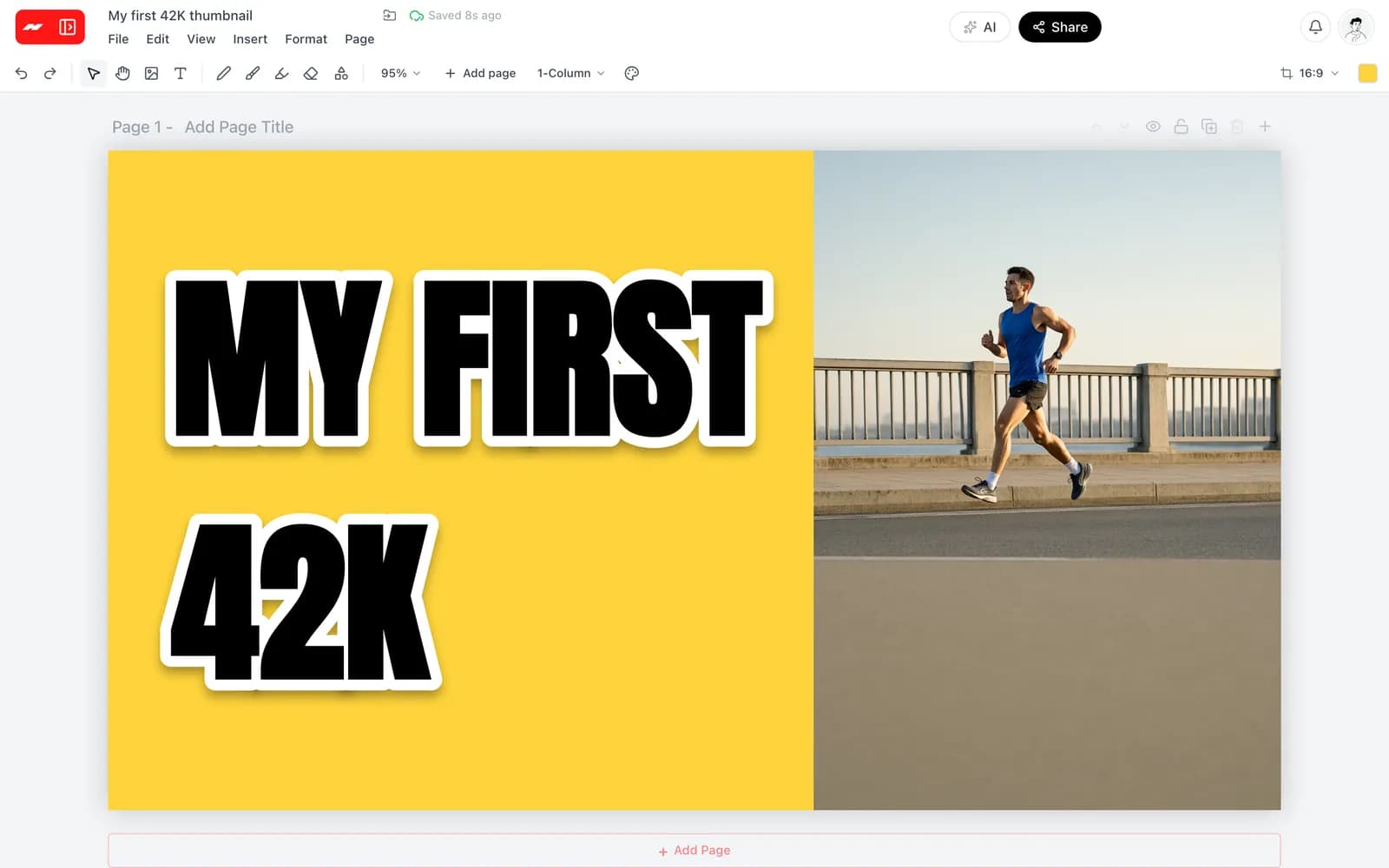
The thumbnail is a separate design in the image editor, at the YouTube Thumbnail size of 1280 by 720. Place a still, set a bold title with text effects and download a JPG or PNG for YouTube Studio. Remove BG on a photo keeps only the subject and uses credits.

Making the thumbnail? See the YouTube thumbnail maker
A 16:9 thumbnail in the editor: the words My first 42K in heavy black letters with a white outline on yellow, beside a photo of a runner

Short clips cut from a long upload

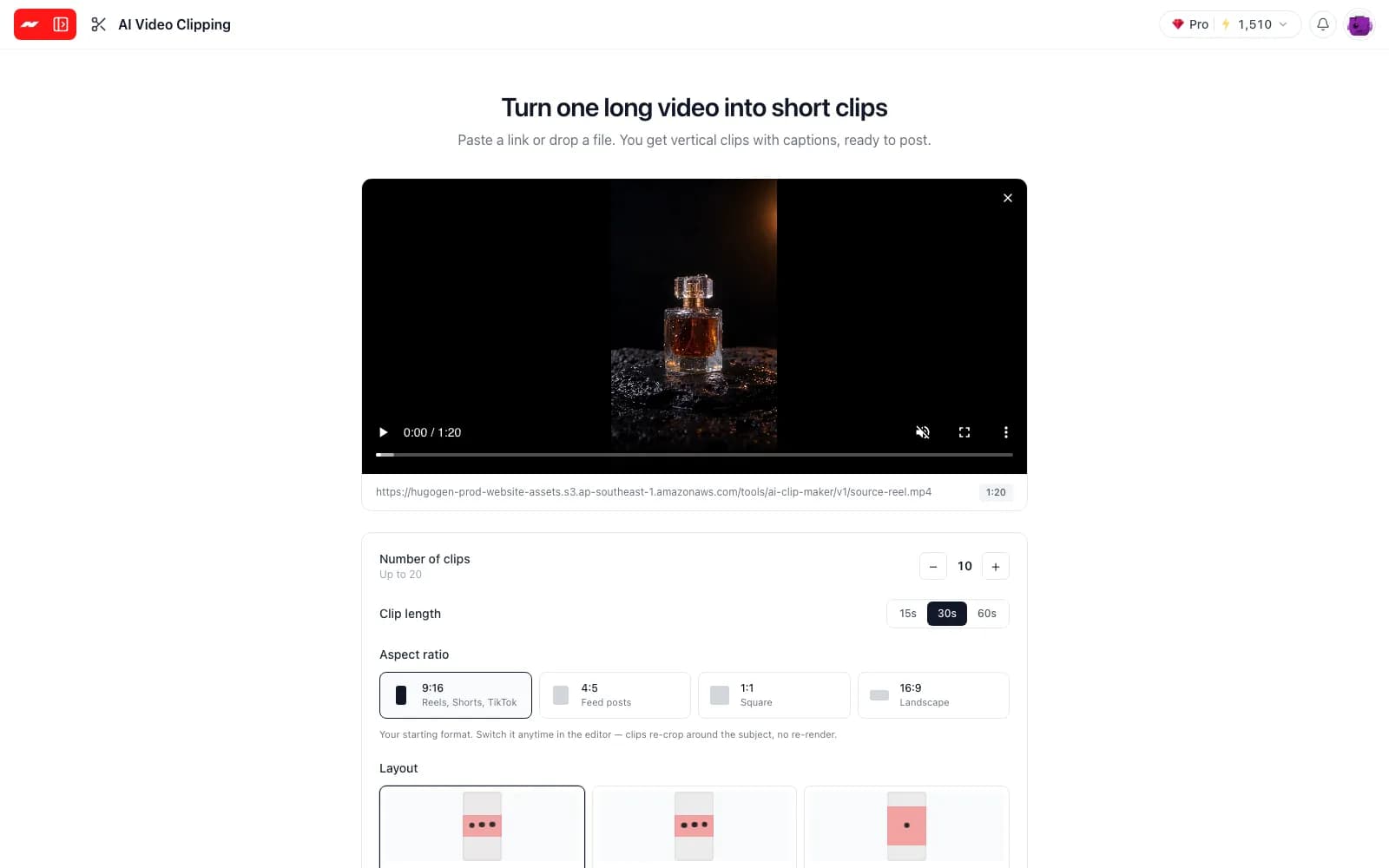
The AI clipper takes a YouTube link or a video file and cuts the recording into 1 to 20 vertical clips with captions. Each clip opens as a project in the same video editor. The clipper charges by the minute of the source, with the price shown before Create.

Clipping a YouTube link? See the YouTube clip maker
The Hugogen clipping screen with a video loaded from a pasted link, ready to be cut into clips

How to edit a YouTube video online

  1. Step 1

    Pick Video or Shorts

    Choose Video for 1920 by 1080 or Shorts for 1080 by 1920, sign in for free and upload a clip.

  2. Step 2

    Edit and caption

    Cut the clips on the timeline, add captions and titles, and keep the words inside the clear area.

  3. Step 3

    Download two files

    Save the MP4 and the SRT or VTT file from Share, Download, ready for YouTube Studio.

YouTube videos made in the editor

Video and Shorts open at different sizes, and one project can move between landscape and vertical later.

Tutorials and walk-throughs
16:9 at 1920 x 1080 with the controls area marked
Shorts
9:16 at 1080 x 1920
Interviews with captions
Lines kept as an SRT or VTT file
Product reviews
Close shots with titles from 16 text templates
Channel trailers
The best moments cut short, with a voiceover

More free tools from Hugogen

Questions and answers

A Video project opens at 1920 by 1080 pixels, a 16:9 frame. A Shorts project opens at 1080 by 1920. The free plan exports MP4 files at 720p, and some paid plans add 1080p.

Add captions on the timeline, open Share, Download and press Subtitles (.srt) or Subtitles (.vtt). YouTube Studio accepts either file as a caption track. Saving the subtitle file is free and needs no video export.

The Safe zones guide shades a thin margin on every edge and a band along the bottom, where a player draws controls over the picture. Keep titles and captions inside the clear area. The Safe zones item in the View menu hides the guide, and no export shows the shading.

Open Size in the header, filter by YouTube and pick Story / Reel. The project changes to 1080 by 1920 and each clip re-crops around the subject. Download the landscape version before the switch to keep both files.

Select the clip and open Layout on the clip toolbar. Wing Blur shows the whole shot over a blurred copy of the shot, and Letterbox shows the whole shot with bars. Picking a layout expands the clip to fill the frame.

Download the MP4 from Share, Download and upload the file in YouTube Studio. Then add the SRT or VTT file to the same video in YouTube Studio.

Editing, typed captions, titles and the subtitle file are free on every plan, and exports carry no watermark. Auto-caption, the AI voiceover and background removal use credits.

Start the next YouTube upload in your browser

Open a 1920 by 1080 project, edit on the timeline and download the MP4 with a subtitle file.

Start a YouTube video

TikTok, YouTube, Instagram, Facebook and Twitch are trademarks of their owners. Hugogen is not affiliated with them.