Free TikTok video editor

Start a 1080 x 1920 project with the safe zones shaded on the frame. Add captions, titles and a voiceover on one timeline.

The free plan exports a 720p MP4 with no watermark, and some paid plans add 1080p.

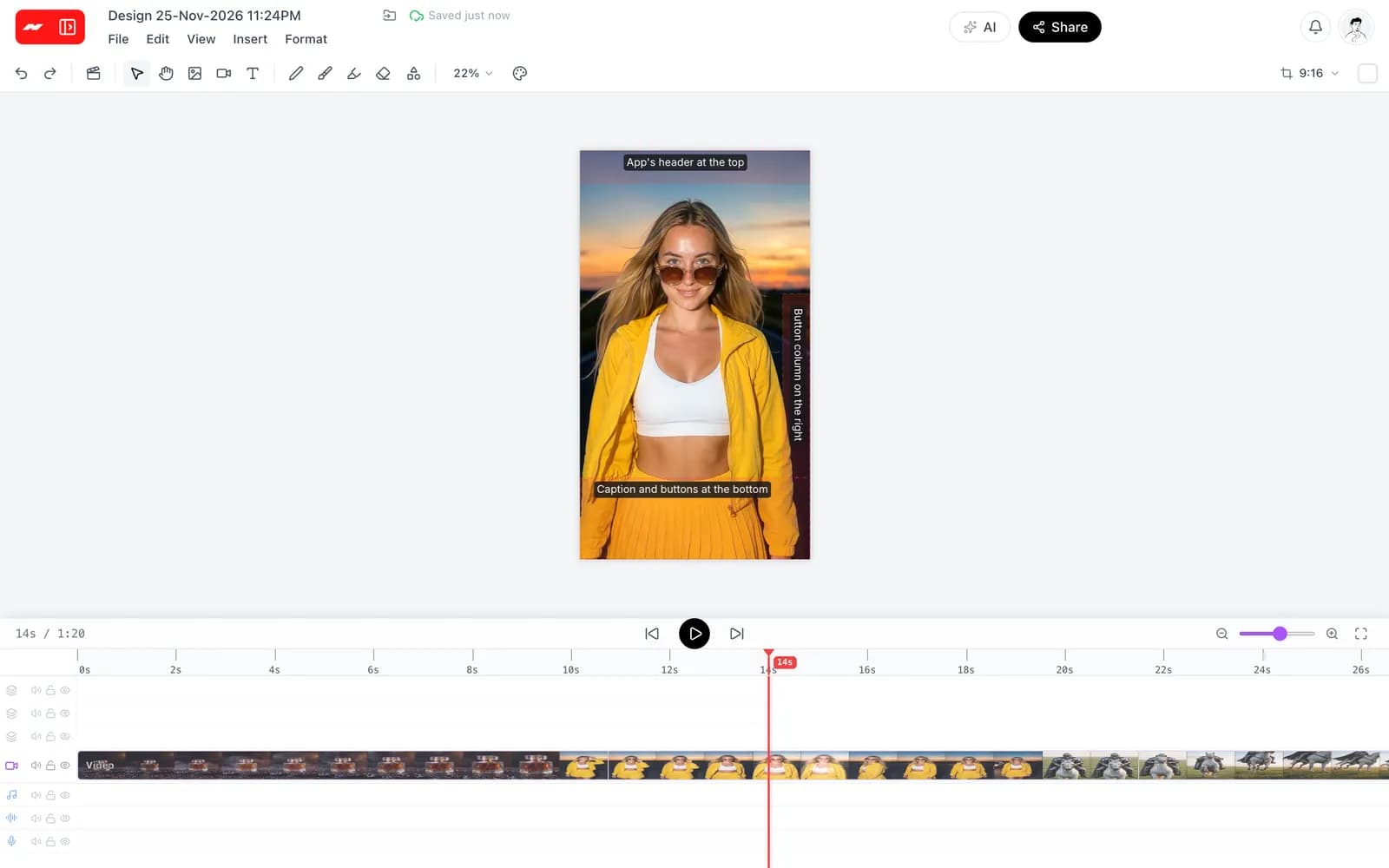
The video editor at 1080 by 1920 with a yellow jacket scene and shaded zones labelled App's header at the top, Button column on the right and Caption and buttons at the bottom

Made for the vertical TikTok frame

Safe zones for the header, captions and buttons

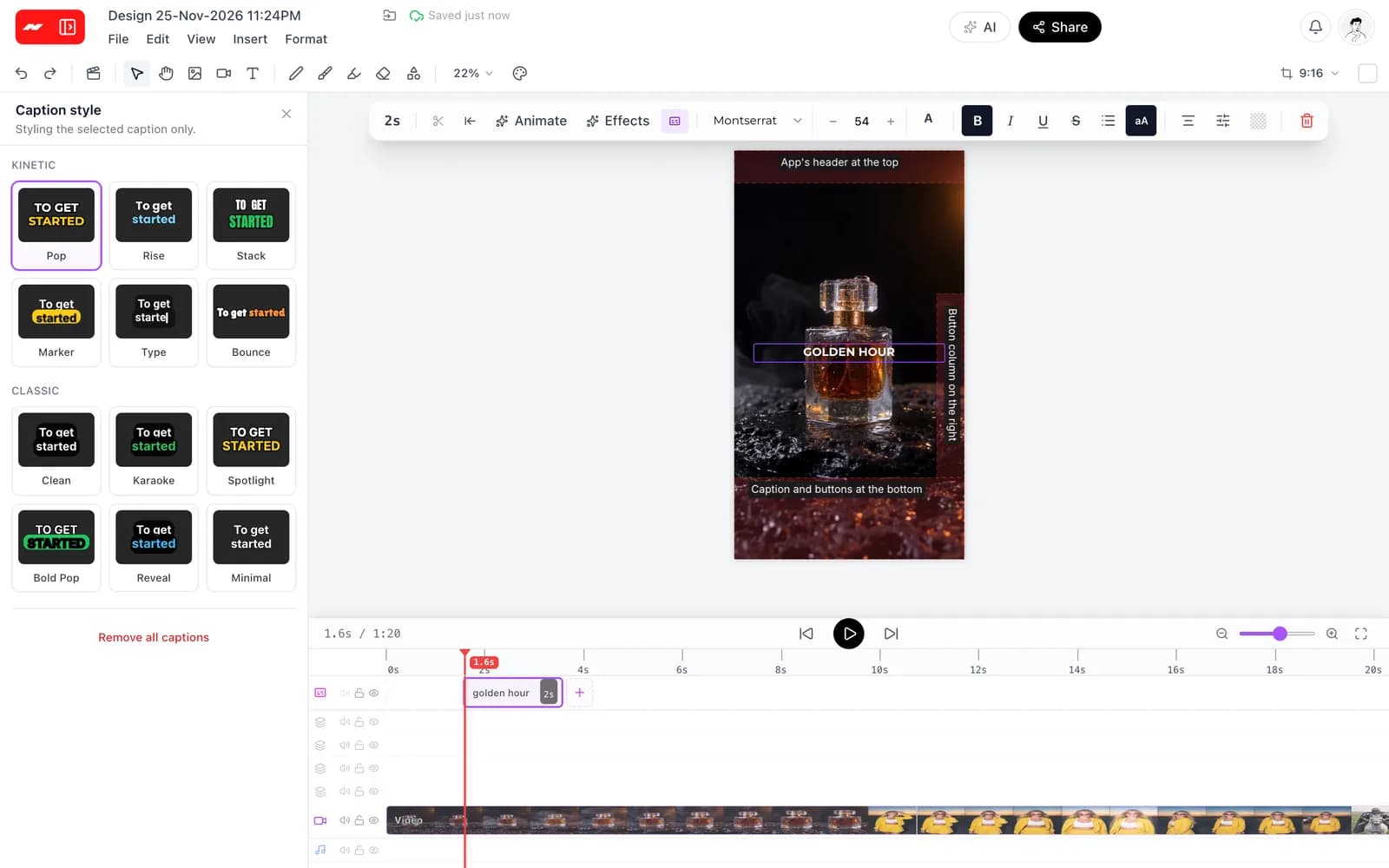
A project from this page opens at 1080 by 1920 with the Safe zones guide on. Red shading marks the app's header at the top, the caption and buttons at the bottom and the button column on the right. Keep words outside the shading. No export or project thumbnail shows the guide.
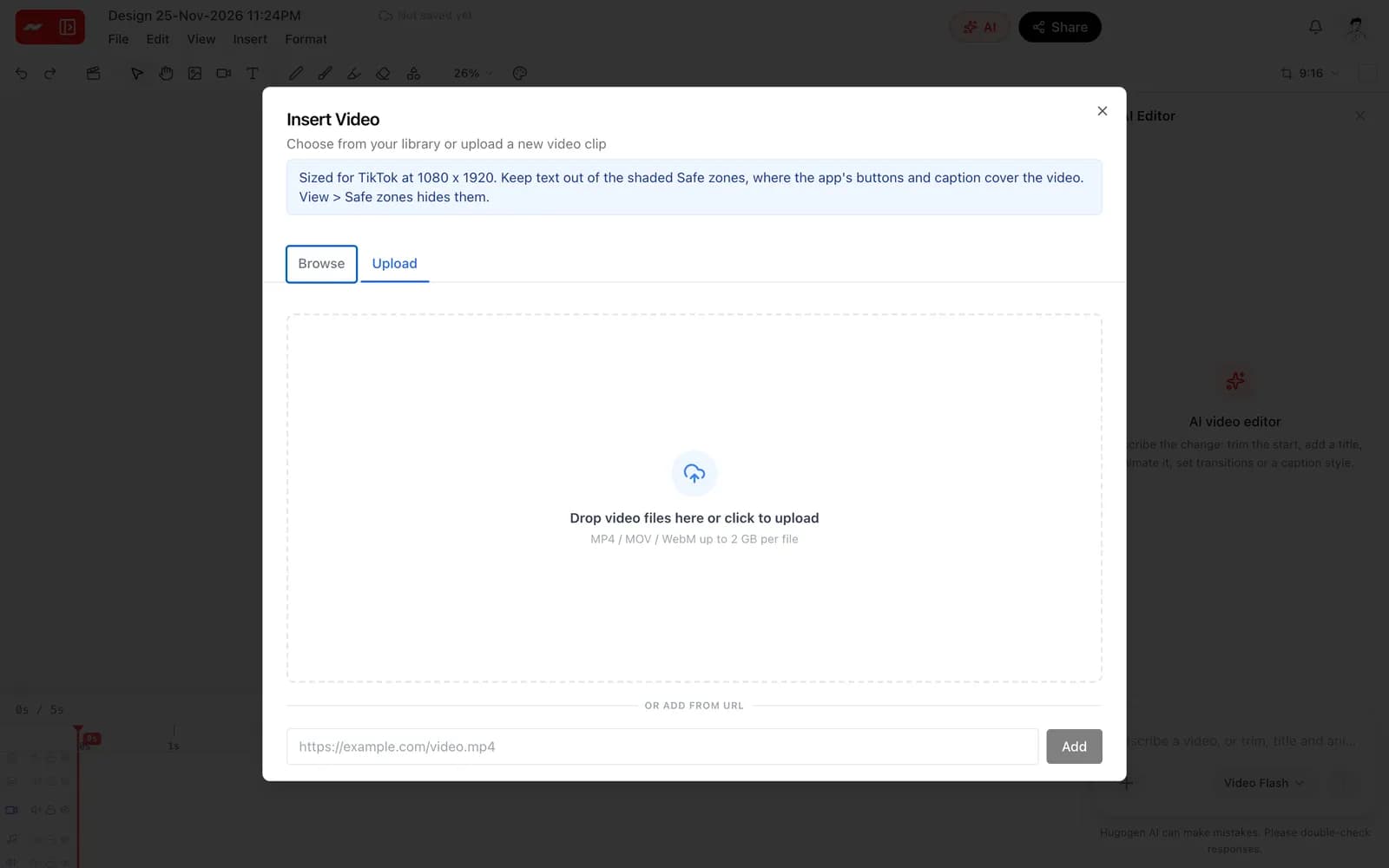
The Insert Video dialog on arrival from the TikTok page, with a note reading Sized for TikTok at 1080 x 1920 and naming the shaded Safe zones

Kinetic captions that move word by word

Auto-caption writes captions from the speech, or Add caption manually puts a line at the playhead for typing. The Caption style panel offers six kinetic styles, such as Pop, Rise and Bounce, beside six classic looks. Auto-caption uses credits, and typed captions are free.

Captions from speech: the AI caption generator
The Caption style panel with Pop chosen among six kinetic and six classic styles, and a caption reading GOLDEN HOUR above the shaded caption area

Titles from sixteen text templates

Type a title with the Text tool, or choose Insert, Text template. Sixteen text templates such as Name tag, Kicker and Highlight draw shapes and motion around the words, and the words stay editable. Each title is a clip on the timeline with a start and a length.

Titles and lower thirds: add text to video
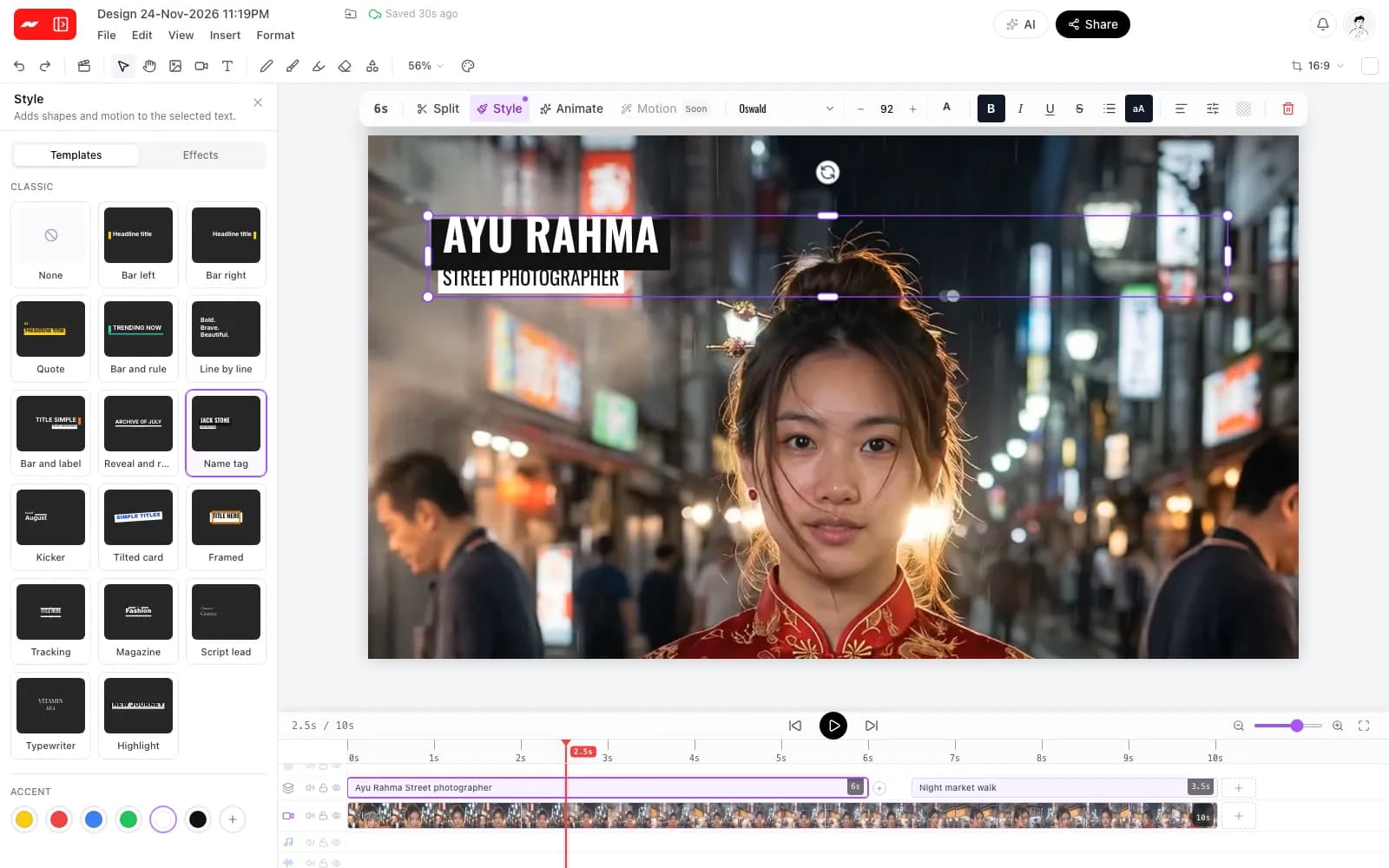
The Style panel listing sixteen text templates, Name tag chosen, beside the selected title on the video

A voiceover read in one of six voices

Choose Insert, Audio, Voiceover and type a script of up to 5,000 characters. Pick one of six voices and one of eleven languages, and the clip goes onto the voiceover track at the playhead. A voiceover uses credits, with the price shown beside Generate.

Scripts read aloud: the AI voice over generator
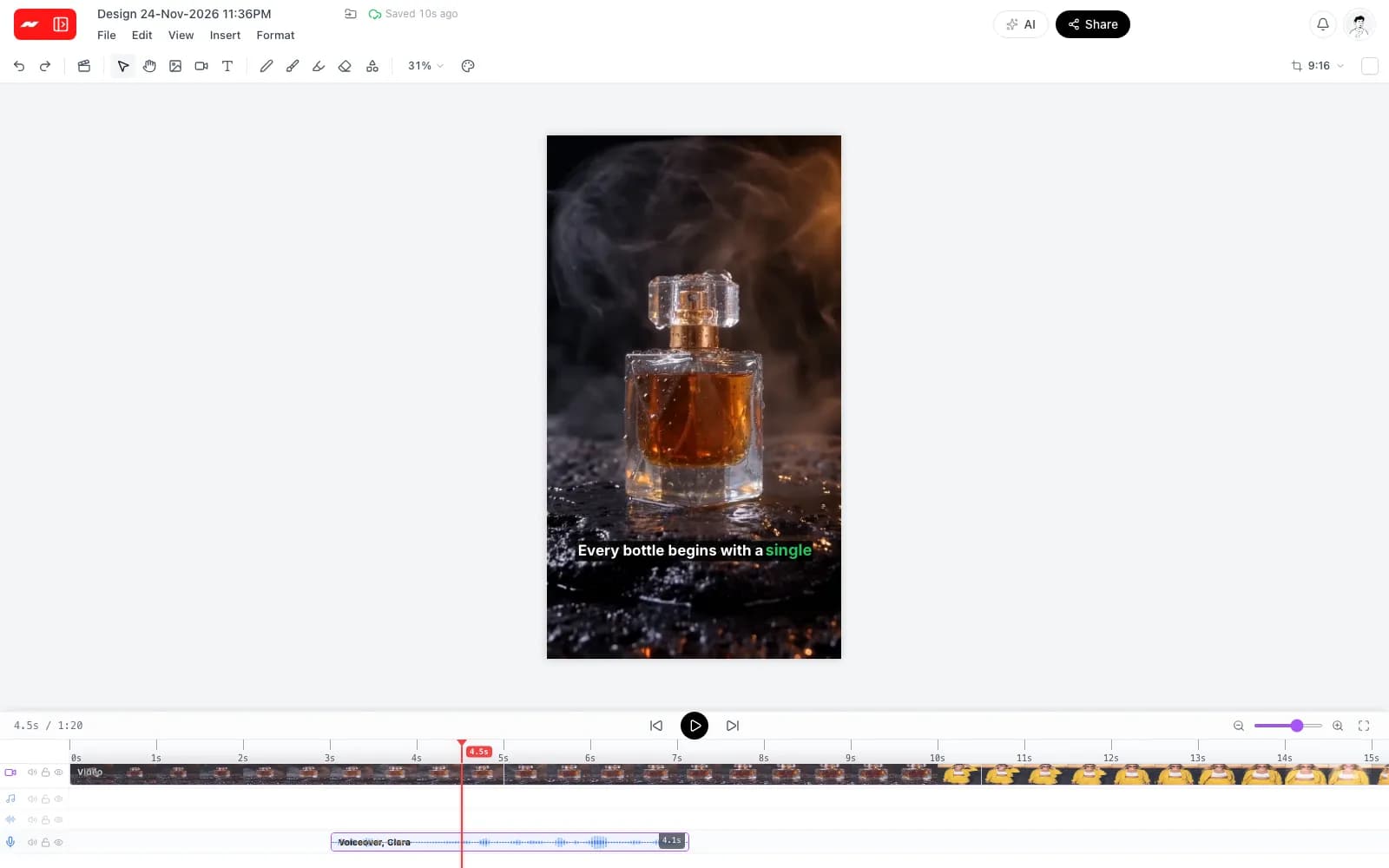
A generated voiceover clip named Voiceover, Clara on the voiceover track under a perfume clip, with a caption made from the voice on the video

The TikTok tab in the format picker

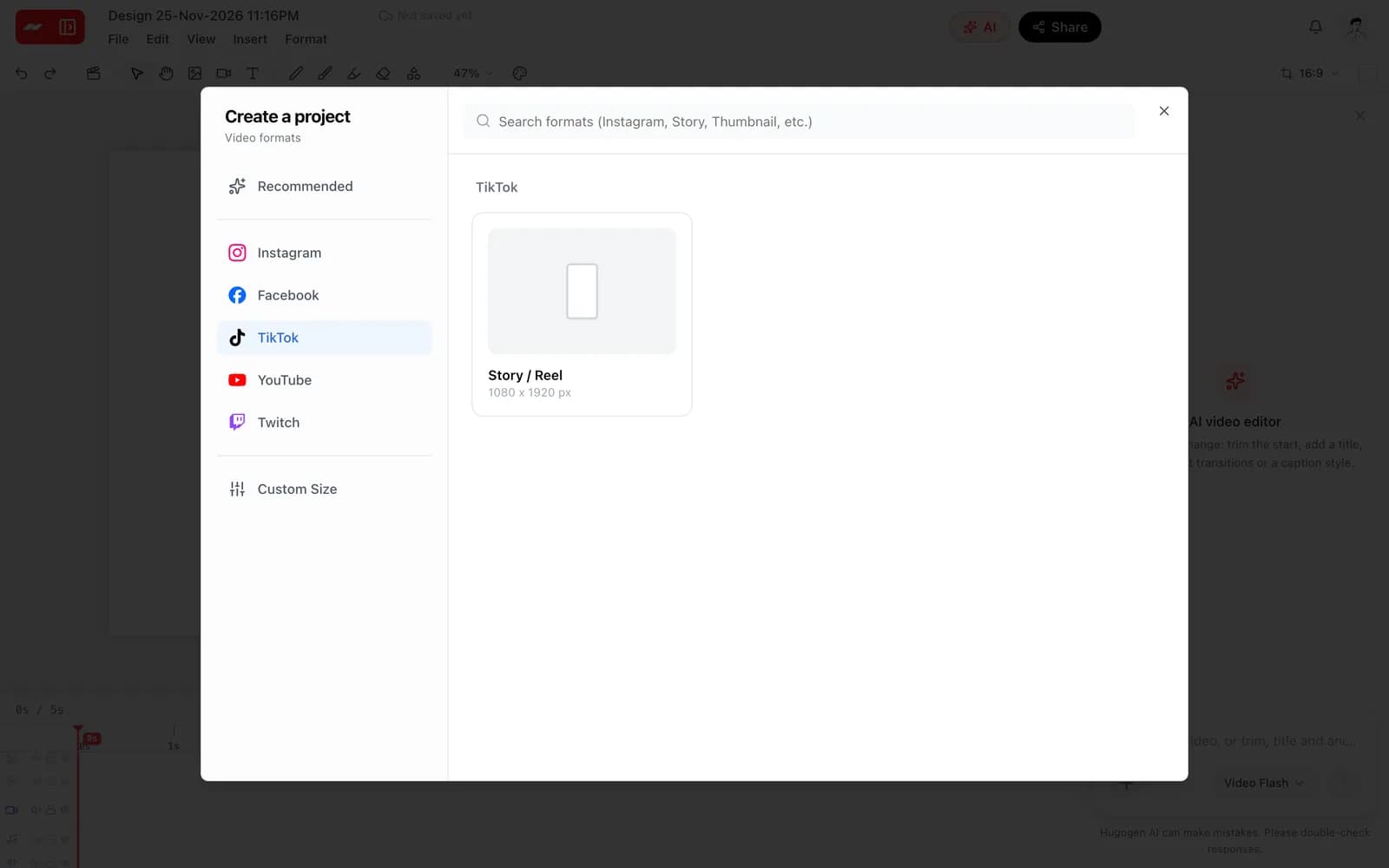
File, New project opens the format picker in the video editor. The TikTok tab lists Story / Reel at 1080 by 1920, beside tabs for Instagram, Facebook, YouTube and Twitch. Size in the header moves an open project to another shape, and each clip re-crops around the subject.

Posting everywhere? See the free online video editor
The Create a project dialog with the TikTok tab selected and one Story / Reel card at 1080 x 1920 px

How to edit a TikTok video online

  1. Step 1

    Open the vertical canvas

    Press Edit a TikTok video and sign in for free. The editor opens at 1080 by 1920 with the upload dialog ready.

  2. Step 2

    Edit inside the safe area

    Add clips, captions and titles on the timeline, and keep every word clear of the red shading.

  3. Step 3

    Download the MP4

    Open Share, Download, pick MP4 and save the file for upload in the TikTok app.

Videos people edit for TikTok

Each video below starts at 1080 by 1920 and keeps the words away from the areas the app draws over.

Product demos
A close look at one item, with a kinetic caption
Talking-head tips
Word-by-word captions over a person on camera
Event recaps
Several clips joined, with a title template on top
Voiceover explainers
A typed script read aloud over your own footage
Behind the scenes
Short clips from a shoot, trimmed on the timeline

More free tools from Hugogen

Questions and answers

A project from this page is 1080 by 1920 pixels, a 9:16 vertical frame. The size comes from the TikTok Story / Reel preset in the format picker. Size in the header can move the project to 4:5, 1:1 or 16:9 later.

The red areas are the Safe zones guide. The guide marks where a short-video app draws a header, the caption and account name, and a column of buttons over a vertical video. Words inside a shaded area may be hidden on a phone. The exported MP4 never shows the guide.

The guide uses one set of zones for every 9:16 frame, rounded a little larger than the areas the vertical-video apps cover. Text kept clear of the shading stays readable on TikTok, Reels and Shorts alike.

Open the View menu and click Safe zones. The same menu item turns the guide on again. The setting belongs to the open browser tab and is not saved with the project.

Typed captions are free: press Add caption manually on the caption track and type the words. Auto-caption writes captions from the speech for credits, charged by the minute and refunded when a run fails. Every caption can take one of twelve styles.

Open Share, Download and save the MP4 to your computer or phone. Upload the file in the TikTok app or on the TikTok website, the same way as any other video.

Hugogen adds no watermark to an exported video on any plan. The free plan exports MP4 files at 720p, and some paid plans add 1080p.

Make the next TikTok in a browser tab

Open a 1080 by 1920 project with the safe zones marked, edit on the timeline and download an MP4.

Start a TikTok video

TikTok, YouTube, Instagram, Facebook and Twitch are trademarks of their owners. Hugogen is not affiliated with them.