Free Twitch video editor

Edit a 1920 x 1080 highlight, or turn a clip vertical with the Gaming layout: the action zoomed on top and the whole shot below.

Every export is an MP4 with no watermark, at 720p on the free plan.

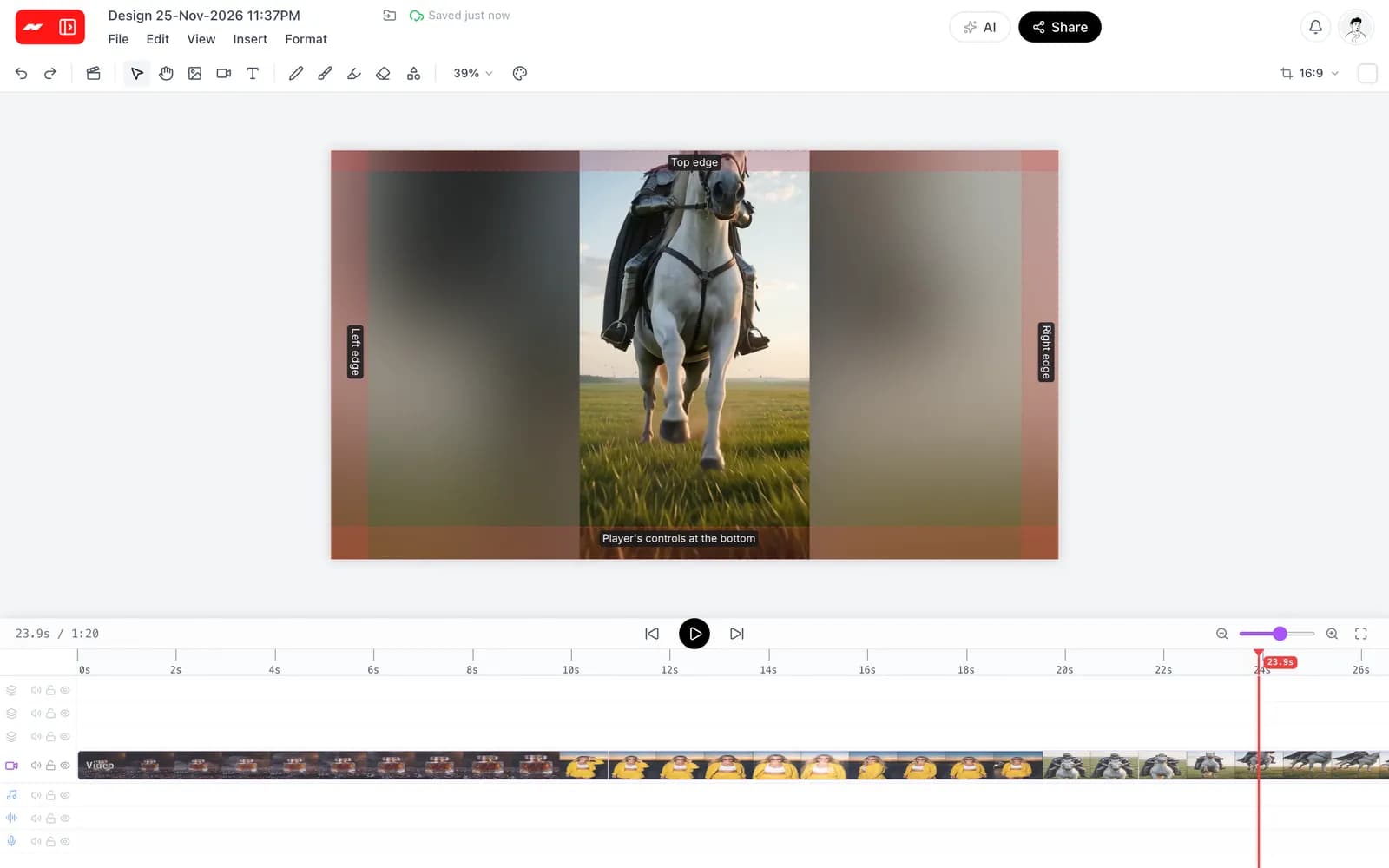
The video editor at 1920 by 1080 with Hugogen's own knight footage in Wing Blur and shaded zones for the edges and the player's controls at the bottom

From a stream recording to a highlight

The Gaming layout for a vertical clip

Select a clip in a 1080 by 1920 project and choose Layout, Gaming on the clip toolbar. The layout shows the action zoomed in on top and the whole shot below. Picking the layout expands the clip to fill the frame, and Auto in the same menu returns to the automatic layout.
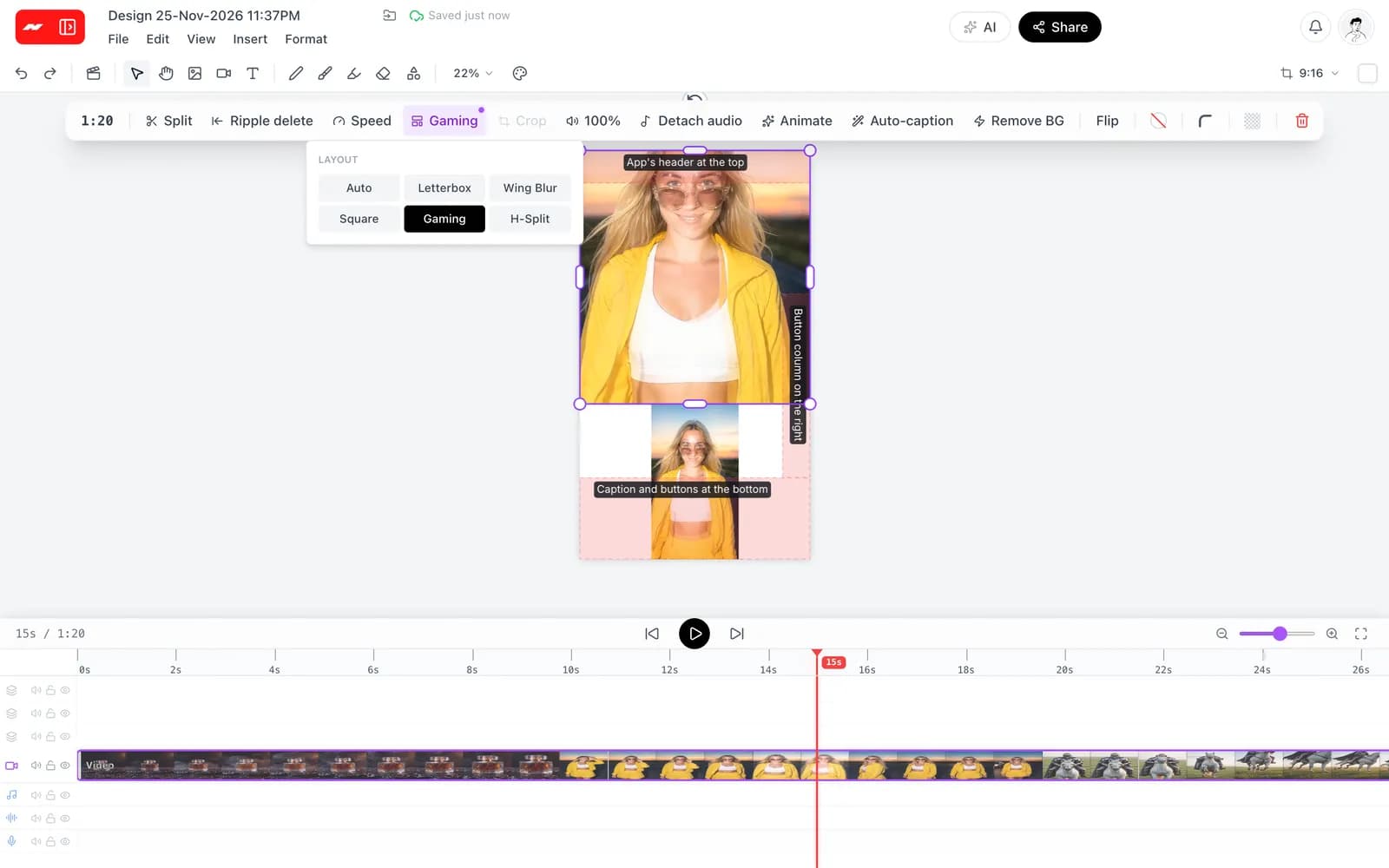
The Layout menu with Gaming chosen on Hugogen's own showcase footage: the zoomed shot fills the top of the vertical frame and the whole shot shows small below

A note naming the Gaming layout on arrival

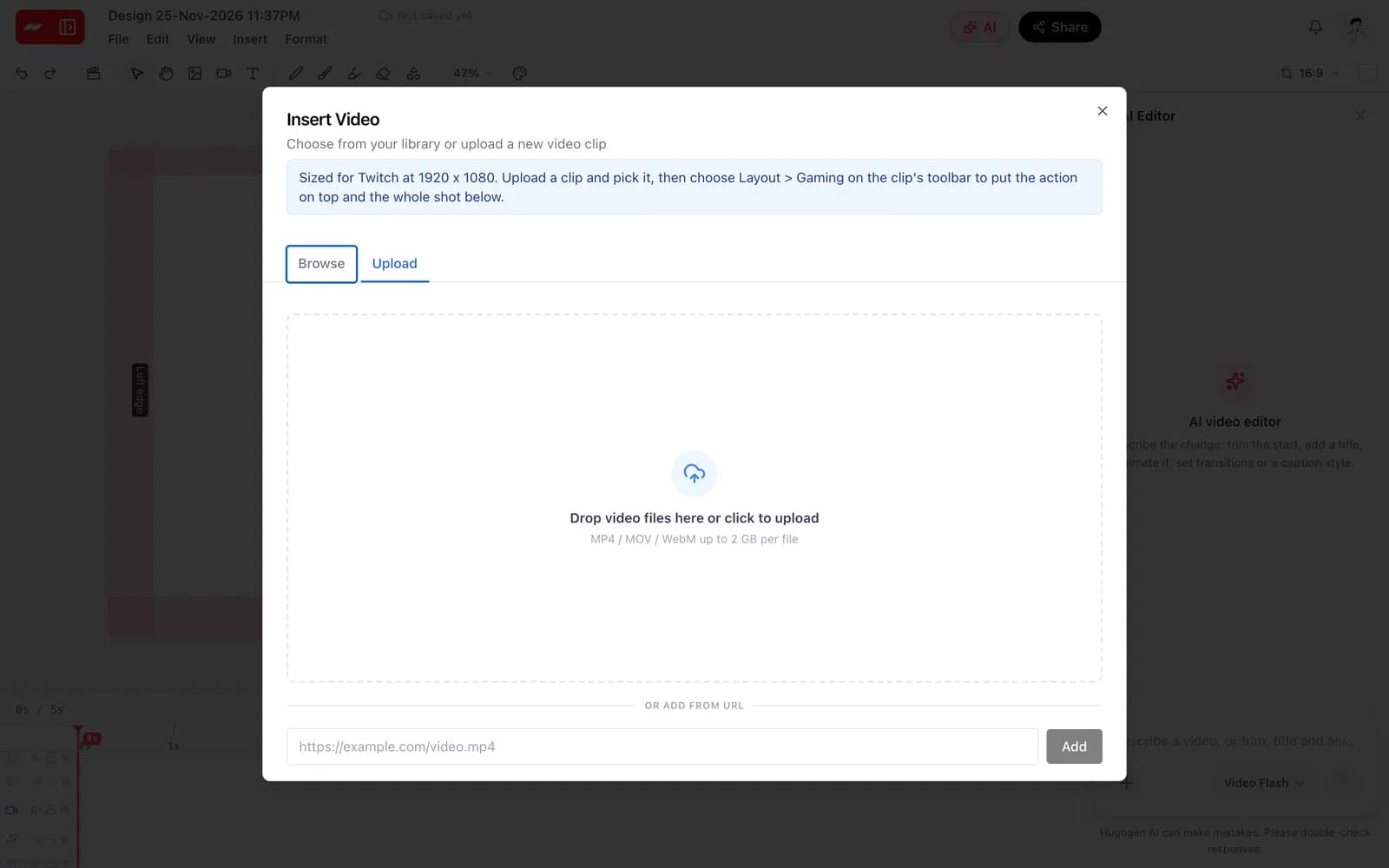
A project from this page opens at the Twitch size you picked, with the upload dialog ready. The dialog's note names the size and points to Layout, Gaming on the clip toolbar. Upload accepts an MP4, MOV or WebM file up to 2 GB.

The Insert Video dialog on arrival from the Twitch page, with a note reading Sized for Twitch at 1920 x 1080 and naming Layout and Gaming on the clip's toolbar

Twitch links in the AI clipper

The AI clipper accepts a twitch.tv link to a past broadcast, among eight link sources. A stream that is still live is refused. The clipper cuts the recording into vertical clips with captions, and the Gaming Split layout keeps the streamer and the game in one frame.

Clipping a long stream? See the AI video clipper
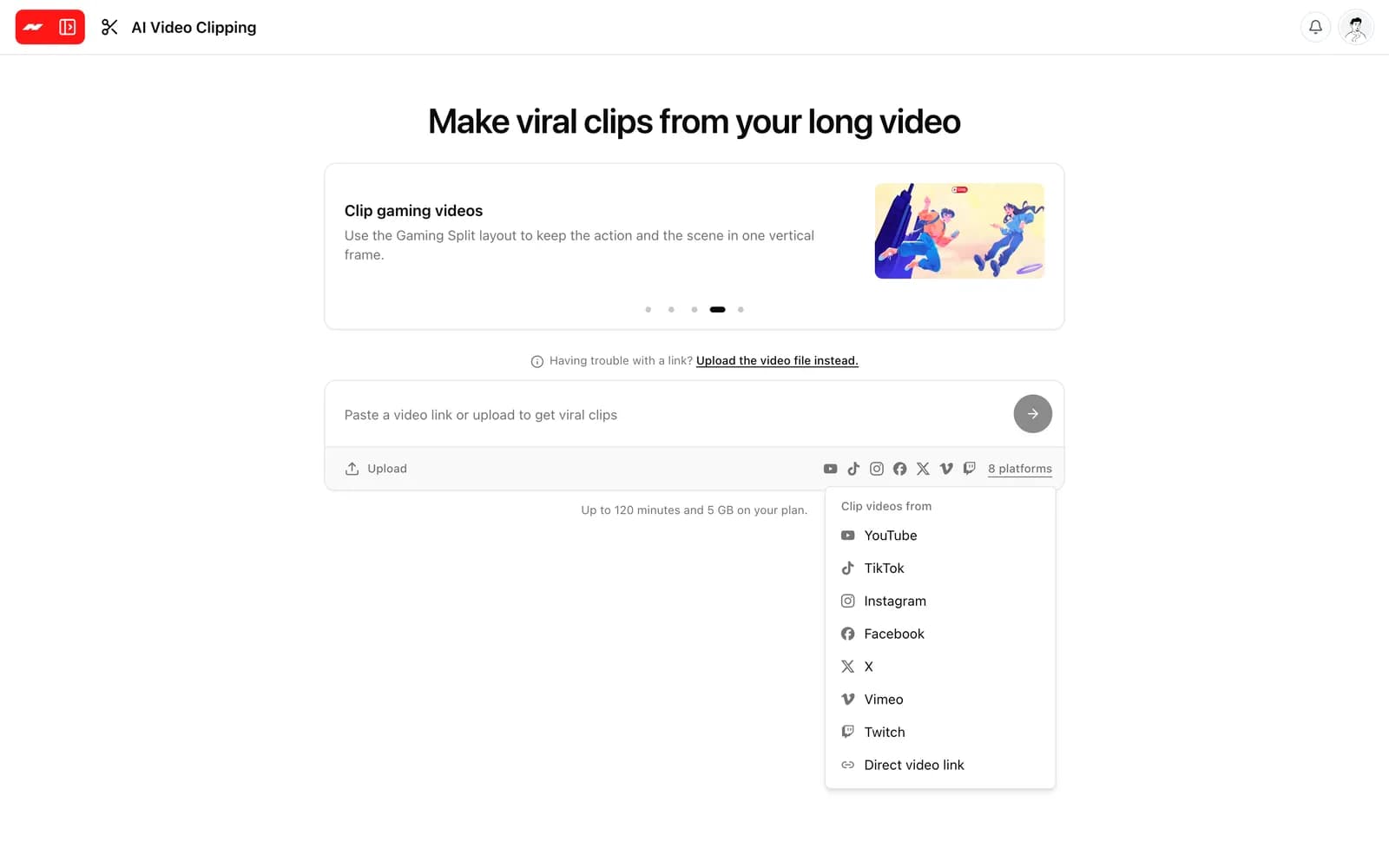
The AI Video Clipping screen with the Clip gaming videos banner and the 8 platforms list open, naming YouTube, TikTok, Instagram, Facebook, X, Vimeo, Twitch and Direct video link

A 16:9 highlight at 1920 x 1080

The Stream video size opens at 1920 by 1080 for a highlight or a stream recap. The guide shades the edges and a band at the bottom for the player's controls. Split cuts the clip at the playhead, and Ripple delete closes the gap after a slow stretch.

Cutting out a slow stretch? See the video cutter
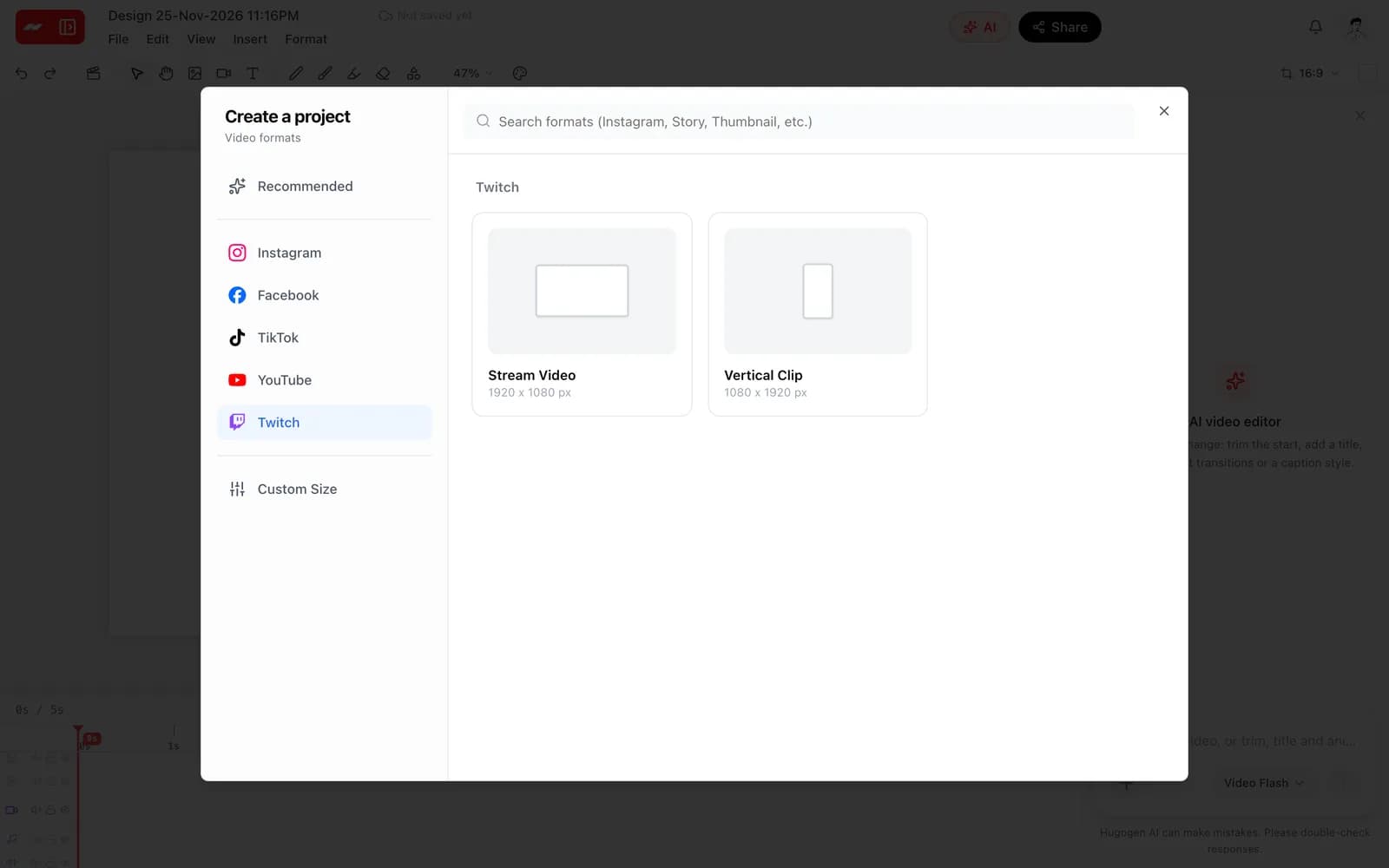
The Create a project dialog with the Twitch tab selected, showing Stream Video at 1920 x 1080 px and Vertical Clip at 1080 x 1920 px

Streams uploaded to YouTube work the same way

A stream saved to a YouTube channel can go into the AI clipper as a YouTube link instead. The YouTube clip maker page covers watch links, the reasons a link is refused and the clip settings.

Starting from a YouTube link? See the YouTube clip maker
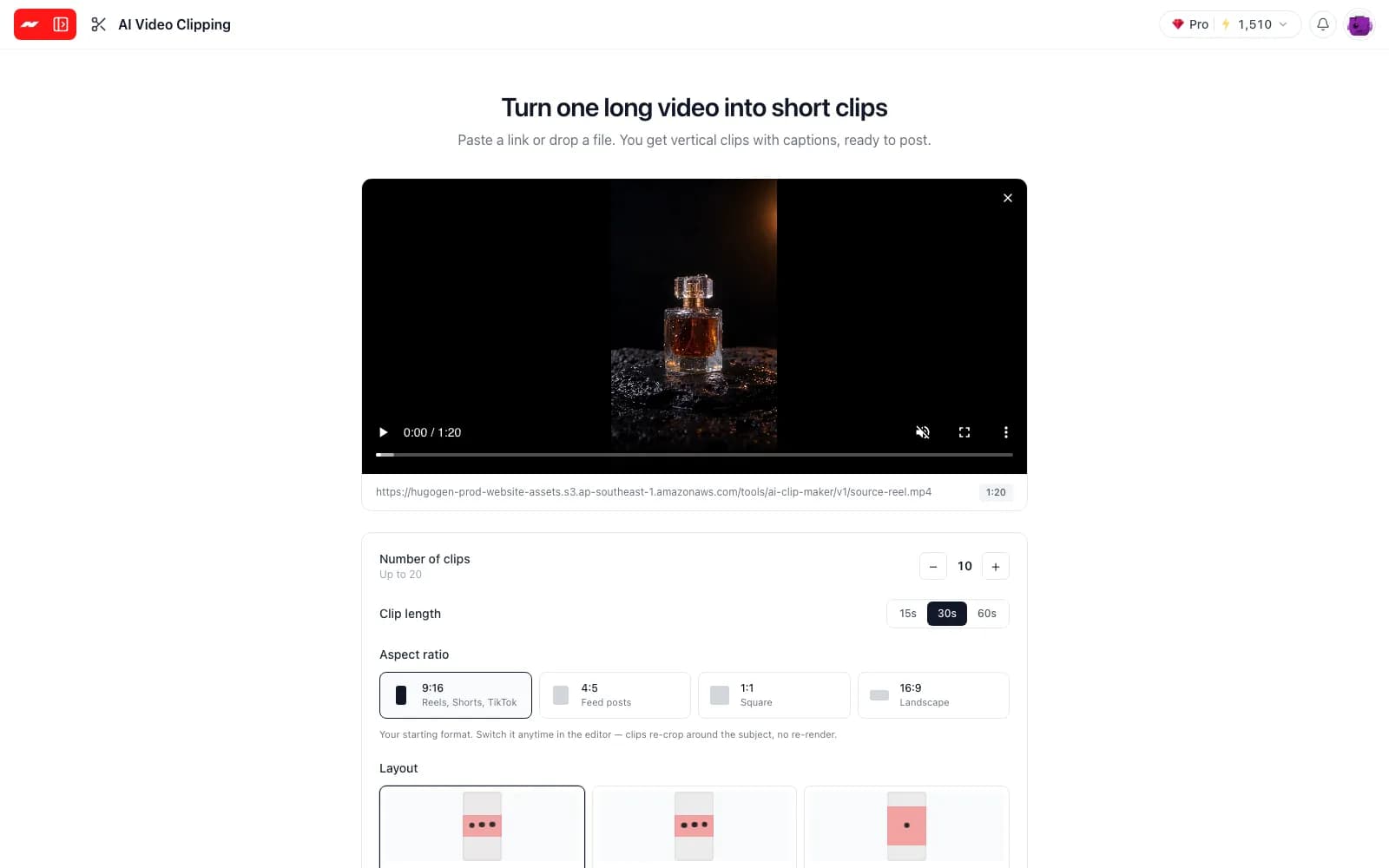
The Hugogen clipping screen with a video loaded from a pasted link, ready to be cut into clips

How to edit a Twitch highlight

  1. Step 1

    Pick the shape

    Choose Stream video for 1920 by 1080 or Vertical clip for 1080 by 1920, and sign in for free.

  2. Step 2

    Add the recording

    Upload a recording of the stream as an MP4, MOV or WebM file, or pick a clip from your library.

  3. Step 3

    Lay out and export

    Apply Gaming to a vertical clip, add captions and download the MP4 from Share, Download.

Twitch videos made in the editor

Each job below starts from a stream recording you own or have the rights to use.

Stream highlights
16:9 at 1920 x 1080
Vertical clips for phones
9:16 with the Gaming layout
Funny moments
Cut out with Split and Ripple delete
Stream recaps
A title template and captions over the best minutes
Channel trailers
Short moments joined with transitions

More free tools from Hugogen

Questions and answers

Stream video is 1920 by 1080 pixels in 16:9, and Vertical clip is 1080 by 1920 in 9:16. Both are presets on the Twitch tab of the format picker. Size in the header moves a project between the two later.

Gaming shows the action zoomed in on top and the whole shot below, in one vertical frame. The layout applies to one clip at a time from Layout on the clip toolbar. Pick Auto in the same menu to drop the layout again.

The AI clipper on the AI Video Clipping screen accepts twitch.tv links among eight link sources. The recording must run at least one minute, and a stream that is still live is refused. The video editor takes an uploaded file or a direct link to a video file.

Auto-caption turns the commentary into captions timed word by word, for credits, and a typed caption is free. The Caption style panel offers six kinetic and six classic styles.

The Safe zones guide marks where short-video apps draw a header, a caption and a button column over a 9:16 video. The guide is on when a project opens from this page, and the exported file never shows the shading.

Editing, the Gaming layout, typed captions and exports are free on every plan. The free plan exports at 720p, and some paid plans add 1080p. The AI clipper charges by the minute of the recording, with the price shown before Create.

No Hugogen watermark appears on an exported MP4, on the free plan or on a paid plan.

Cut the next Twitch highlight

Open a 16:9 or vertical project, apply the Gaming layout and download an MP4 with no watermark.

Start a Twitch video

TikTok, YouTube, Instagram, Facebook and Twitch are trademarks of their owners. Hugogen is not affiliated with them.