Free video editor for Instagram

Make a Reel at 1080 x 1920 or a feed video at 1080 x 1350. Shading on the canvas marks the covered and cropped areas while you edit.

The free plan needs no card, and every export is an MP4 with no watermark.

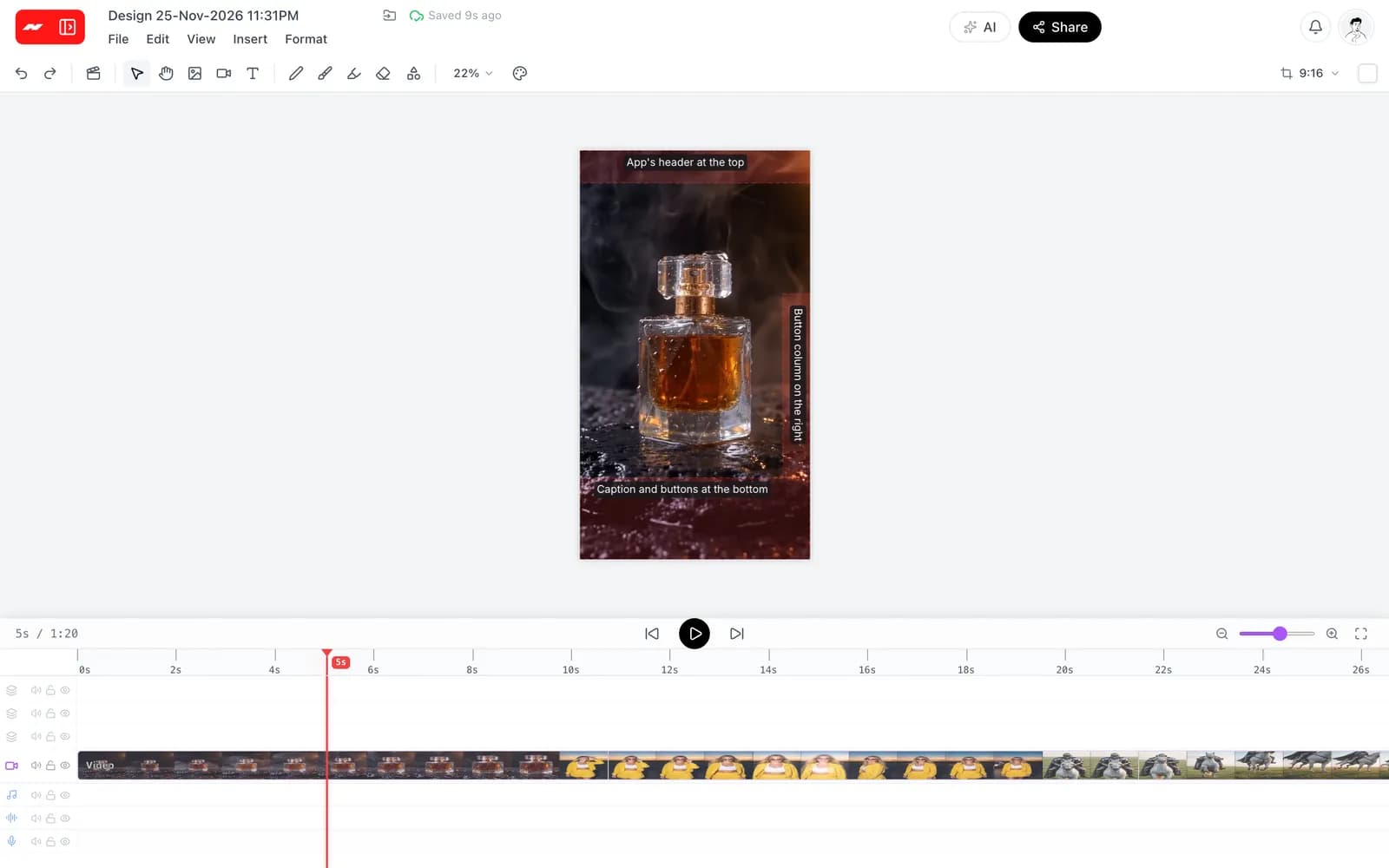
The video editor at 1080 by 1920 with a perfume bottle on wet stone and shaded zones for the header, the button column and the caption area

One editor for Reels and the Instagram feed

A 4:5 feed video with the cropped edges marked

The Feed video size is 1080 by 1350, a 4:5 frame that fills more of a phone screen than a square. The guide shades a thin band on all four edges, labelled where feeds crop. Wing Blur on the clip toolbar fits a vertical clip into the 4:5 frame over a blurred copy.
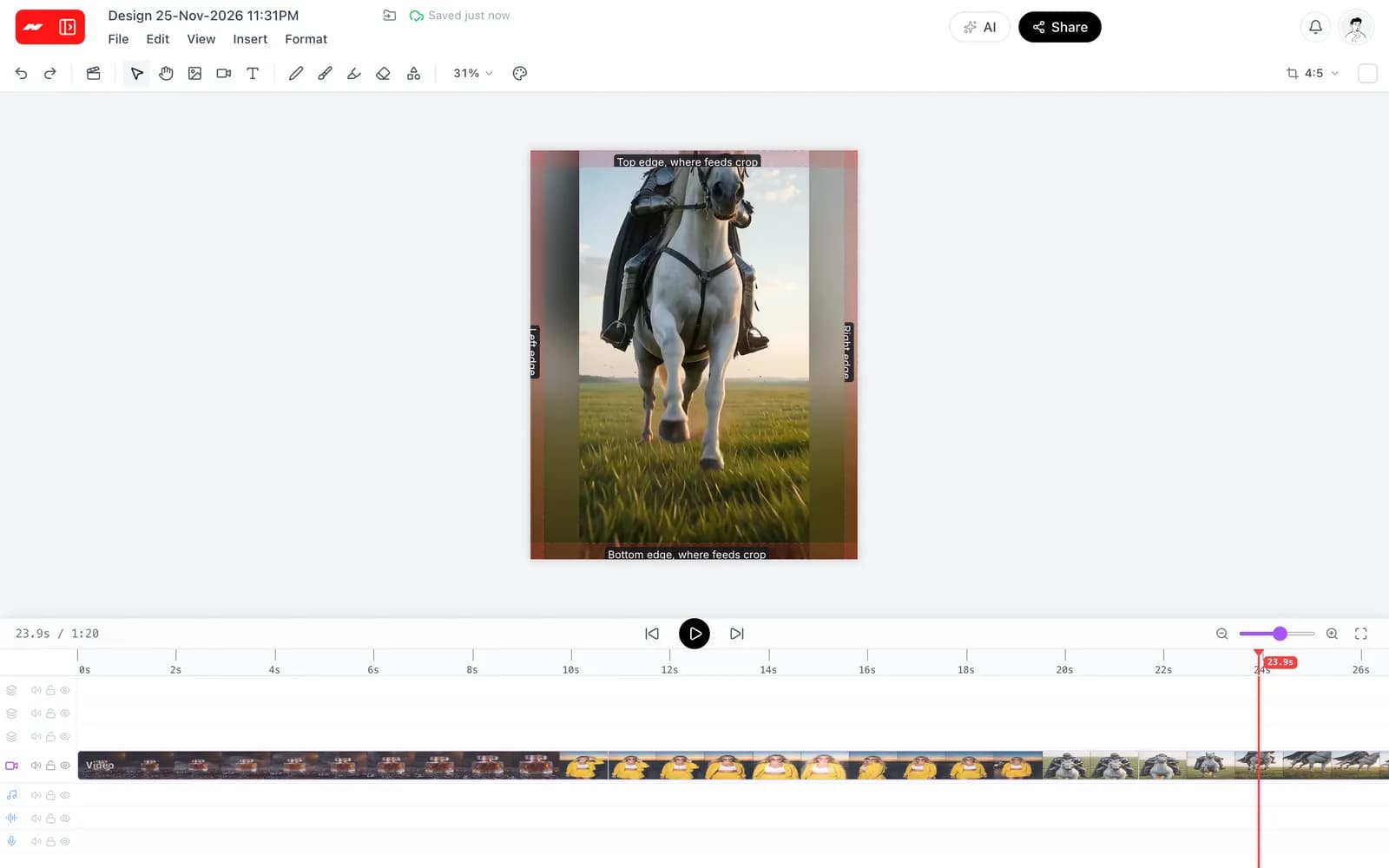
A 4:5 project at 1080 by 1350 with a knight on a white horse in Wing Blur and shaded bands labelled Top edge, where feeds crop and Bottom edge, where feeds crop

A note naming the size on arrival

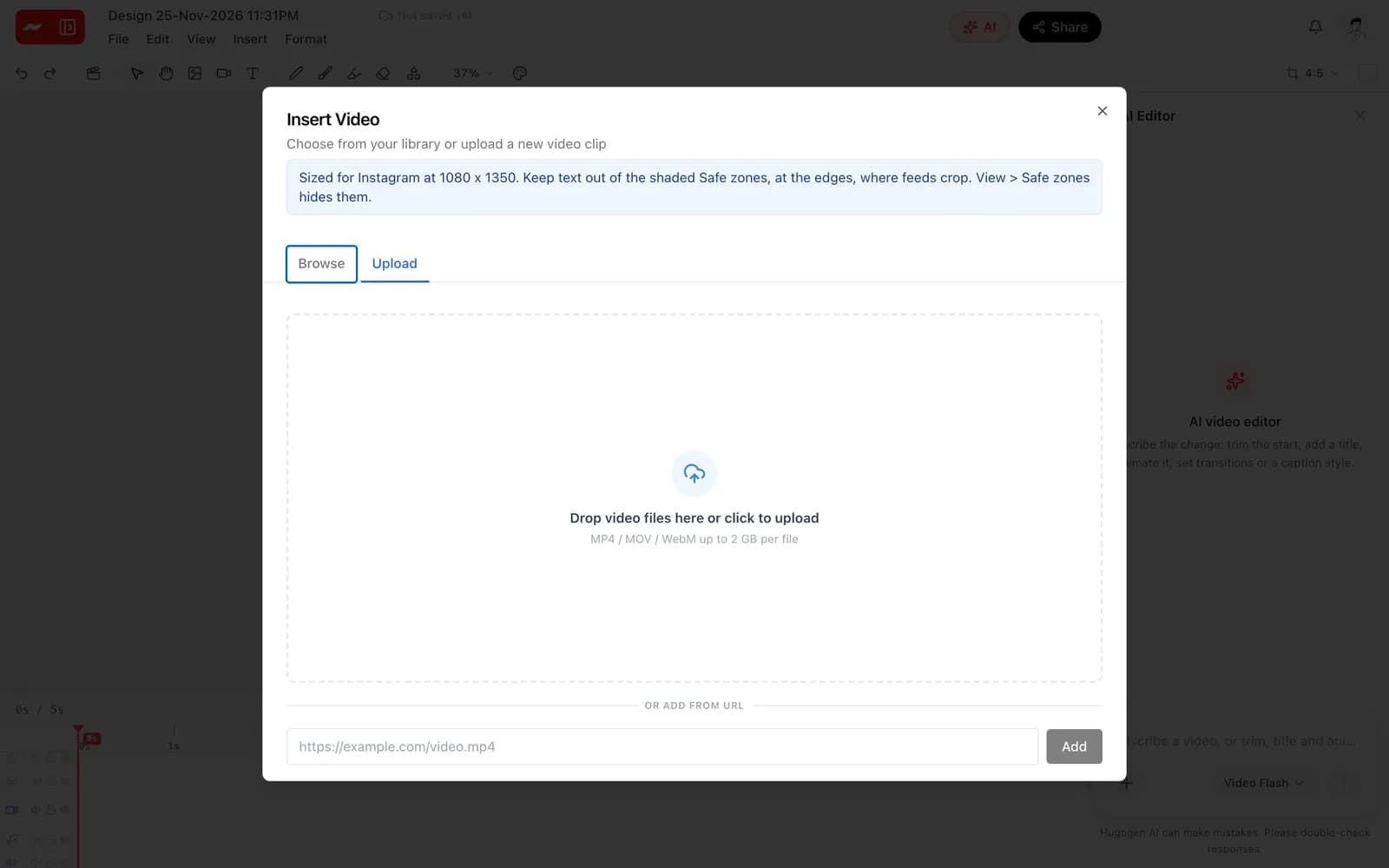
The upload dialog opens with a note naming the size, such as Sized for Instagram at 1080 x 1350. The same note says where the shaded Safe zones are and how to hide the shading. Browse picks a clip from your library, and Upload takes an MP4, MOV or WebM file of up to 2 GB.

The Insert Video dialog on arrival with the feed size, with a note reading Sized for Instagram at 1080 x 1350 and naming the edges where feeds crop

The Instagram tab in the format picker

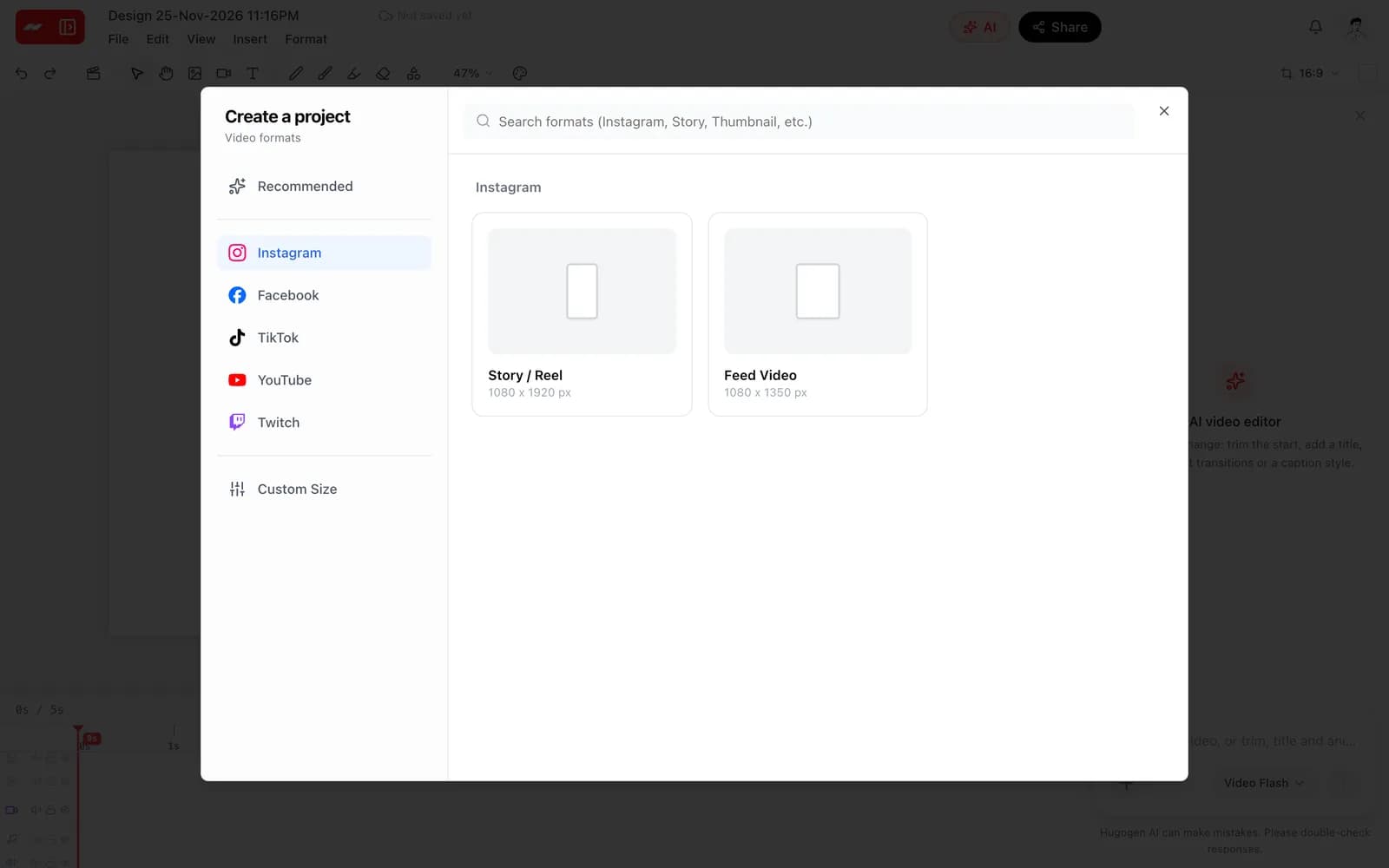
File, New project in the video editor opens the format picker. The Instagram tab lists Story / Reel at 1080 by 1920 and Feed Video at 1080 by 1350. Size in the header moves a project between the two later, with each clip re-cropped around the subject.

Posting beyond Instagram? See the online video editor
The Create a project dialog with the Instagram tab selected, showing Story / Reel at 1080 x 1920 px and Feed Video at 1080 x 1350 px

Still posts for the same feed

A photo post is a design in the image editor rather than a video. The Instagram post maker opens a square at 1080 by 1080 or a 4:5 post at 1080 by 1350. The AI designer lays out the post, or you place every layer by hand.

Making a still post? See the Instagram post maker
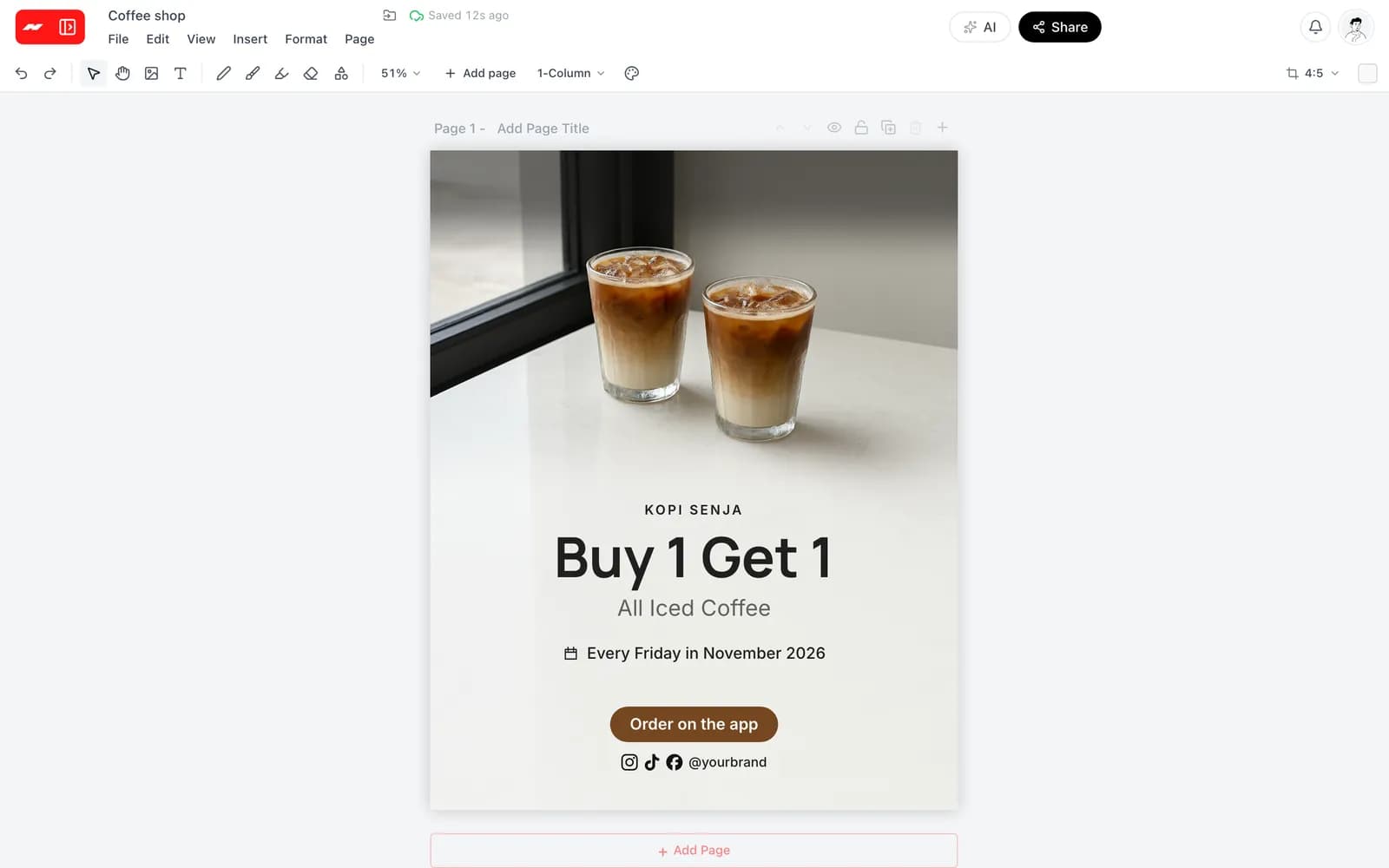
A 4:5 Instagram post for a cafe open in the editor: two iced coffees above the headline Buy 1 Get 1 and an Order on the app button

How to edit a video for Instagram

  1. Step 1

    Pick Reel or feed

    Choose Reel for 1080 by 1920 or Feed video for 1080 by 1350, sign in for free and add a clip.

  2. Step 2

    Edit around the shading

    Trim, caption and title the video, with every word kept out of the red areas.

  3. Step 3

    Export and post

    Download the MP4 from Share, Download and post the file from the Instagram app.

Instagram videos made in the editor

Pick the size for the place the video will appear, and change the size later with Size if the plan changes.

Reels
9:16 at 1080 x 1920
Feed videos
4:5 at 1080 x 1350
Square feed videos
1:1 at 1080 x 1080, from Size
Stories
The same 1080 x 1920 frame as a Reel
Product launches
Kinetic captions and a title template over the product

More free tools from Hugogen

Questions and answers

The Reel preset is 1080 by 1920 pixels, a 9:16 vertical frame. The format picker names the preset Story / Reel, because a story uses the same frame.

The Feed Video preset is 1080 by 1350 pixels, a 4:5 frame. Size in the header also offers 1:1 at 1080 by 1080 for a square feed video.

The guide shades a band of four percent on each edge, labelled where feeds crop. Text in the band can be cut off when a feed shows the video. The shading is a guide only and never appears in the exported file.

Open Size in the header and pick 4:5, or Feed Video under the Instagram filter. The project changes to 1080 by 1350 and each clip re-crops around the subject, with no new render. Download the Reel first to keep both versions.

Typed captions are free, and Auto-caption writes captions from the speech for credits. An audio file in mp3, wav, m4a, aac or ogg format goes onto an audio track when you drop the file on the timeline.

Download the MP4 from Share, Download and move the file to your phone if needed. Post the file from the Instagram app like any other video.

Editing, captions you type and the safe zone guide are free on every plan. The free plan exports MP4 files at 720p with no watermark, and some paid plans add 1080p. Auto-caption and the AI voiceover use credits.

Edit your next Reel or feed video

Pick Reel or feed, edit with the shaded areas in view and download an MP4 for Instagram.

Start an Instagram video

TikTok, YouTube, Instagram, Facebook and Twitch are trademarks of their owners. Hugogen is not affiliated with them.