Free Instagram post maker

Start a square or 4:5 post, describe the post to the AI designer and change any word, color or picture before you post.

Posts export as PNG or JPG at full size with no watermark on any plan.

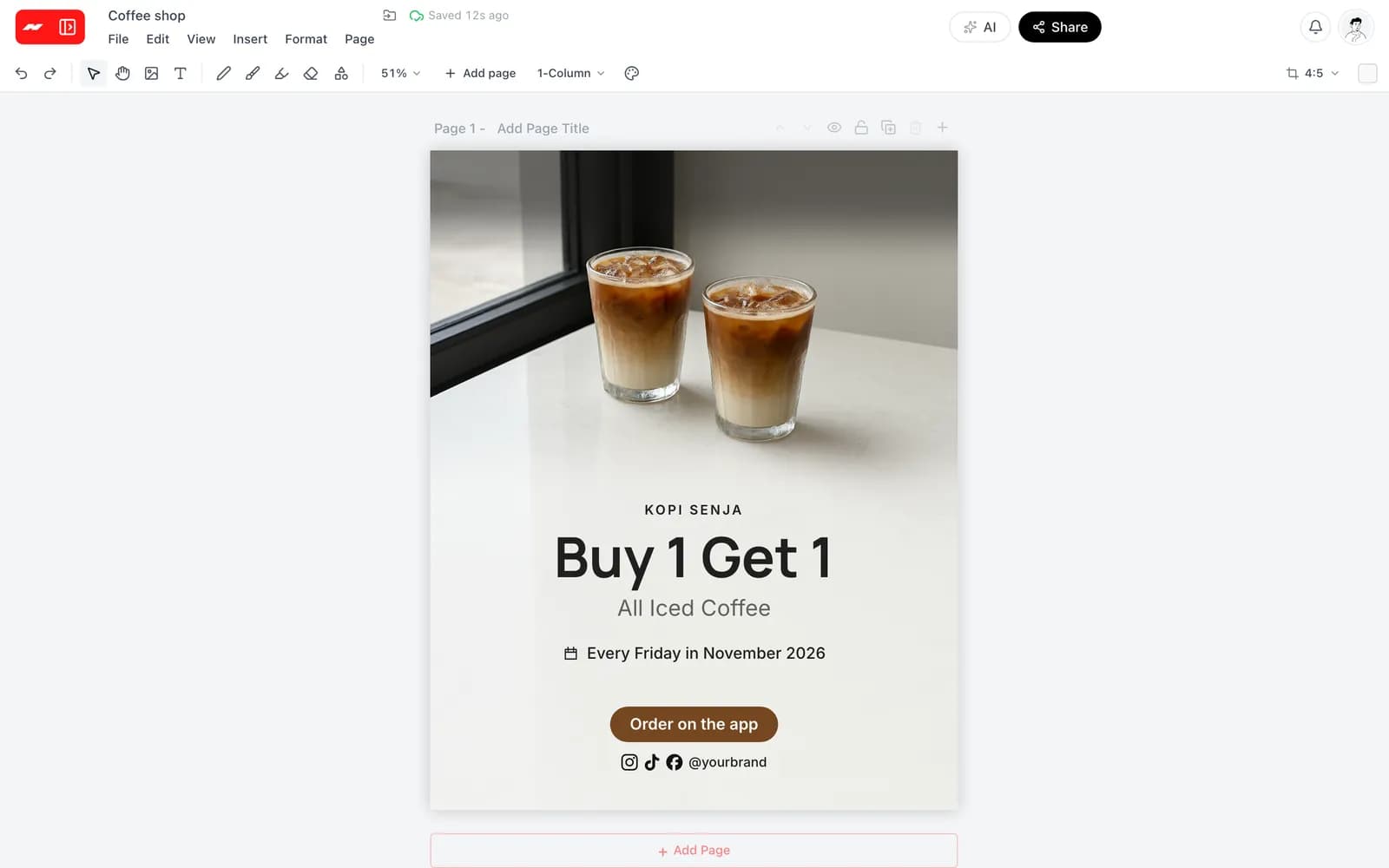
A 4:5 Instagram post for a cafe open in the editor: two iced coffees above the headline Buy 1 Get 1 and an Order on the app button

From a blank square to a finished post

Square or 4:5, and back again

A 1080 by 1350 post fills more of the feed than a square. Switch a post between the two shapes in the Size menu. A post the AI designer built lays itself out again, with the type kept at the same size.
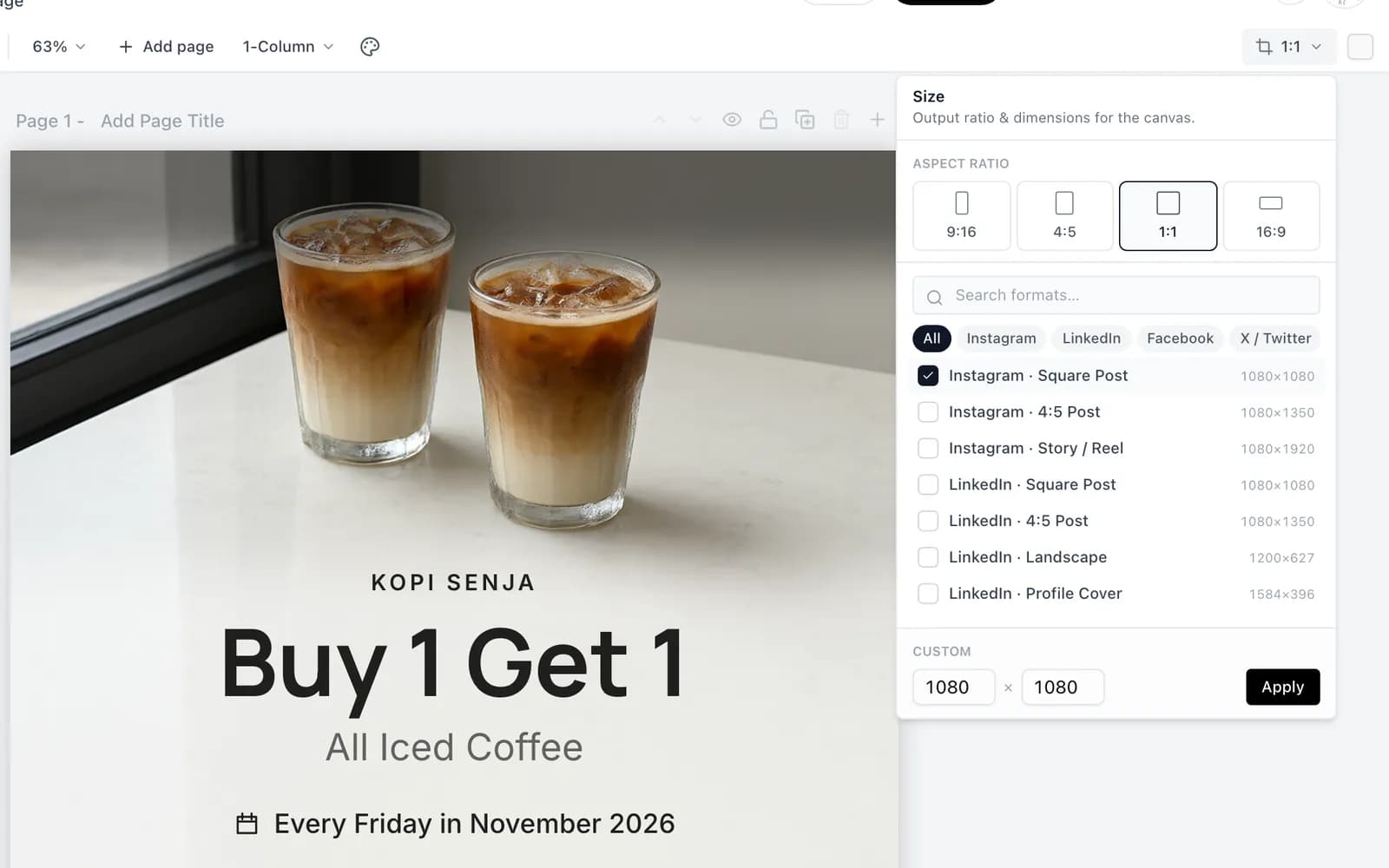
The coffee post after the switch to a square, with the Size menu open on 1:1 and Instagram Square Post ticked

Write the brief, get a laid-out post

Type what the post is for, such as the shop, the offer and the date. The AI designer writes the headline, makes the picture and places each line as a separate layer. Pictures use credits, and a card asks first.
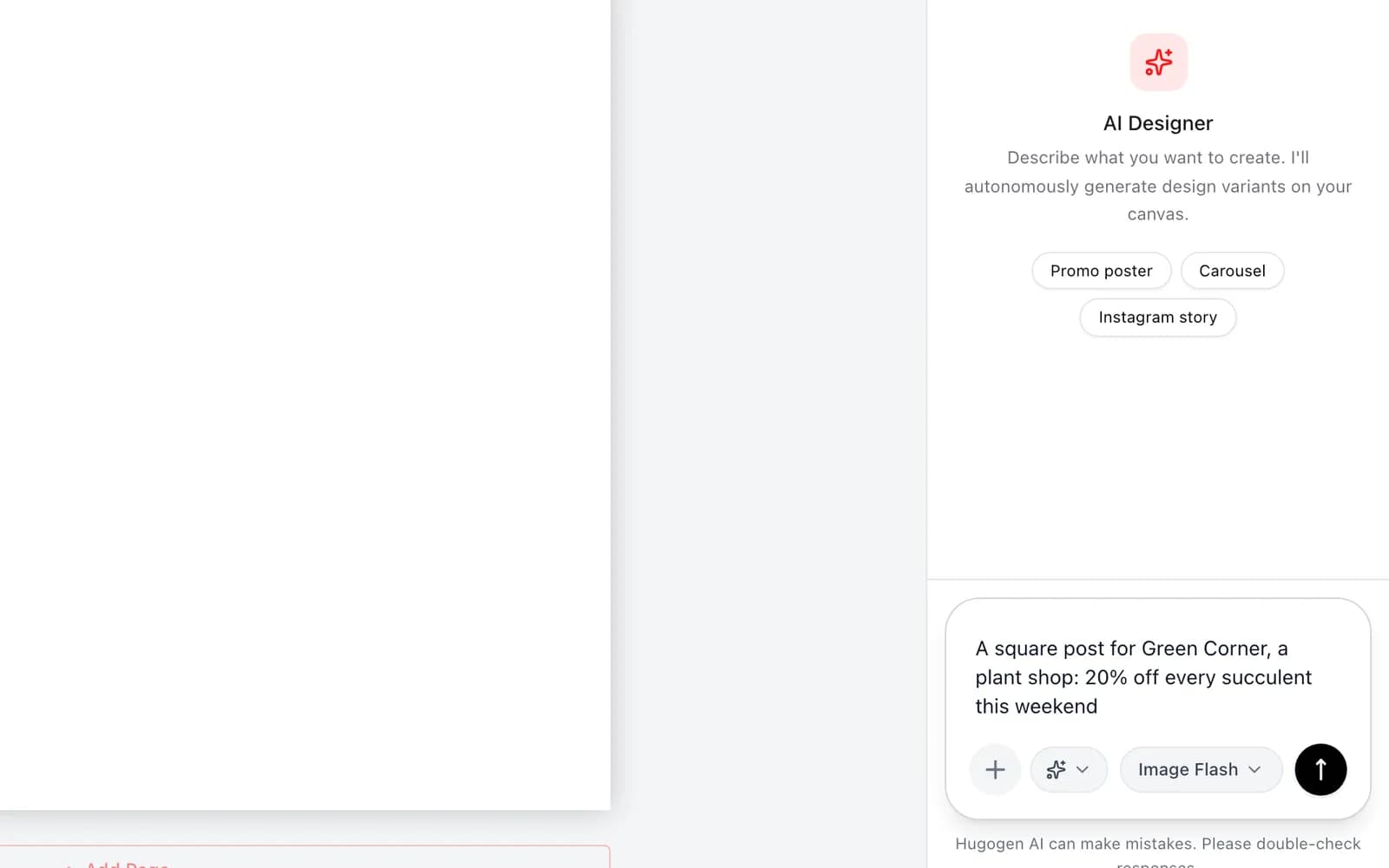
The AI Designer panel with a brief typed for a plant shop sale on succulents, ready to send beside a blank square page

Change one word without starting over

Every line of a post is a separate text layer in the Layers panel. Pick a line to change the font, the size or the color, or type new words. The picture and the background stay unchanged.
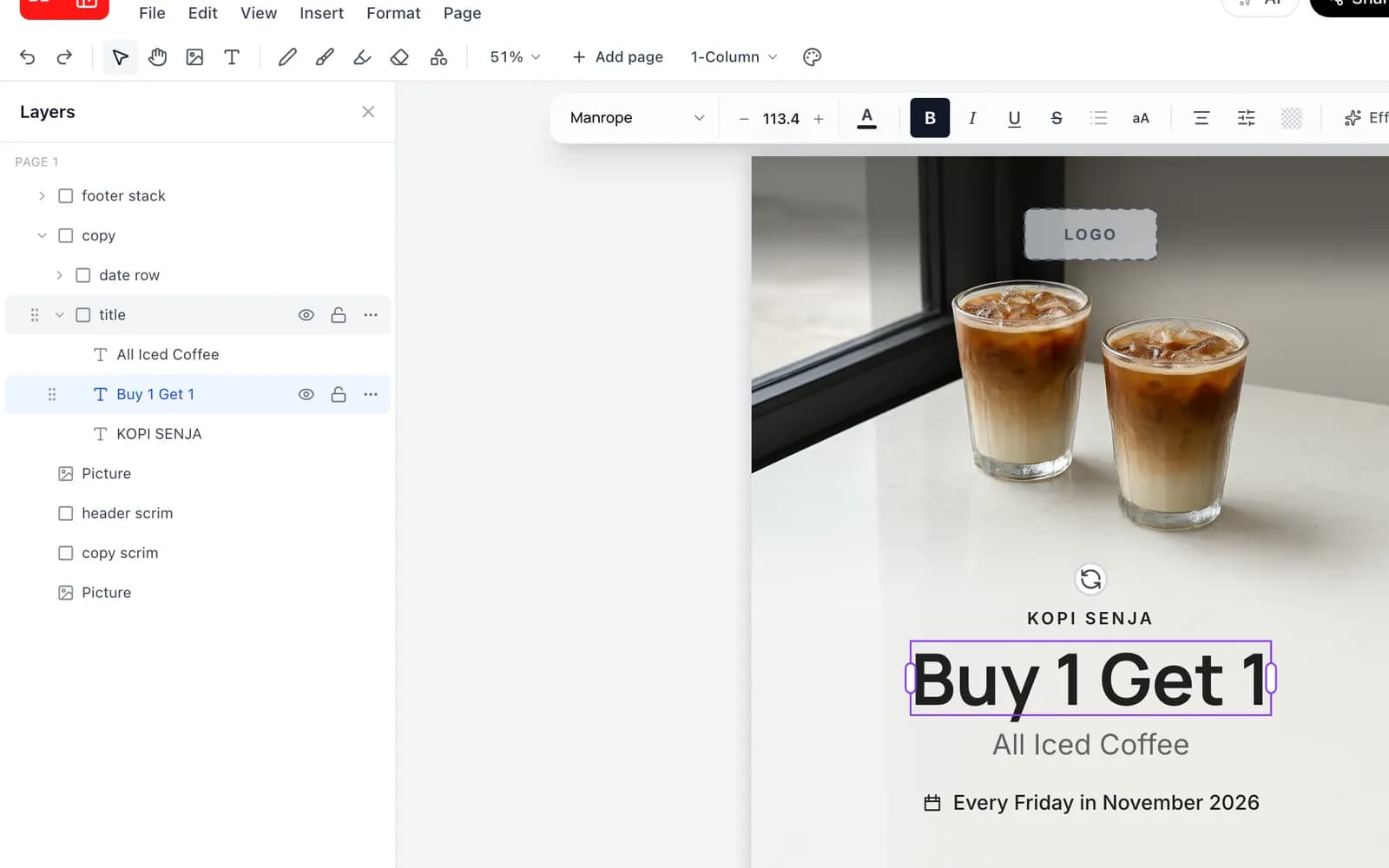
The Layers panel listing the coffee post's groups and lines, with the headline Buy 1 Get 1 selected and the text bar above

Posts in your own brand colors

Save the brand's colors, fonts and logo in a brand kit. Apply the kit to a post, and the AI designer designs the next posts with the same kit. Brand kits are on paid plans.
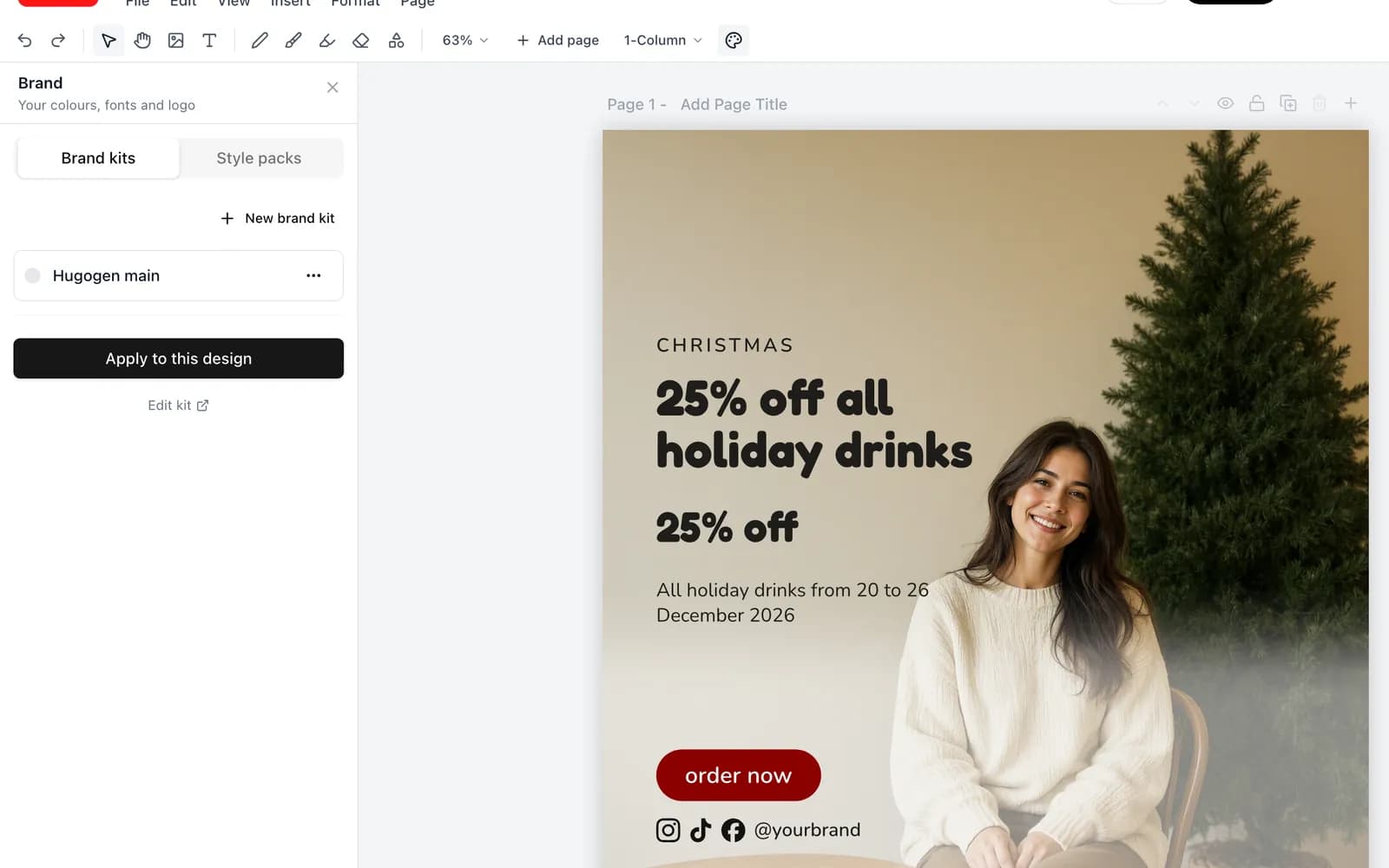
The Brand panel with one brand kit named Hugogen main and the Apply to this design button

How to make an Instagram post

  1. Step 1

    Pick square or 4:5

    Choose the post shape above. A square post is 1080 by 1080 and a portrait post is 1080 by 1350.

  2. Step 2

    Describe or design

    Write a short brief for the AI designer, or place text, photos and shapes on the page yourself.

  3. Step 3

    Export and post

    Download a PNG or JPG at the post's full size and upload the file to Instagram from your phone or computer.

Posts a feed needs every week

The same editor makes a one-off announcement and a weekly series, and a brand kit keeps the series consistent.

Sale announcements
The offer, the dates and one picture
New product posts
The product photo with a short line
Event invites
Date, time and place in one post
Quotes and tips
A few words on a plain color
Opening hours
The days and times in large type
Hiring posts
The role and how to apply

More free tools from Hugogen

Questions and answers

A square post is 1080 by 1080 pixels and a portrait post is 1080 by 1350, a 4:5 ratio. Both presets open at exactly those sizes.

A free account designs and exports posts with no watermark. The AI designer works on the free plan, and the pictures the designer makes use credits.

A 4:5 post fills more of the screen in the feed, which suits a photo or a long headline. A square post suits a grid of matching posts. The Size menu switches one post between the two shapes.

The AI designer writes the copy from your brief and lays out the post. Prices, dates and names come from your words, and every line stays editable.

Add a page for each slide, or ask the AI designer for a carousel of up to ten slides. All the slides download together as a ZIP of images or as one PDF.

JPG and PNG both upload to Instagram. PNG keeps text and flat colors crisp, and JPG makes a smaller file. Both export at full size on every plan.

No watermark is drawn on any exported post, on the free plan or any other.

Upload the logo as a picture and place the logo anywhere on the page. A brand kit stores the logo for the AI designer, which puts the logo in the header of a post. Brand kits are on paid plans.

Make this week's Instagram post

Choose square or 4:5, describe the post and download a PNG or JPG with no watermark.

Make an Instagram post