Opens at 1280 by 720
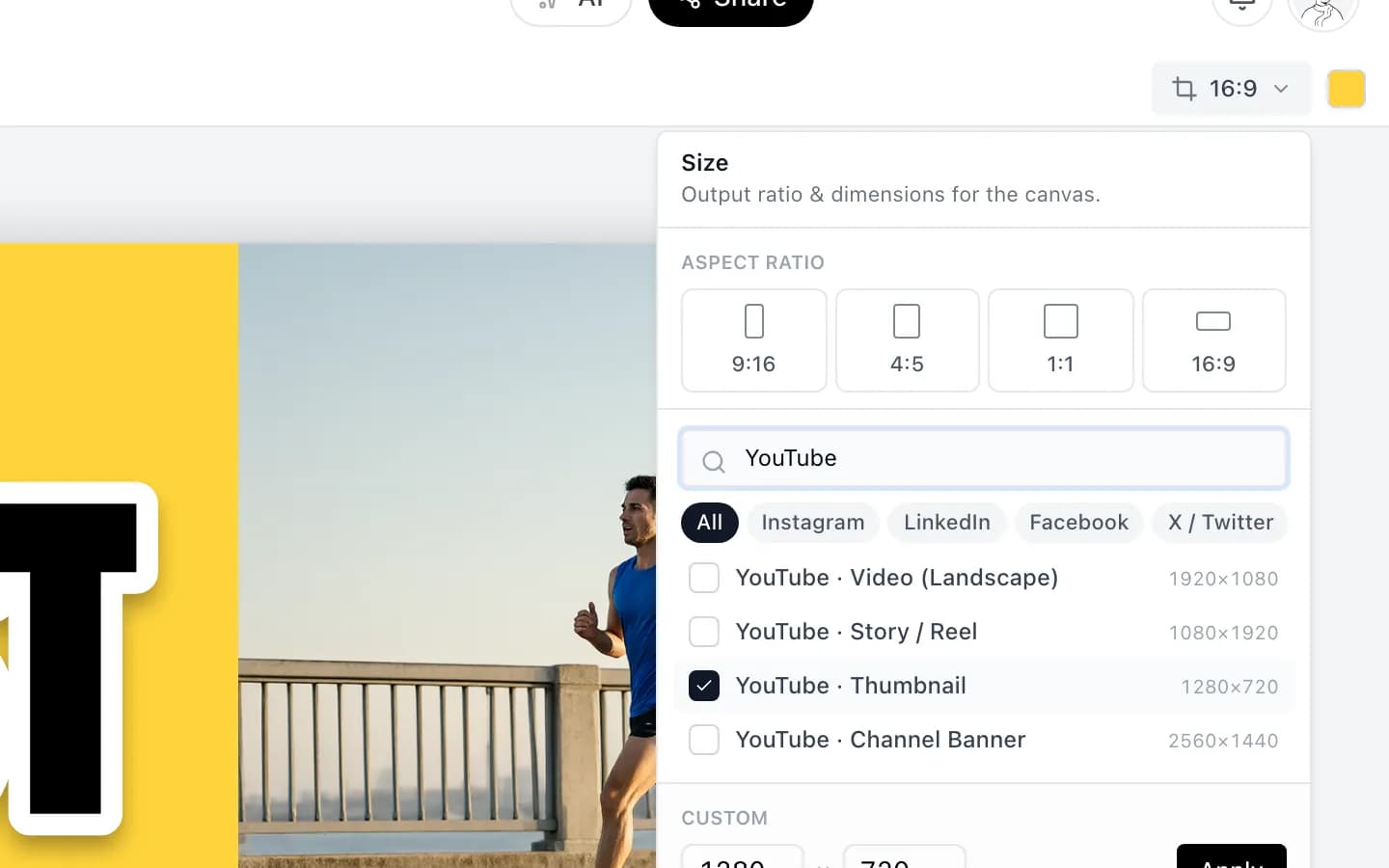
The editor opens a new design at 1280 by 720 pixels, the 16:9 size YouTube asks for. The Size menu keeps the other YouTube sizes one search away, from the channel banner to a landscape video frame.
Start on a 1280 x 720 page, put a photo on one side and set a bold title with an outline, a shadow or a glow.
Thumbnails export as JPG or PNG with no watermark on any plan.
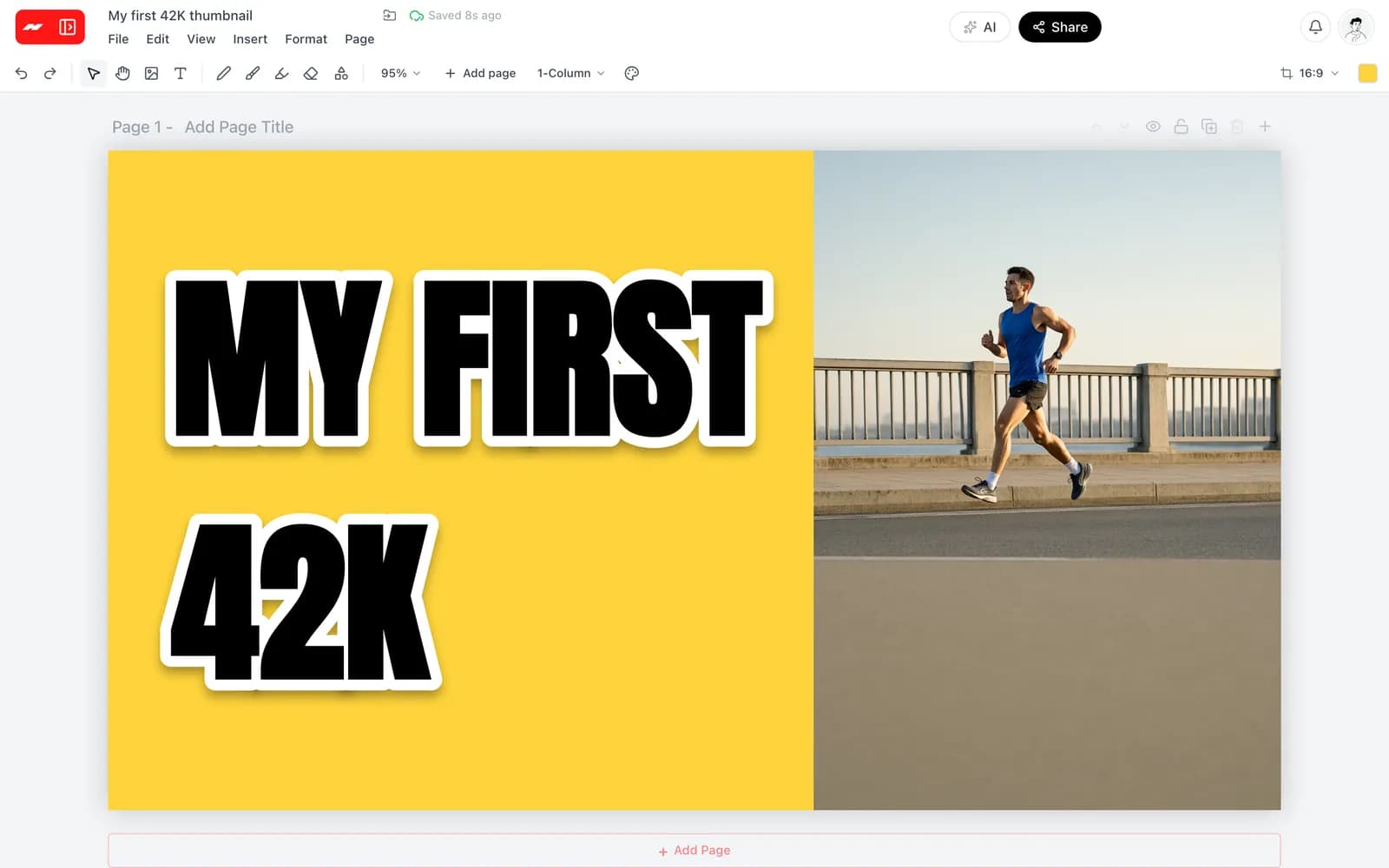
The editor opens a new design at 1280 by 720 pixels, the 16:9 size YouTube asks for. The Size menu keeps the other YouTube sizes one search away, from the channel banner to a landscape video frame.
Select a photo and press Remove BG on the toolbar to keep only the person or the product. The cutout keeps soft edges and stays a separate layer, ready to overlap the title. Each background removal uses credits.
More on the image background remover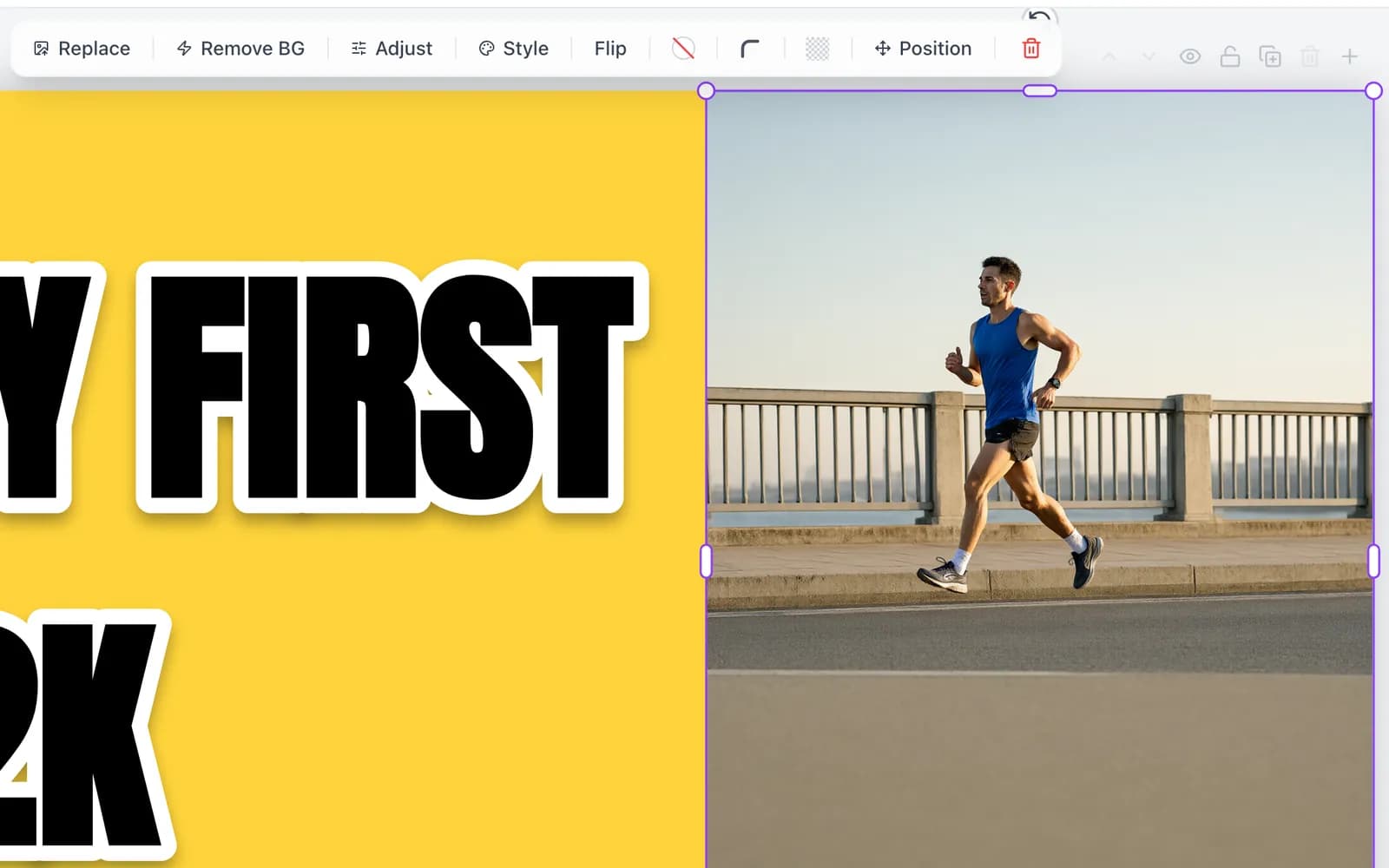
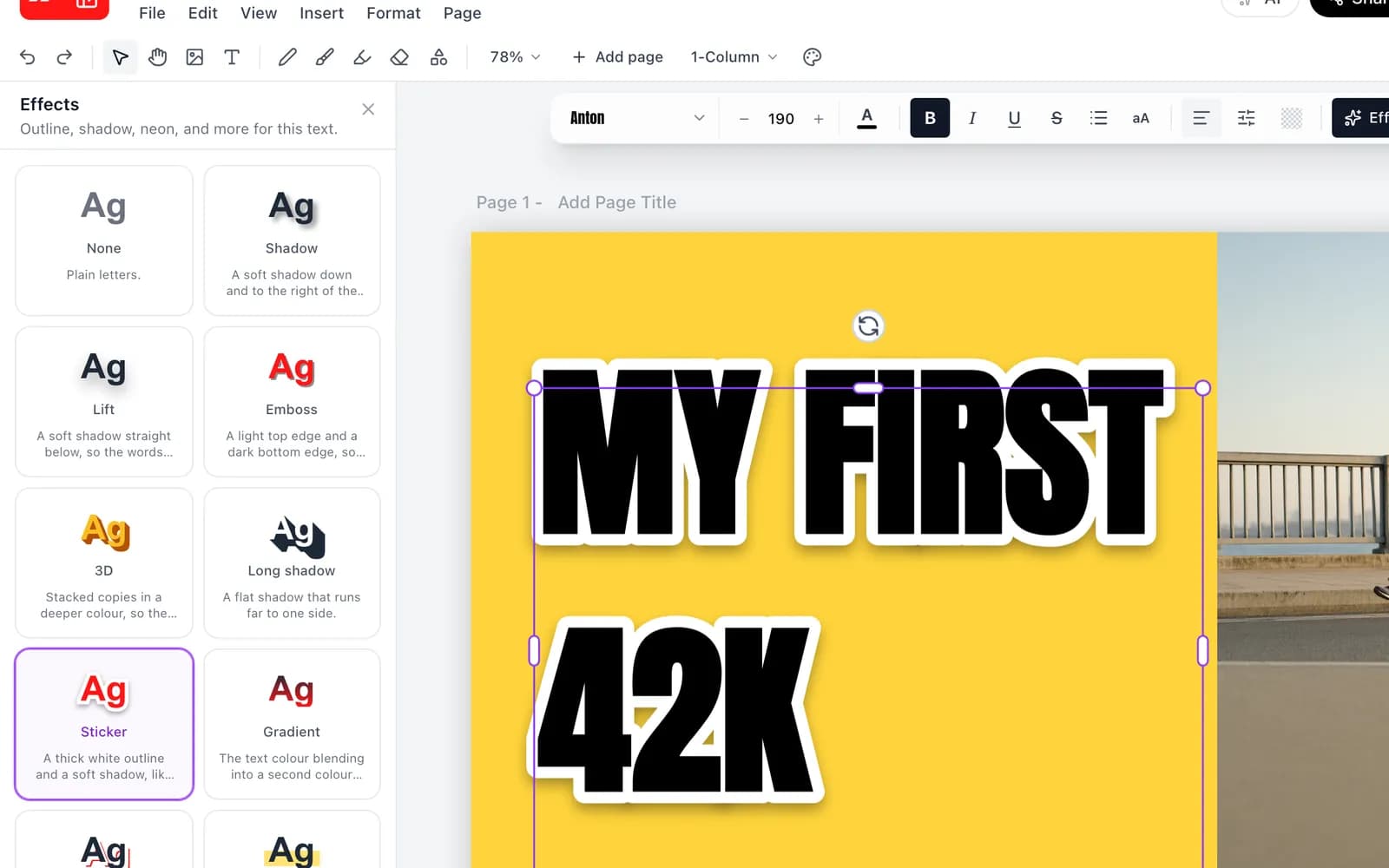
Type the title in any of 65 font families and give the words one of 16 effects. Sticker draws a thick white outline, and Long shadow throws a flat shadow to one side. Neon, Outline and 3D wait in the same panel.
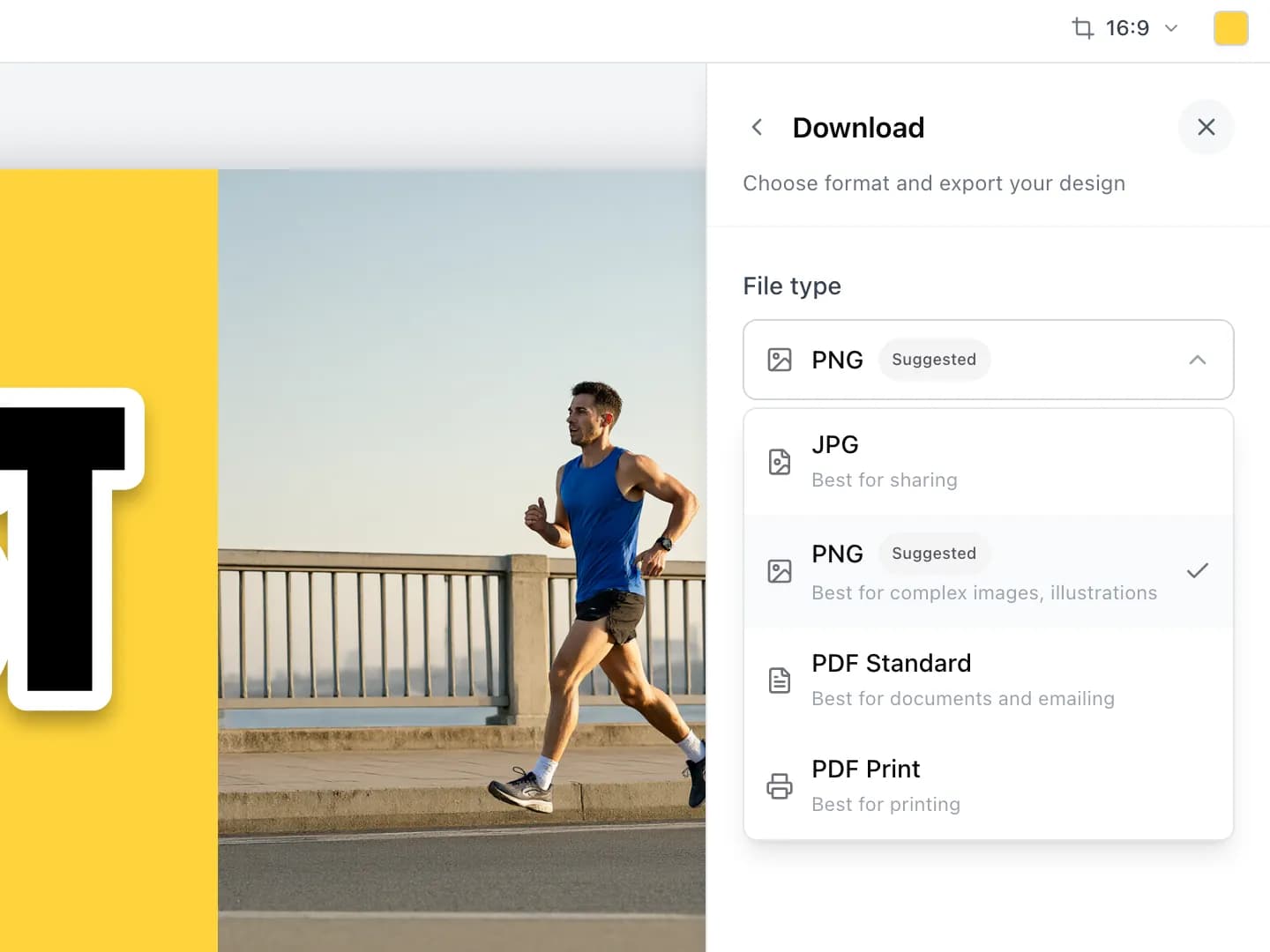
Download the thumbnail as a JPG for a small file or as a PNG for crisp text. Both export at 1280 by 720 on every plan with no watermark. Paid plans add compression and a file size limit.
Step 1
Press Make a thumbnail to open a blank design at the YouTube size. A free account opens the editor.
Step 2
Upload a photo or pick one from the library. Press Remove BG to cut the subject out, and type a short title in a heavy font.
Step 3
Export a JPG or PNG and choose the file as the custom thumbnail when you publish the video on YouTube.
One 1280 x 720 page suits a long video, a live stream or a lesson, with the face and the title both large.
Open a 1280 x 720 page, cut out the subject, add a bold title and download a JPG or PNG.
Make a thumbnail