Free AI voice over generator

Type the script, choose a voice and a language, and the voiceover goes on the voiceover track under your video.

The price shows beside Generate before anything runs, and a failed voiceover costs nothing.

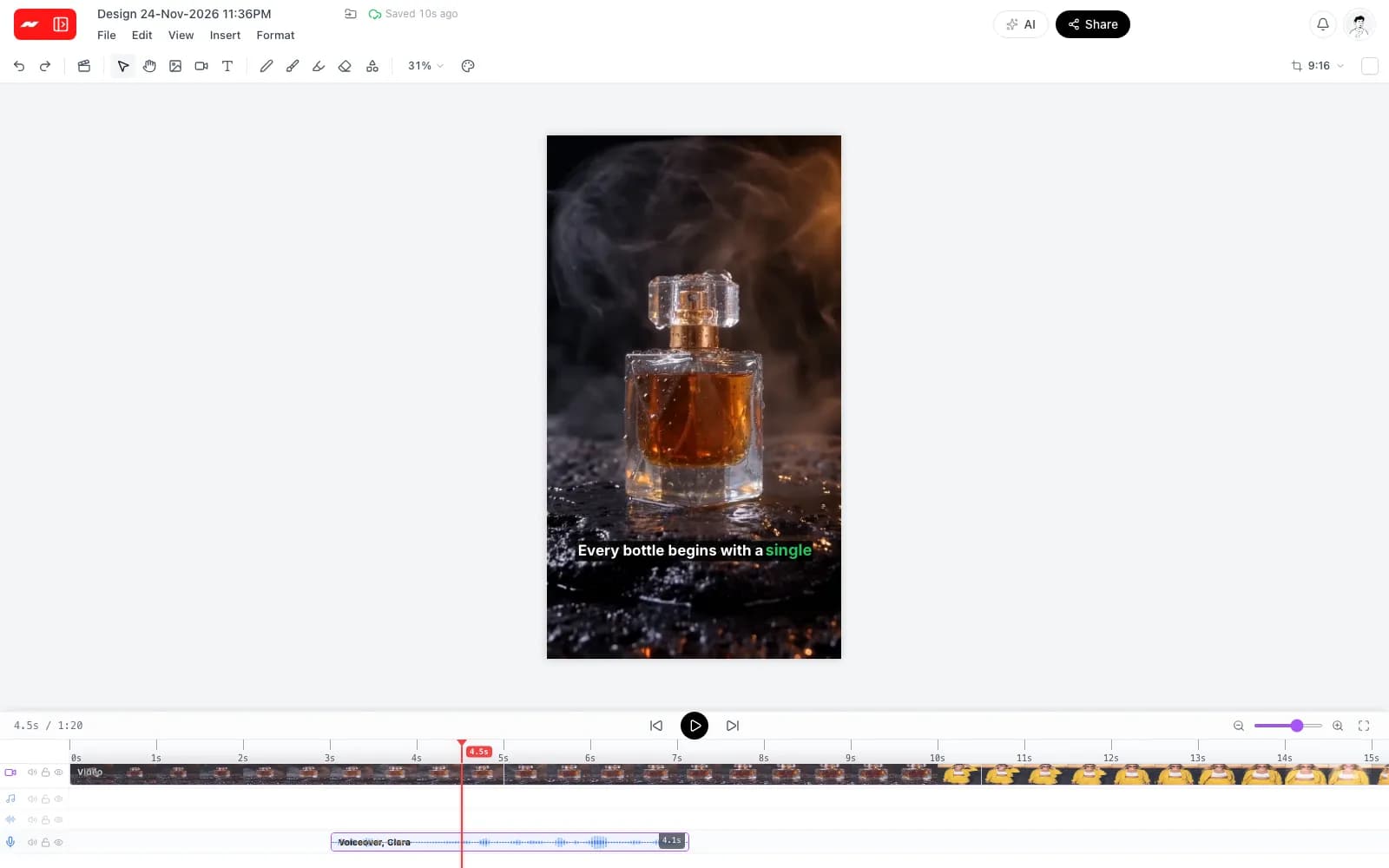
A generated voiceover clip named Voiceover, Clara on the voiceover track under a perfume clip, with a caption made from the voice on the video

A voice for your video, on the timeline

Six named voices

Pick one of six voices. Ayu, Clara and Elena are female, and Bima, Daniel and Fajar are male. Write up to 5,000 characters of script. A speed slider runs from 0.8 to 1.25 times the normal pace.
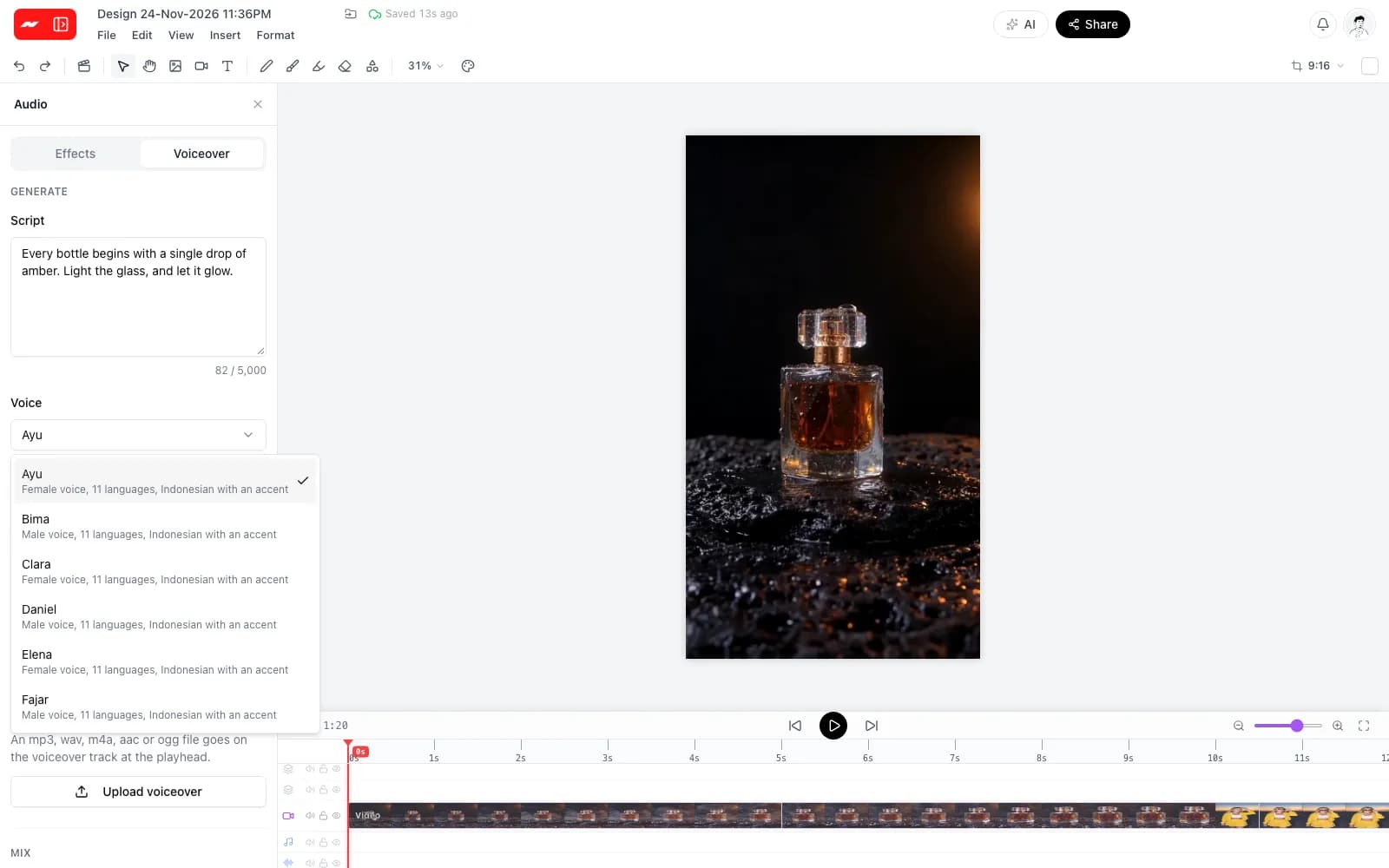
The voice menu open in the Voiceover tab, listing Ayu, Bima, Clara, Daniel, Elena and Fajar under a typed script

Eleven languages for a voiceover

Every voice reads ten languages natively, from English and Spanish to Japanese and Russian. Indonesian is read too, with a slight accent, and the menu says so beside the name. The language starts from your project's own text.
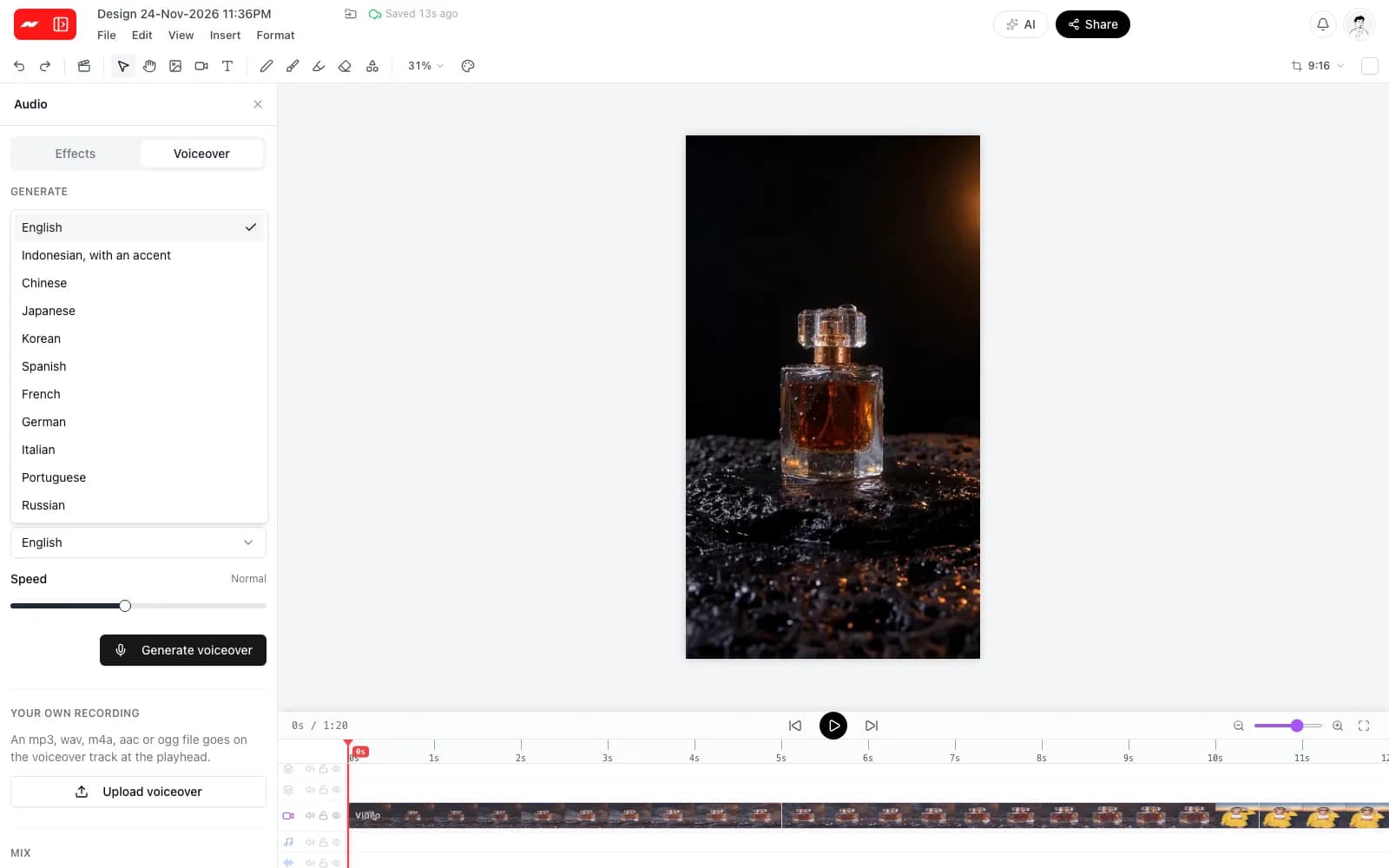
The language menu open in the Voiceover tab, listing eleven languages with Indonesian marked as read with an accent

Captions from the voice, for free

Select a generated voiceover and press Captions from voice. The caption lines follow the voice's own word timings, with the spoken word highlighted. No transcript is needed, because a generated voice carries word timings already.

Subtitles for any video? See add subtitles
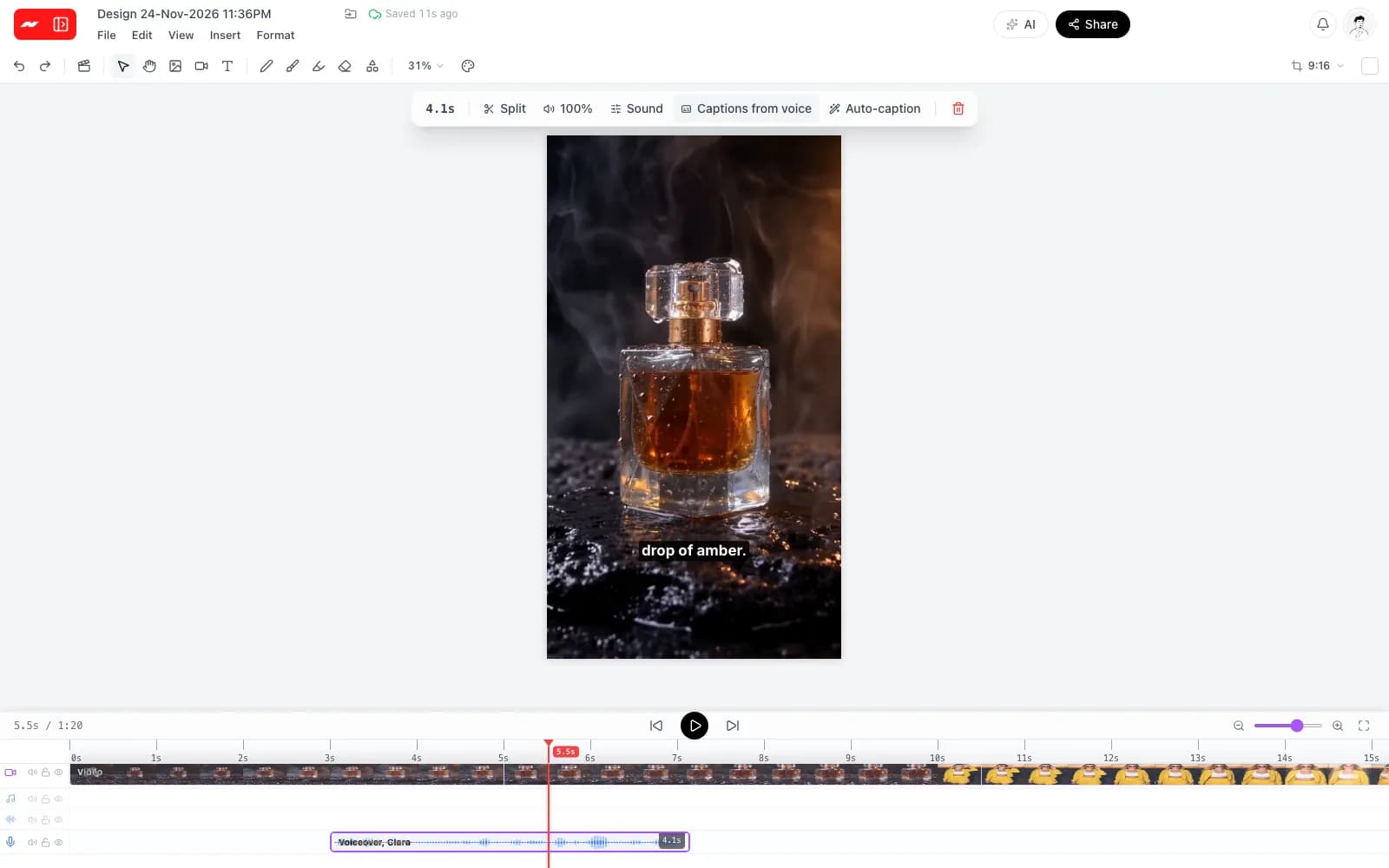
The voiceover clip selected with the Captions from voice button on the clip toolbar and a caption reading drop of amber on the video

Music steps back while the voice speaks

A switch lowers effects and music under the voiceover, and the switch stays on until you turn the switch off. The Sound button on a voiceover clip sets a fade in, a fade out and a level of Low, Subtle or Normal.
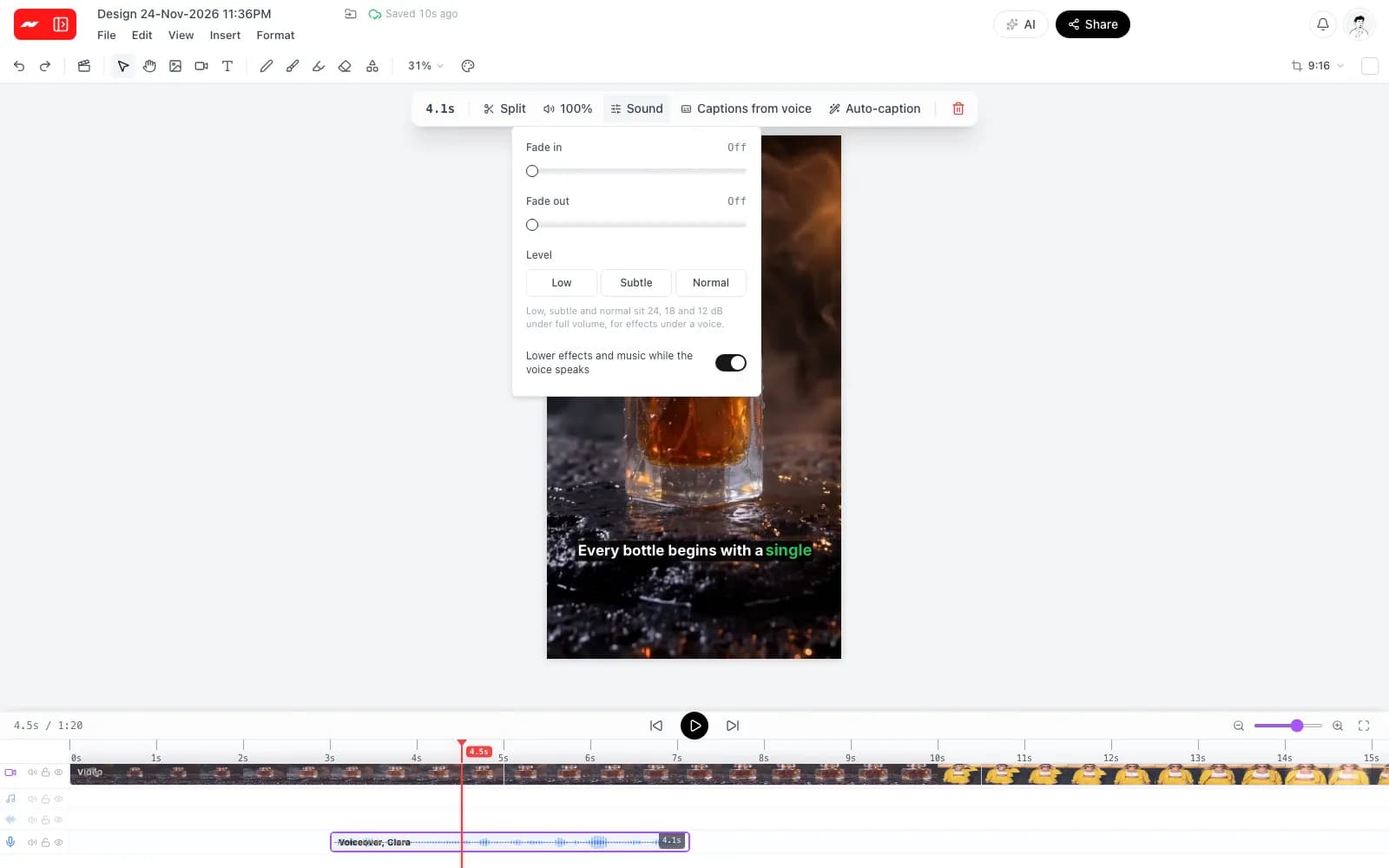
The Sound popover of the voiceover clip with fade in, fade out, three level buttons and the switch to lower effects and music while the voice speaks

Or upload your own recording

An MP3, WAV, M4A, AAC or OGG file goes on the same voiceover track at the playhead. Closing the panel never stops a voiceover in progress. When a voice cannot be made, nothing is charged.
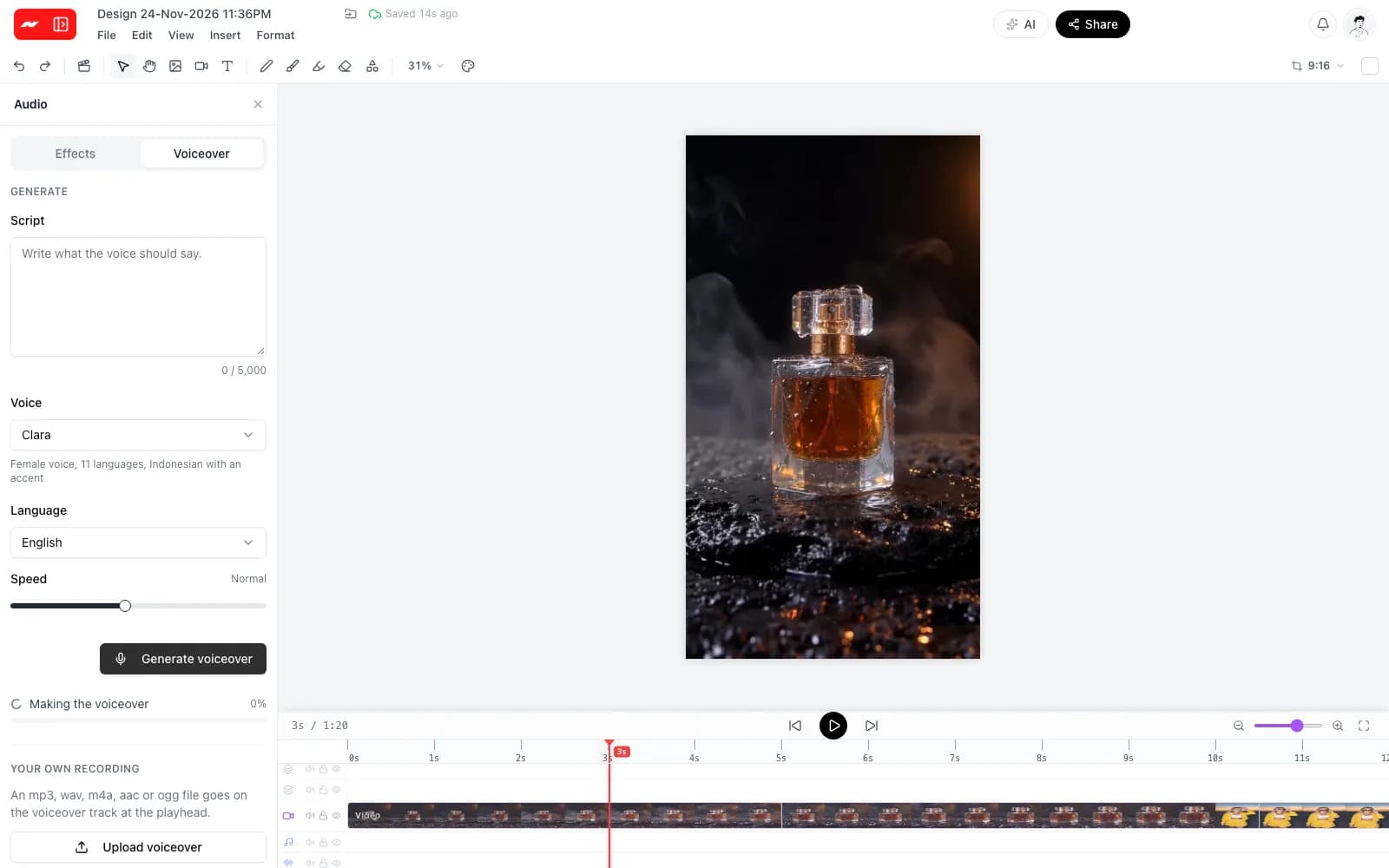
The Voiceover tab while a voiceover is being made, with the progress row above the Upload voiceover button

How to add an AI voice over to a video

  1. Step 1

    Open the Voiceover tab

    Open the video editor with your clip. Choose Insert, Audio and the Voiceover tab.

  2. Step 2

    Write and pick a voice

    Type the script and choose a voice, a language and a speed. Check the price line and press Generate voiceover.

  3. Step 3

    Place the voice and export

    Drag the voiceover clip to the right moment and add captions from the voice. Download the finished video as an MP4.

Videos that need a voice

Each video below takes the words from a script you write, read aloud by one of the six voices.

A product video
A short line over the hero shot
An explainer
Narration over screens and charts
A faceless short
A voice and captions over footage
A tutorial
Each step read aloud
A video in another language
The same script read in a second language

More free tools from Hugogen

Questions and answers

Open your video in the editor and choose Insert, Audio and the Voiceover tab. Type the script, pick a voice and press Generate voiceover. The voice goes on the voiceover track at the playhead.

Six voices: Ayu, Clara and Elena are female, and Bima, Daniel and Fajar are male. Every voice reads all eleven languages. The voice names are Hugogen's own.

Ten languages are read natively: English, Chinese, Japanese and Korean, plus Spanish and French. German, Italian, Portuguese and Russian complete the ten. Indonesian is the eleventh, read with a slight accent by every voice, and the language menu says so beside the name.

A voiceover is priced by the length of the script, and the price line beside Generate shows the cost before you press the button. A voiceover that fails is not charged. Captions made from the voice are free.

Yes, select the generated voiceover and press Captions from voice. The lines follow the voice's own word timings at no cost. The new captions replace any captions already under that clip.

Yes, upload your own recording from the same tab. MP3, WAV, M4A, AAC and OGG files are accepted. The recording goes on the voiceover track. Use Auto-caption on an uploaded recording, because only a generated voice carries word timings.

Yes, ask the AI panel for a voiceover and the agent writes the script and picks a voice. Because a voiceover is paid, the agent asks you on a card first. The agent can also make the captions from the voice.

Yes, the voiceover is mixed into the MP4 with the ducking you set. The video exports with no watermark. The free plan exports at 720p, and some paid plans add 1080p.

Give your video a voice

Write the script, pick one of six voices, add captions from the voice and download the MP4.

Make a voiceover now