The AI listens to the recording first
The agent works on the files in the project's Footage panel. Analysing the sound is free. The transcript, which filler words need, is the one paid step. A card shows the transcript price before anything runs.
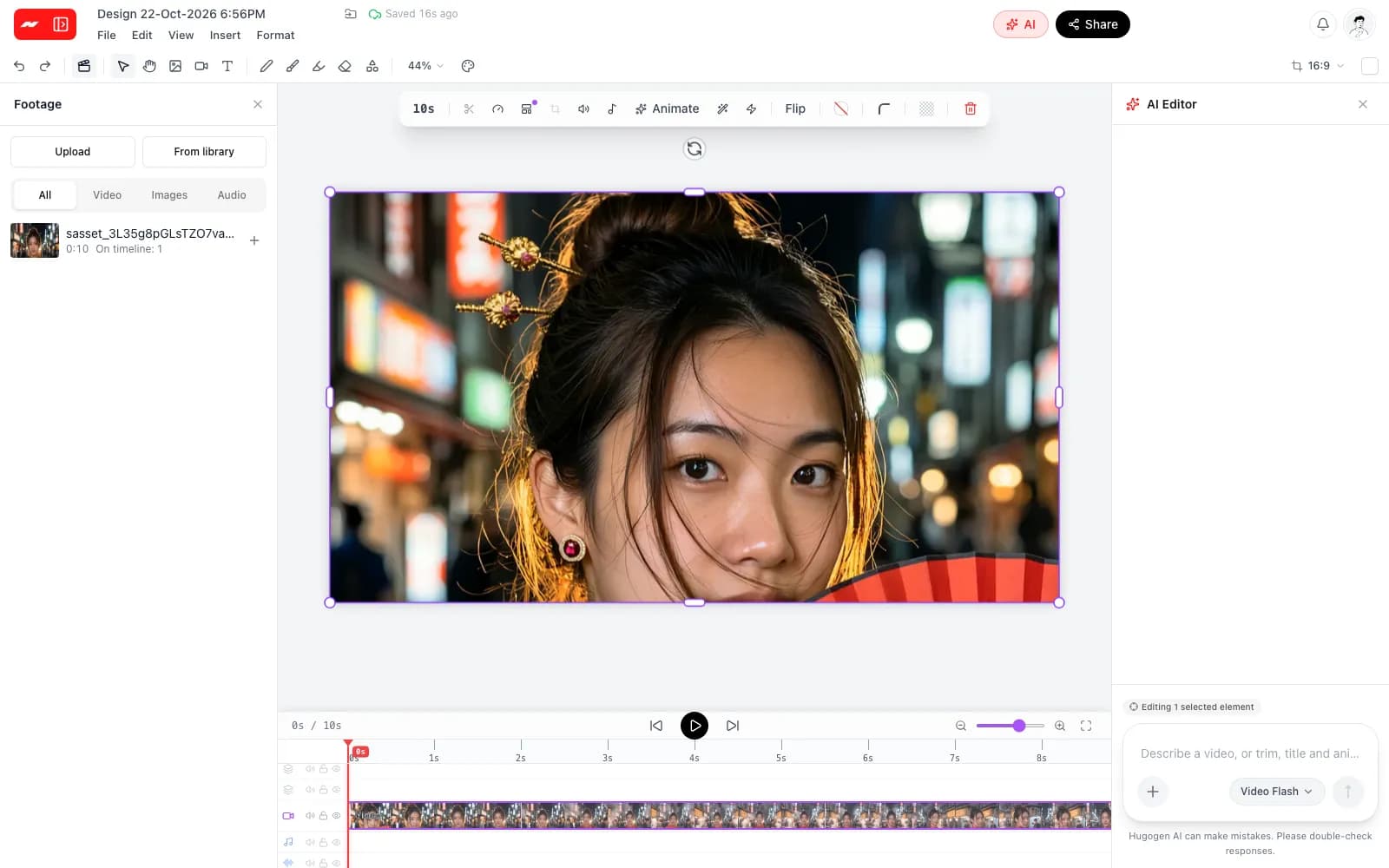
Ask the AI editor to cut the pauses and the filler words. You read the plan first, and the cuts close the gaps on the timeline after you approve.
A cut keeps the footage in the file, and any clip edge drags back to show the removed part.
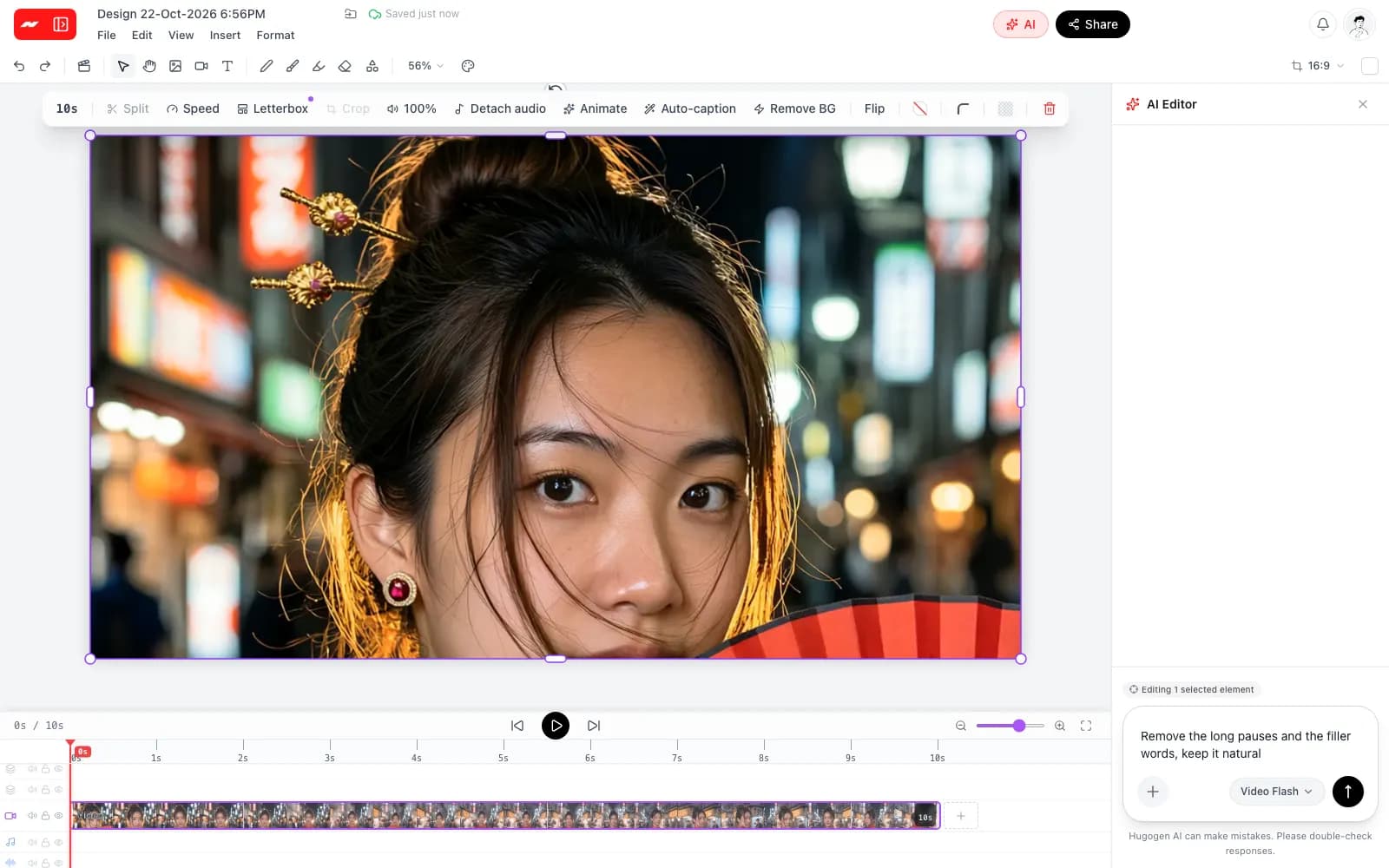
The agent works on the files in the project's Footage panel. Analysing the sound is free. The transcript, which filler words need, is the one paid step. A card shows the transcript price before anything runs.
Tight removes every gap from a quarter of a second, for shorts. Natural removes gaps from half a second and suits conversation. Gentle cuts only pauses longer than 0.9 seconds. Each cut leaves a little silence on both sides of a word.
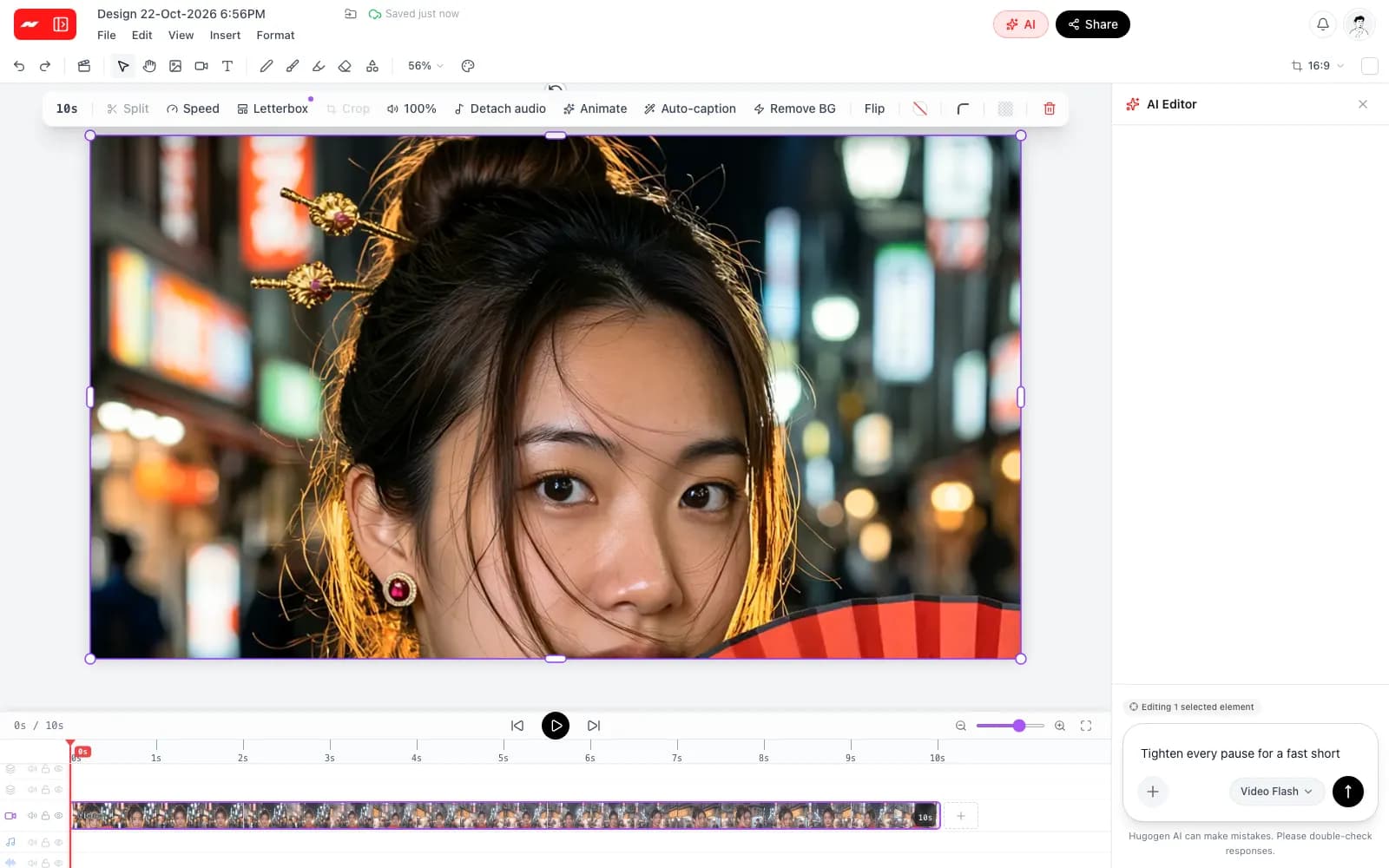
The default English list holds sounds such as um, uh, er and hmm. The Indonesian list adds sounds such as eh, ehm and anu. Words such as like and so stay until you name the words. You can name up to 20 words or phrases to cut.
More edits by prompt in the AI video editor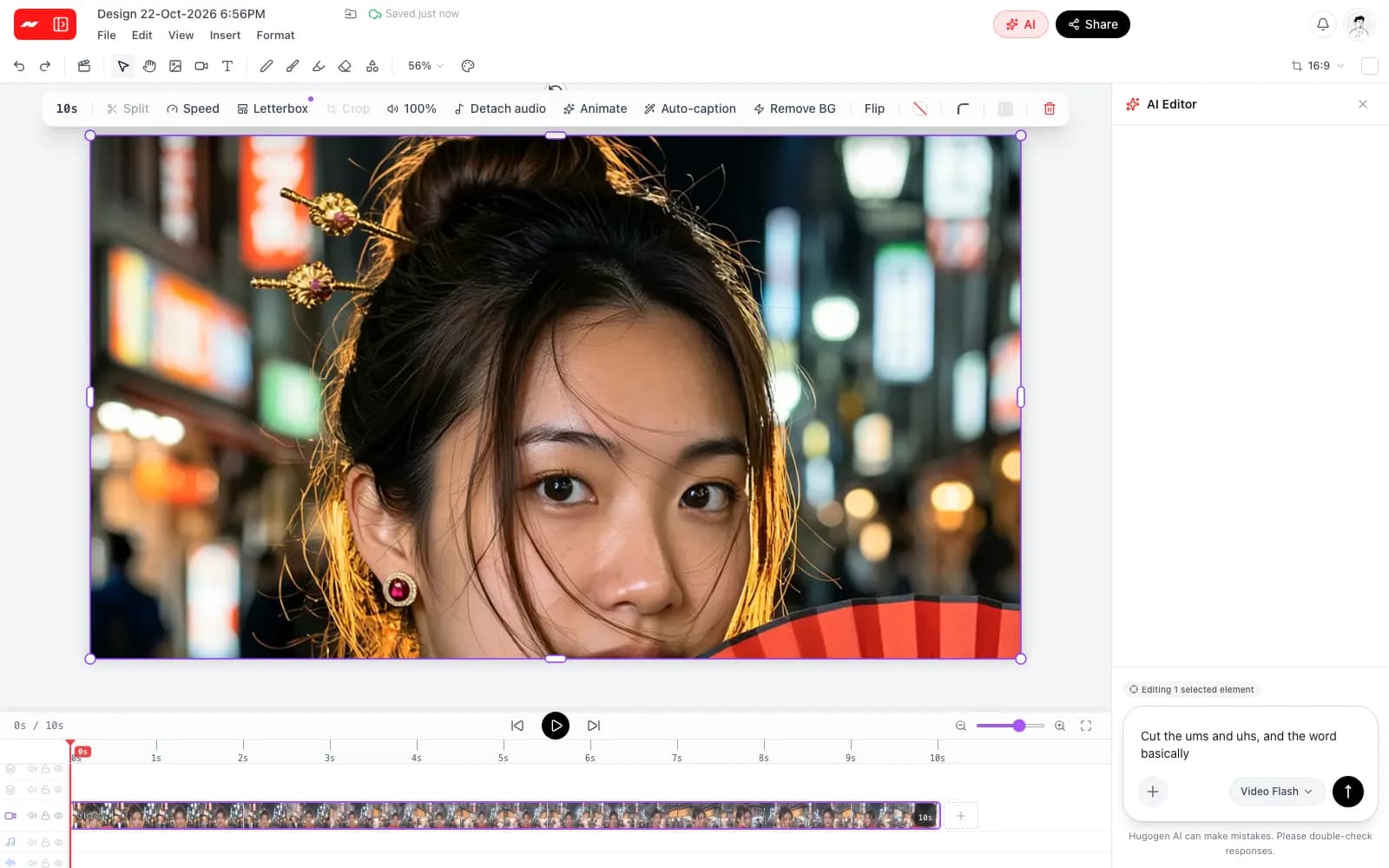
The edit plan shows the length before and after, such as from 12 minutes to about 9. Nothing changes until you press Edit my video. Afterwards the recording plays as several clips, and any edge drags back.
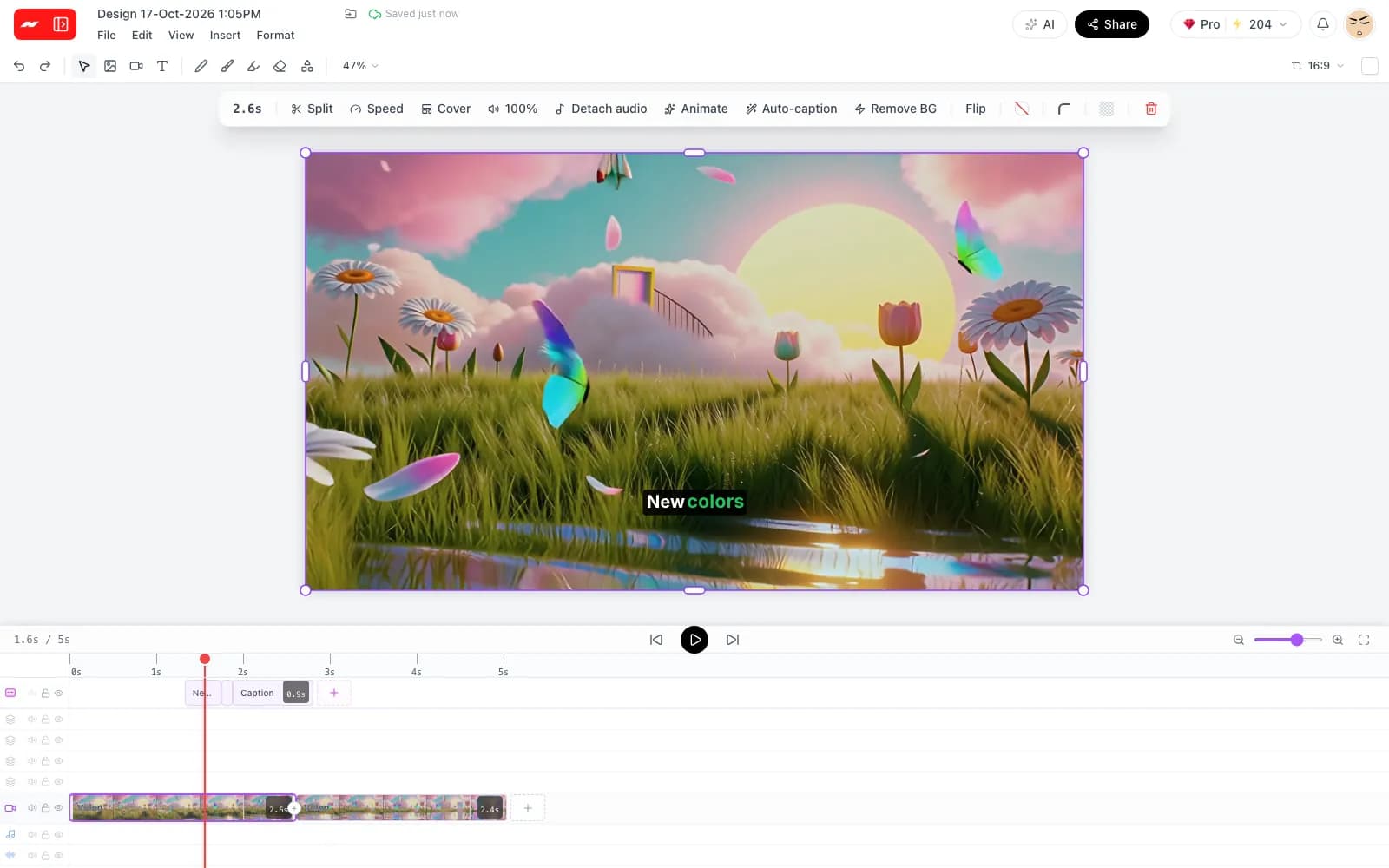
Step 1
Open the video editor and upload a recording of someone speaking, or pick one already in your library.
Step 2
Write the request in the AI panel, such as removing the long pauses and the filler words. Approve the transcript price if the card asks.
Step 3
Read the length before and after and press Edit my video. Trim any cut by hand and download the MP4.
Each recording below has one person or a few people speaking, which is the material the silence cut reads.
Add your recording, ask for the pauses to go, approve the plan and download the MP4.
Remove silence now