Free slideshow maker

Upload a set of photos, press Add photos and every photo goes on the timeline in the order you ticked, five seconds each.

Placing photos, adding transitions and animating cost nothing on any plan.

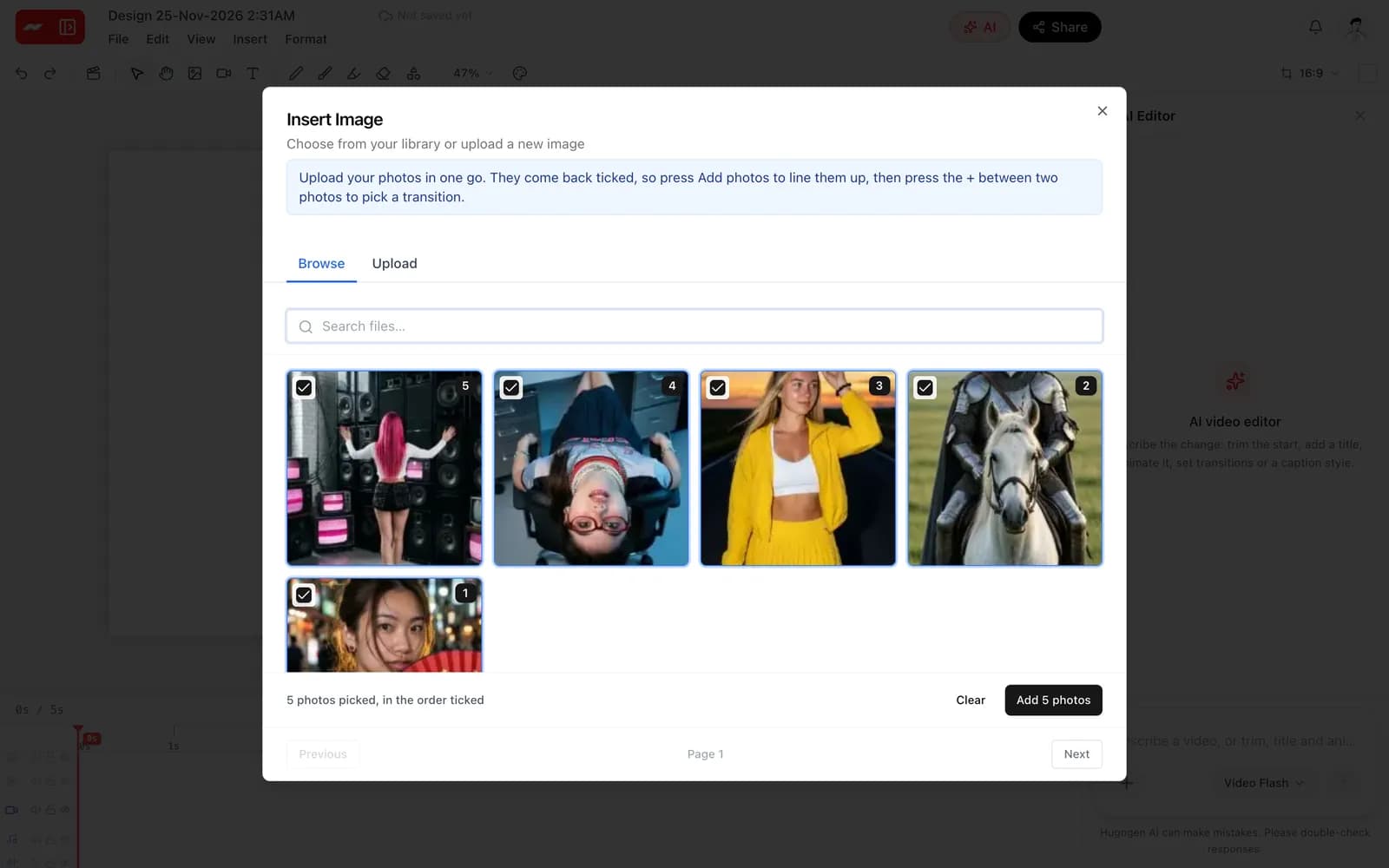
The Insert Image dialog with five photos ticked and numbered 1 to 5, and an Add 5 photos button at the foot

From a folder of photos to one video

Every ticked photo placed in one press

In the video editor the image picker puts a tick box on every photo. Photos you upload arrive ticked in upload order, and a number on each tile shows the place of each photo. Press Add photos and the photos line up on the main track, five seconds each.
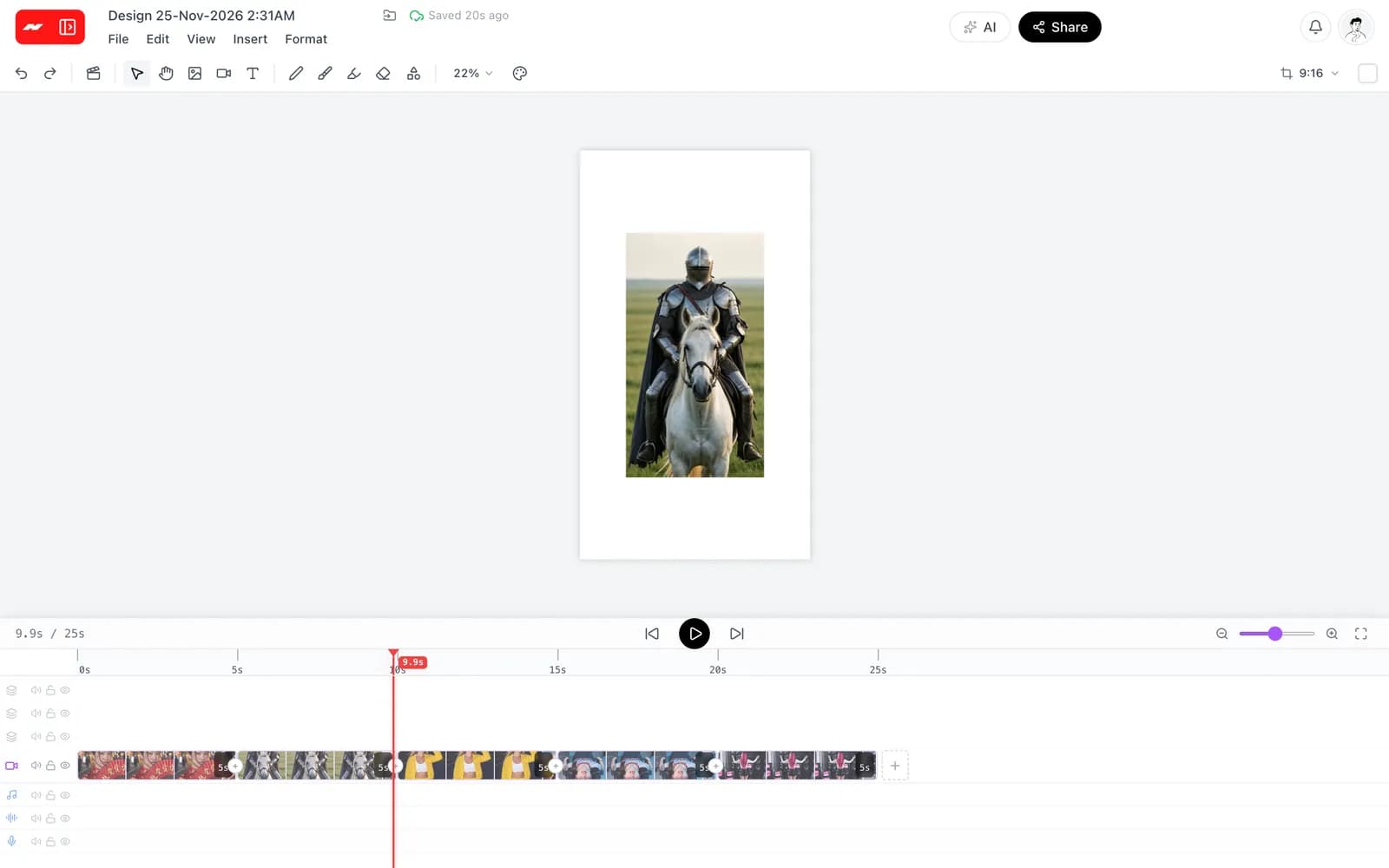
Five photos end to end on the main track, five seconds each, with a round transition button between every pair and the knight photo on a 9:16 frame

A transition between any two photos

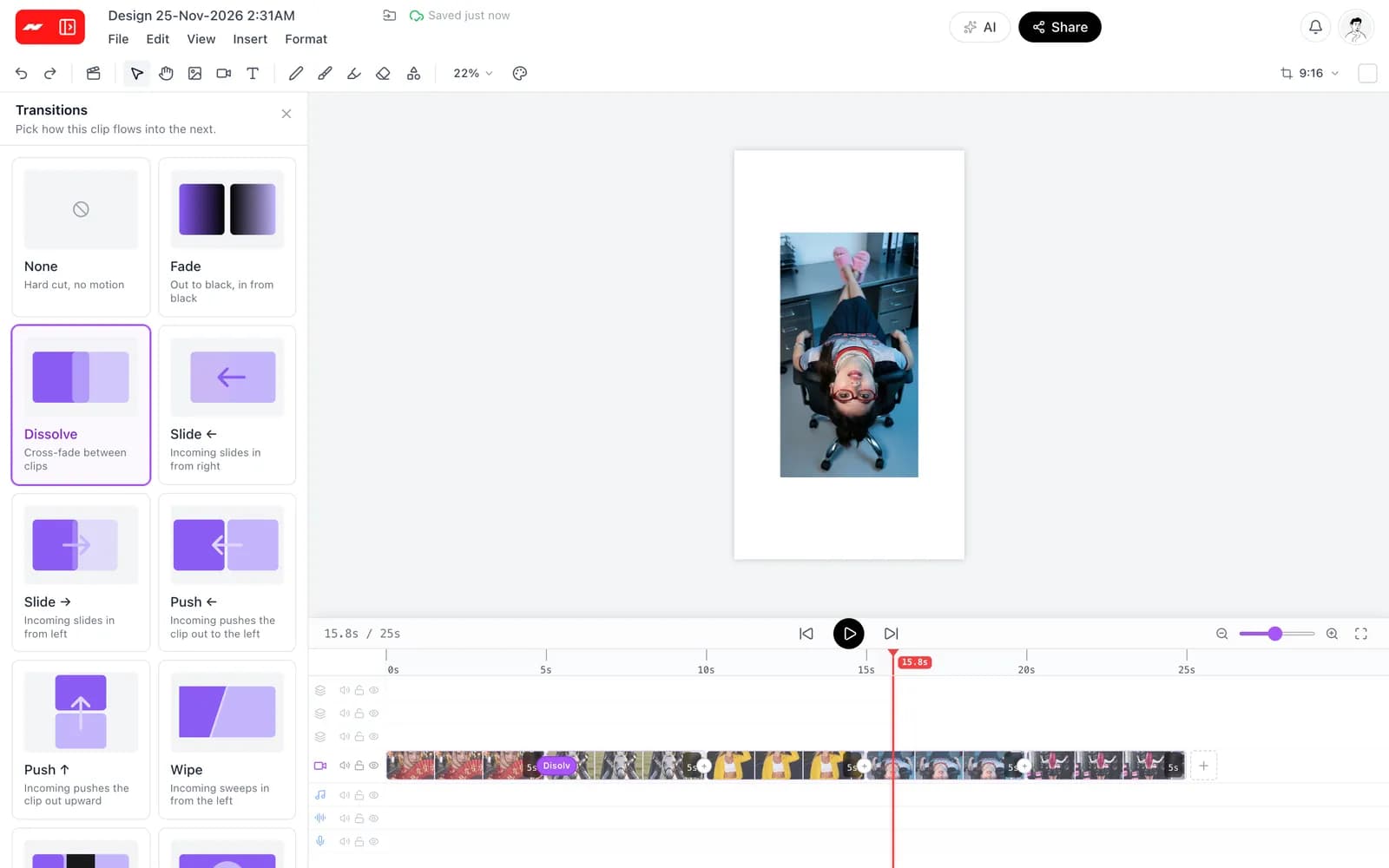
A round + button marks the join between every pair of photos. Press the + to open Transitions and pick one of ten looks. Dissolve, Fade, Wipe and Zoom are four of the ten, and a slider sets the length from 0.2 to 2 seconds.

The Transitions panel open with Dissolve chosen, and the Dissolve label on the button between the first two photos

Slow zoom and other moves on a photo

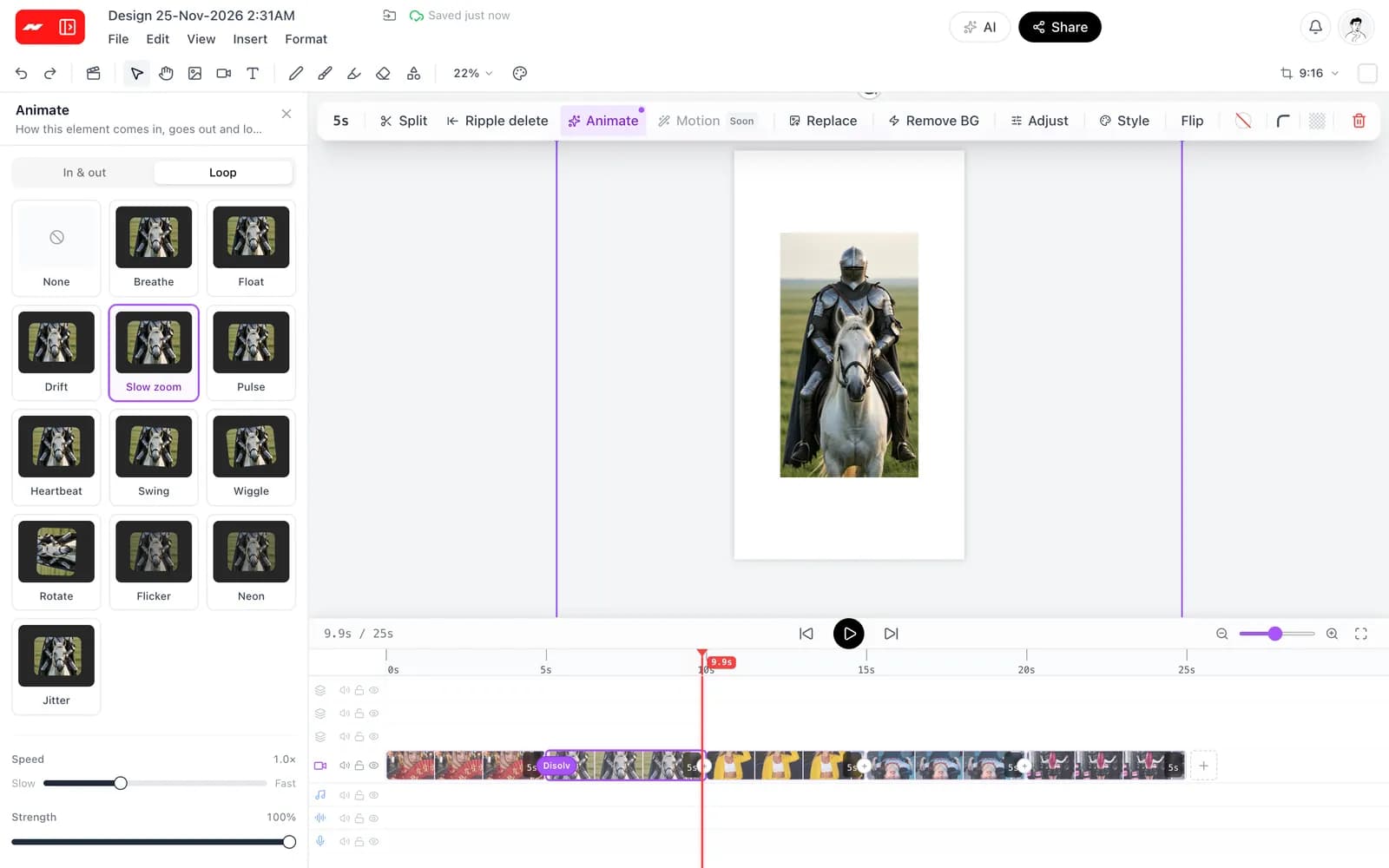
Select a photo and press Animate. The Loop tab has 12 moves, and Slow zoom pushes in a little over the whole photo. The In and out tab has 19 entrances and exits for a photo, such as Fade, Rise and Zoom.

The Animate panel on the Loop tab with Slow zoom chosen for the knight photo, and the Speed and Strength sliders below

Titles and a song of your own

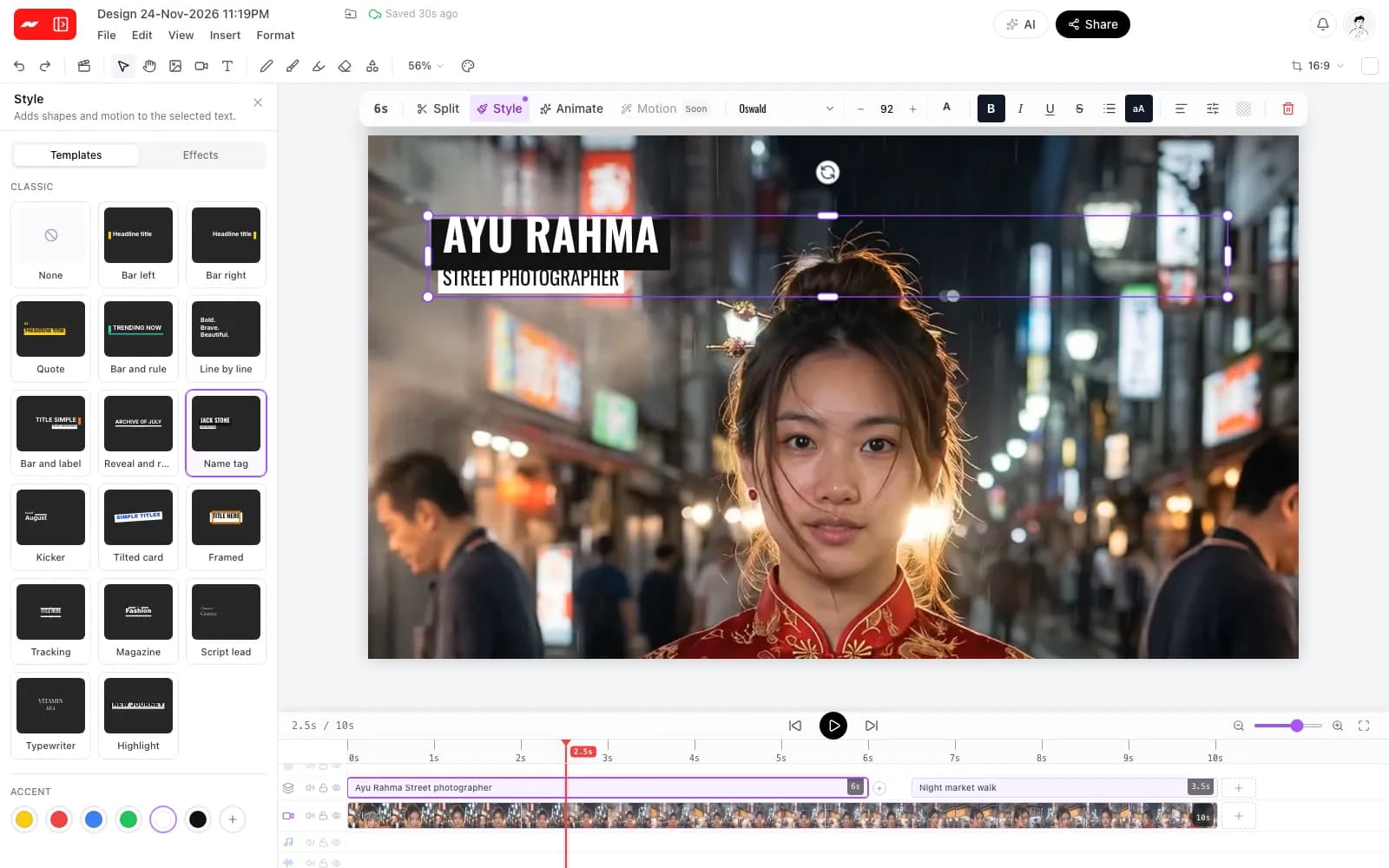
Add a title over any photo with the text tool or one of 16 text templates. Drop an MP3, WAV, M4A, AAC or OGG song from your computer onto the timeline for music. Each audio clip has a fade in and a fade out.

Titles over photos? See add text to video
The Style panel listing sixteen text templates, Name tag chosen, beside the selected title on the video

Photos and video clips on one track

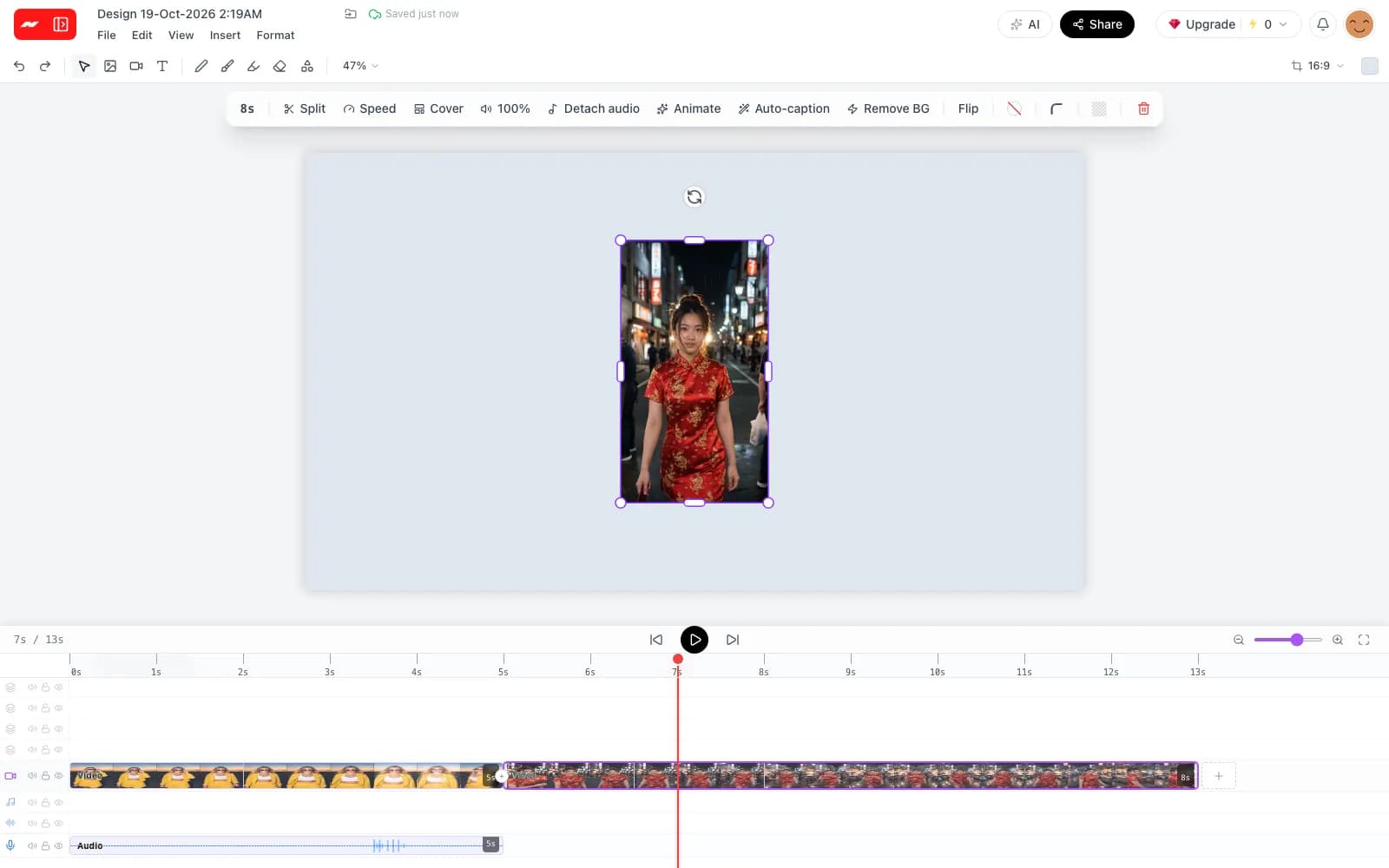
Photos and video clips can share the main track. Add photos in the image picker and Add clips in the video picker both place the new items after the last clip on the track. Exports carry no watermark on any plan.

Joining video files? See the video merger
Two video clips one after another on one timeline track, the second a vertical shot inside the wide frame, with the sound of the first clip on a separate track below

How to make a photo slideshow

  1. Step 1

    Upload your photos

    Open the video editor and upload all the photos at once. The new photos arrive ticked in upload order.

  2. Step 2

    Add the photos

    Press Add photos to place every ticked photo on the main track, one after another, five seconds each.

  3. Step 3

    Add transitions and export

    Press the + between two photos to pick a transition, add a song if you like and download the slideshow as an MP4.

Slideshows people make from photos

Each slideshow below starts as a set of still photos and ends as one MP4 file you can post or send.

A birthday or an anniversary
Photos from the years, one after another
A trip recap
The best shots from a holiday
A product showcase
One photo per product with a name over each
A property tour
Rooms in order, front door first
A tribute
Photos of a person with a favourite song
A class or team reel
Faces from the year with a title card

More free tools from Hugogen

Questions and answers

Open the video editor, upload your photos and press Add photos in the image picker. The photos go on the timeline one after another, five seconds each. Add transitions and export the result as one MP4 file.

Every photo goes on the timeline for five seconds, the default length for a picture. You can shorten a photo by dragging the right edge of the photo clip.

Yes, drop an audio file from your computer onto the timeline, such as an MP3 or a WAV song. The song uploads and keeps the real length of the file on an audio track. Each audio clip has a fade in and a fade out of up to five seconds.

The Transitions panel offers ten looks. Dissolve blends two photos, and Fade goes through black. Slide and Push move the next photo in from the side, and Wipe, Iris, Panel and Zoom are the other four. Every transition runs for 0.2 to 2 seconds.

Yes, the photos go on the timeline in the order you ticked, and the number on each tile shows the order. Photos you upload are ticked in upload order. Untick a photo and tick the photo again to move the photo to the end.

Yes, add a title with the text tool or pick one of 16 text templates from Insert. Each title is a clip on a text track, and the title shows only while the title clip runs.

Use Size in the header to pick 9:16 for Reels and Shorts, 4:5 or 1:1 for feed posts, or 16:9 for a landscape video. Each photo keeps the shape of the original and starts centred on the frame.

No, the exported MP4 carries no watermark on any plan. The free plan exports at 720p, and some paid plans add 1080p. Placing photos, transitions and animations uses no credits.

Turn your photos into a video today

Upload a set of photos, add every photo in one press, pick the transitions and download the MP4.

Make a slideshow now