Free subtitle generator

Make captions from the speech in a video or type each line, correct the words and download an SRT or VTT subtitle file.

The subtitle file is free on every plan and saves without exporting the video.

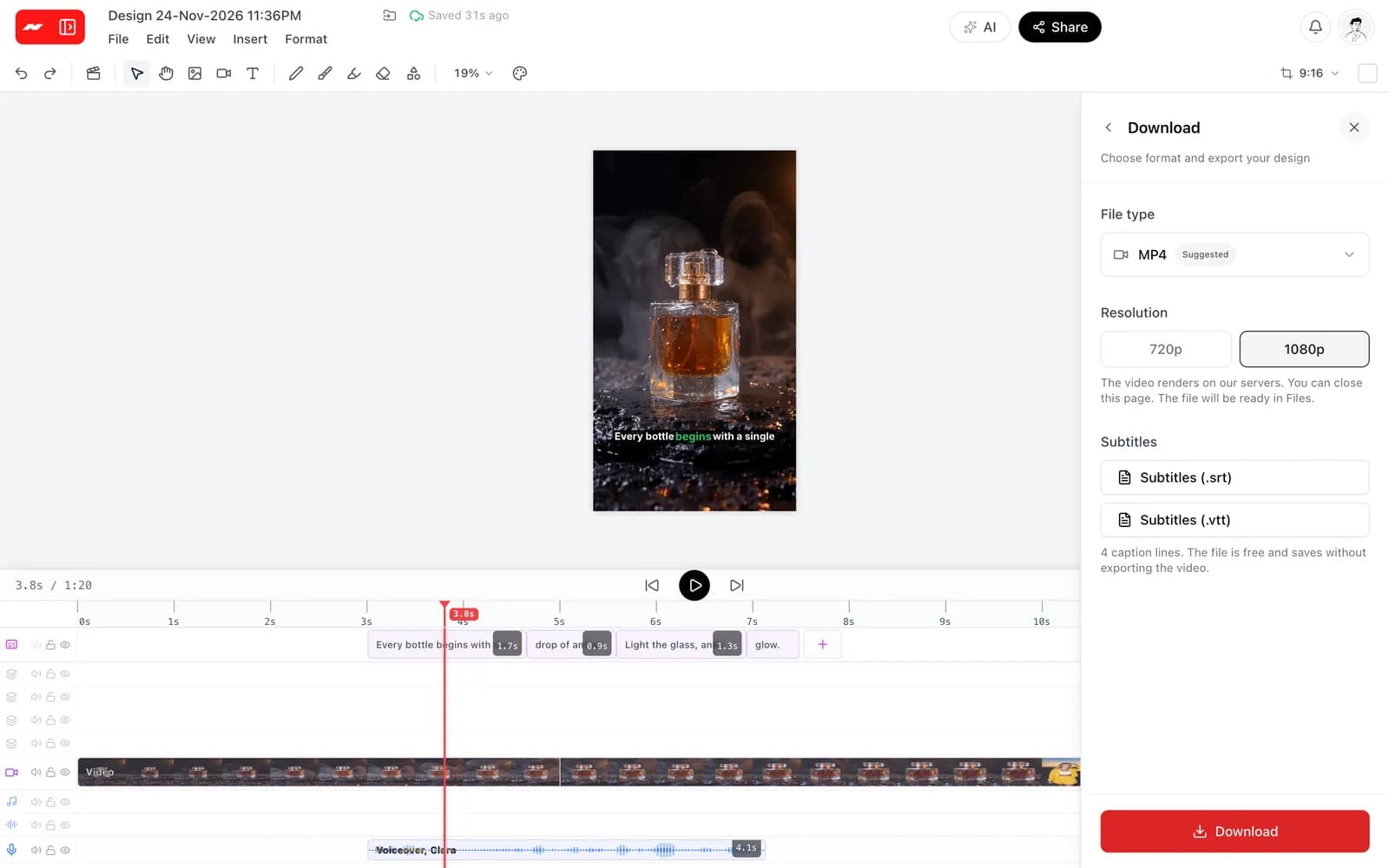
The Download panel open beside a perfume clip, with Subtitles (.srt) and Subtitles (.vtt) under the MP4 settings and four caption lines on the timeline

Captions on the timeline, subtitles in a file

Make the caption lines first

The subtitle file is built from the caption lines on your timeline. Press Auto-caption on a clip with speech, or press Add caption manually and type each line. A project with no captions keeps both download buttons off, and the panel names both ways to add captions.

Word-by-word captions? See the AI caption generator
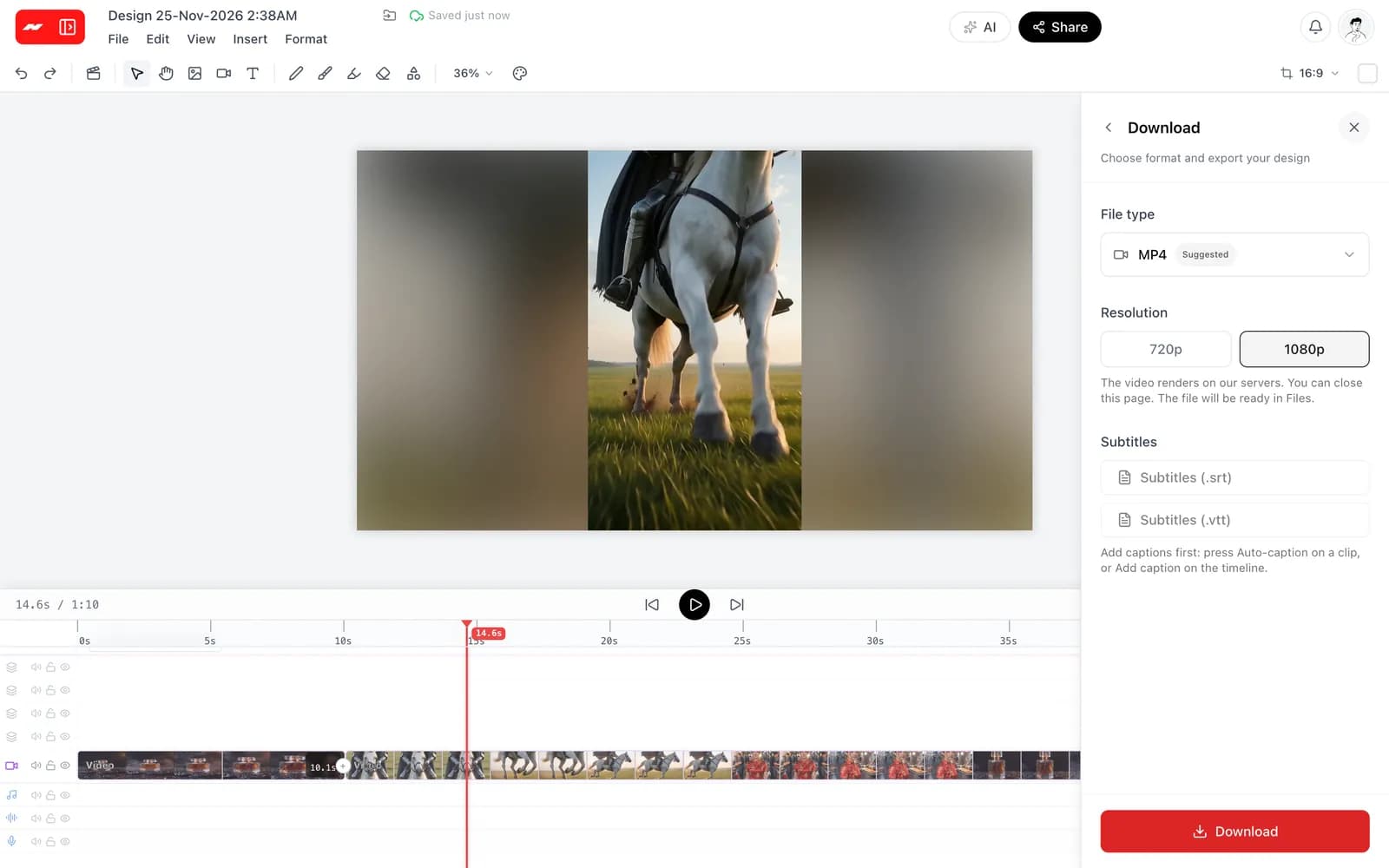
The Download panel with the two subtitle buttons switched off and a line asking you to add captions first

One caption line becomes one cue

Each caption clip on the caption track becomes one cue in the file, with the same words, start and end. Cues follow the order of the timeline. A caption you fixed by hand is saved with your fix, because the file reads the timeline at the moment you press the button.

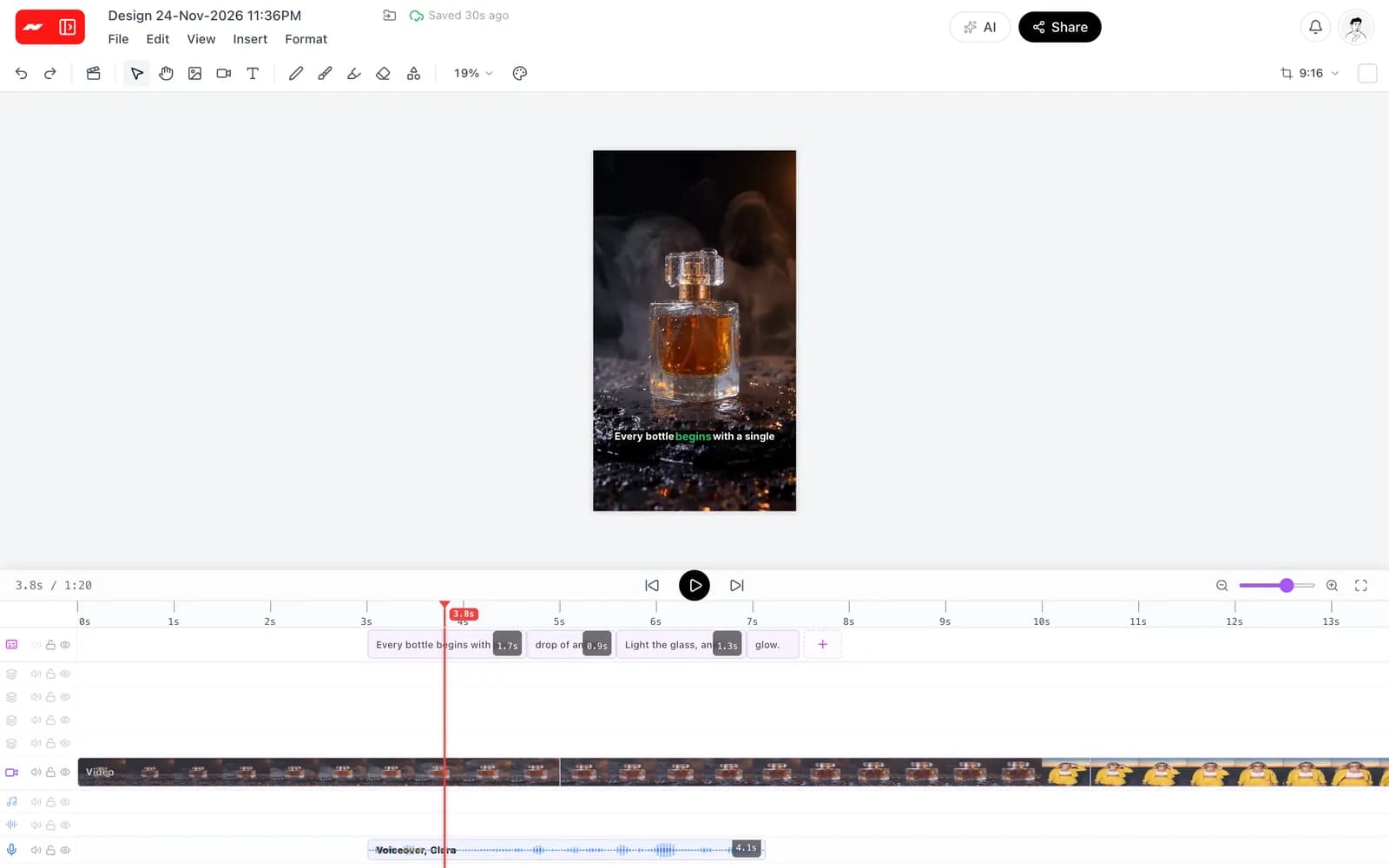
Four caption lines on the caption track above a perfume clip, with the first line showing on the video at 3.8 seconds

SRT or VTT from the Download panel

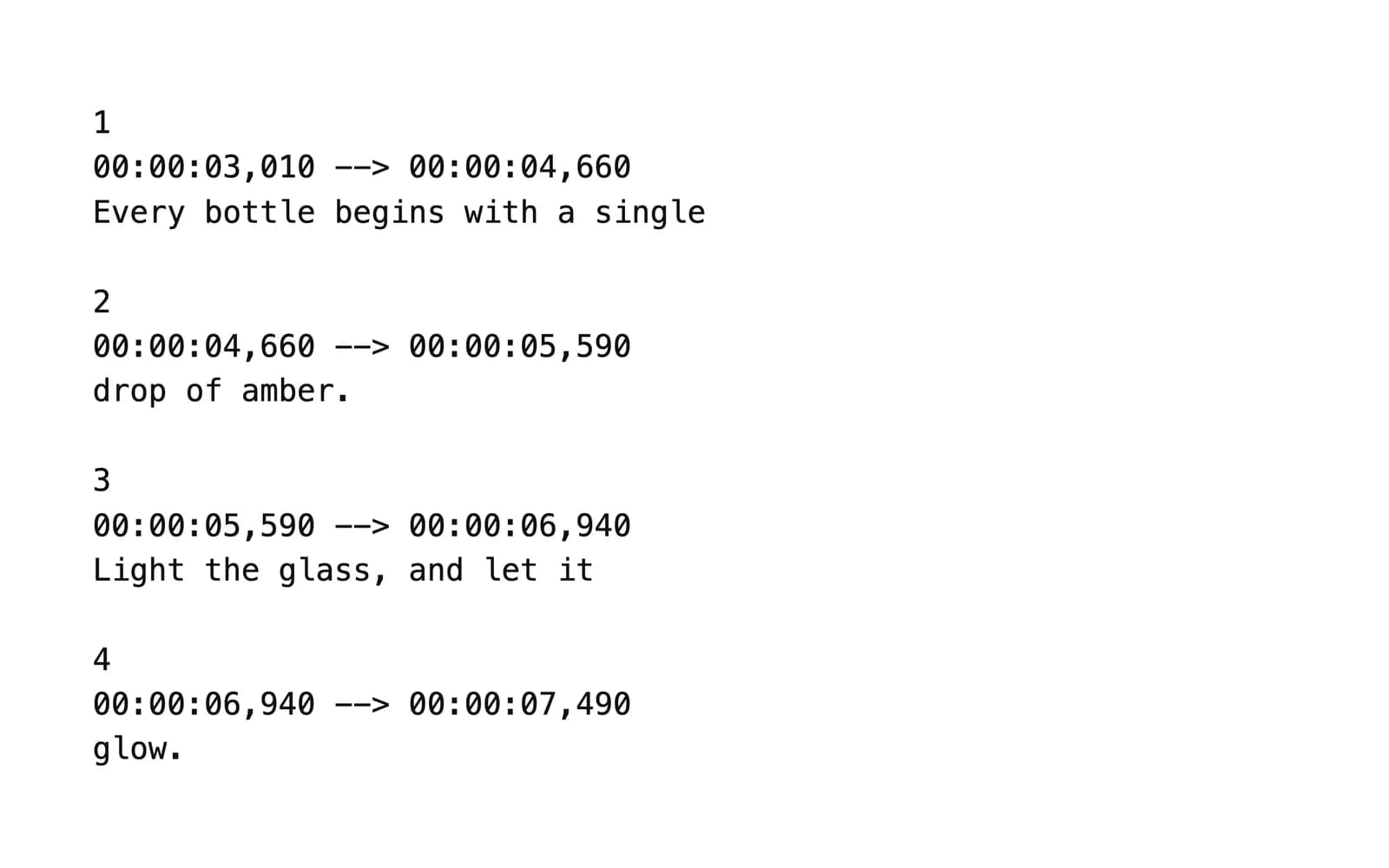
Open Share and choose Download, and press Subtitles (.srt) or Subtitles (.vtt) under Resolution. The SRT file numbers each cue and writes a time such as 00:00:03,010. The VTT file starts with WEBVTT and puts a full stop before the milliseconds.

An SRT file saved from the Download panel, with four numbered cues, the start and end time of each cue and the words of each line

Subtitles in the picture as well

The same captions are drawn into the MP4 when you export the video. Use the file where a player or a platform asks for subtitles beside the video. Use the MP4 where the words must show everywhere, and exports carry no watermark on any plan.

Subtitles in the picture? See add subtitles to video
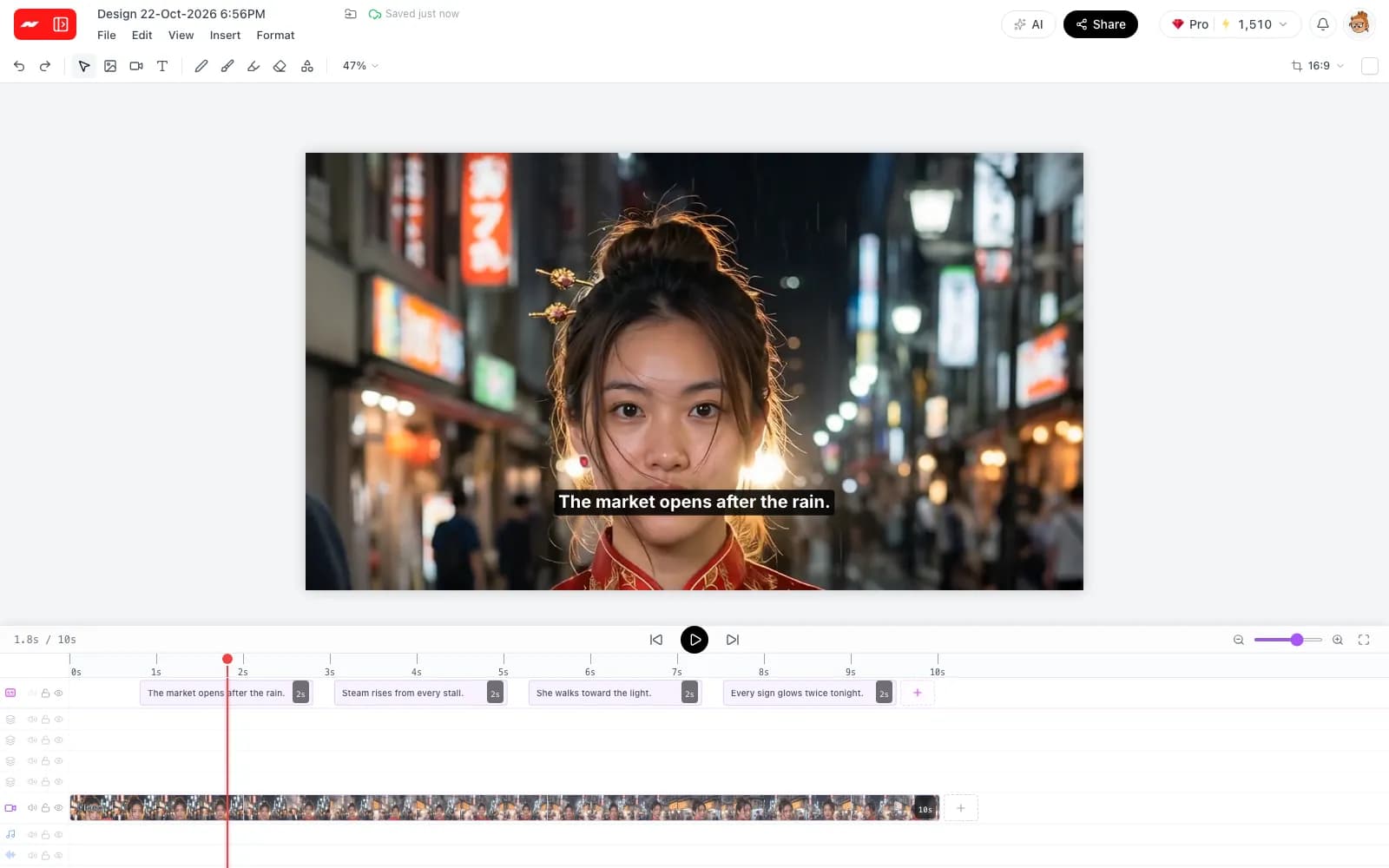
A plain white subtitle in the lower third of a landscape video in the Hugogen video editor

How to generate a subtitle file

  1. Step 1

    Add your video

    Open the video editor and add the video you want subtitles for, from an upload or from your library.

  2. Step 2

    Make the captions

    Press Auto-caption on the clip to write captions from the speech, or type each caption on the caption track. Double-click a caption to fix a word.

  3. Step 3

    Download the file

    Open Share and choose Download. Press Subtitles (.srt) or Subtitles (.vtt), and the file saves straight away.

Places a subtitle file is used

A subtitle file travels beside the video, and the player draws the words over the picture while the video plays.

A video on YouTube
Upload the SRT as a subtitle track
A video on your own website
VTT is the format of the web video track
An online course
Attach the file as the captions of a lesson
Another video editor
Import the cues with every timing kept
An archive of your videos
A text copy of every line spoken

More free tools from Hugogen

Questions and answers

Both formats list cues with a start time, an end time and the words. SRT numbers every cue and puts a comma before the milliseconds. VTT starts with the word WEBVTT and puts a full stop before the milliseconds, the format a web page video player reads.

No, saving an SRT or VTT file is free on every plan, the free plan included. The file is made in your browser and needs no export. Auto-caption uses credits by the minute of video, and typed captions cost nothing.

Yes, the file is built from the caption lines on the timeline at the moment you press the button. After a double-click, any word you change is saved with your change. A caption line you deleted is left out of the file.

Auto-caption finds the spoken language by itself and writes the captions in that language. Typed captions can be in any language you type. The file keeps every word exactly as the caption lines show the words.

Yes, press Add caption manually on the caption track, or the + after the last caption, and type the line. Each new caption starts two seconds long, and you can stretch or move the caption clip. Typed captions use no AI and no credits.

You do not need to export the video first. The Subtitles buttons save the file at once, and the line under the buttons says the same. Export the MP4 separately when you also want the video with the captions drawn in.

Ripple delete on the main video track moves the caption lines with the footage. Lines inside the removed part are deleted, and lines after the cut move earlier. A file you save after the cut follows the new timing.

The buttons stay off until the project has at least one caption line that shows. Captions on a hidden track and hidden captions are left out of the file. Add a caption with Auto-caption or Add caption manually, and the buttons switch on.

The file takes the project title in lower case, with hyphens between the words, and ends in .srt or .vtt. A project with no usable title saves as subtitles.srt or subtitles.vtt.

Turn your captions into a subtitle file

Caption a video, fix the words and save an SRT or VTT file without exporting anything.

Make a subtitle file