24 languages from one voice
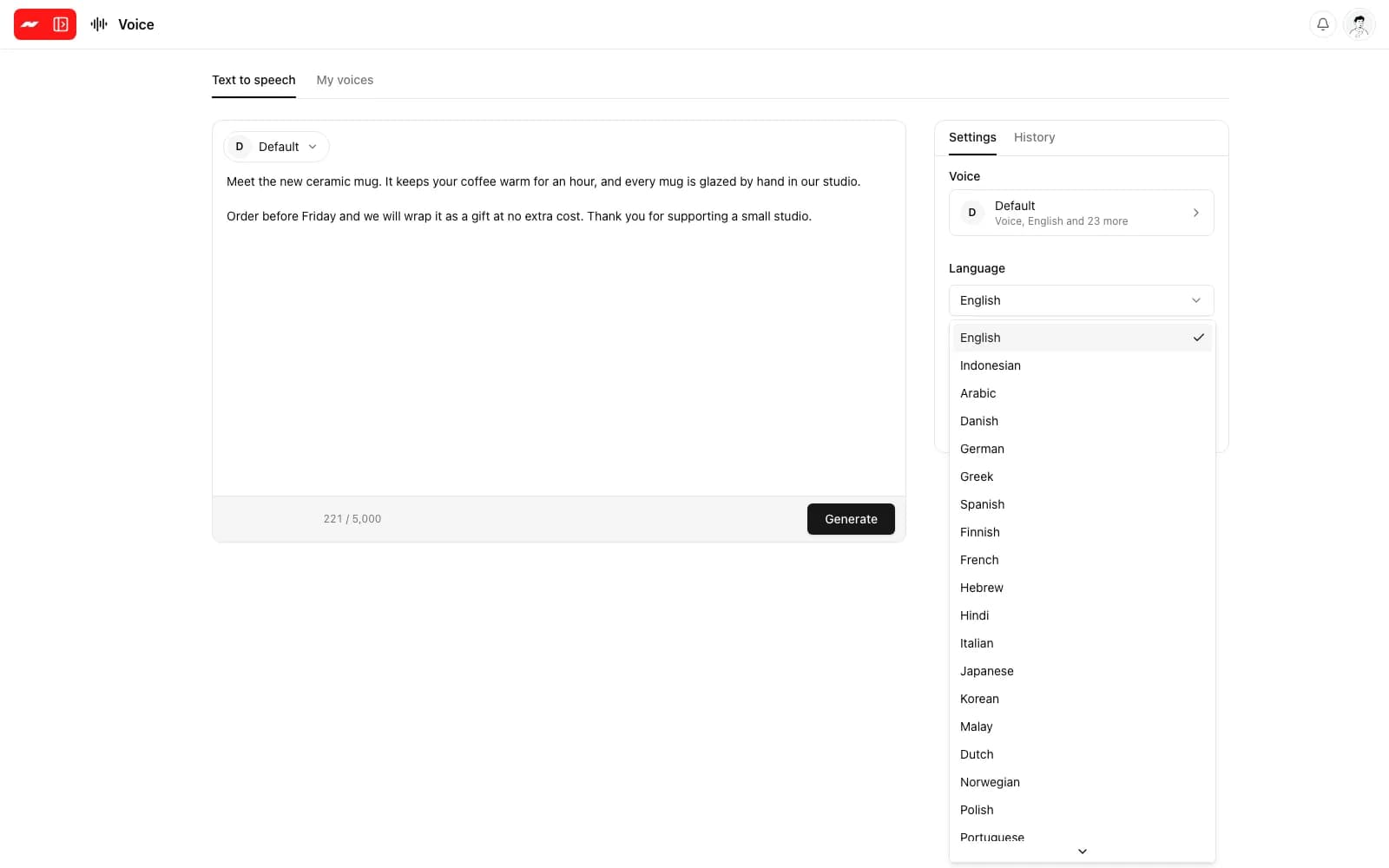
Pick a language from a list of 24, from English and Spanish to Japanese, French and German. The Default voice reads every language on the list. Write up to 5,000 characters in one voiceover.
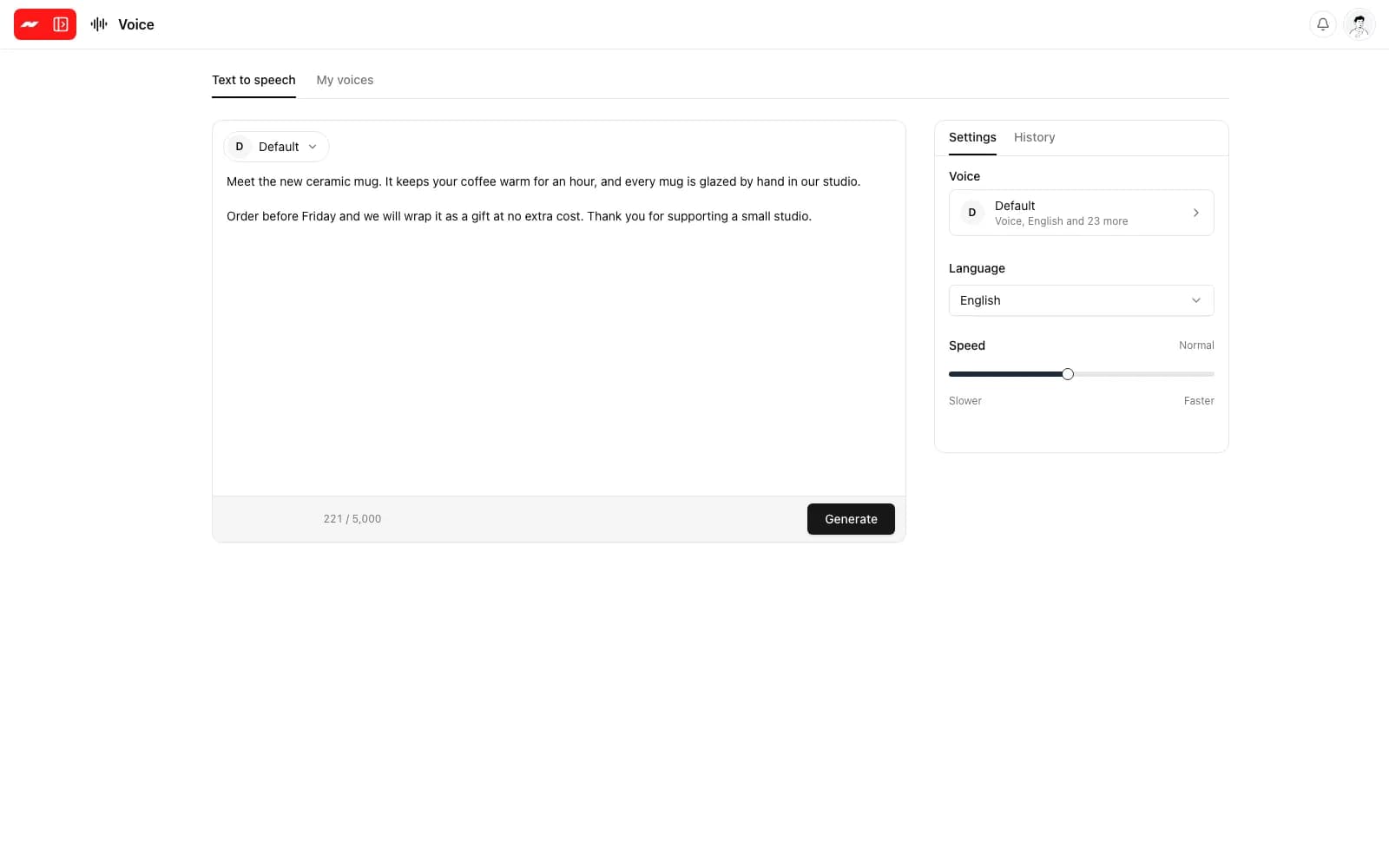
Write a script, pick a language and a speed, and download the voice as an MP3 file.
Nothing runs until you press Generate, and the cost shows beside the button first.
Pick a language from a list of 24, from English and Spanish to Japanese, French and German. The Default voice reads every language on the list. Write up to 5,000 characters in one voiceover.
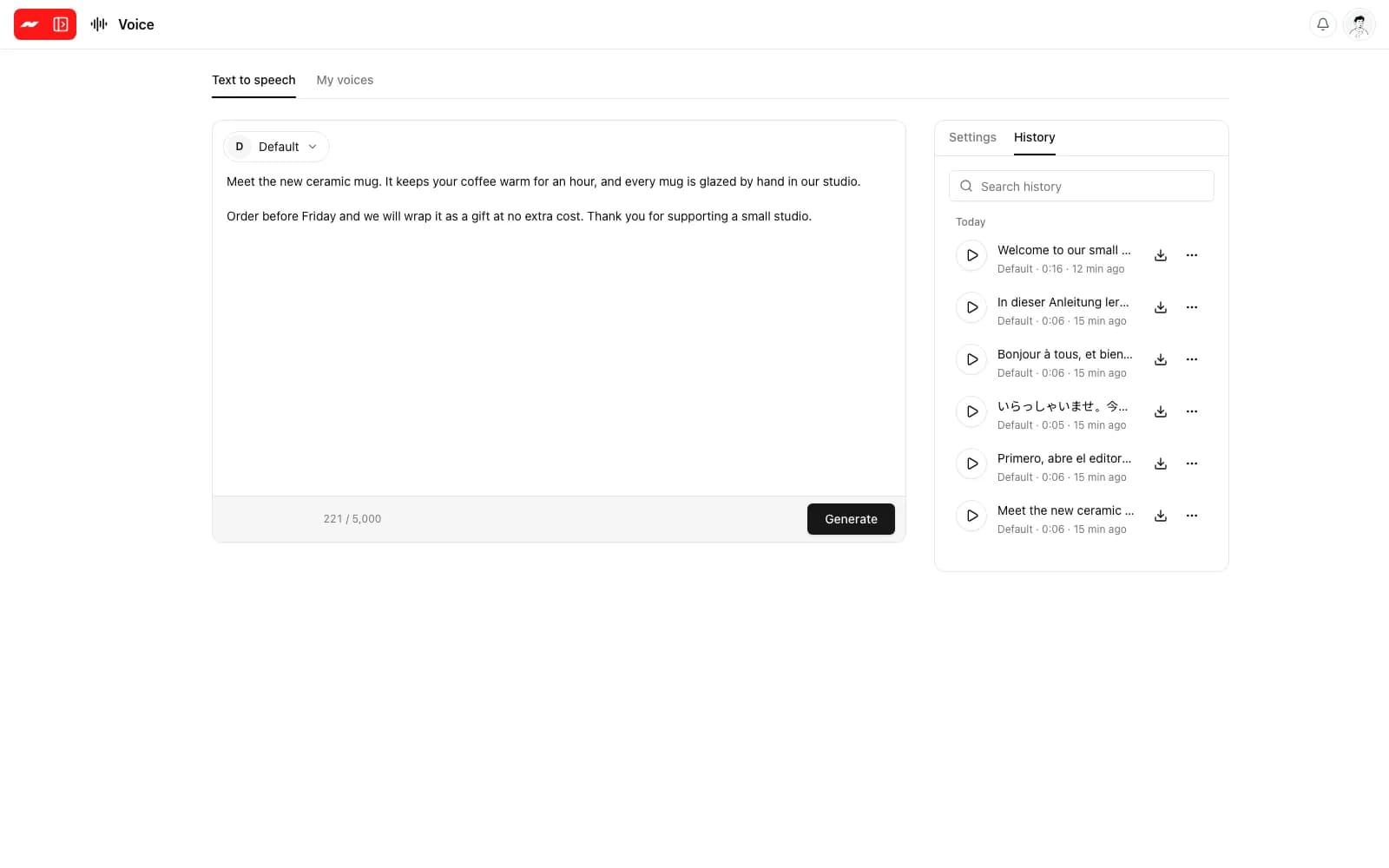
Each voiceover is saved in History with a play button and a Download button. The file is an MP3, ready for a video editor, a podcast app or a website. Search the history by any word of a script.
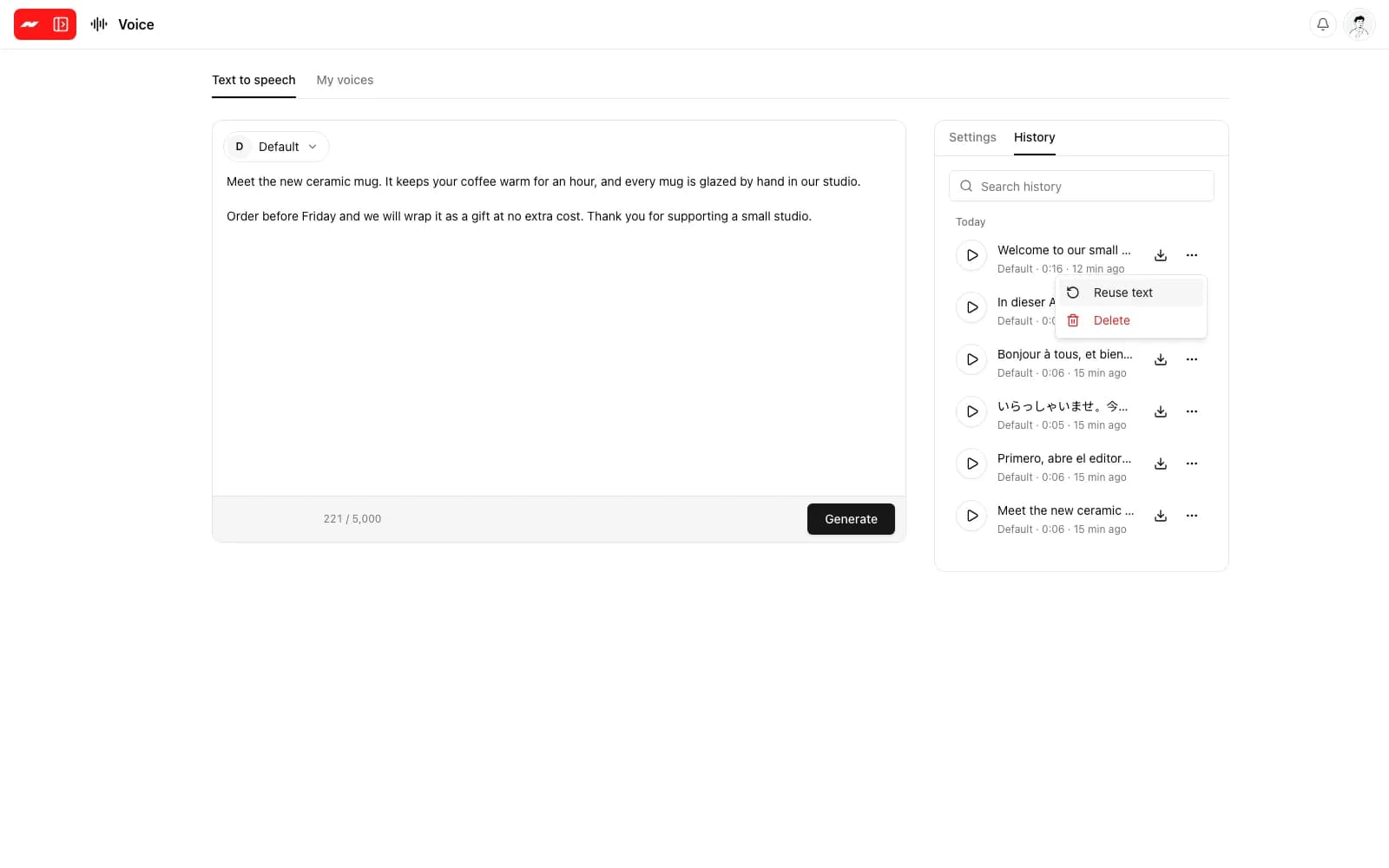
Open the menu on a history row and choose Reuse text. The script, the voice, the language and the speed return to the editor. Change a word or a language and generate a new version.
Make a voice clone from a short recording of your own voice on the My voices tab. The clone appears under My voices in the voice picker, next to the Default voice. Voice clones come with paid plans.
How voice cloning works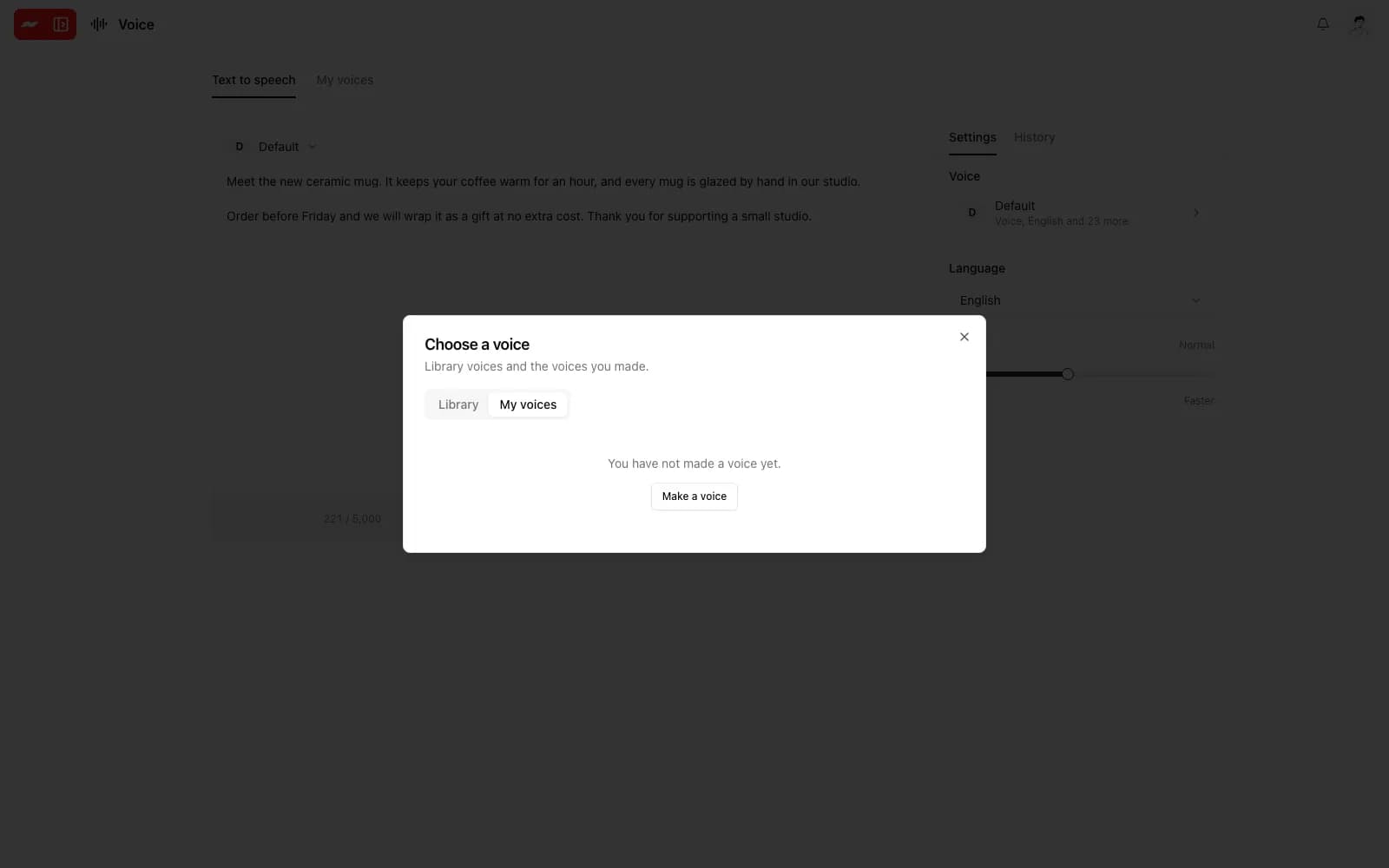
Each sample is a file the Voice page made on 28 November 2026, at Normal speed. Nothing was edited after the voice was made.
English · 0:06
Meet the new ceramic mug. It keeps your coffee warm for an hour, and every mug is glazed by hand in our studio.Spanish · 0:06
Primero, abre el editor y sube tu video. Después, escribe el texto que quieres escuchar y elige el idioma.Japanese · 0:05
いらっしゃいませ。今週から、新しい春のコレクションが店頭に並んでいます。French · 0:06
Bonjour à tous, et bienvenue dans notre podcast. Aujourd'hui, nous parlons de trois idées simples pour mieux dormir.German · 0:06
In dieser Anleitung lernst du in drei Schritten, wie du dein erstes Video schneidest und mit Untertiteln exportierst.Step 1
Open the Voice page and type or paste your script into the text box. One voiceover takes up to 5,000 characters.
Step 2
Choose one of 24 languages in Settings and move the speed slider between Slower and Faster. The cost shows beside Generate.
Step 3
Press Generate and wait for the voice. The voiceover appears in History with a play button and a Download button for the MP3.
Each use below starts from words you write and ends as an MP3 file you can download.
Write the script, pick one of 24 languages and download the MP3. Text to speech works on every plan.
Start text to speech